The three main apps people use to run local AI models offline are Ollama, LM Studio and Atomic Chat.
That said, each has its pros and cons. In this guide, we'll compare them in terms of ease of setup and use, and hardware efficiency. This will help you decide which local AI app is the best for you.
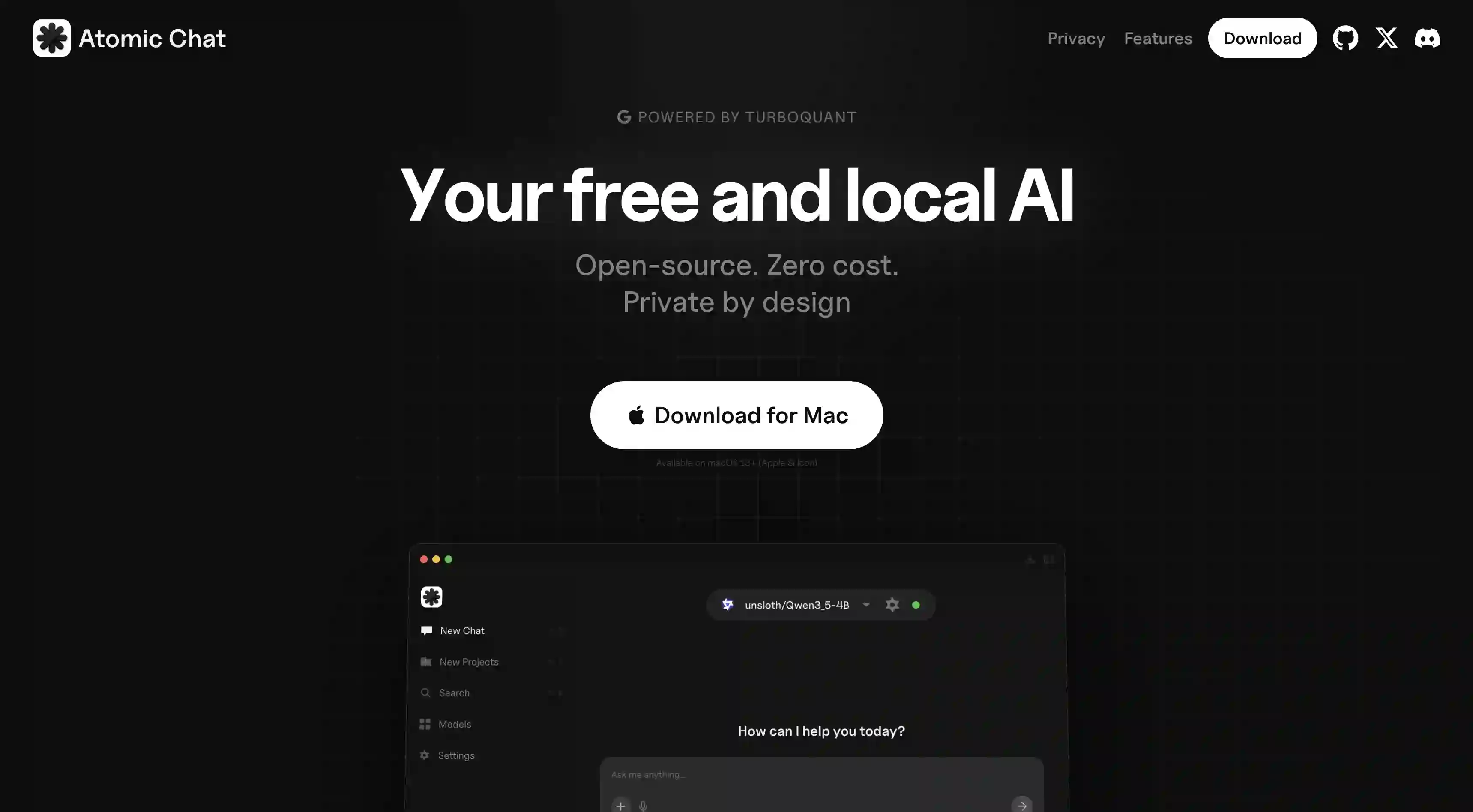
Atomic Chat is the best local AI app for everyday use — it offers a native chat UI, cross-session memory, and direct integrations with Gmail, Slack, and other productivity apps, all while being 100% free and open source.
Ollama is the best choice for developers — it's CLI-first with an OpenAI-compatible API, Modelfile configuration, and headless deployment, making it ideal for embedding LLMs into backends and scripts.
LM Studio is best for power users who want granular control — it exposes every inference parameter through a GUI and supports side-by-side model comparison.
All three apps are free. Atomic Chat and Ollama are open source; LM Studio is closed source.
Atomic Chat's TurboQuant technology fits a 27B model into ~12 GB of VRAM where standard Q4 quantization needs 18 GB, letting you run more powerful models on modest hardware.
Ollama vs LM Studio vs Atomic Chat Compared
The table below compares Ollama vs LM Studio vs Atomic Chat at a glance.
Feature
Atomic Chat
Ollama
LM Studio
Ease of use
⭐⭐⭐⭐⭐
⭐⭐
⭐⭐⭐⭐
Best for
Everyday chat
Developers
Power users
Install without terminal
✅
❌
✅
Graphical interface
✅
❌
✅
One-click model download
✅
✅
✅
Browse Hugging Face in-app
✅
❌
✅
OpenAI-compatible API
✅
✅
✅
Cross-session memory
✅
❌
❌
App integrations (Gmail, Slack, etc.)
✅
❌
❌
Open source
✅
✅
❌
Mac
✅
✅
✅
Windows
Coming soon
✅
✅
Linux
Coming soon
✅
✅
Price
Free
Free
Free
Atomic Chat: Best Local AI App
Atomic Chat is a native Mac app for running local LLMs, built by the Overchat AI team and released as an open source project on GitHub. It’s completely free to use and allows you to download and chat with any model from Hugging Face using a ChatGPT-like interface.
Atomic Chat Features
TurboQuant. Atomic Chat supports TurboQuant, a quantization method that compresses model weights more efficiently than standard 3-bit GGUF and compresses the KV cache by roughly 6×. In practice this means Atomic Chat fits a 27B model into about 12 GB of VRAM where the same model at standard Q4 needs 18 GB, allowing you to run more powerful models or use larger context windows more efficiently.
Hugging Face browser. Atomic Chat has a built-in browser that shows the entire Hugging Face catalog of models, allowing you to filter models by different parameters, choose the perfect match for your system and download and run it in just a few clicks.
App integrations. The app connects directly to Gmail, Slack, Figma, Trello, and Google Calendar, as well as hundreds more apps, through built-in integrations, allowing you to use AI in tools where you already live and work out of the box.
Cross-session memory. You can use multiple models and thanks to built-in shared memory they will all remember your preferences and improve over time — this works without any further setup right from the get-go.
Why Choose Atomic Chat:
This local AI app is as easy to use as ChatGPT, but it works 100% offline
You can integrate an AI assistant into your productivity tools in a single click
Atomic Chat comes with unified memory that’s shared between sessions and even different models
Thanks to TurboQuant, you can run powerful models even on modest hardware
It’s 100% free and fully open source
Ollama: Best Local AI App for Developers
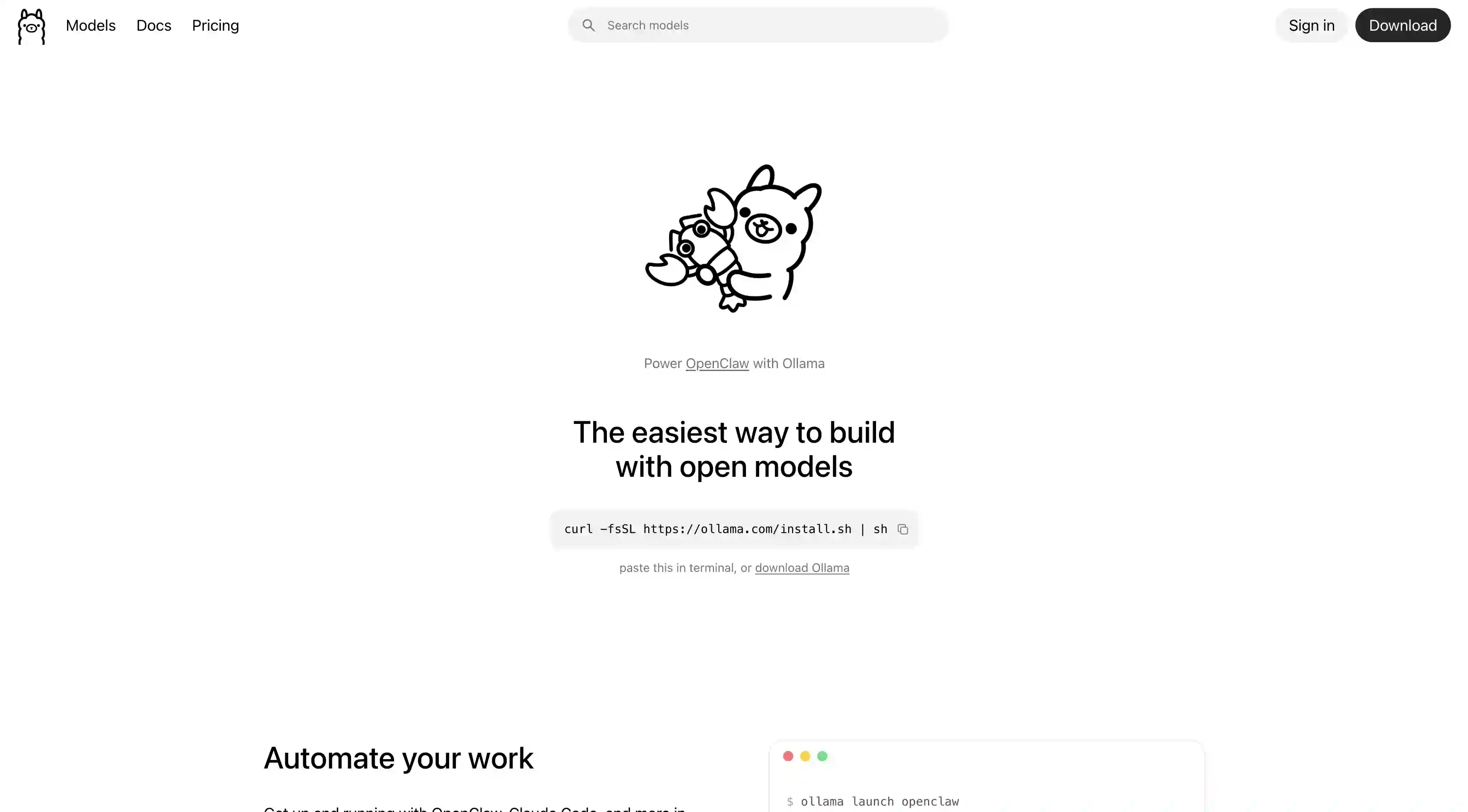
Ollama is a command-line tool for running local LLMs primarily targeted at developers. If you need a local AI app for embedding workflows, then Ollama is hard to beat.
Ollama Features
Ollama is a command-line tool for running local LLMs, built around a model-pulling workflow similar to Docker. It has the largest user base of the three apps, primarily because it's the backend that most third-party local-AI integrations target.
API-first design. Ollama's main way of being used is through an HTTP API. Running ollama serve starts a server that listens on port 11434 and accepts requests in the same format as OpenAI's API — so any tool or library written for OpenAI (LangChain, LlamaIndex, the OpenAI Python SDK, VS Code extensions) can point at your local Ollama instance instead of OpenAI's servers. Note: Atomic Chat has a similar API server.
Modelfile configuration. Ollama uses Modelfile configuration files with syntax similar to Dockerfiles — where you specify the base model, system prompt, temperature, stop sequences, and context length. This allows you to fine tune how the model behaves.
Headless deployment. Because Ollama is command-line only, you can install it on a headless Linux server, connect to it from your laptop, and share the inference endpoint across your team.
Developer tools. Most new local AI apps geared at developers add support for Ollama first, because it's the quintessential offline AI app for development workflows.
Why choose Ollama:
When you need a local LLM as a backend
To automate model deployment, inference, or prompt pipelines via scripts
Run models on a headless server or shared infrastructure
Integrate local AI into code editors through existing tooling
Share configuration files and ensure models behave the same way across teams
LM Studio: Best Local AI App for Power Users
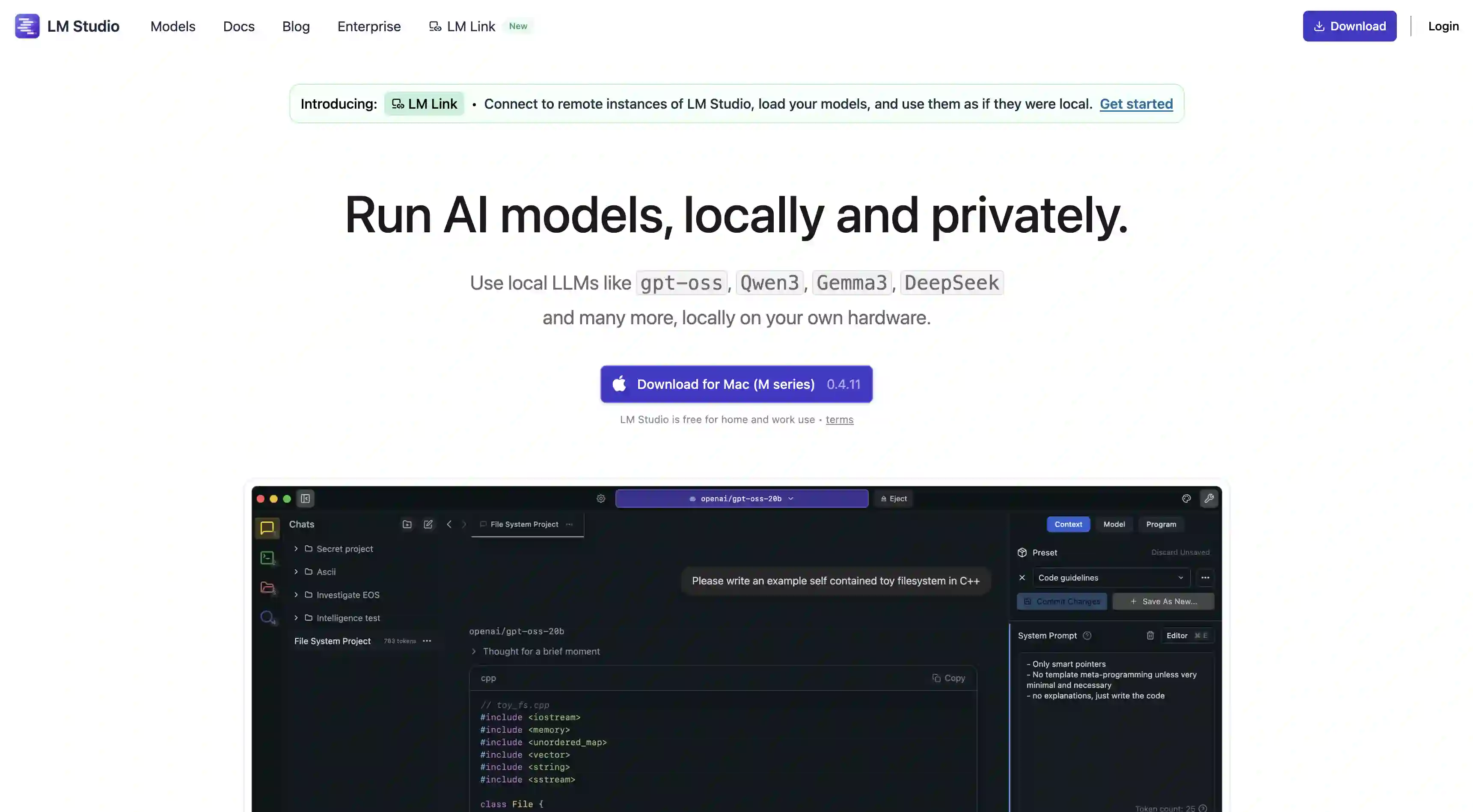
LM Studio is a desktop GUI app for running local LLMs, but it's skewed more towards developers and power users vs optimized for extremely easy setup.
LM Studio Features
Runtime parameter control. LM Studio exposes every inference parameter through sliders and fields in the interface so you can granularly customize the context length, temperature, top-p, top-k, repetition penalty, and write your own system prompts, to really make the model your own and control how it responds. This is done via a graphical interface so you don't need to be a developer, but there's a learning curve involved with learning what parameters do and how they affect the model behaviour.
Side-by-side model comparison. You can load multiple models into memory at the same time and send the same prompt to all of them, then see the responses next to each other in one window.
Cross-platform. LM Studio has apps for Mac, Windows, and Linux.
Why Choose LM Studio:
A GUI app with advanced customization options great for tinkerers
You can compare multiple models side by side
Works on Windows or Linux
FAQ
What is the best local AI app in 2026?
Atomic Chat is the best local AI app — vs Ollama and LM Studio it offers a native chat UI, cross-session memory, and direct integrations with productivity apps that you already live in like Gmail, Slack, and Calendar, while thanks to TurboQuant you can run larger models on less VRAM with up to 6x more context window.
Ollama vs LM Studio: which one is easier to use?
LM Studio is easier to use than Ollama, because it has a full GUI with a model browser, while Ollama runs only in the terminal and requires you to learn its specific Modelfile syntax.
Is Atomic Chat better than Ollama?
It depends on what you want to get out of the app — based on ease of use and setup the answer would be yes, Atomic Chat is more suited to that type of work. But for embedding a local LLM into a production backend or a scripted pipeline, Ollama would be better suited.
Which local AI app uses the least VRAM?
Atomic Chat uses the least VRAM because it supports TurboQuant — this algorithm fits a 27B model into around 12 GB of VRAM, which with more standard compression would require over 18 GB of VRAM.
Is Atomic Chat open source?
Yes. Atomic Chat is fully open source and you can find the entire source code on GitHub. Ollama is also open source, while LM Studio is closed source.
Wrapping Up
If you're looking for the best offline AI app, Atomic Chat lets you download models from Hugging Face with a single click and run them using TurboQuant for faster inference and up to 6× KV cache compression, enabling longer context windows on your hardware.