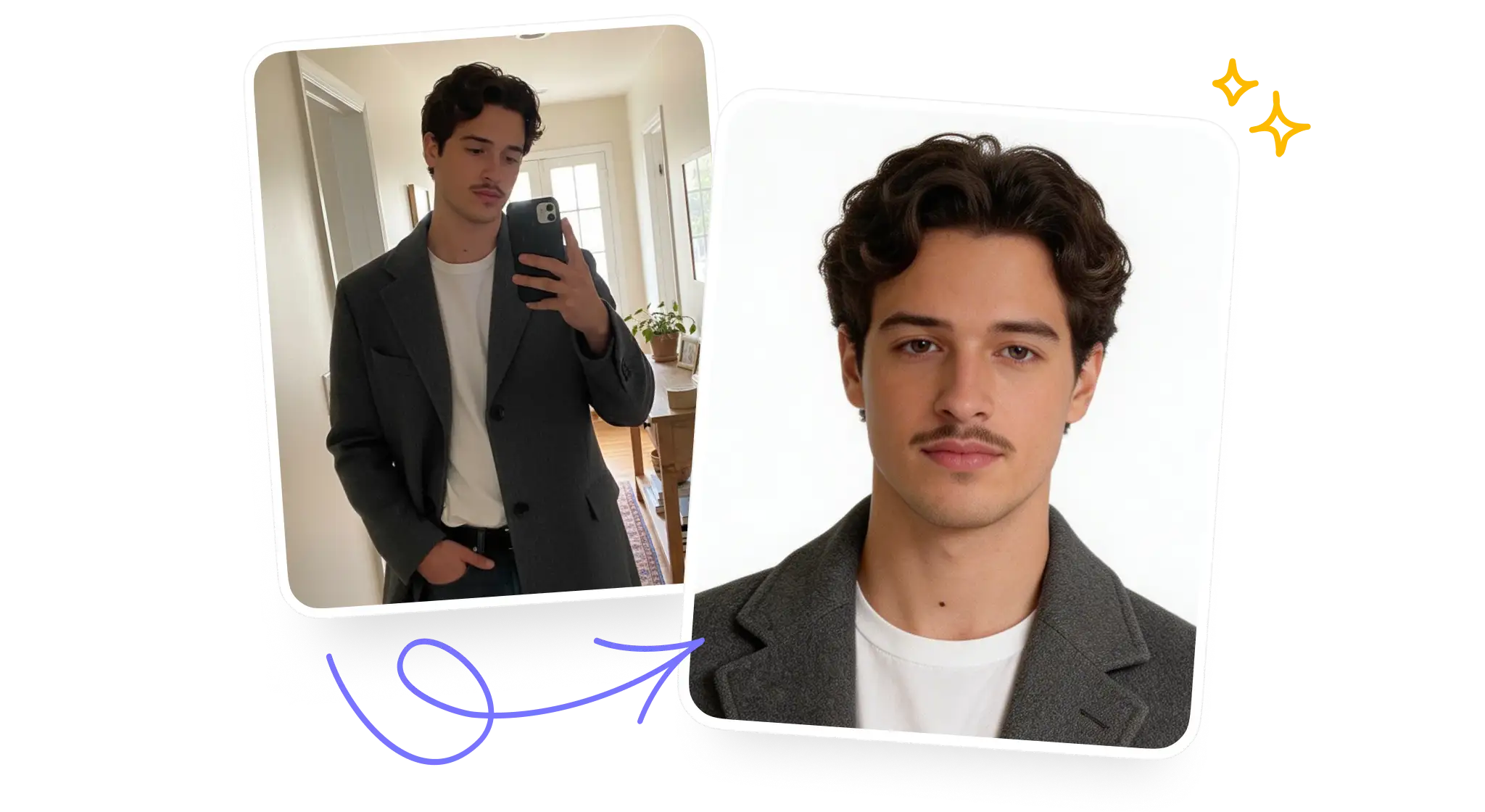
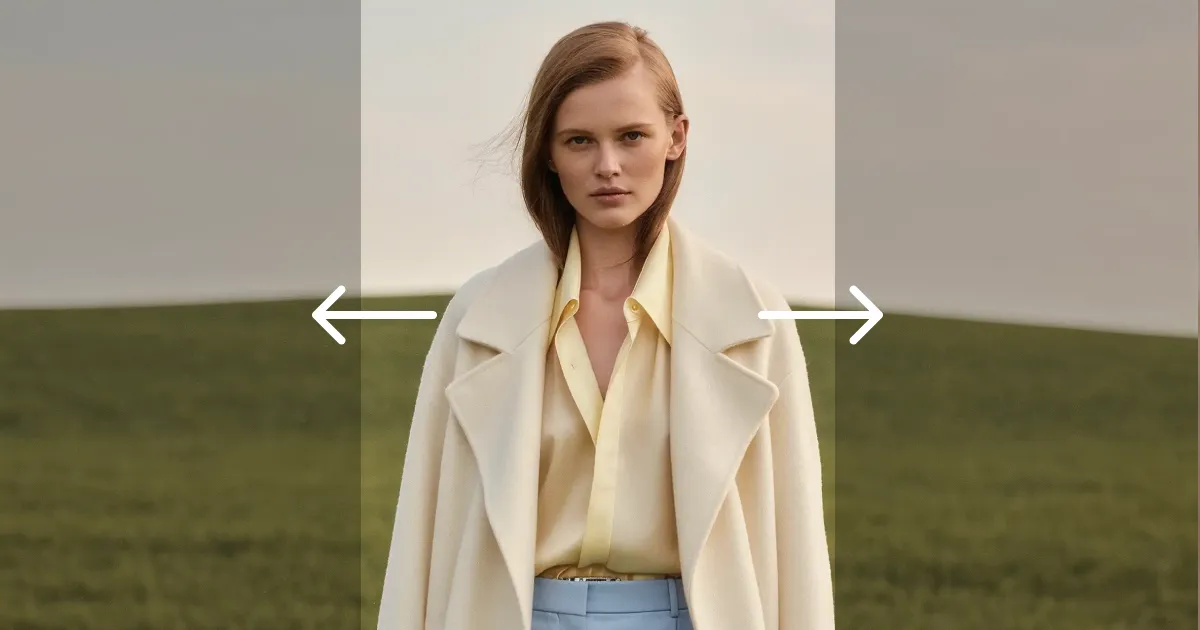
Turn any photo into a new image with AI. Upload a picture, describe the change and get a new version from Nano Banana, GPT Image 2.5, Seedream or Flux in one free AI image to image generator.
Overchat AI brings together 13 image to image models, including Nano Banana, GPT Image 2.5, Seedream 5, Flux 2 Max, Grok Imagine and Qwen Image. Upload a photo, describe the change and pick the model that fits the edit.

Best for editing your own photos: a new background, outfit or detail while faces and products stay recognizable. Nano Banana is the low-cost option, and Nano Banana Pro takes up to 8 photos.

Best for combining several photos into one image and following long, detailed prompts. Takes up to 16 reference photos and keeps text in the image readable.

Best for photorealistic portraits, product shots and fashion images. Works from up to 10 reference photos and renders natural skin, fabric and light.

Best for realistic lighting, skin and fine detail when the result has to look like a real photo. Takes up to 5 reference photos.

Best for bold, stylized restyles and quick experiments. Grok Imagine Image is the lowest-cost model here, so it suits trying out an idea before a final version.

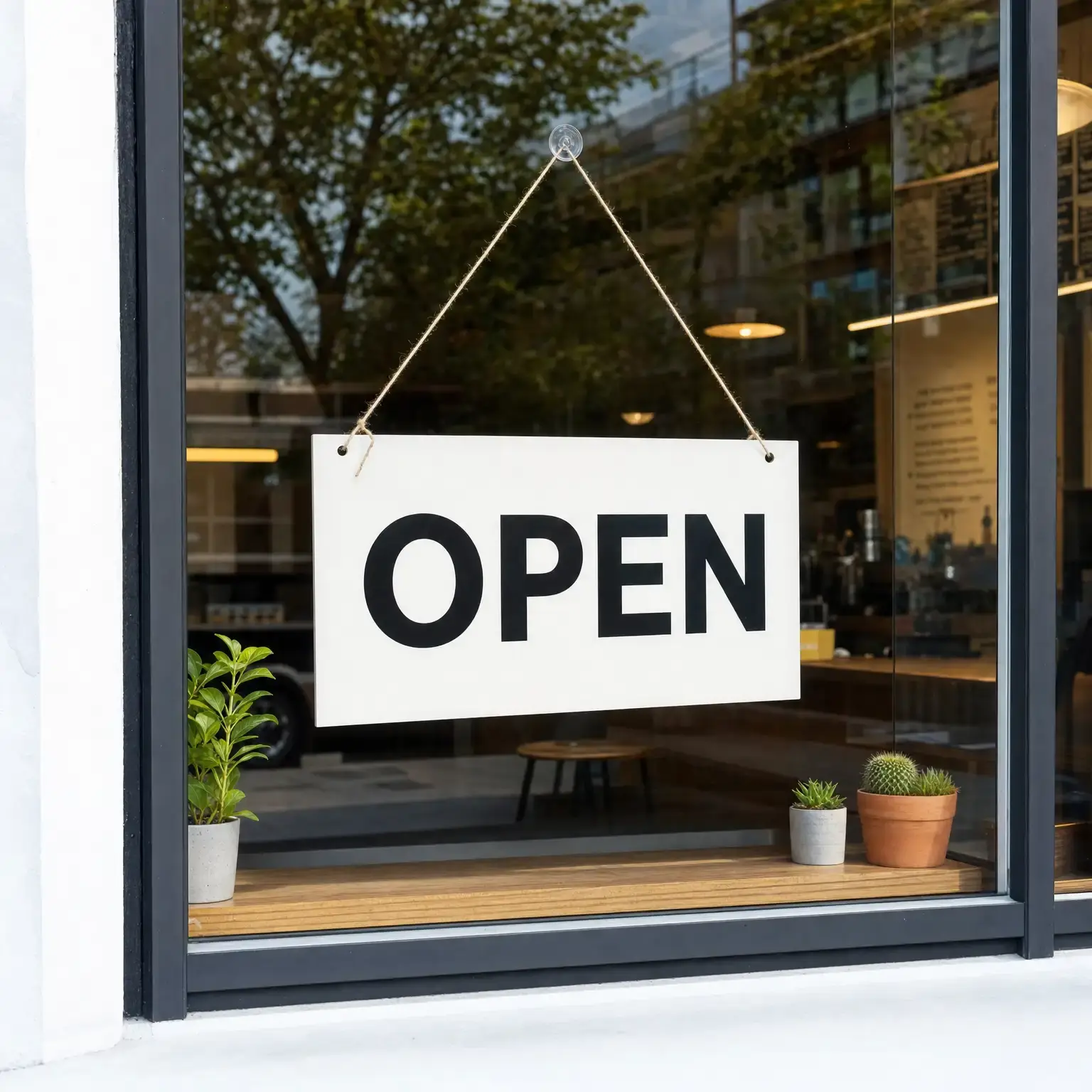
Best for design edits and text in images: change a label, a sign or a poster headline. A low-cost choice for graphic drafts.
Edit, restyle and combine your photos with a text prompt in one image to image AI studio.
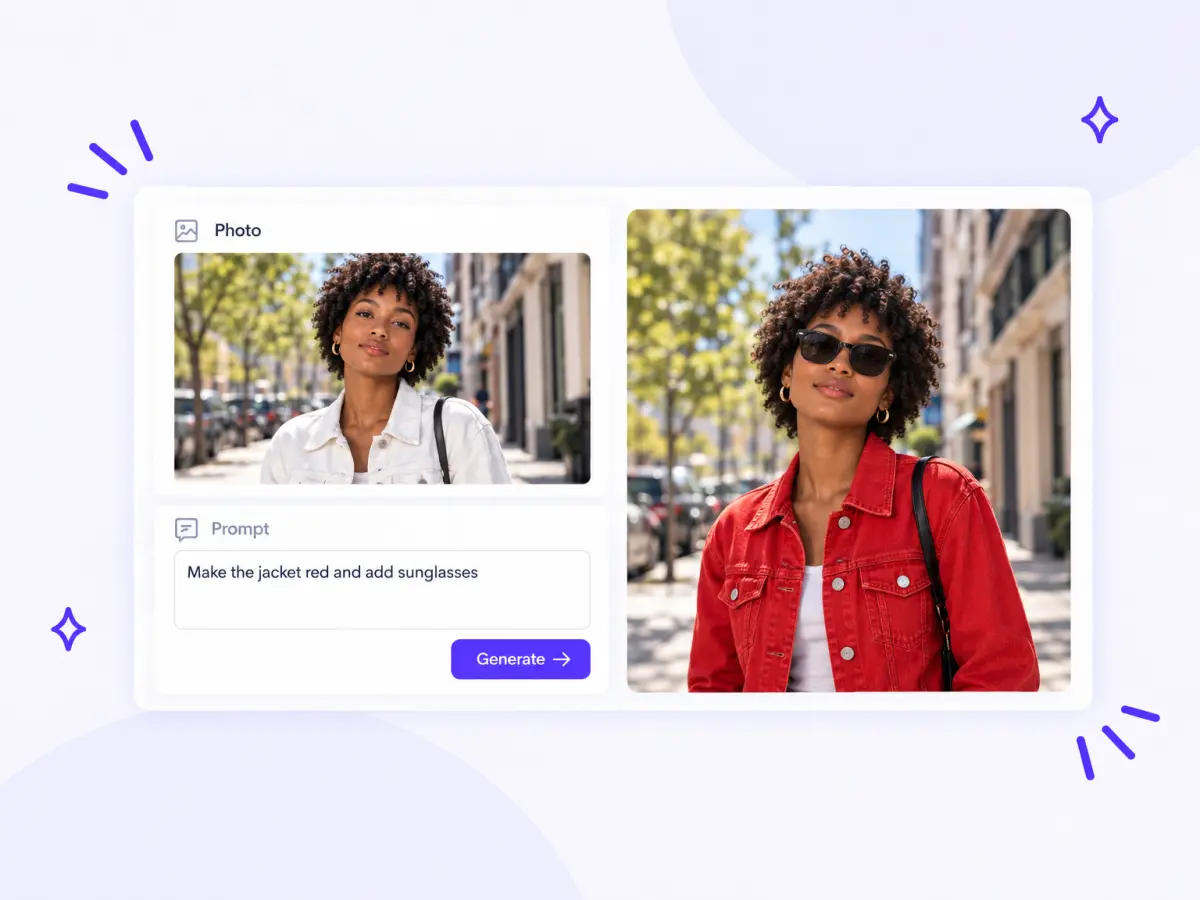
Upload a photo and write what to change: the color of a jacket, a new hairstyle, sunglasses, the weather or the time of day. The AI keeps everything you didn't mention, so the person, the pose and the framing stay the same.
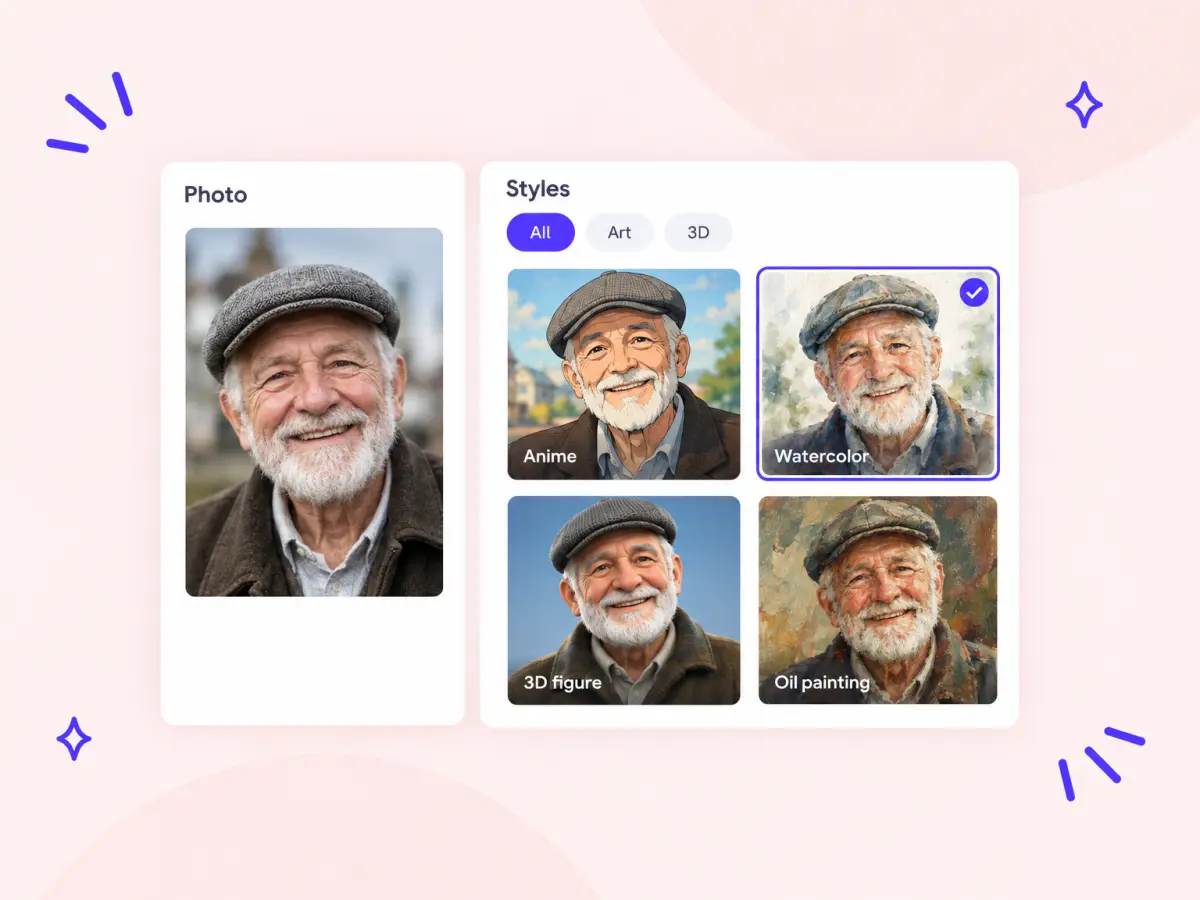
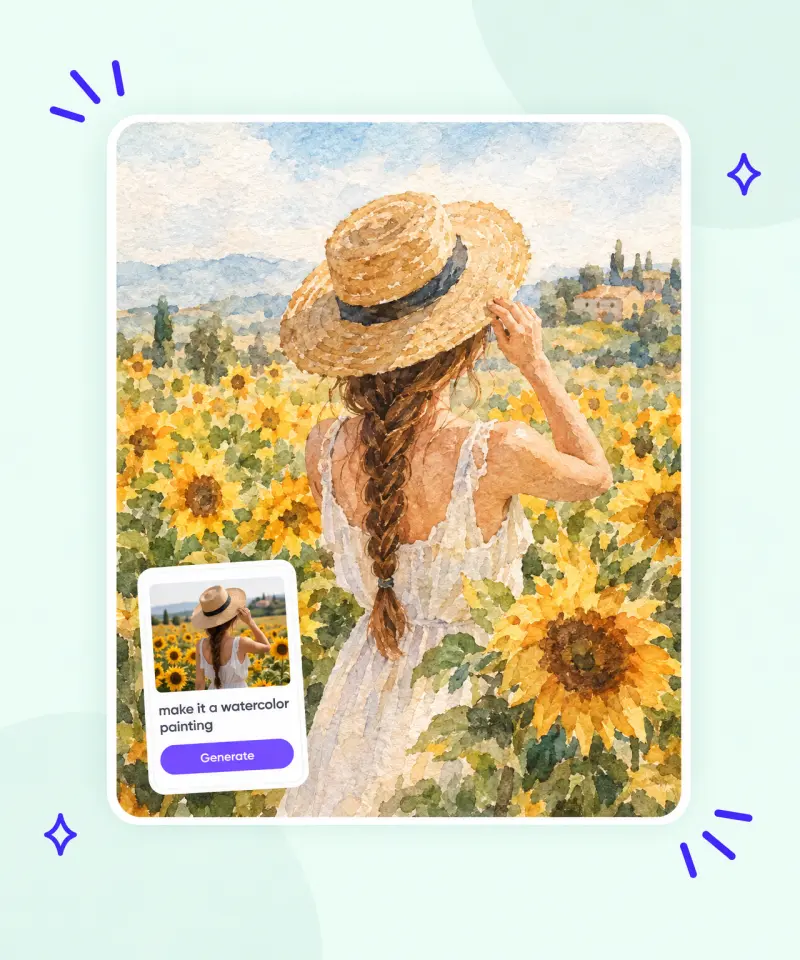
Name the look in the prompt, such as anime, watercolor, oil painting, a 3D figure or a pencil sketch, and the AI redraws your photo in it. Or pick one of 18 ready-made styles in the Style box.
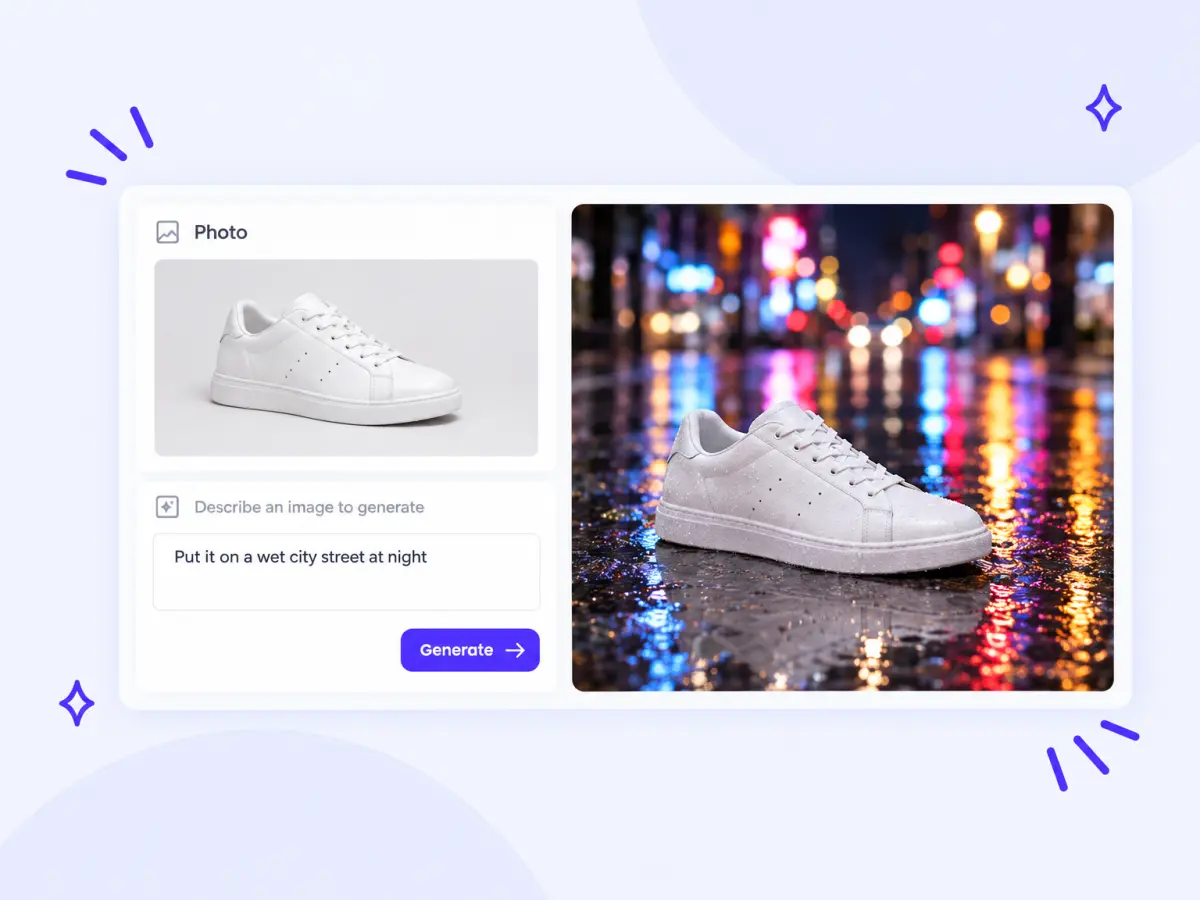
Put yourself or a product on a new background: a beach, a city street at night, a studio backdrop or a Paris café. Faces and product details stay as they were, and the light on them matches the new scene.
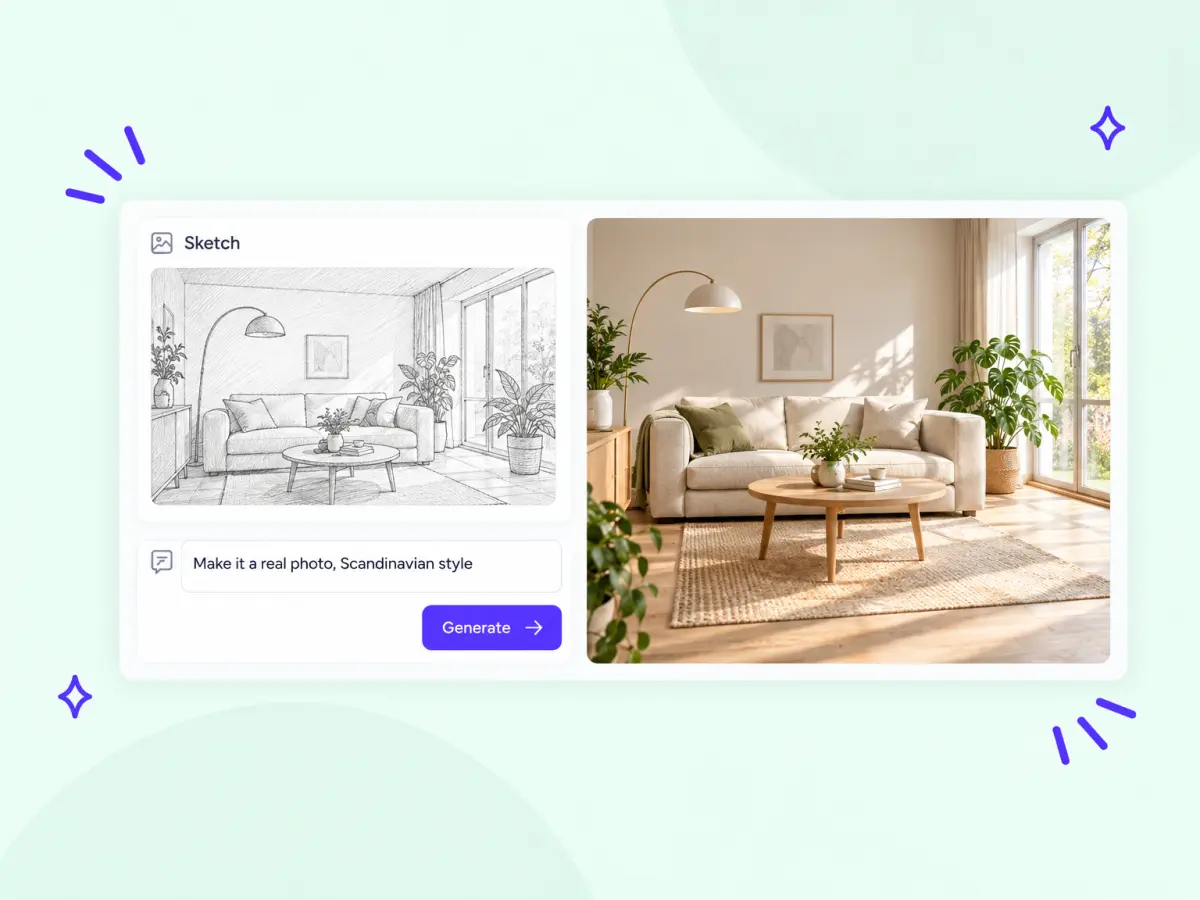
Upload a pencil sketch, a doodle or a room plan and describe the result. The AI keeps your lines and composition and adds real materials, colors and light, from interior photos to product renders and characters.
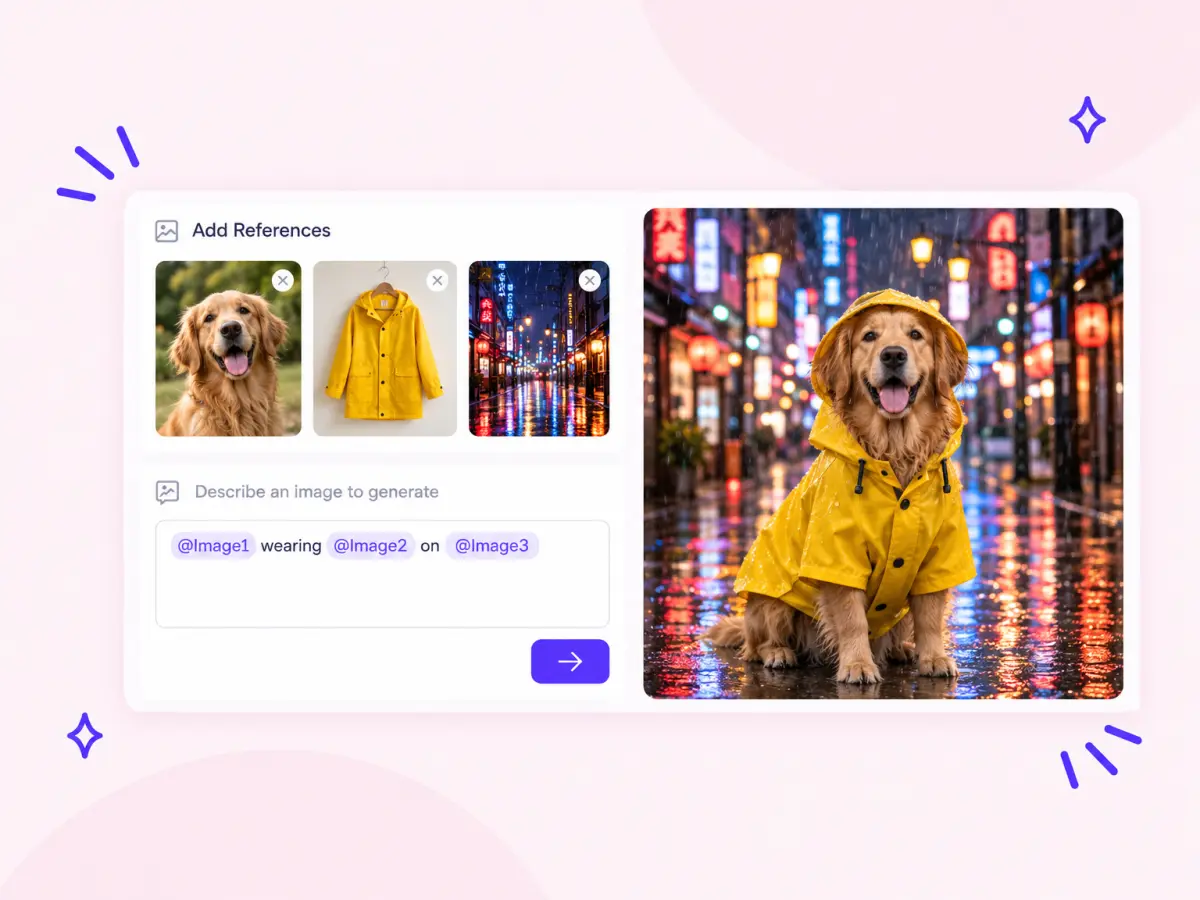
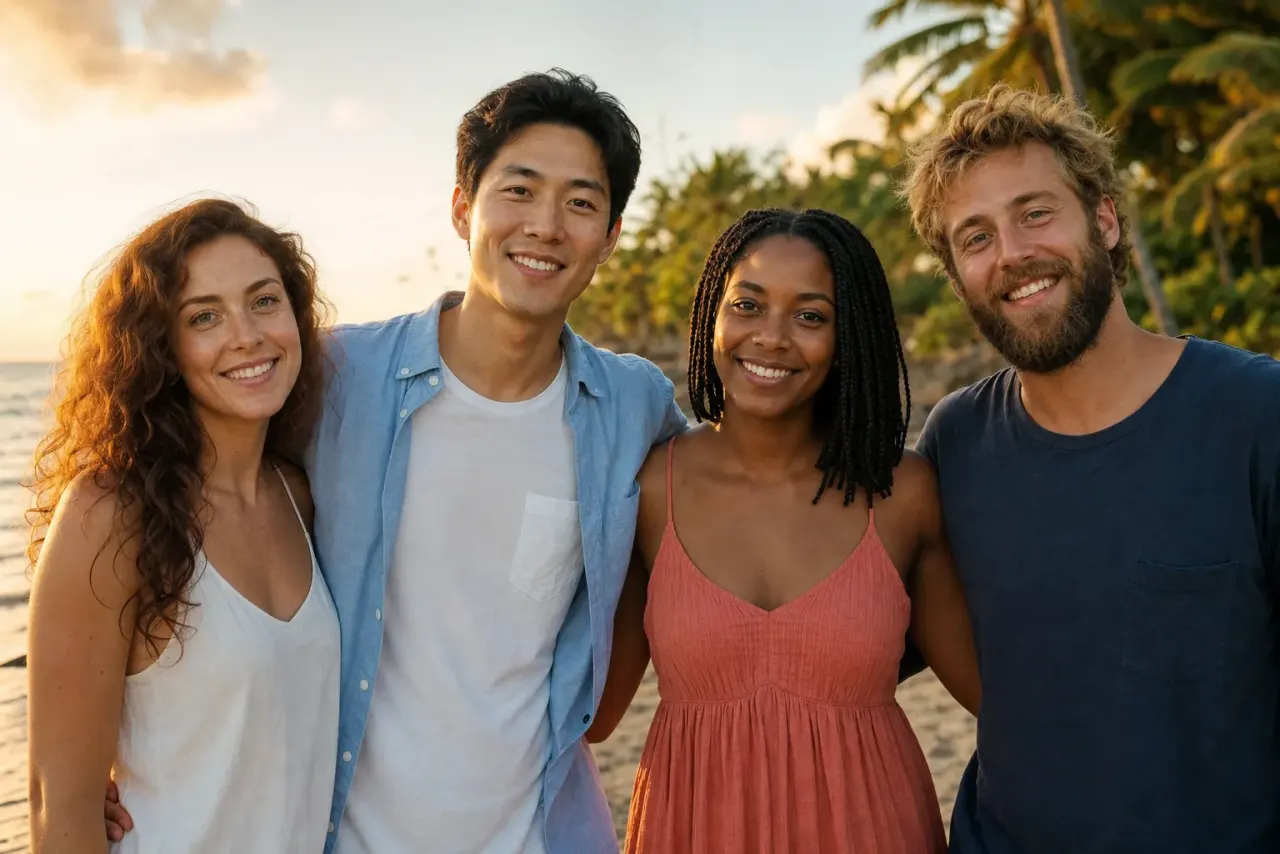
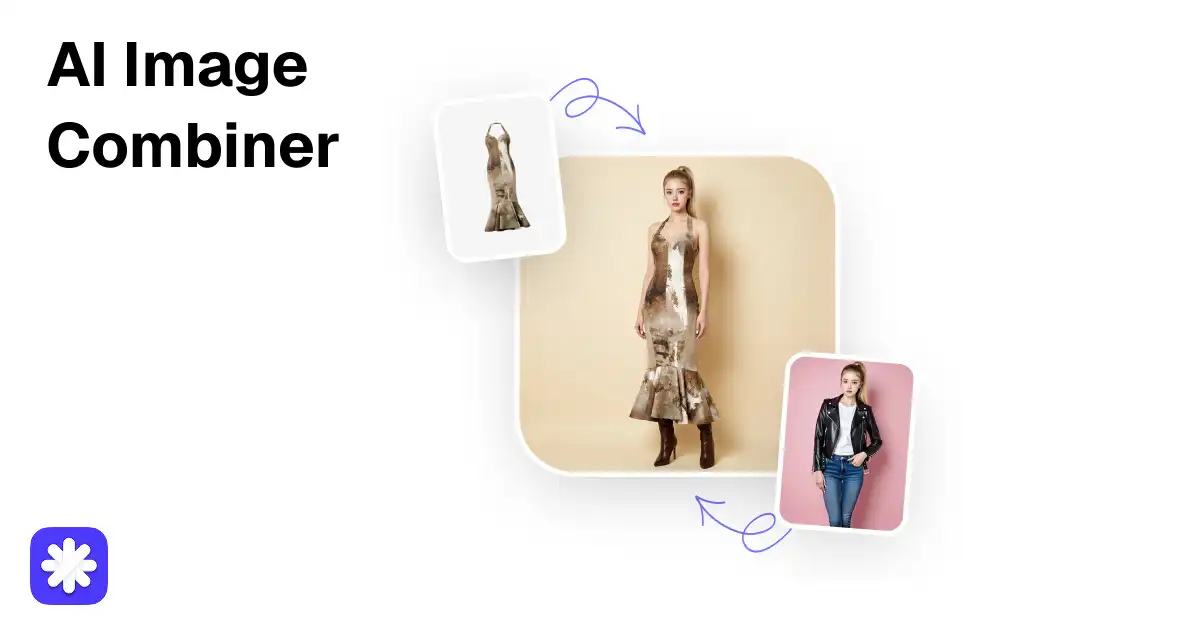
Add several photos and mention them in the prompt as @Image1, @Image2 and @Image3 to put a person in a new outfit, a pet in a new place or a product into a new scene. GPT Image 2.5 takes up to 16 reference photos, and Nano Banana up to 8.
Make a new AI image from your photo in three steps, right on this page.
Tap Add photo in the box at the top of the page and pick a picture from your phone or computer: a selfie, a product shot, a sketch or a landscape. JPG, PNG, WEBP and HEIC photos work. Add more photos if you want to combine them.
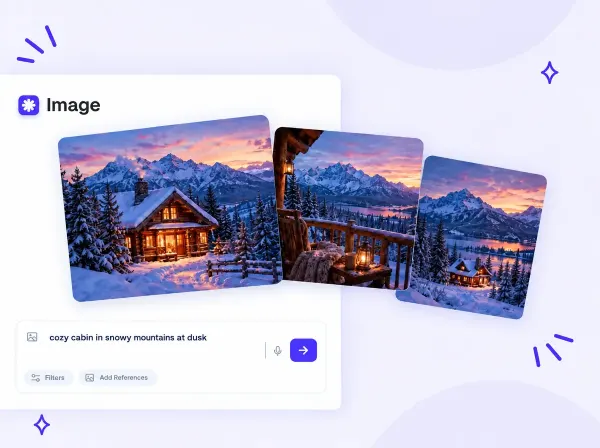
Write what should change, for example "make it a watercolor painting" or "put me on a beach at sunset". Pick a style if you like, choose a model and set the aspect ratio. Each model shows its price in credits before you generate.
Press Generate and get the new image in the Overchat AI studio. Download it, try another model on the same photo or change the prompt for a new version. Every image stays in your history with its prompt and settings.
Upload a photo and describe the change. A free account gets 100 credits a day, enough for several edits.
Turn the photos you already have into new pictures for social media, online stores and gifts.
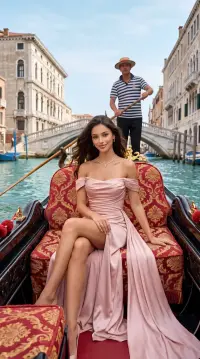
Put yourself on a gondola in Venice, under the northern lights or on any beach, with your face kept.
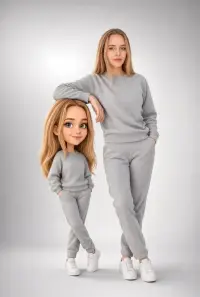
A selfie becomes a 3D bobblehead, a collectible figure or a cartoon avatar for your profile.
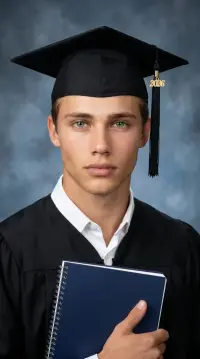
Yearbook portraits, profile pictures and polished headshots from an everyday selfie.
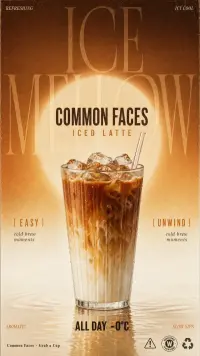
One product shot becomes a poster, an ad creative or a new scene for your online store.
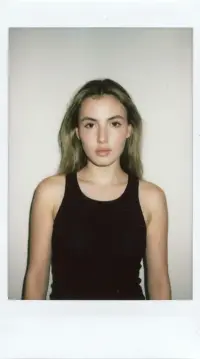
Instant film, Y2K and golden-hour portraits from ordinary phone photos.
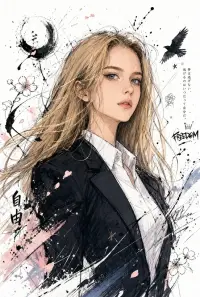
Graffiti posters, anime drawings and paintings from your photos, ready to print or share.
Tool comparisons, model tests and how-tos from the Overchat AI blog.
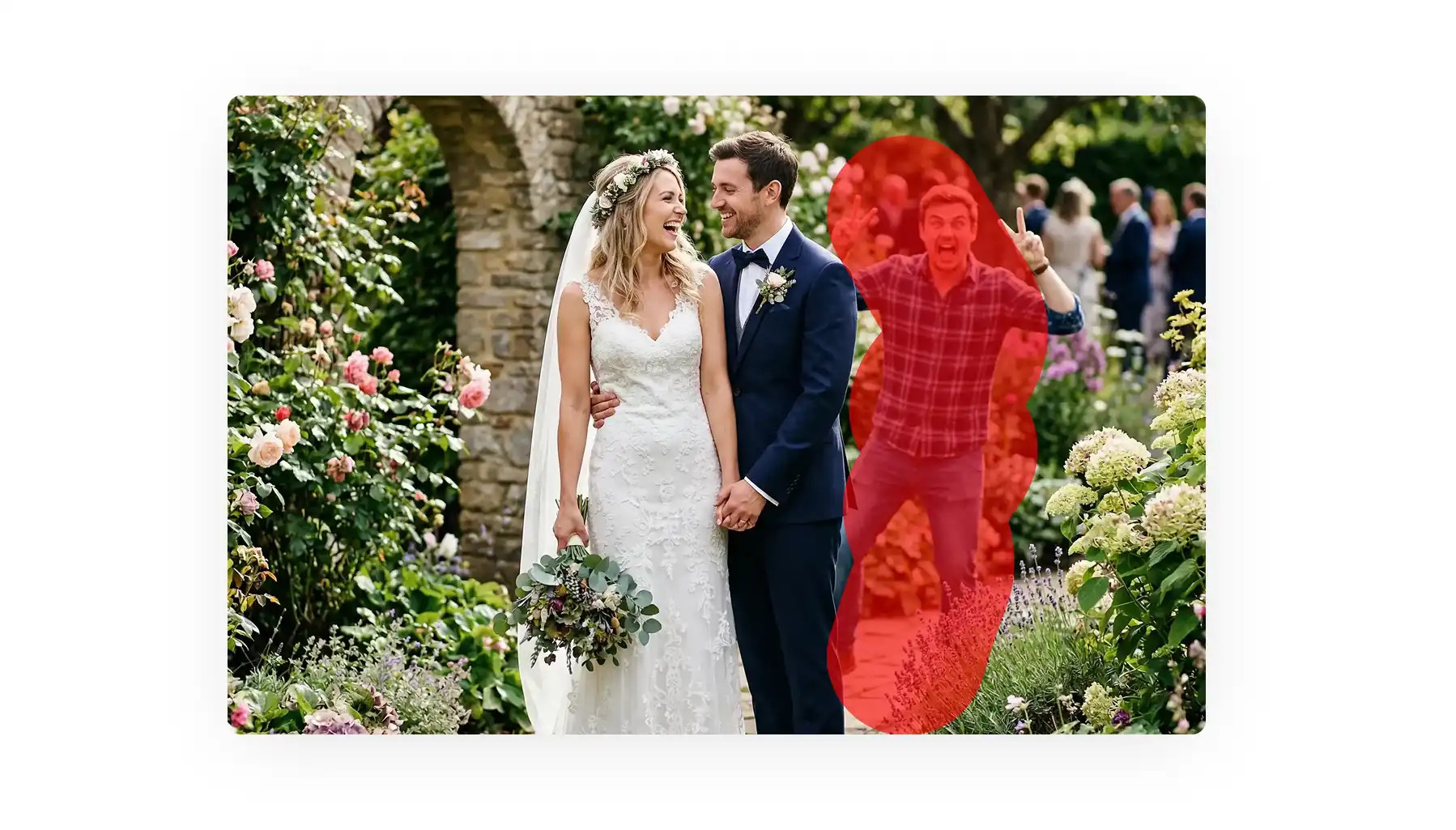 Top 6 Best AI Image Editors in 2026
Six AI image editors compared: what sets each apart and which one fits your work.
Top 6 Best AI Image Editors in 2026
Six AI image editors compared: what sets each apart and which one fits your work.
 We Tested GPT Image 2.5 Against Seedream 5 Pro
15 side-by-side tests, including photo edits, multi-step editing and style control.
We Tested GPT Image 2.5 Against Seedream 5 Pro
15 side-by-side tests, including photo edits, multi-step editing and style control.
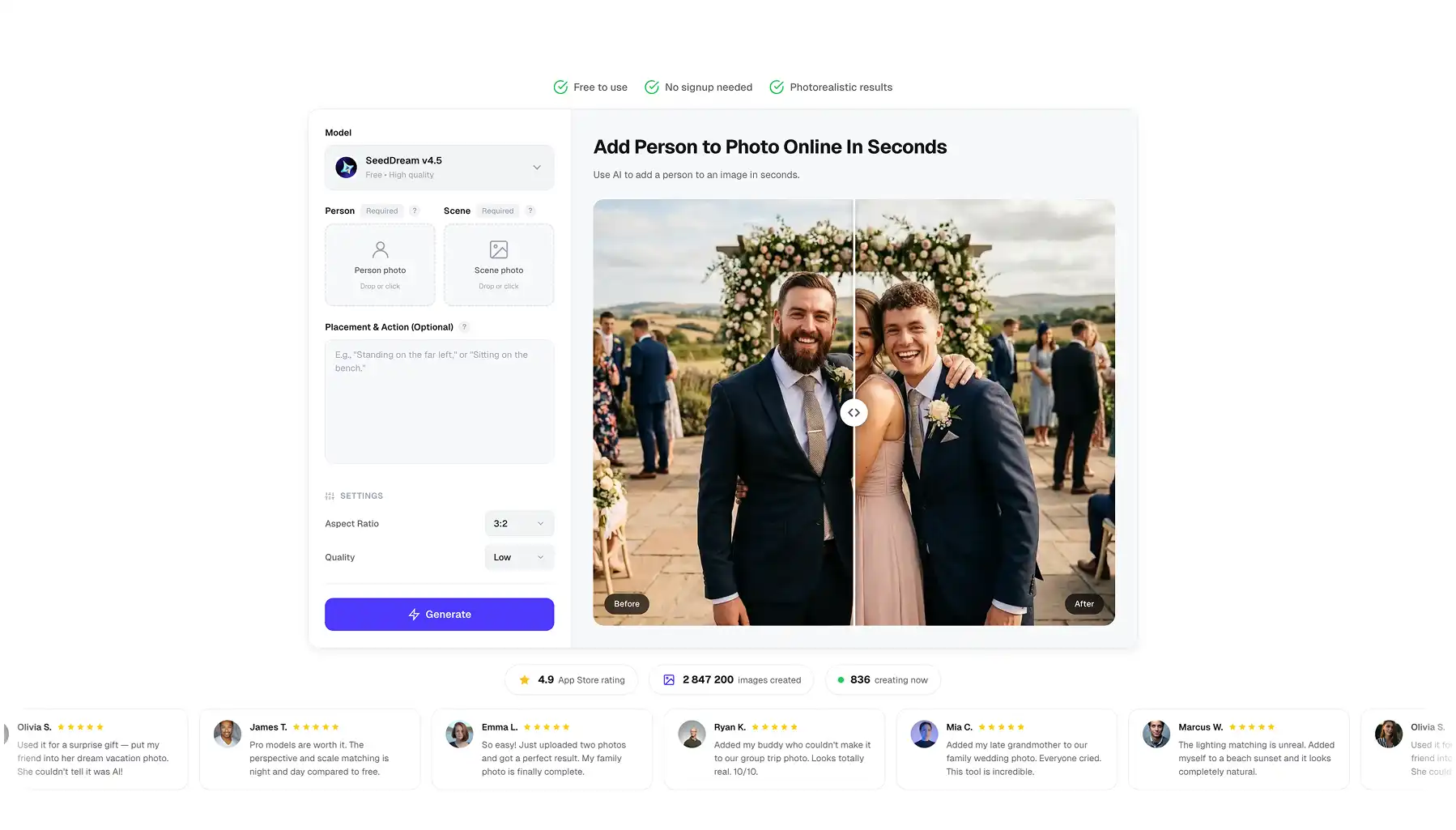 Add a Person to a Photo: 5 Best AI Tools Compared
Five tools that add anyone to a picture after it was taken, reviewed side by side.
Add a Person to a Photo: 5 Best AI Tools Compared
Five tools that add anyone to a picture after it was taken, reviewed side by side.
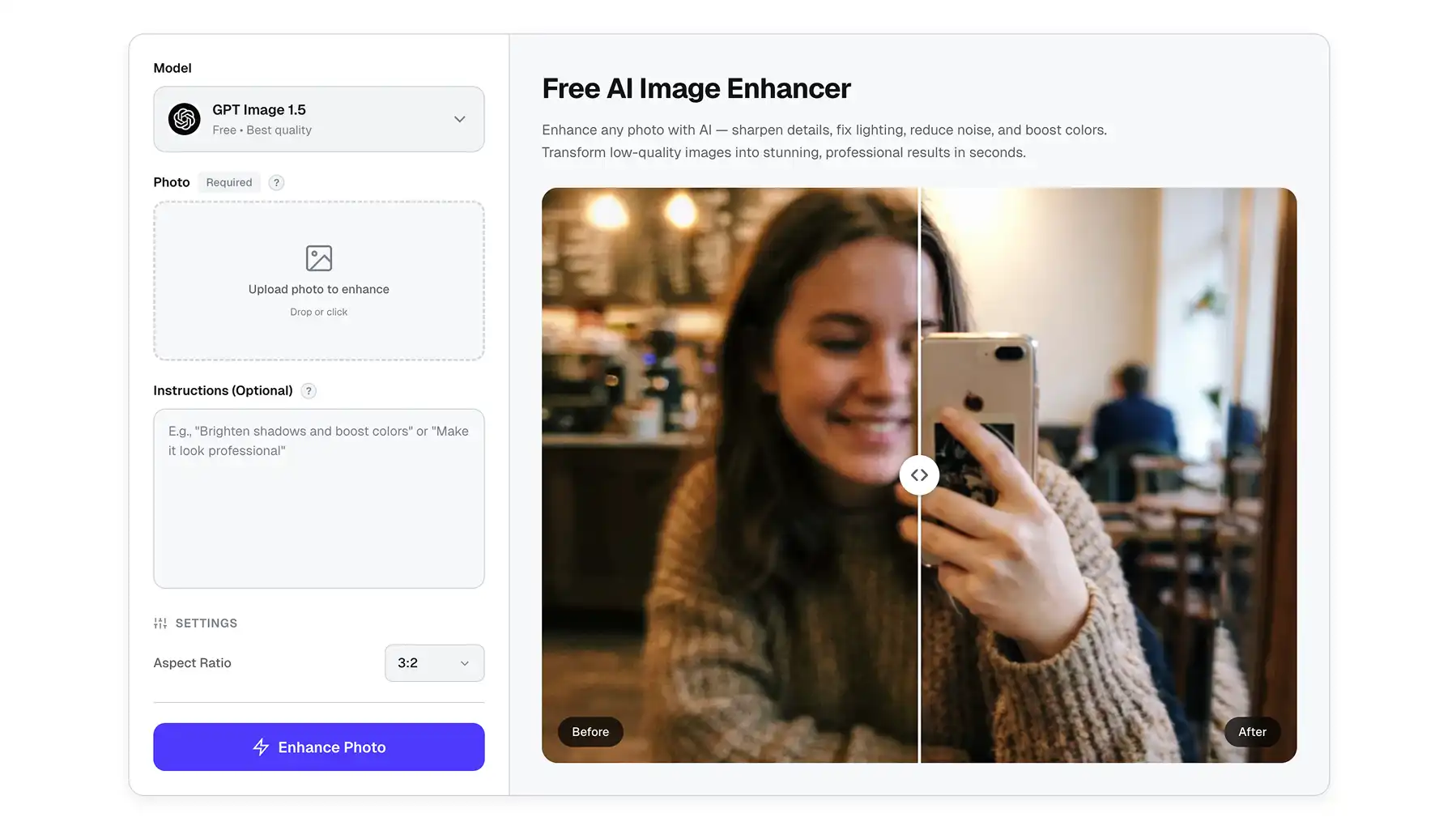 AI Image Enhancer: 5 Best Tools to Fix Photos
Over 15 photo enhancers tested, and the top 5 with the pros and cons of each.
AI Image Enhancer: 5 Best Tools to Fix Photos
Over 15 photo enhancers tested, and the top 5 with the pros and cons of each.
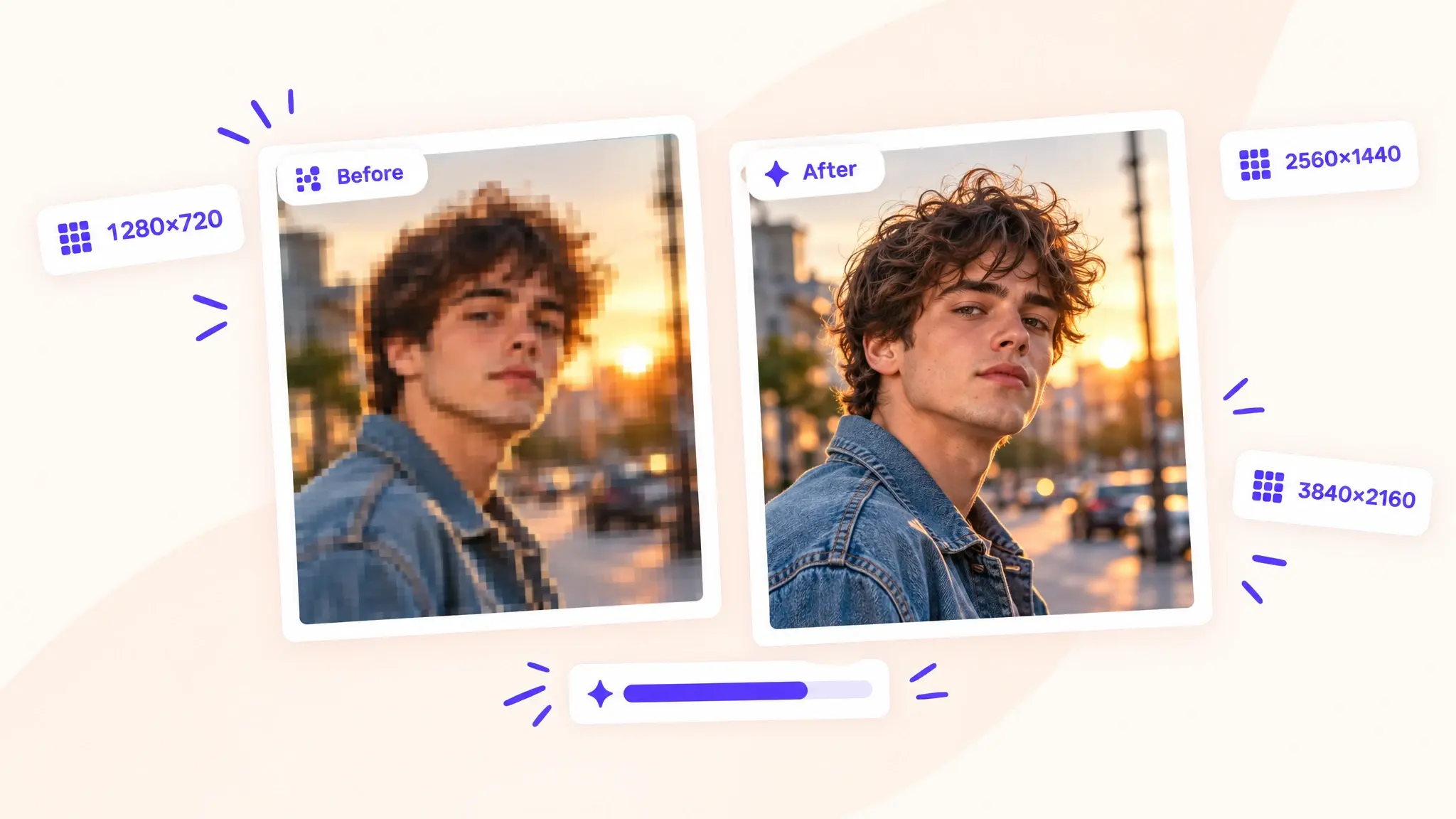 Convert a Photo to High Resolution With AI
Upscale a low-resolution photo with AI, Photoshop or Upscayl, plus the HD, 2K and 4K sizes to target.
Convert a Photo to High Resolution With AI
Upscale a low-resolution photo with AI, Photoshop or Upscayl, plus the HD, 2K and 4K sizes to target.
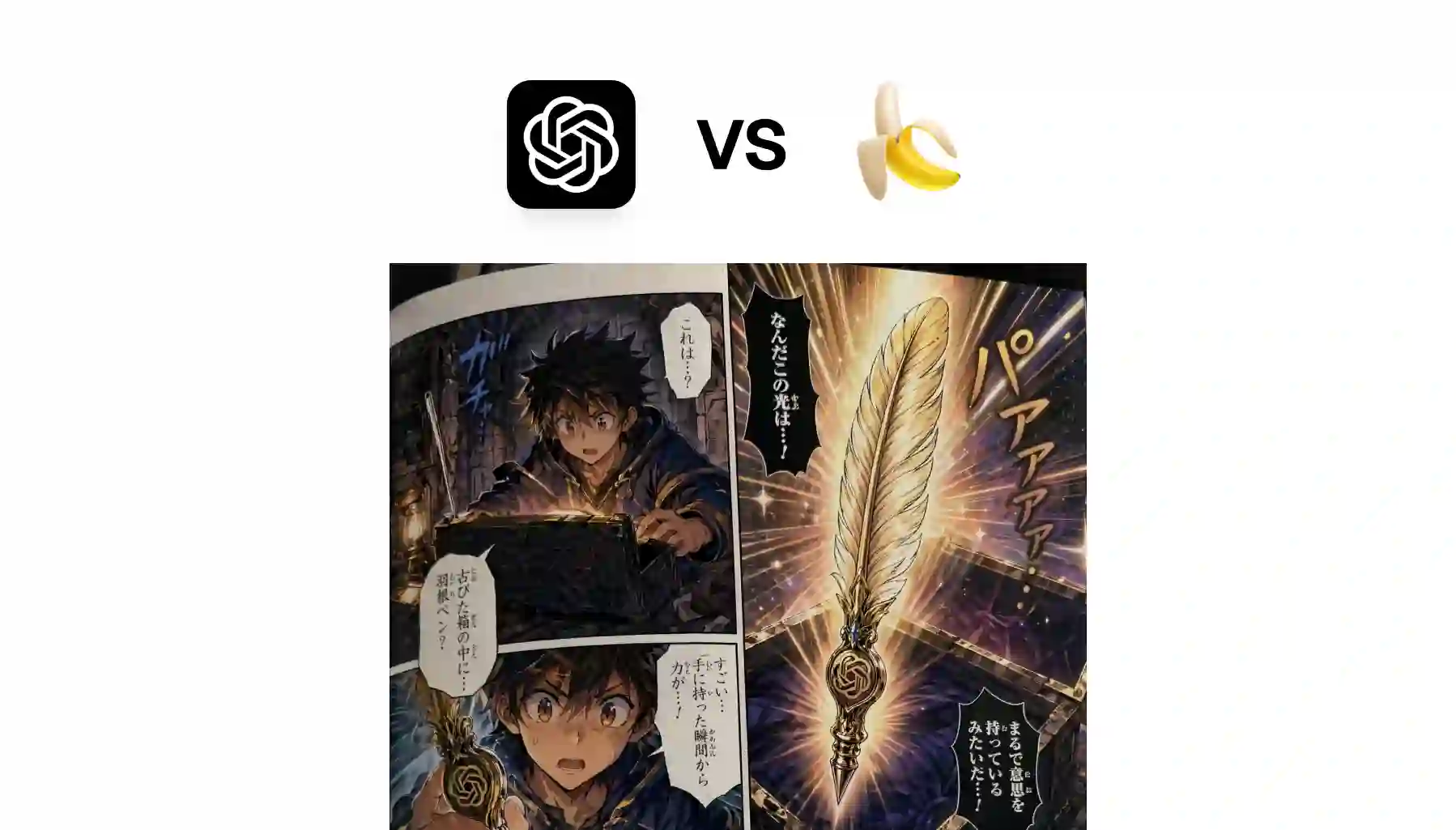 GPT Image 2 vs Nano Banana 2
Which model wins on quality, speed and text rendering, and which one to use for your task.
GPT Image 2 vs Nano Banana 2
Which model wins on quality, speed and text rendering, and which one to use for your task.
AI image to image is a way to make a new picture from a photo you already have. You upload the photo, describe what should change, and an AI model draws a new version: a different style, background, outfit or scene, built on your original.
The model takes your photo and your text prompt together. It uses the photo as a reference for the subject, the colors and the composition, and follows the prompt for what should change. On this page you upload a photo, describe the change, pick a model and press Generate, and the new image opens in the Overchat AI studio.
Text to image starts from a written prompt alone, so the AI draws the picture from scratch. Image to image starts from your own photo, or several, plus a description of the change, so the result is based on your picture. To create images from text only, use the AI Image Generator.
Yes, you can start for free. Sign-up is free, and a free account gets 100 credits a day, restored every day at 04:00 UTC. An edit costs from 15 credits, so a free day covers 6 edits on Grok Imagine Image, 5 on Nano Banana or 4 on GPT Image 2.5. Nano Banana Pro and Seedream 5 cost 150 credits per image.
It depends on the edit. Nano Banana models are strong at editing your own photos, GPT Image 2.5 follows long prompts and takes up to 16 reference photos, Seedream 5 and Flux 2 Max give photorealistic results, and Grok Imagine and Qwen Image are low-cost choices for quick tries. All 13 models are in one studio, each with its own price per image.
Yes. Add several reference photos and mention them in the prompt as @Image1, @Image2 and so on. GPT Image 2.5 takes up to 16 photos, Nano Banana and Nano Banana Pro up to 8, Seedream up to 10, Flux 2 Max up to 5, Nano Banana 2 up to 4, and Qwen Image 2 and Grok Imagine up to 3.
Yes. Upload the photo and write where the subject should be, for example "put me on a beach at sunset, keep my face and clothes the same". The same works for product photos: describe the new scene, such as a marble table or a city street at night.
Upload the photo and name the style in the prompt: anime, watercolor, oil painting, a 3D figure or a pencil sketch. You can also pick one of 18 ready-made styles in the Style box, or open the studio's 240+ AI photo filters for one-tap looks.
JPG, PNG and WEBP images work, and so do HEIC photos straight from an iPhone, without converting them first.
Yes. This page works in the browser on any phone, and Overchat AI also has iOS and Android apps. Upload a photo from your camera roll, describe the change and generate the new image right on your phone.

.webp)