How to Add a Person to Any Photo: 5 Best AI Tools Reviewed
Last Updated:
2026-09-21
How to Add a Person to Any Photo: 5 Best AI Tools Reviewed
What if you could add anyone into any picture after it's been taken? In the past, this required advanced Photoshop skills, an expensive subscription, and a lot of free time. But in 2026, you can get the same result by simply clicking a button.
AI-powered tools can add a person to any photo in seconds. You can upload two images and give text instructions on how you want the addition to look. The tools will create photorealistic results. However, many AI tools promise great results, but only a few actually deliver. We've tested many of them to find out which ones are worth your time.
Adding someone to a photo used to take hours of Photoshop work for lighting matching, shadow blending, and edge work — modern AI handles all of it automatically.
What to look for in a tool: natural blending, clean edge detection, easy interface, and high-res watermark-free output.
Overchat AI is the strongest pick — chat-based interface, free access to Seedream 4.5, plus GPT Image 1.5, Nano Banana Pro, and Flux 2. Bundles background removal and image expansion in one platform.
Fotor is beginner-friendly with auto background removal, preset backgrounds, and multi-person support — but less control over precise positioning.
Media.io runs on Nano Banana Pro and excels at group photos and family portraits, though high-quality generations are paywalled and there's no mobile app.
Somake offers precise prompt-based positioning with a two-tier model system (standard + photorealistic premium) and deletes images after processing for privacy.
Clipfly runs on Google's Nano Banana and integrates with video tools if you want to animate the final result — less focused than dedicated photo tools.
Tips for best results: use high-res inputs (500px+ on the longest side), match lighting between the two photos, and keep camera angles similar.
Why You Might Need to Add Someone to a Photo
Sometimes, it's not easy to get everyone together for a photo. It's really helpful to be able to add yourself or someone who's missing to a photo later. We've also seen people who do this for a living, creating photo shoots that never actually happened in real life.
Here are some reasons why people add missing people to photos:
Complete a family portrait when someone couldn't attend
Make a funny meme
Add yourself to group shots
Create couple photos when you're in a long-distance relationship
Remember loved ones who have passed by placing them in new memories
Design marketing materials without expensive photoshoots
What Makes a Good Add Person to Photo Tool?
Before AI, it was very hard to add a person to a photograph. It required a lot of careful masking and blending. I have experience with Photoshop, and I can say that just getting the lining right — matching the color grading, light direction, and shadow quality — could take multiple hours. This doesn't even include creating a perfect edge blend.
Today, AI handles all of that, but only if the tool is really good. When selecting, pay attention to the following:
Natural blending. The AI should match the lighting, shadows, and perspective. The result shouldn't look like the person was added as a sticker. It should be placed in the environment as a 3D object that interacts with it.
Edge detection. The cutout should be clear. This means that there shouldn't be any blurring around high-contrast edges or fine details, like hair strands in the wind. AI is already very good at this, except for very cheap models.
Ease of use. The whole point of AI tools is to make complex things simple. If it takes the same amount of time to learn how to use it as Photoshop, then it's probably better to use Photoshop.
Output quality. The final image should be high-resolution and without watermarks, you should be able to download it in HD quality.
Best AI Tools to Add a Person to a Photo
We tested over a dozen AI photo editing tools and selected 5 that deliver the best results. Here's how they compare:
Tool
Best For
Multiple People
Free Tier
Platforms
Overchat AI
All use cases
✅
✅
Web, iOS, Android
Fotor
Quick browser-based edits
✅
✅
Web, iOS, Android
Media.io
Group photos and family portraits
✅
✅
Web
Somake
Precise positioning control
✅
✅
Web
Clipfly
Couple photos and creative projects
✅
✅
Web
1. Overchat AI
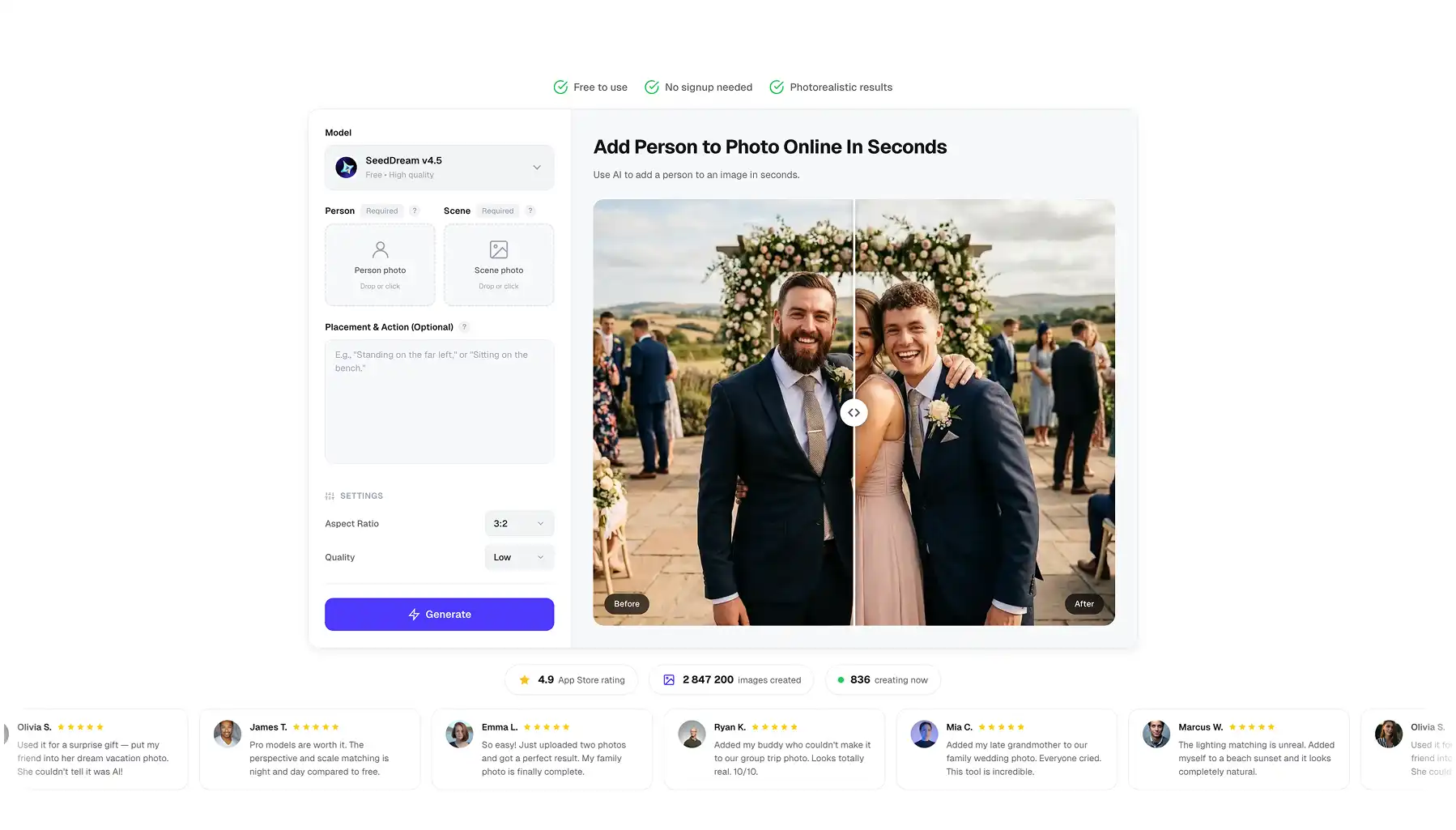
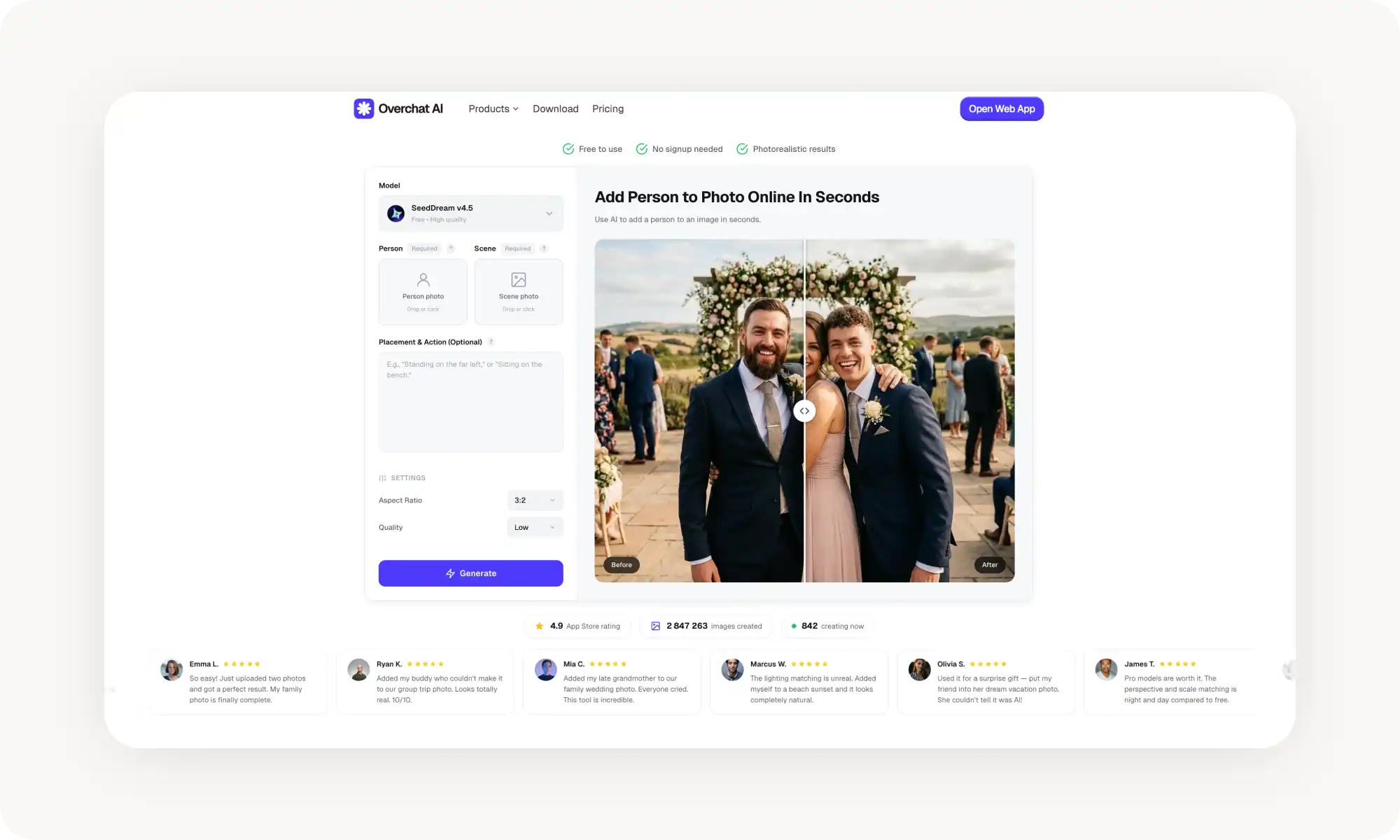
Overchat AI uses an advanced Seedream 4.5 image model — even on the free trial, which makes it unique among free image generators on the market. This image generation model is one of the best, which means that all the quality things we talked about are accounted for.
You also have a lot of creative control. You can choose the aspect ratio and use a prompt to decide where the person will be placed in the image. This allows for endless combinations that are very accurate.
It's very easy to use. Just upload two images and say something like "put person A on background B" or "add this person standing on the left side."
Beyond Seedream, you can choose even more powerful AI models: GPT Image 1.5, Nano Banana Pro, and Flux 2.
Overchat AI has other tools, too, like a tool to remove backgrounds from images, and a tool to extend images. This makes it useful for more complex projects where you need to make multiple edits.
Pros:
✅ Chat-based interface — no menus to navigate
✅ Multiple AI models for different use cases
✅ High-resolution output without watermarks
✅ Additional editing tools in one platform
✅ Works on web and mobile apps
2. Fotor
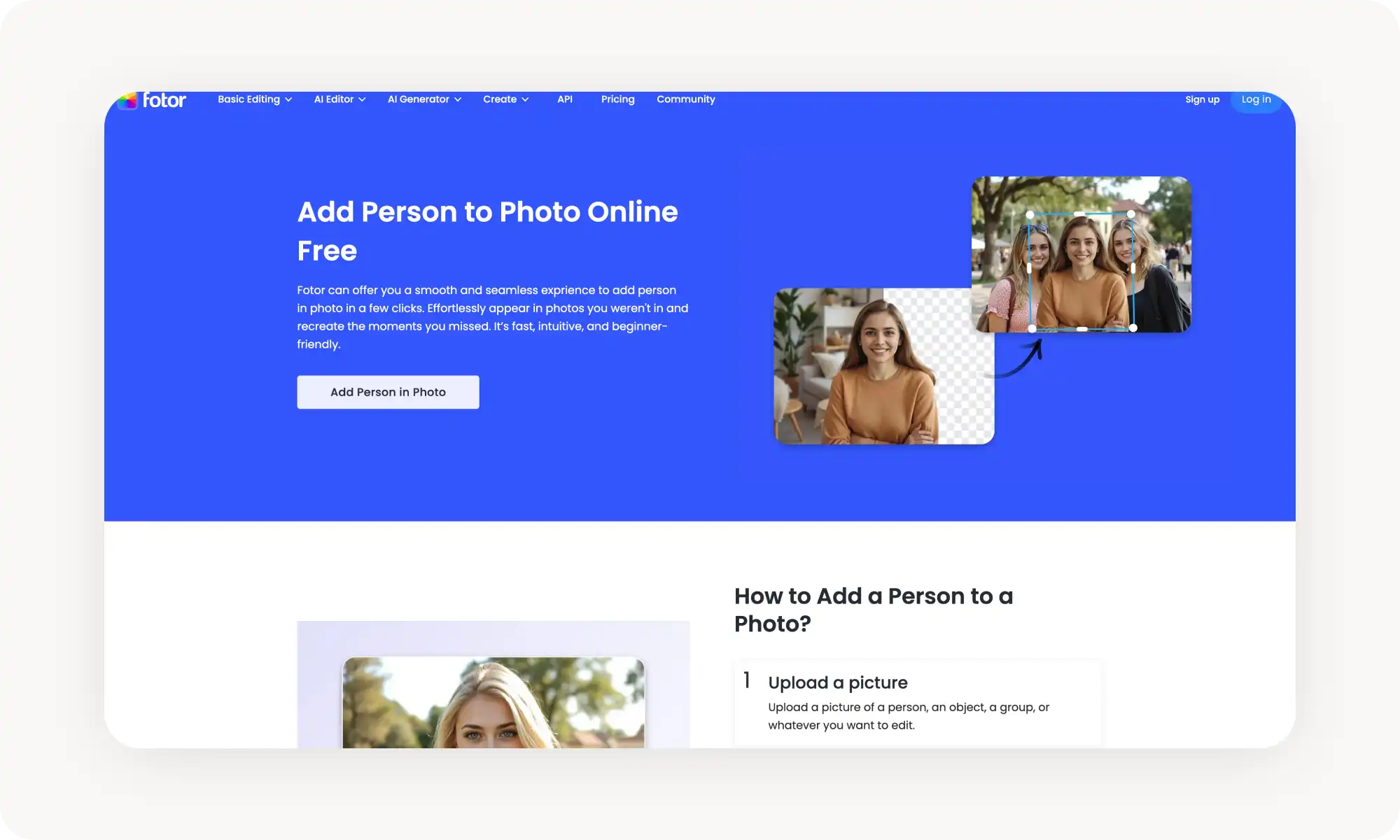
Fotor is a browser-based photo editor with a dedicated Add Person to Photo feature.
Upload an image of a person, and the AI automatically removes the background. Then upload your destination photo or choose from preset backgrounds.
The tool handles multiple people at once, which is useful for group photo composites. It also works for objects, so you can add accessories, props, or pets to your images.
Pros:
✅ Automatic background removal
✅ Preset background library
✅ Can add multiple people at once
✅ Mobile apps available
✅ Beginner-friendly interface
Cons:
❌ Less control over precise positioning
❌ Some features locked behind paywall
3. Media[.]io
Media[.]io is great for group photos and family portraits. The tool uses Nano Banana Pro, one of the best AI models in the world. Our preset creator on Overchat AI says it's simply the best one.
The model is really very good, but also very expensive. That's why only the paid tier has access to high-quality generations. To use the tool:
Visit Media[.]io and upload your photos
Select a prompt or write your own description
Click generate and wait a few seconds
Download the blended result
Pros:
✅ Strong group photo capabilities
✅ Automatic lighting and shadow matching
✅ Prompt library for common scenarios
✅ No downloads required
✅ Multiple people in one image
Cons:
❌ Web-only — no mobile app
❌ Free tier has limitations
4. Somake
Somake gives you lot’s of control over positioning through detailed text prompts, so you can describe exactly where the person should appear and what they should be doing.
The tool offers two AI models:
A standard option for quick drafts
A premium option for photorealistic results.
Tips for best results: match lighting between your photos, use full-body shots when appropriate, and ensure similar camera angles in both images.
Pros:
✅ Precise positioning through prompts
✅ Two-tier model system
✅ Privacy-focused — images deleted after processing
✅ Works with pets and objects too
✅ Control over size and placement
Cons:
❌ Requires clear prompt writing
❌ Premium model costs extra
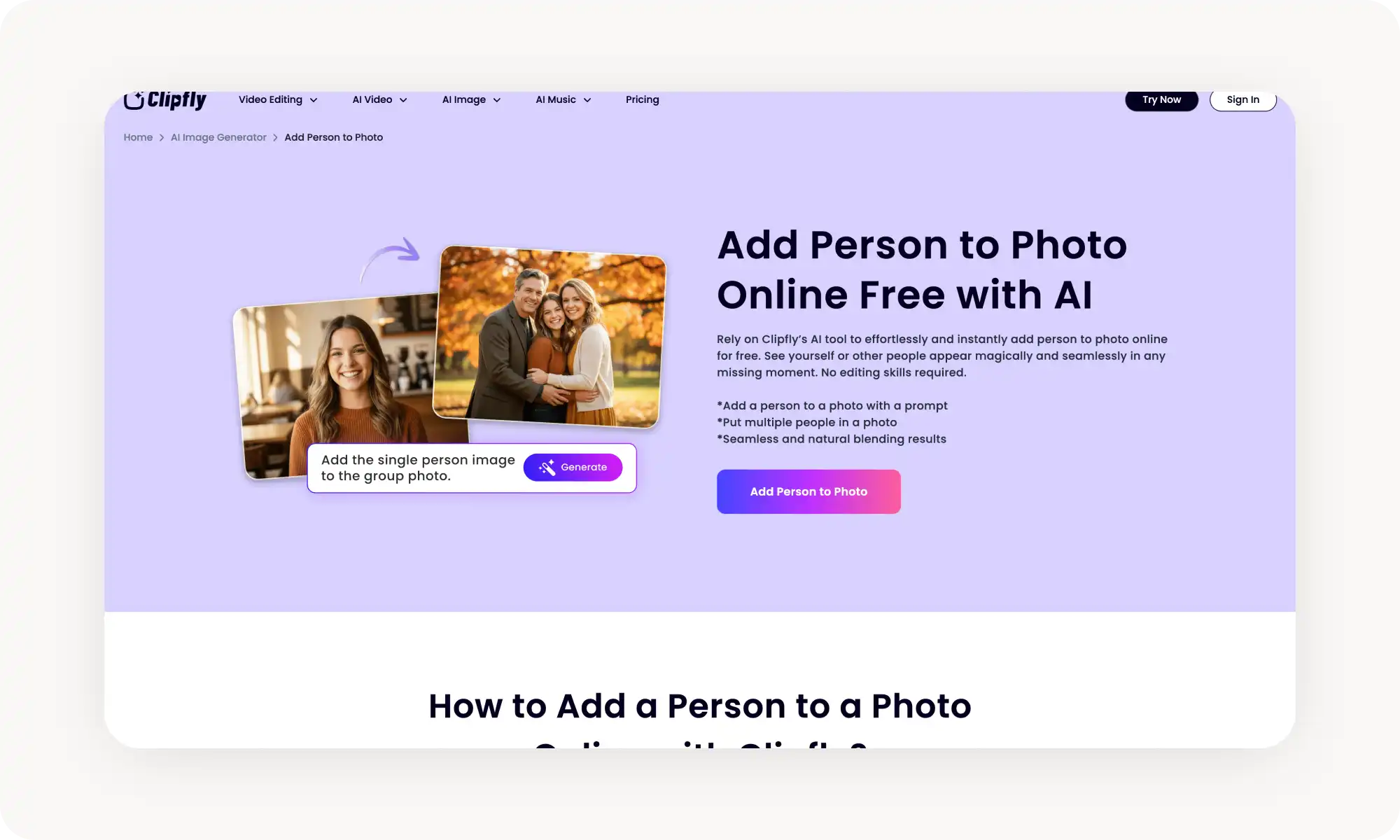
5. Clipfly
Clipfly is an AI creative platform with photo and video tools. The Add Person to Photo feature uses Google's Nano Banana AI to blend images based on natural-language prompts. It also integrates with Clipfly's video tools, so you can animate your final images.
Pros:
✅ Part of a larger creative platform
✅ Good for couple and romantic photos
✅ Video animation options
✅ Natural-language prompts
✅ No editing skills required
Cons:
❌ Less focused than dedicated tools
❌ Results vary depending on input quality
Frequently Asked Questions (FAQs)
How realistic are the results?
The results are very realistic. In fact, they are usually better than what someone with little Photoshop experience would produce. This is coming from someone who has tried both ways. AI technology has improved a lot recently. Generators like Seedream 4.5 and Nano Banana Pro produce results that look real.
Can I add multiple people to one photo?
There are two ways to do this. You can use tools like Overchat AI. Just upload a photo or a collage of people. Then, add them in the prompt. Some other tools have different upload areas for different people.
Are these tools free?
All five tools on this list have free tiers. Overchat AI is free without limitations at the moment for Seedream 4.5, while other tools have limits on free plans in regards to models and output resolutions. Paid plans are usually needed to unlock all features. These plans cost between $5 and $25 per month.
Key takeaways
AI photo tools allow you to easily add a person to any image
All you need to do is upload the two photos
Many tools have a prompt interface where you can give instruction about how to insert the person
For the best results, choose high-quality input images — at least 500 pixels on the longest side
In the past, adding someone to a photo required professional skills or fees. Now you can complete a family portrait, create a couple photo, or design marketing materials in under a minute. The AI handles the technical work while you focus on the creative vision.



![Media[.]io add person to photo tool](https://cdn.prod.website-files.com/67b459f31ecf92c899354e98/697e687b1f7600b1e500a7b7_add-person-4.webp)