
With Overchat AI, you can produce a studio-quality voiceover in under two minutes, either using one of 30+ preset voices or your own cloned voice. This article walks through both methods step by step.
With Overchat AI, you can produce a studio-quality voiceover in under two minutes, either using one of 30+ preset voices or your own cloned voice. This article walks through both methods step by step.
To add an AI voiceover to a video with Overchat AI:
The whole process takes just 60 seconds. You can also clone your own voice using the AI Voice Cloning tool. To do that, upload a 10 to 30-second recording of yourself speaking and repeat the steps above.
Before starting, make sure you have:
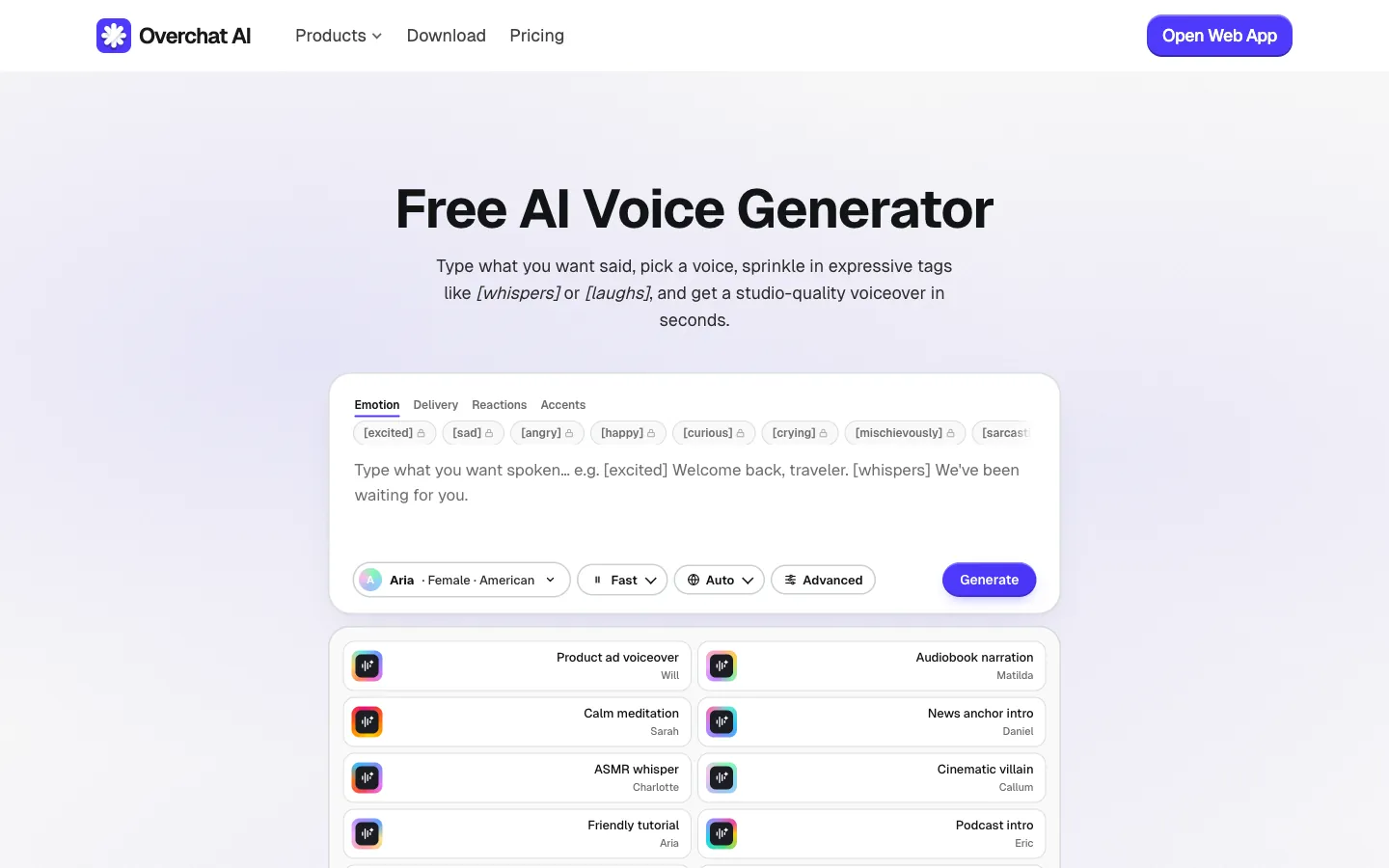
Text-to-speech is the right choice for tutorials, ads, narration, and any video where you don't need a specific person's voice. Here’s how to generate a text-to-speach using one of Overchat AI’s 30 built-in voices:
Go to Overchat AI's AI Voice Generator. The interface is minimal: one text input, a voice picker, and a Generate button.
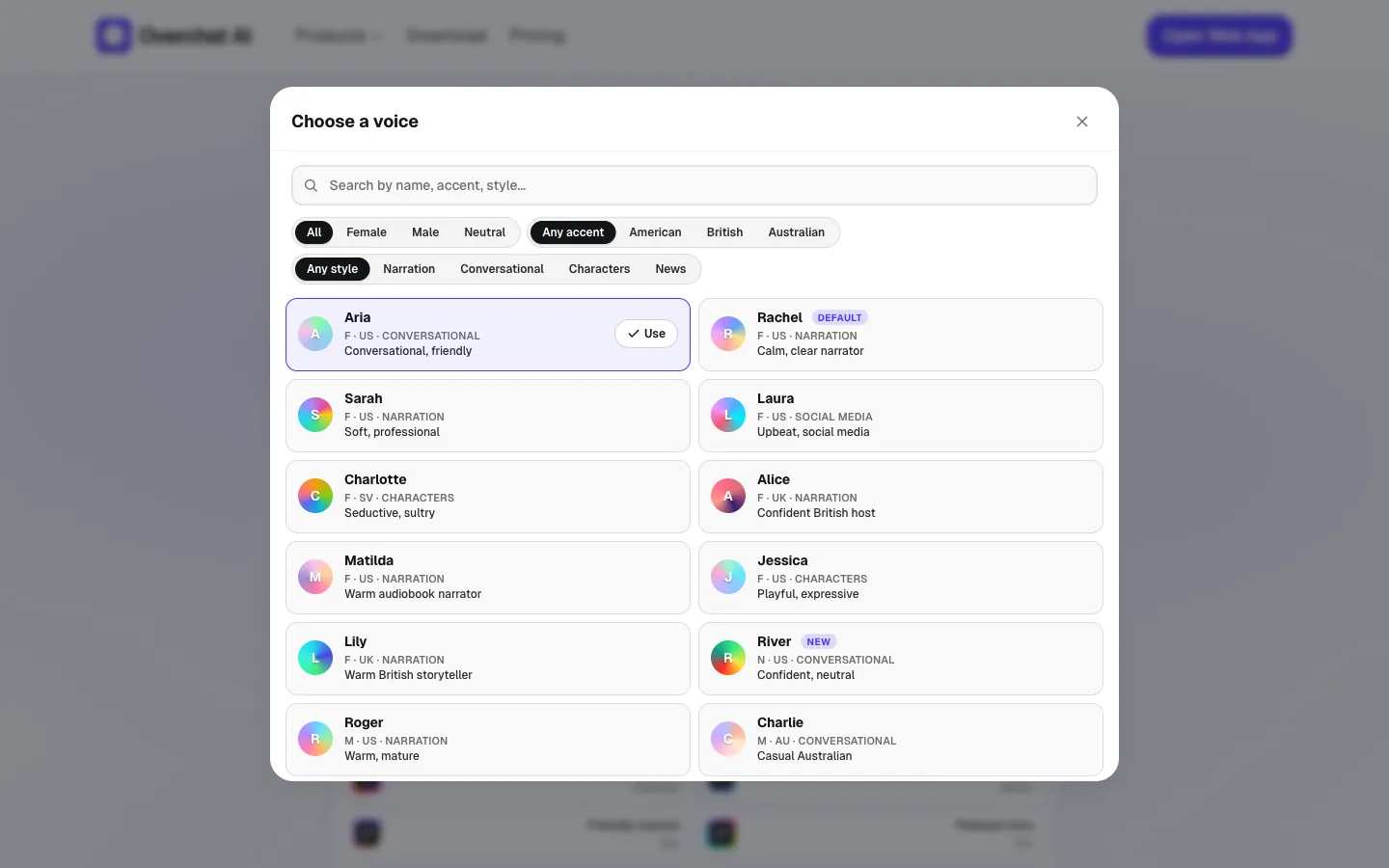
Overchat AI offers 30+ studio-quality preset voices, with US, UK, and Australian accents. A few practical recommendations based on the use case:
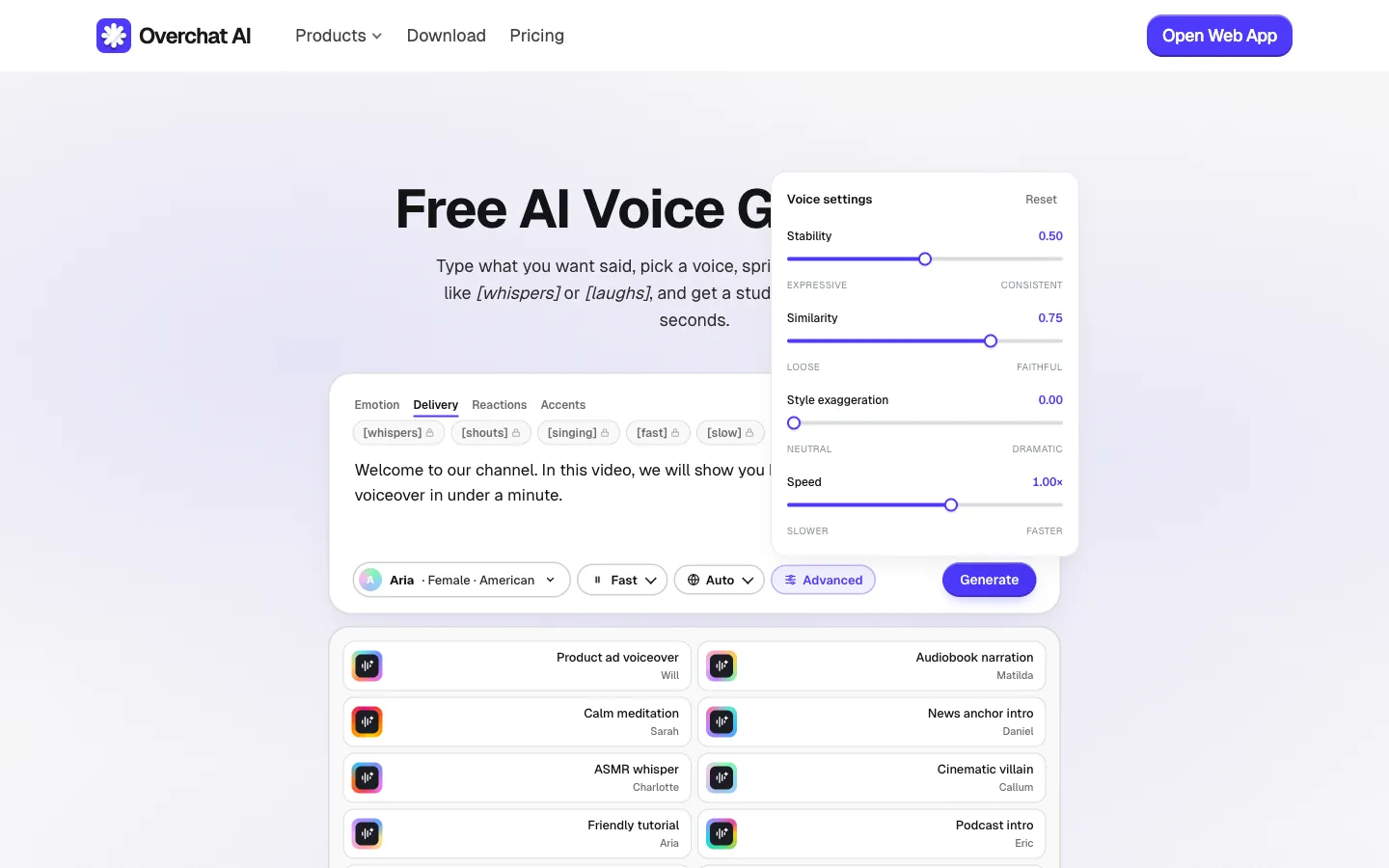
Drop your script into the text input. The character limit per generation is 5,000, which is enough for about 5–7 minutes of speech depending on pace.
A practical tip: write your script in sentence case rather than ALL CAPS. The model interprets capitalization as emphasis, and an all-caps script will sound shouted throughout.
Instead, use caps for the words you want to emphasize.
For more control over delivery, Overchat AI supports inline expressive tags. You drop them directly into the script text, and the model applies the requested emotion, delivery style, reaction, or accent to the surrounding words.
The available tags are organized into four categories:
Example:
[excited] Welcome back, traveler. [whispers] We've been waiting for you.
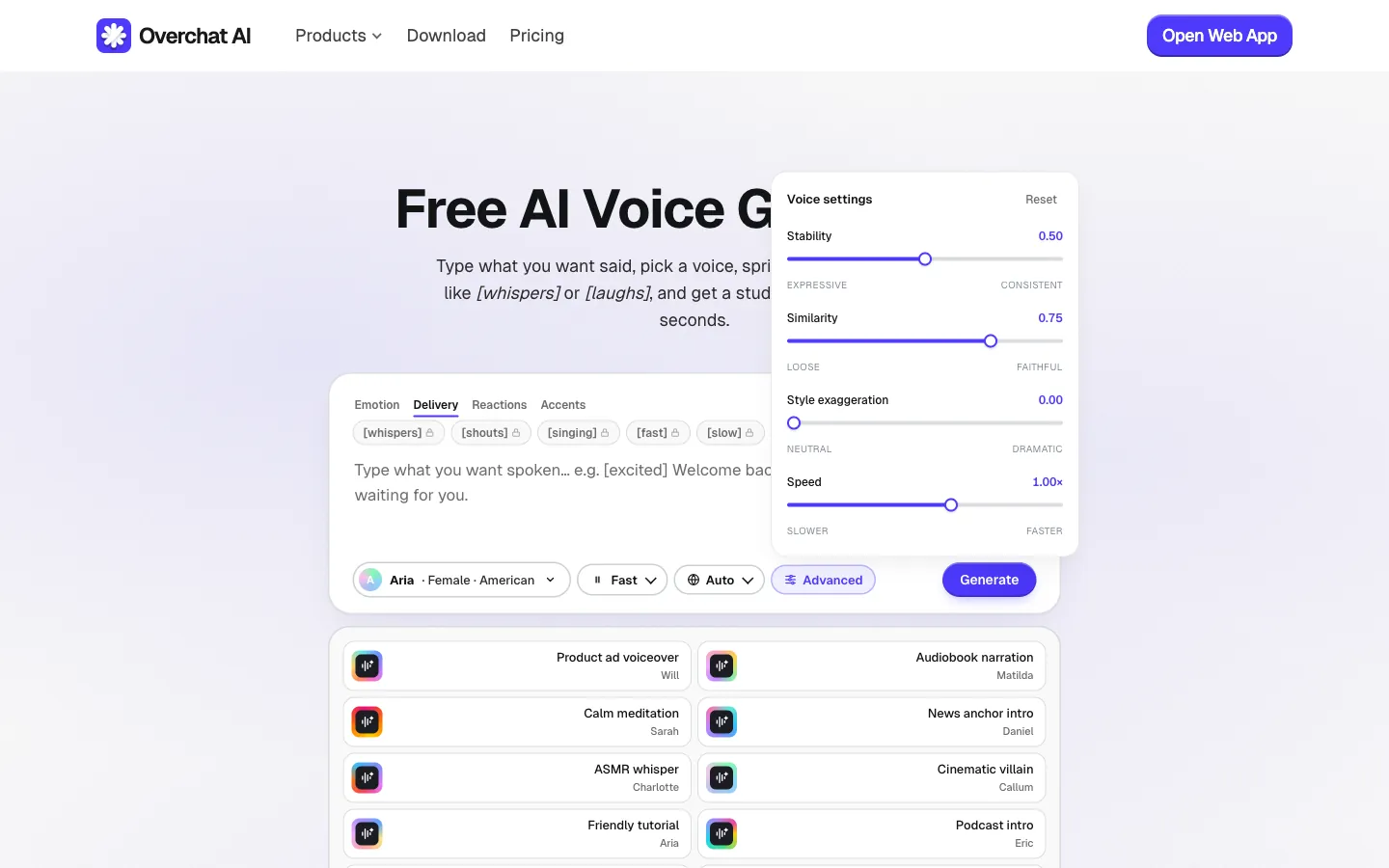
If the default output isn't quite what you want, the Advanced panel exposes four sliders that give you precise control over the generation:
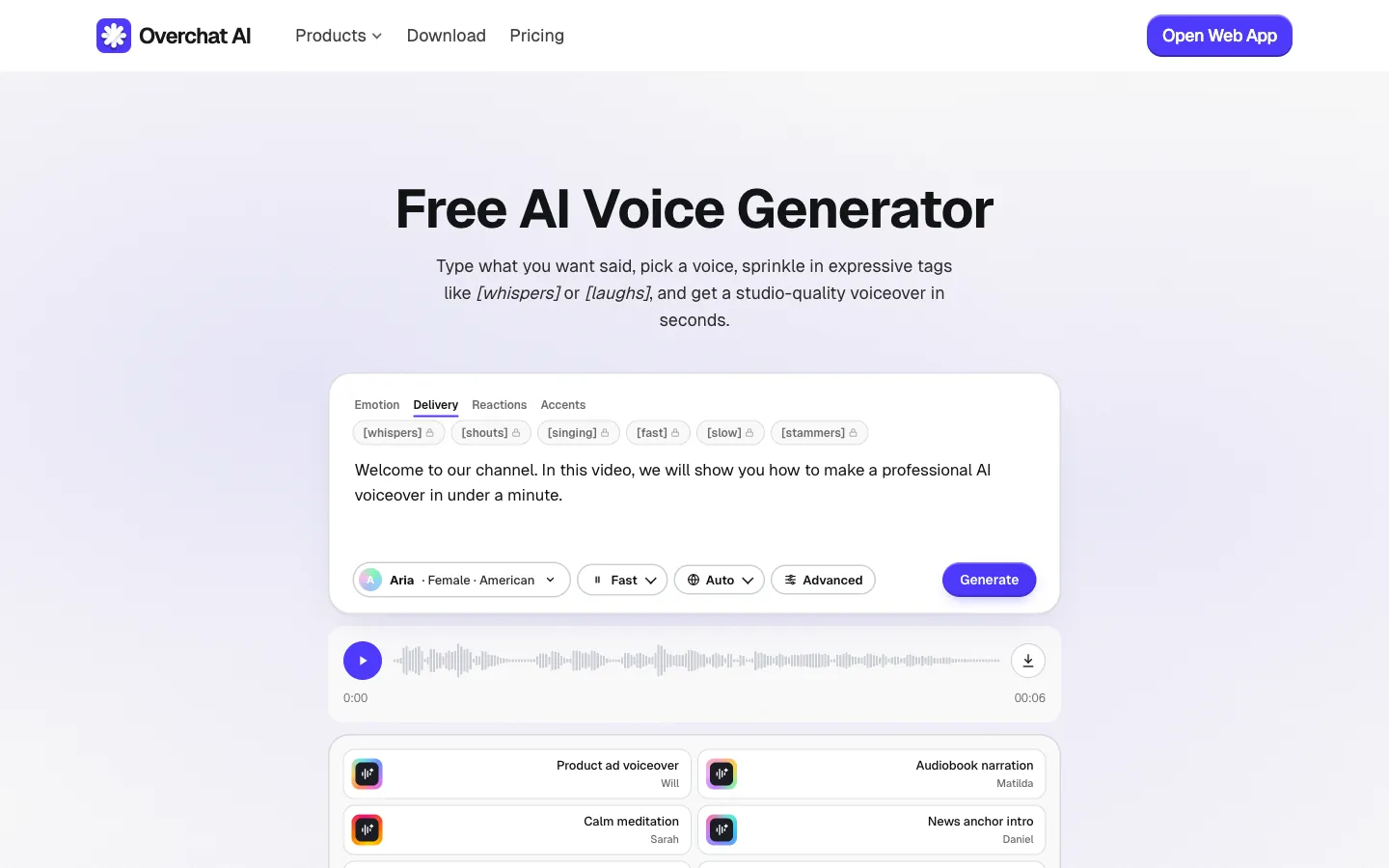
Press Generate. For a script of around 100 characters, the audio comes back in about 6 seconds. Longer scripts scale roughly linearly. You'll see a play button to preview, and a download button to save the file.
The output is a WAV file at 44.1 kHz — the standard professional audio quality.
Drag the downloaded WAV into your video editor of choice, such as Premiere, DaVinci Resolve, Final Cut, CapCut, or whatever you use — and drop it onto an audio track underneath your video. Sync it to picture, and you're done.
If you want the voiceover to sound like you specifically, use voice cloning instead.
Go to Overchat AI AI Voice Cloning tool. The interface is similar to the voice generator, but with an additional step for uploading your voice sample.
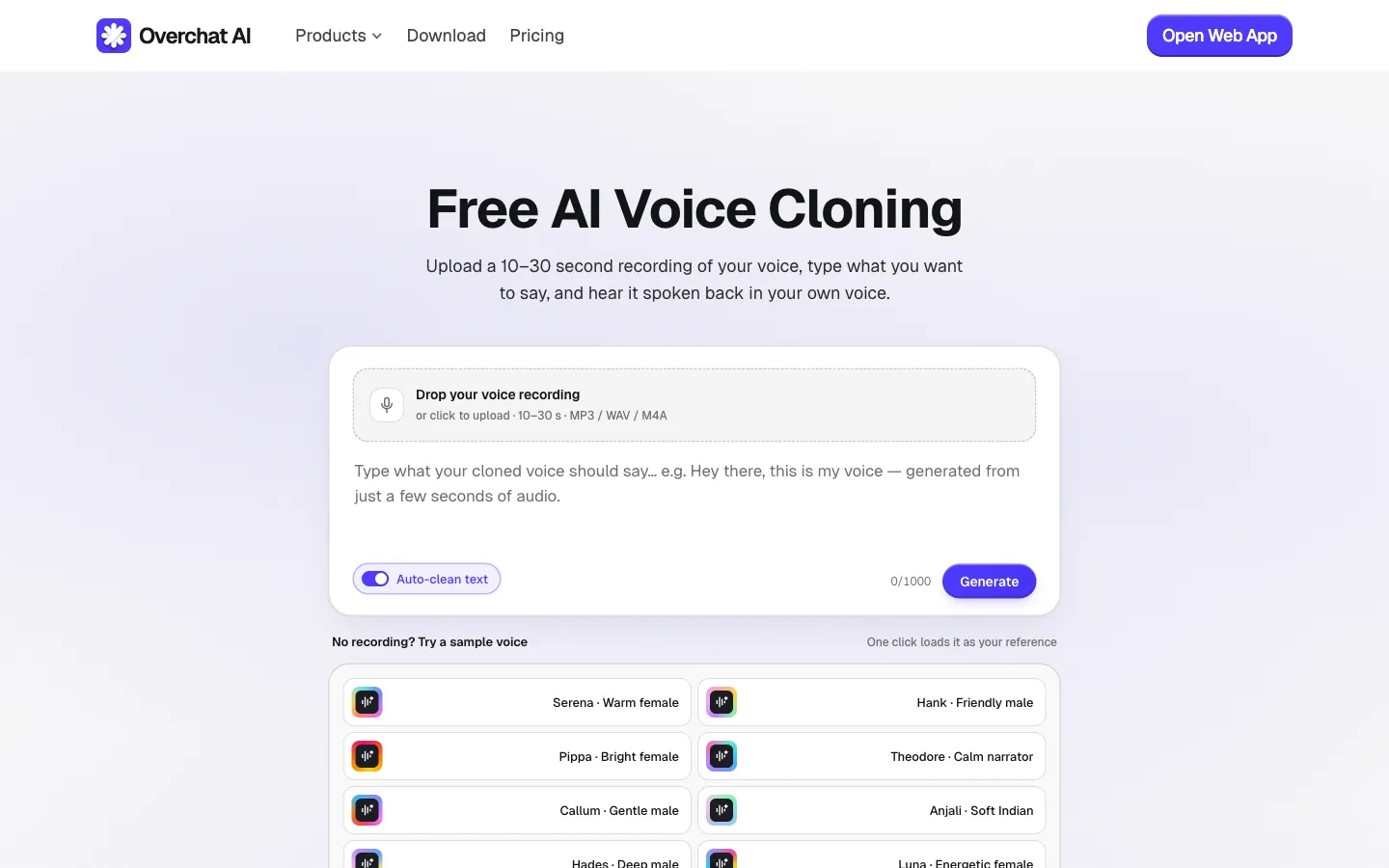
Upload an audio file of yourself speaking, in MP3, WAV, or M4A format. A few things to do for the best result:
If you don't have a recording of yourself, you can test the workflow on Overchat AI's sample voices first.
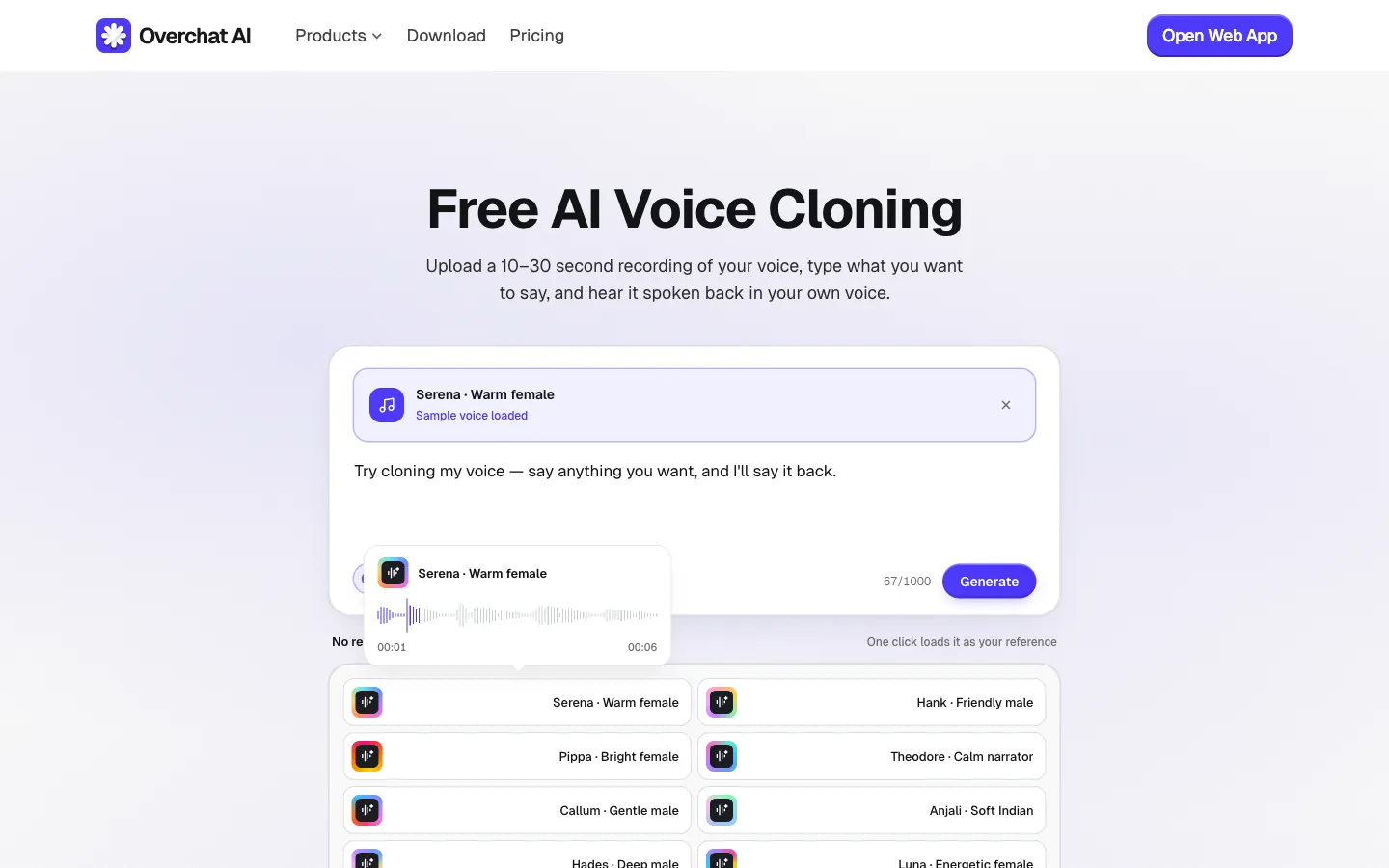
The cloning workflow accepts up to 1,000 characters per generation.
Press Generate. After the free preview, Overchat AI will prompt you to create an account — sign in with Google or Apple, which takes about five seconds, and then continue generating.
Same workflow as Method 1: download the WAV, drag it into your editor, sync to picture.
The choice depends on what kind of video you're making.
As a rule of thumb: if your audience doesn't know who you are, TTS is faster and the result is just as professional.
A few small things make a noticeable difference to how the voiceover lands.
Read your script out loud first. If a sentence is hard for you to read smoothly, it'll be hard for the AI too. Long sentences without natural breath points produce odd pauses or artifacts in the generated audio. Break them up where you'd naturally take a breath.
Place emotion tags mid-sentence, not at the start. Instead of "[whispers] Welcome back. I've missed you," try "Welcome back. [whispers] I've missed you." The model needs a beat to apply the tag, and placing it after a clear sentence boundary gives it that beat.
Match the voice to the type of footage. For example, Aira is a good voice for something like fast-cut UGC b-roll, but Calum doesn’t suit that type of footage well.
Keep the output as WAV in your editor. The 44.1 kHz WAV from Overchat AI is studio quality, so don't transcode it to MP3 before the final export — extra encoding will degrade quality.
If you encounter any of these problems (which you might, because AI-generation is never perfect), try applying these quick fixes for each:
It takes about 6 seconds for 100 characters of text, and longer scripts scale roughly linearly, so a 1,000-character script (about a minute of speech) takes around a minute to generate.
Yes! All audio files generated in Overchat AI come with full commercial rights, even if you’re generating audio on a free plan. This is one of the biggest differentiators of our platform.
Only with their explicit, documented consent. Cloning someone's voice without permission is illegal in most jurisdictions and explicitly actionable under laws like Tennessee's ELVIS Act and the EU AI Act.
Text-to-speech uses pre-built voices from our library. They don't sound like any specific real person. Voice cloning, on the other hand, allows you to capture a particular voice from a recording. Use TTS when you want a professional voice, but don’t care if it’s recognizable as a specific person. Otherwise, use cloning.
Yes. The output is a standard WAV file, which imports into every video editor — Premiere, DaVinci Resolve, Final Cut, CapCut, InShot, and the in-app editors on TikTok and Reels.
Yes, absolutely. Overchat AI's voice generator auto-detects the language from your input text and supports 30+ languages, including Spanish, French, German, Italian, Japanese, Korean, Portuguese, Dutch, and Polish.


