Image Resizer: Resize Photos Without Losing Quality
Last Updated:
2026-10-06
Image Resizer: Resize Photos Without Losing Quality
Every platform you publish on today—both online and offline—has its own image size requirements. For example, Instagram prefers square images, YouTube uses 16:9, and LinkedIn banners need to be ultrawide.
But what if you want to use the same image across all of them? Your options are usually to crop it aggressively and lose parts of the image, stretch it — which reduces quality and looks odd—or manually paint in the missing areas, which can look sloppy and obvious unless you’re very skilled.
There is a fourth option, though: using AI image resizers to change an image’s aspect ratio without losing quality or important content.
In this article, I’ll review my top five tools, explain their pros and cons, and show you how to resize images for any platform in seconds.
AI image resizers differ from traditional ones by generating new content to extend images, rather than cropping or stretching — allowing aspect ratio changes without losing any original content.
They're especially valuable when going from vertical to horizontal (where traditional cropping could remove up to 80% of the image) or horizontal to vertical (where cropping reduces effective resolution).
Modern image-to-image models produce photorealistic reconstructions that are indistinguishable from the original, even when zoomed in.
Overchat AI is the top pick, powered by Seedream 5.0, supporting 10+ aspect ratios (16:9, 4:3, 1:1, 9:16, 3:2, 21:9, and more) with no signup, no watermarks, and access to multiple Pro models like GPT Image 1.5 and Nano Banana Pro.
ImageResizer has been around since 2012, offering truly free pixel-based resizing with bulk support — but the ad-heavy interface can feel intrusive.
iLoveIMG provides batch resizing, both pixel and percentage-based controls, and direct Google Drive/Dropbox integration, though it lacks AI-powered features.
Adobe Express offers browser-based resizing with pre-built social media presets, requiring an Adobe account with full features gated behind Premium at $9.99/month+.
Canva's Magic Resize reformats entire designs (not just images) to new aspect ratios, but requires Canva Pro at $15/month — overkill if you just need a quick resize.
What is an AI Image Resizer?
First, let's clarify the difference between a traditional image resizer and an AI-powered one, because it matters more than you'd think.
Traditional image resizers work by either cropping your image (cutting off edges to fit the new dimensions) or scaling it (stretching or shrinking the entire image proportionally). Both approaches have obvious downsides: cropping loses important content, and scaling can introduce blurriness or distortion.
AI image resizers, on the other hand, extend your image by generating new content that seamlessly matches the original scene.
This means you can change a vertical photo to a horizontal aspect ratio by, essentially, painting in the extra areas that will appear on the side when you elongate the scene. The AI basically imagines — what’s likely to be beyond the frame based on the content it can see inside the frame — and generates that scene from scratch.
The advantage of this approach is obvious: you can resize any image to any aspect ratio seamlessly. The downside is that it can be slow, taking up to a minute to render. This isn't an issue when resizing a single image, but it can become a bottleneck when resizing in batches.
Do you always need to use an AI resizer, then? No, not really. For many tasks — like scaling down a 4000px image to 800px for a blog — a simple, fast traditional resizer is all you need.
But when you need to change the aspect ratio of a photo without cropping out important content, AI-powered tools are a game changer.
Why Use an Image Resizer?
There are two main reasons, and they depend on the direction in which you’re changing the aspect ratio.
If you’re going from vertical to horizontal, you can’t resize the image traditionally without making a very aggressive crop that might cut off up to 80% of the original. AI, on the other hand, reconstructs the scene while keeping the perspective and zoom level intact. Aside from using AI, the only other viable option would be digital painting.
If you’re going from horizontal to vertical, you usually have to crop less content, but it can still be a fairly aggressive crop. This reduces the effective quality, because you’re essentially lowering the total resolution and then displaying a small portion of the image at a larger size. AI image resizers avoid this problem by reconstructing the scene, so there’s no loss of resolution.
An important note: you might think the reconstruction aspect is a drawback, but in practice it’s really not. Modern image-to-image AI models are so good that they can produce perfectly photorealistic results with 100% identical likeness. You won’t be able to tell the image was regenerated by AI — even when zooming in.
5 of the Best Image Resizers Compared
After testing over 15 image resizing tools, here are the ones that I thought gave me the best results. I judged them on the quality of the resulting images — especially the parts that were reconstructed, how easy they were to use, and features:
Platform
Killer Feature
Free Plan?
Works Without Sign-up?
Price
Overchat AI
AI-powered aspect ratio changing with smart fill
✓
✓
$5.99/wk or $49.99/yr
ImageResizer.com
Simple, fast, and truly free with no tricks
✓
✓
$6.99/mo+
iLoveIMG
Batch resizing with cloud integration
✓
✓
Free (with ads); Premium from ~$2,400/yr
Adobe Express
Social media presets from a trusted brand
✓
✗
$9.99/mo+
Canva
Resizing built into a full design platform
✓ (but limited)
✗
$15/mo+
And now, let’s take a closer look at each tool:
Overchat AI
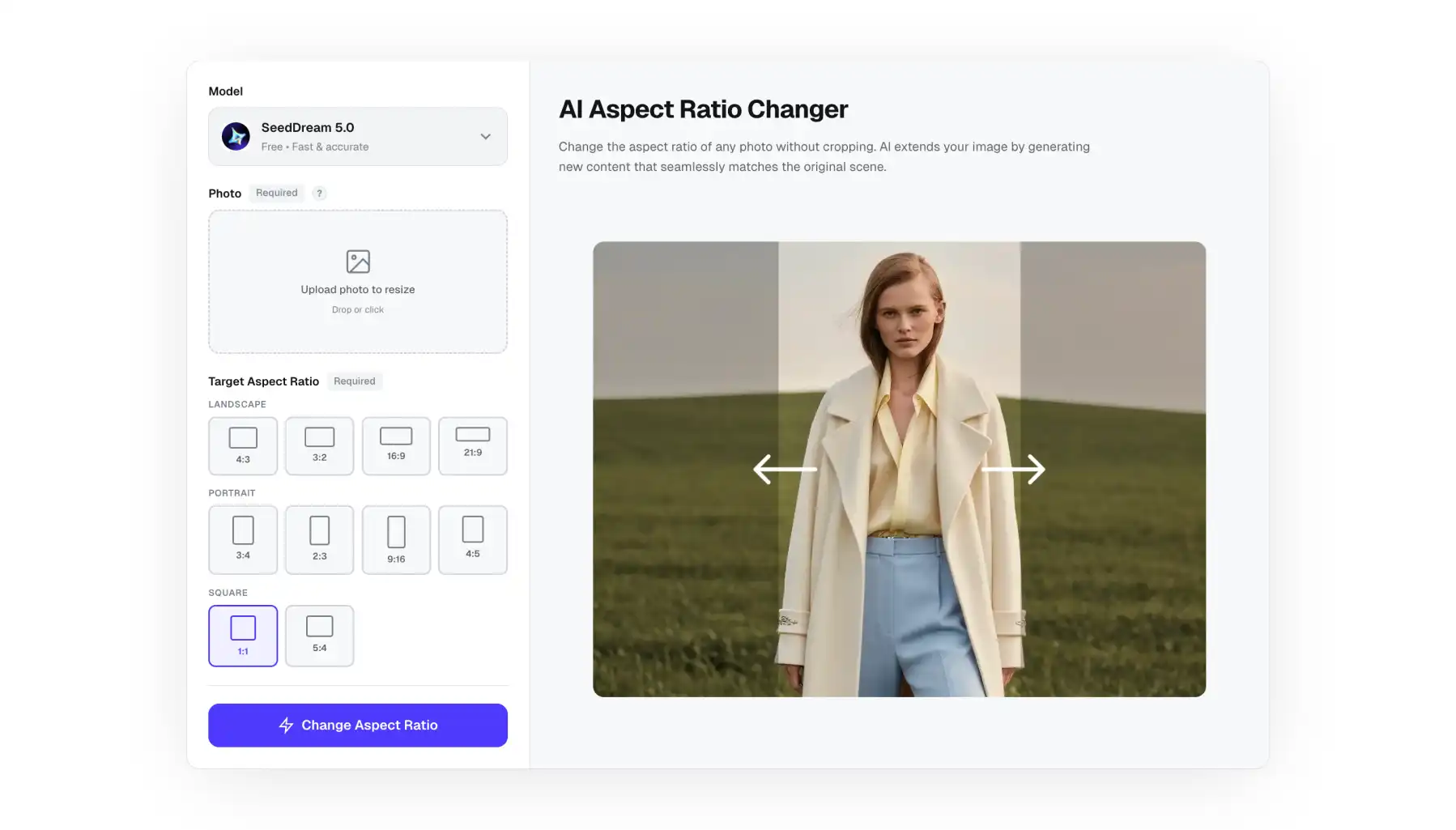
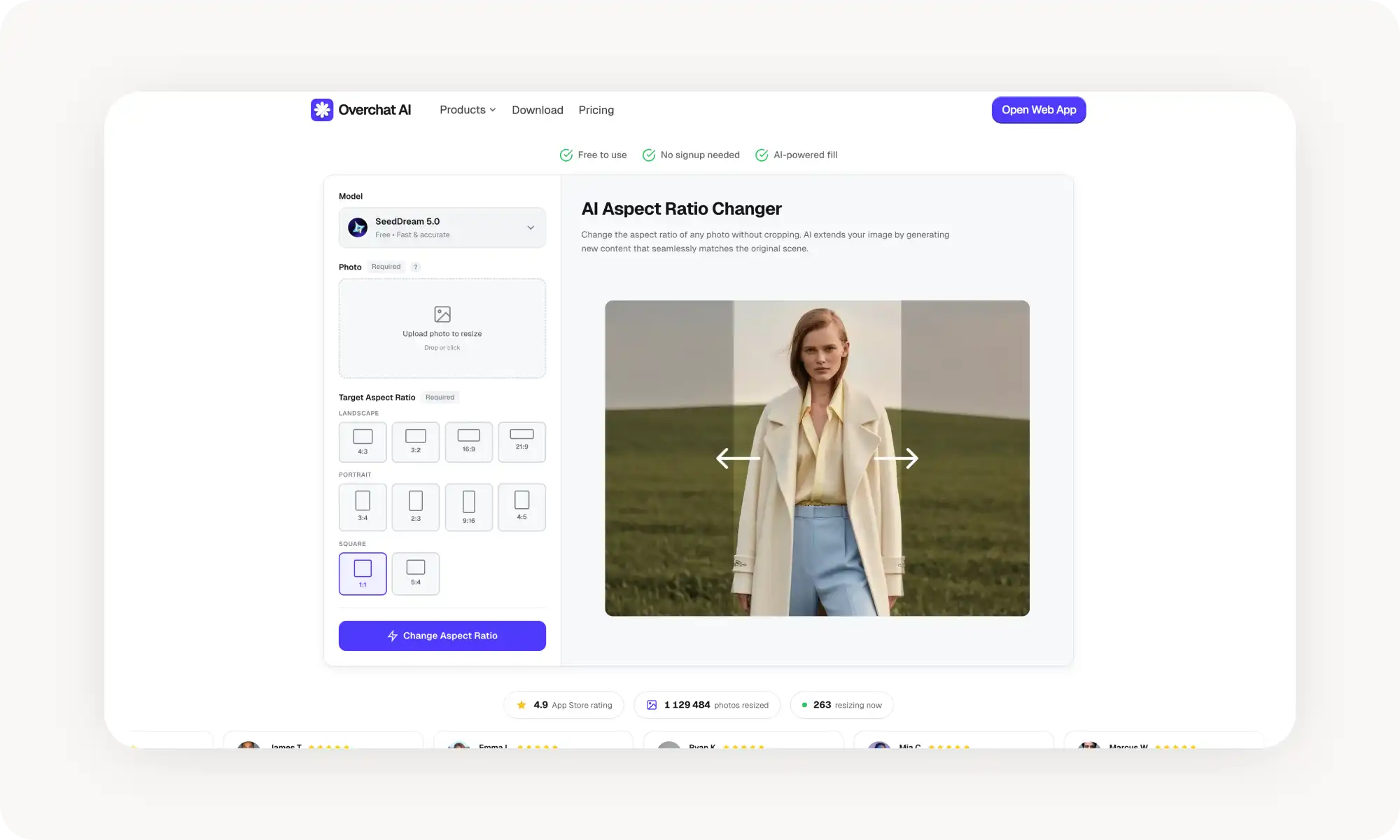
Overchat AI Aspect Ratio Changer uses AI (a Seedream 5.0 image-to-image model to be precise) to extend the canvas and generate new content that seamlessly matches the original scene.
This makes it the only tool here that can truly change an image's aspect ratio without losing anything.
To use the tool requires just three steps:
Upload your photo
Select your target aspect ratio
Download the result.
I really like that while Overchat AI supports more than 10 aspect ratios (16:9, 4:3, 1:1, 9:16, 3:2, 21:9, and more — covering every major platform from YouTube and Instagram to TikTok and ultrawide monitors), the interface makes it very easy to choose one. Helpful icons also let you quickly visualize what the resulting image will look like.
Overchat AI is also an all-in-one AI platform that provides access to multiple models. If you upgrade to Pro, you can resize images using GPT Image 1.5, Nano Banana Pro, and Kling 3 Image, which are even more powerful than SeeDream 5.0—though the SeeDream model is no slouch either.
ImageResizer
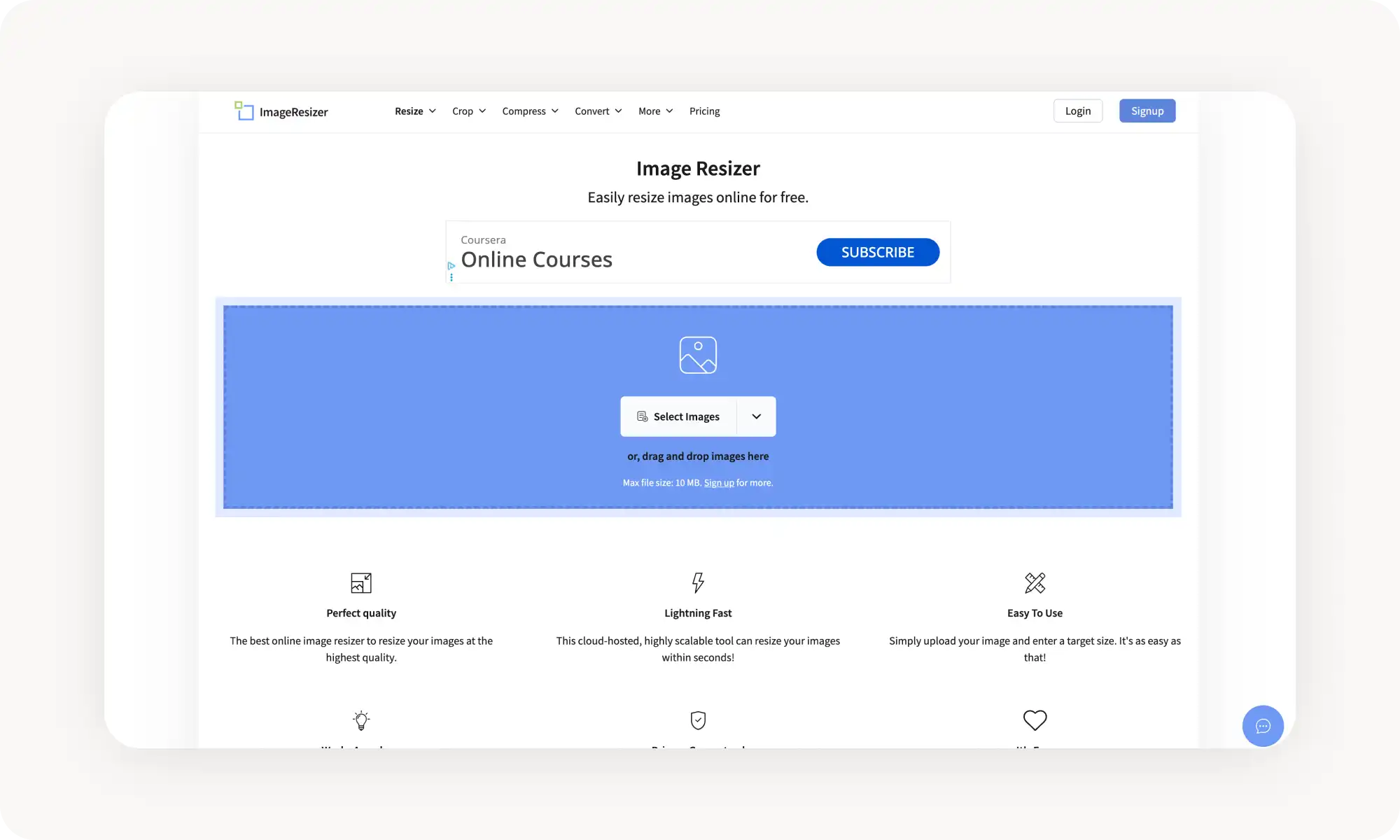
ImageResizer is the tool for when you just need to quickly resize an image to specific pixel dimensions. It's been around since 2012, and it's genuinely free, and it’s genuinely reliable.
To use the tool:
Upload an image
Enter your target width and height in pixels
Click resize
One thing worth mentioning is that the site is ad-supported. You’ll see banner ads on the page while you work—usually to the left and right of the resize area—and they can feel a bit intrusive. Personally, I’m not a big fan of working on websites with lots of ads because it sometimes feels like you might get redirected to a shady page at any moment. That said, in all fairness, that has never happened here, and the ads appear to be standard Google Ads.
Pros:
✅ Truly free
✅ Precise pixel-dimension control
✅ Bulk resizing support
✅ No sign-up required
Cons:
❌ Banner ads
❌ Limited daily uses on the free plan
iLoveIMG
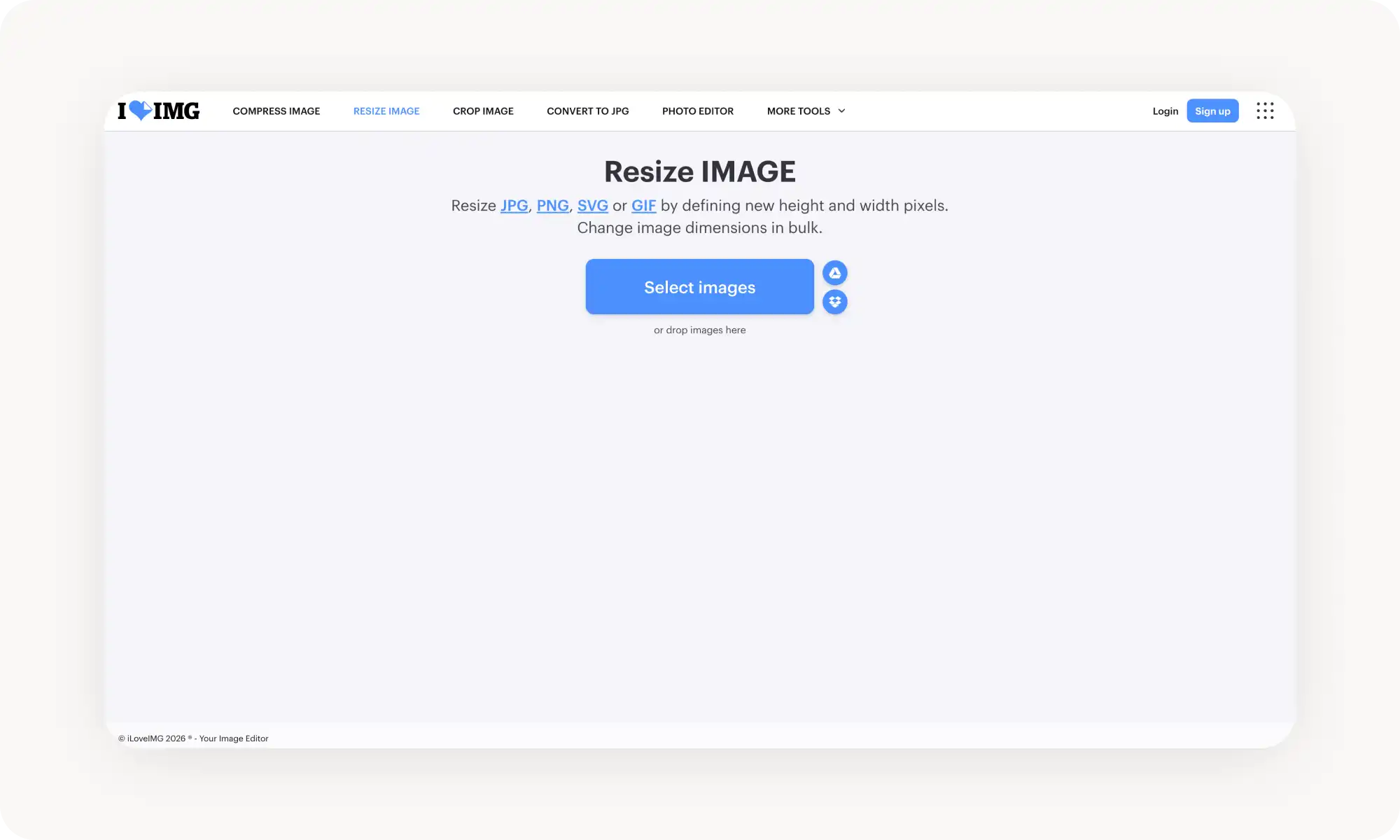
iLoveIMG is a feature-rich image toolkit from the same team behind iLovePDF — and if you've ever compressed a PDF online, there's a good chance you've used their sister product. The image resizer offers both pixel-based and percentage-based resizing, with support for batch processing multiple images at once.
The platform integrates directly with Google Drive and Dropbox, which is a huge convenience if your images live in the cloud. You can pull files straight from your cloud storage, resize them, and save the results back. It supports JPG, PNG, SVG, and GIF formats.
Free users get access to the basic resize tool with limited processing capacity and ads. The Premium plan unlocks all tools, unlimited processing, an ad-free experience, priority support, and cross-platform access.
Pros:
✅ Batch resizing for multiple images at once
✅ Both pixel and percentage-based resizing options
✅ Direct Google Drive and Dropbox integration
✅ Supports JPG, PNG, SVG, and GIF
Cons:
❌ Ads shown to free users
❌ Limited processing capacity on the free plan
❌ No AI-powered fill or extension features
❌ Premium plan required for ad-free experience
Adobe Express
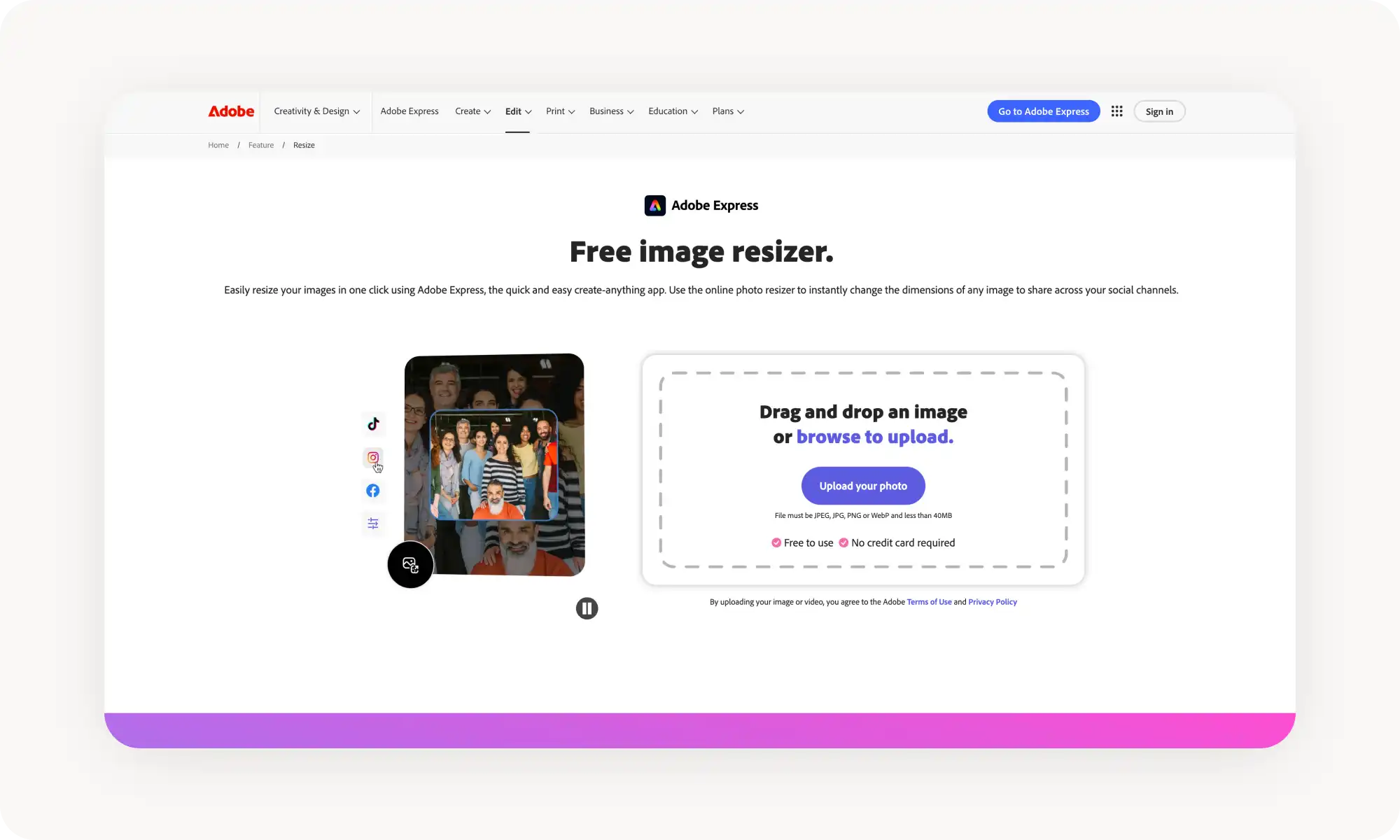
Adobe Express Image Resizer is a browser-based resizing tool — a part of the broader Adobe Express platform, which offers a Canva-like design experience backed by Adobe's image processing technology.
Use the pre-built dimension presets for popular social media platforms — Instagram, Facebook, YouTube, LinkedIn, and more — and don’t worry about memorizing or googling the exact pixel requirements for each platform.
The free tier gives you access to the basic resizer and a limited set of templates and design features. Adobe Express Premium ($9.99/month+) unlocks the full template library, AI features, and more.
You need to create an Adobe account to use the tool, which is a minor inconvenience but expected from Adobe.
Pros:
✅ Pre-built presets
✅ Integrates with Adobe Express
✅ Custom dimensions
Cons:
❌ Requires an Adobe account
❌ Full feature set requires Premium subscription
Canva
Canva's Image Resizer (called Magic Resize in the Pro plan) is built into Canva (duh), a platform that millions of people already use for design.
The resizer lets you input custom dimensions or choose from preset sizes for platforms like Instagram, Facebook, Twitter, Pinterest, and LinkedIn. Magic Resize, the Pro-tier feature, is especially useful: it automatically reformats your entire design — not just the image, but text, layout, and graphic elements — to fit a new aspect ratio.
Free Canva users can resize images manually by creating a new canvas at the desired dimensions and repositioning their image. But the one-click Magic Resize feature — which is the real selling point — requires Canva Pro at $15/month.
Pros:
✅ Magic Resize reformats entire designs, not just images
✅ Preset sizes for every major platform
✅ Integrated with Canva's full design suite
✅ Works on mobile and desktop
Cons:
❌ Magic Resize requires Canva Pro ($15/month)
❌ Requires an account to use
❌ Overkill if you just need a quick image resize
❌ Free tier resizing is manual and less intuitive
Frequently Asked Questions (FAQ)
What is the best free image resizer?
Overchat AI is the best free image resizer if you need to change aspect ratios without losing content — its AI-powered smart fill extends your image instead of cropping it.
What's the difference between resizing vs cropping?
Resizing changes the overall dimensions of your image — making it larger or smaller while keeping all the content. Cropping cuts away parts of the image to fit new dimensions, which means you lose content around the edges.
What image size do I need for social media?
The most common sizes are:
Instagram post (1080 x 1080px)
Instagram Story (1080 x 1920px)
Facebook post (1200 x 630px)
YouTube thumbnail (1280 x 720px)
LinkedIn banner (1128 x 191px)
Twitter/X post (1200 x 675px)
Pinterest pin (1000 x 1500px)
Bottom Line
To sum up the most important point, Image resizers go from simple tools that only change the dimension of the image in pixels all the way to advanced AI image-generators that can intelligently extend your canvas without losing any content.
Key takeaways:
Traditional image resizers are fast and work if you need to scale or change the dimension of the image.
AI-powered tools like Overchat AI solve the harder problem of changing aspect ratios without cropping, by generating new content that seamlessly matches your original image.
Overchat AI is one of the best AI image resizers for changing aspect ratios, offering AI-powered smart fill with no sign-up and no watermarks.
To wrap up, making an extreme recrop — like going from a horizontal ultrawide image to a vertical one — has always been a major challenge, especially in photography. The problem became somewhat less severe when camera sensors reached very high resolutions, since you can crop a 40–50 megapixel images quite aggressively. Even so, most photographers still prefer to shoot in the correct aspect ratio, because that’s a lot of usable resolution to throw away.
That’s why tools like AI image resizers and AI upscalers are so exciting. They let you convert almost any aspect ratio into another—and even regenerate parts of the image that would normally be lost in a crop.
This is genuinely one of the most impressive yet underrated uses of image-to-image AI technology I’ve seen. It’s honestly mind-boggling that in 2026 you can do this for free.