
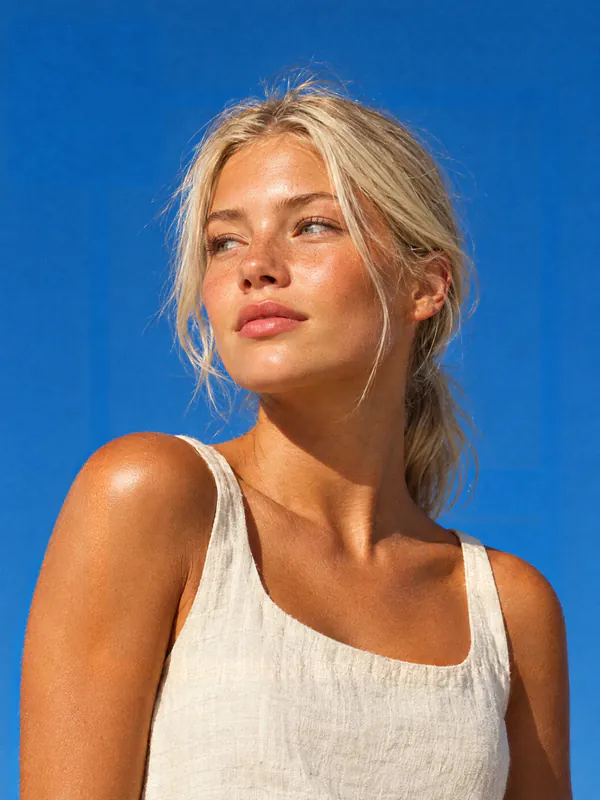

How people use the tan filter
Preview a tan before the beach or a spray tan, or warm up pale photos for social media.
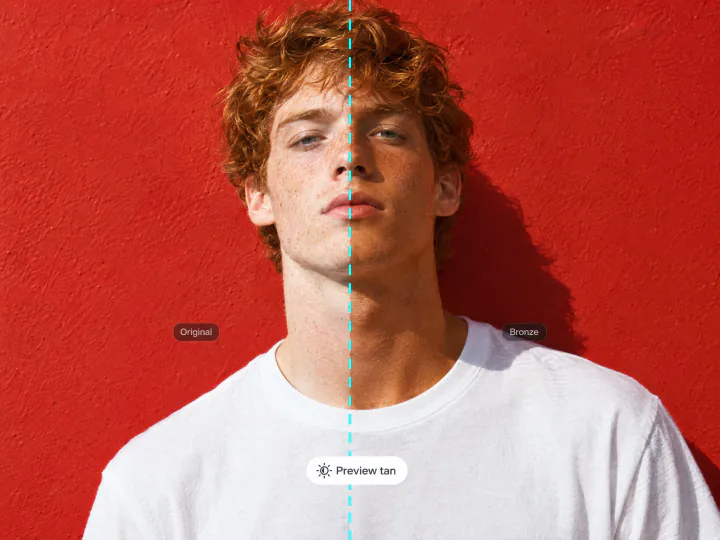
Preview a spray tan or self-tanner
Before you book a spray tan or buy a self-tanner, see the shade on your own photo. Start with Sun-kissed for a light first coat, go up to Mahogany for a deep summer tan, and compare each result with your original photo.
Try it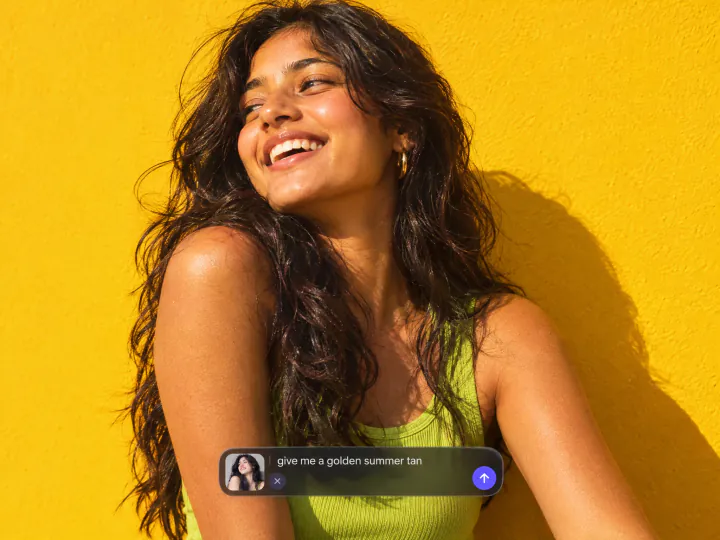
Add a summer tan to photos for Instagram and TikTok
Winter photos get the warm skin of a beach week. The tan covers the face, neck, shoulders and arms evenly, so the face matches the body and nothing turns orange or patchy.
Try it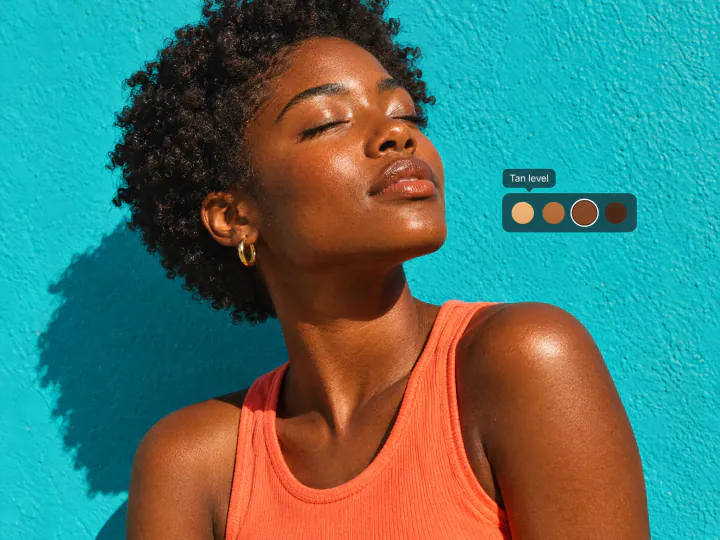
A tan filter for every skin tone
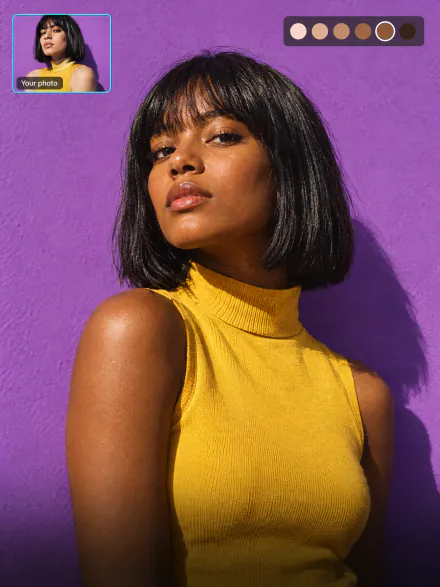
The filter deepens the tone a person already has instead of painting one color over everyone. Fair skin gets a visible tan; olive and dark skin get a warmer, sun-kissed glow.
Try itWhy use the Overchat AI tan filter
Natural, not orange
The tan is built into the skin with its texture, freckles and shadows, not laid over it like a color filter.
Four tan levels
Sun-kissed, Golden, Bronze and Mahogany, from a light glow to a deep summer tan, plus your own details.
Still looks like you
Face, hair, clothes and background stay as they were; only the skin tone changes.
No sun, no fake tan
See how a tan suits you before a day at the beach, a sunbed session or a bottle of self-tanner.
Selfies to full-body shots
Works on portraits and full-body photos in JPG, PNG, WEBP or HEIC up to 20 MB.
Online, on any device
Runs in the browser on a phone or a computer, with nothing to install.
How to add a tan to a photo
Three steps, starting right on this page.
- 1
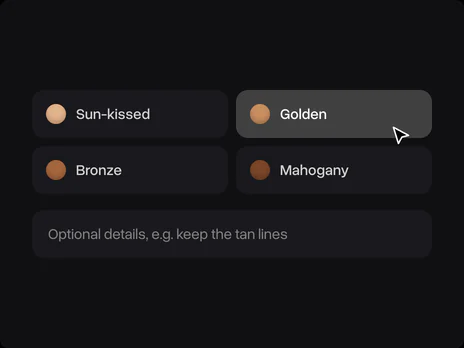
Choose a tan level
Pick Sun-kissed, Golden, Bronze or Mahogany. Add details in the optional field, for example keep the tan lines or tan the face only.
- 2
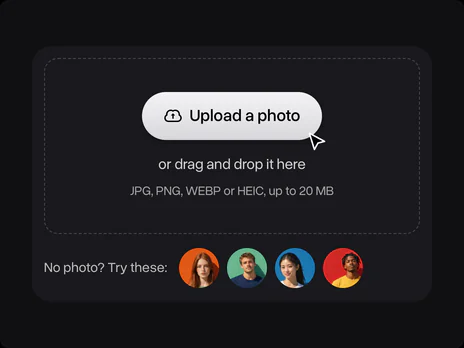
Upload your photo
Upload a clear photo where the skin is visible: a selfie, a portrait or a full-body shot. No photo at hand? Use one of the sample faces. The photo opens in Overchat AI with your tan level ready.
- 3
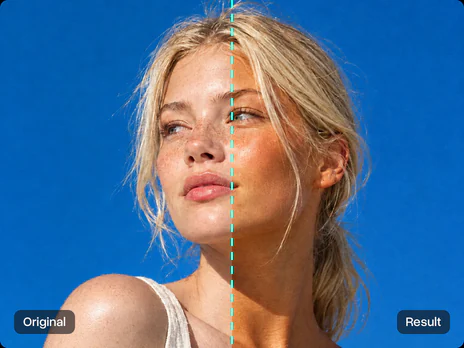
Get the tanned photo
Sign in to Overchat AI, get the tanned photo in seconds and download it.
Explore More AI Tools
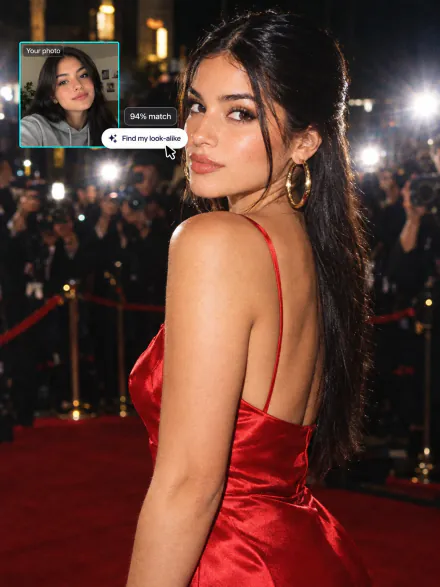
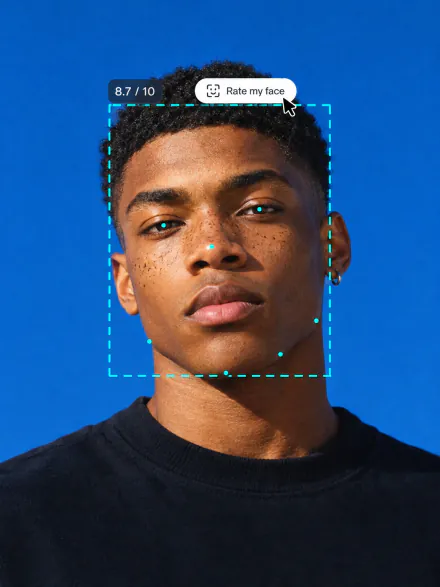
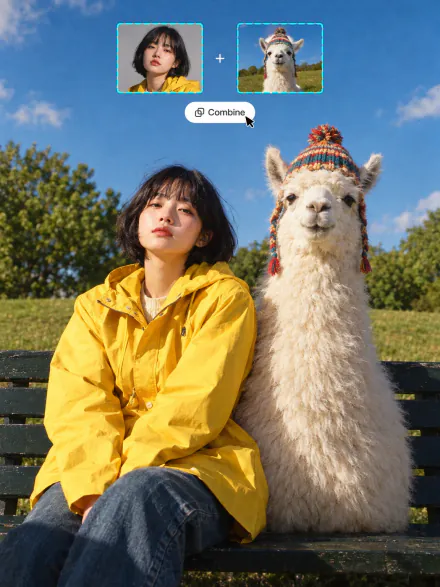
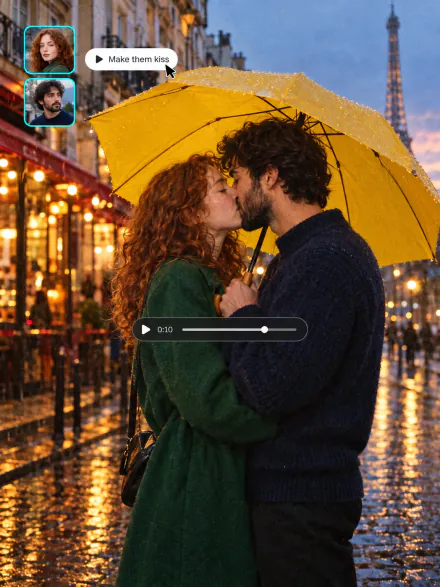
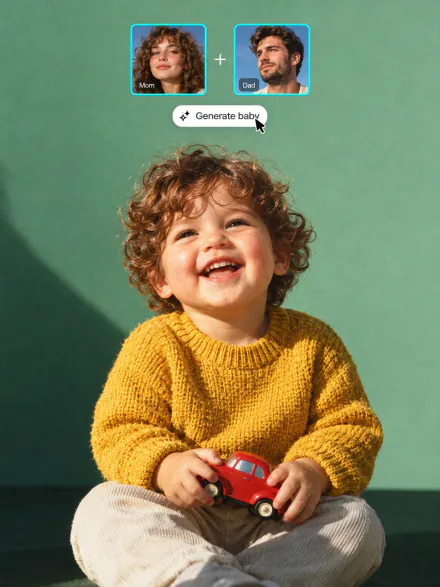
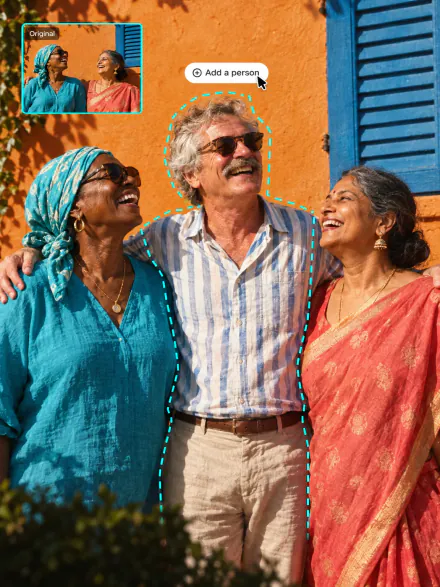
Swap into a movie star, rate your face, merge two photos or see your future baby. Every tool runs on the same subscription.
FAQ
If you have any questions,
reach out to us at hello@overchat.ai
Yes. The Overchat AI tan filter adds a sun tan to any photo: pick a tan level and upload the photo. Only the skin tone changes; your face, hair, clothes and background stay the same.
Yes. There are four levels: Sun-kissed (a light glow), Golden, Bronze and Mahogany (a very deep tan). You can also describe the tan in the details field, for example "keep the tan lines" or "face only".
The filter recolors the skin together with its texture, shadows and freckles, so the result reads as a real tan rather than an orange tint. If a result looks too strong, pick the next lighter level.
Yes. It deepens the tone a person already has, so it works on fair, olive, brown and dark skin. On dark skin the change is a warmer, sun-kissed glow rather than a different shade.
You can use it on the free Overchat AI plan, which comes with daily credits. Paid plans add more credits for more photos and for the other AI tools.
You need a free Overchat AI account to generate. After you upload the photo, sign in with Google or Apple; your photo and tan level carry over, so you don't upload anything twice.
Yes. Upload a photo of yourself, try the levels one by one and compare the results with your original photo before you book a spray tan or buy a self-tanner.
Yes. The tan filter works in any mobile browser. Upload a photo from your camera roll, including HEIC photos from an iPhone.


