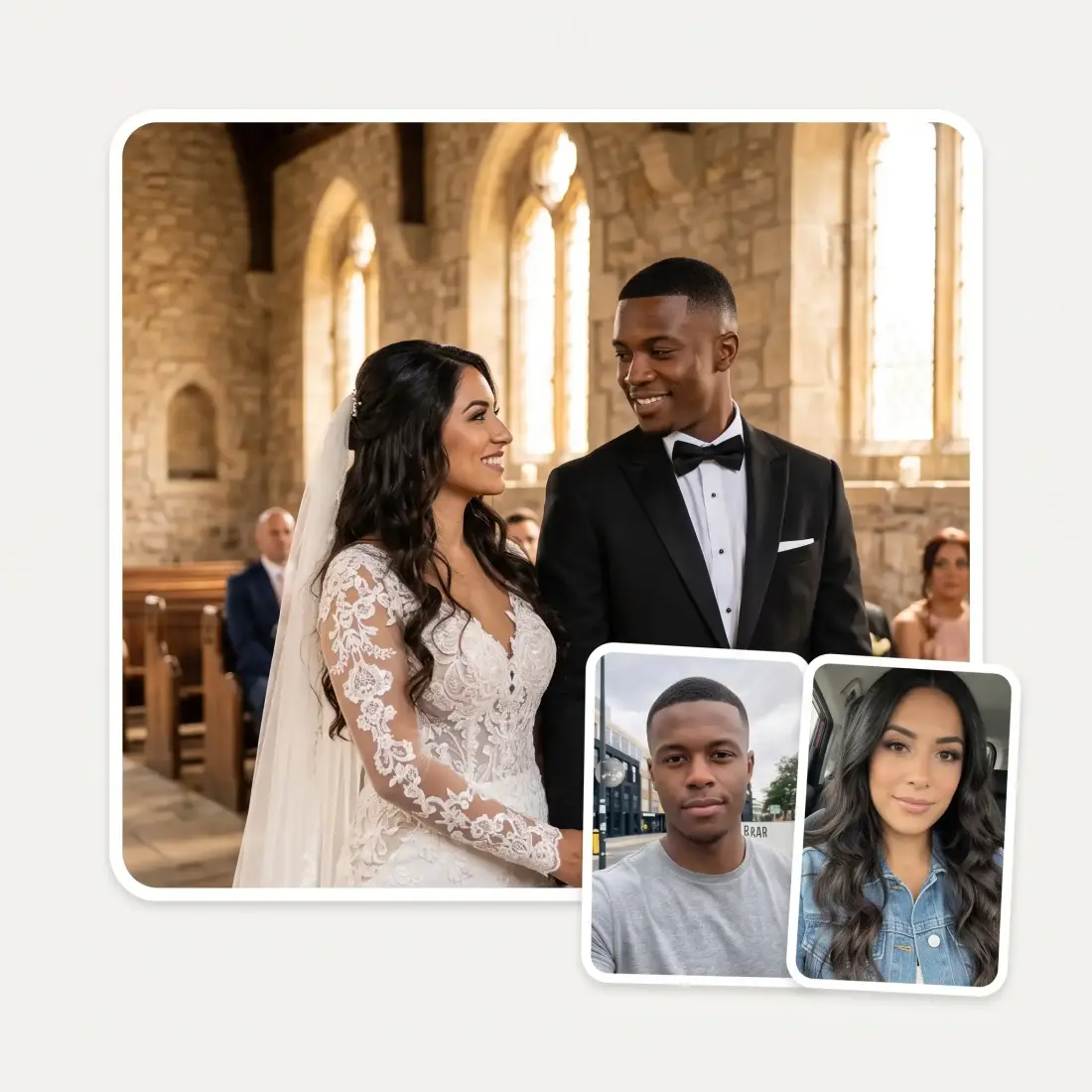
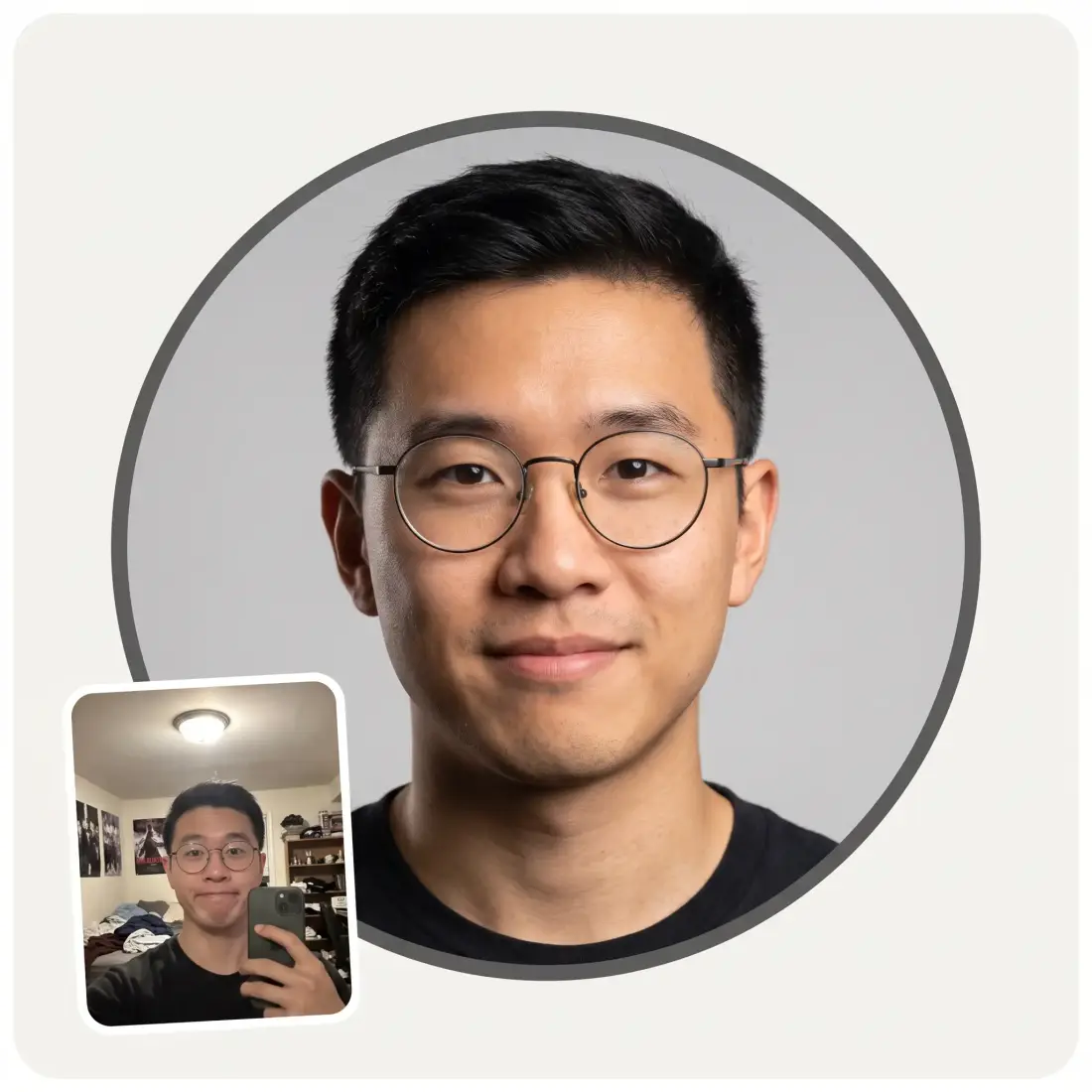
Upload a photo, type what they should say — AI turns the still into a talking video with a real voice, lip-synced.
The mouth is not looping a generic talking animation. It is driven by the line you typed, so the shapes match the syllables, and the eyes and eyebrows move with them instead of staying frozen while the jaw flaps. That is the difference between a photo that talks and a photo with a moving mouth pasted on.
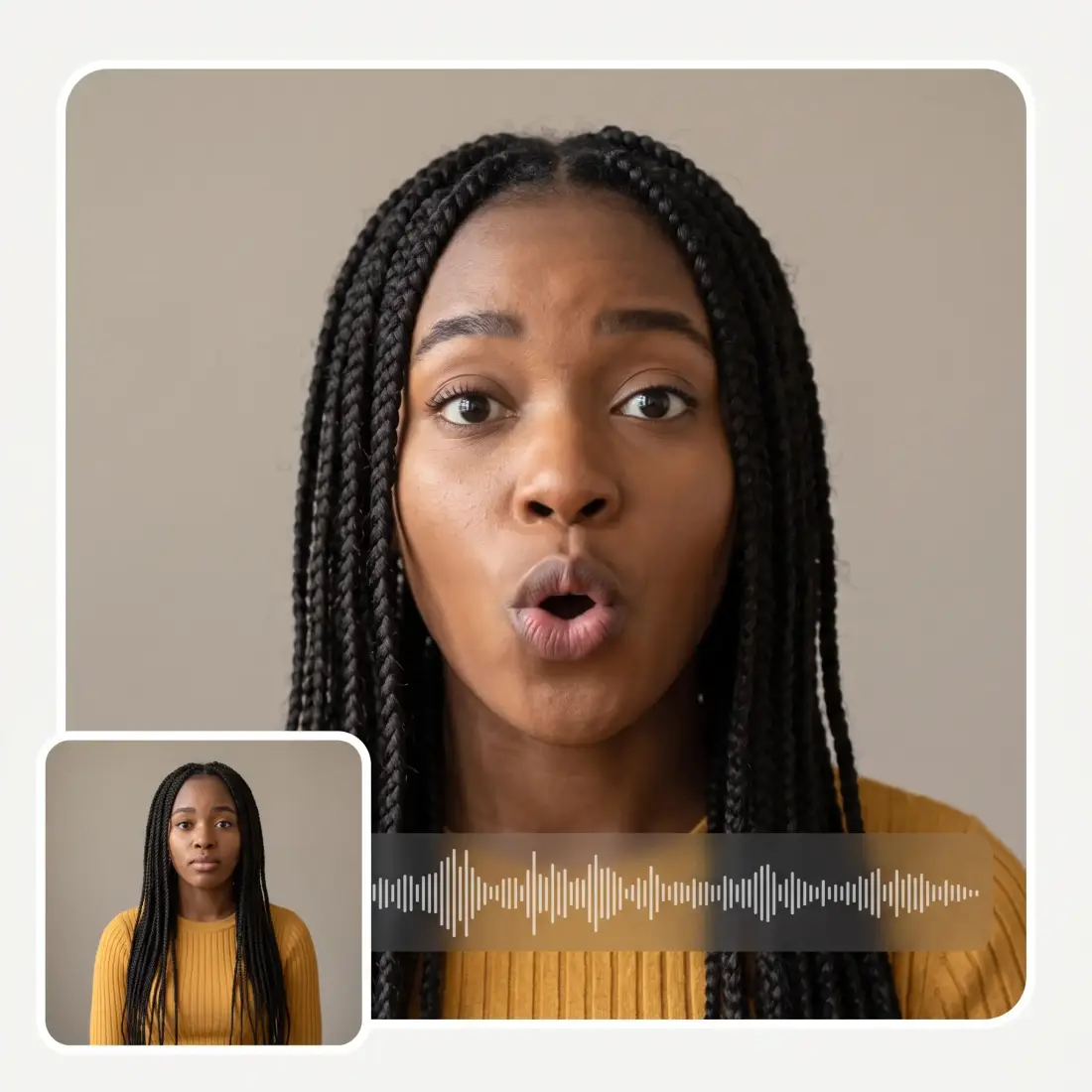
Sound is not bolted on afterwards. The clip is rendered by Veo 3.1, which generates the spoken audio together with the picture, so the voice suits the face and the room rather than sounding like a narrator dubbed over a photo. You do not record anything and you do not upload an audio file.
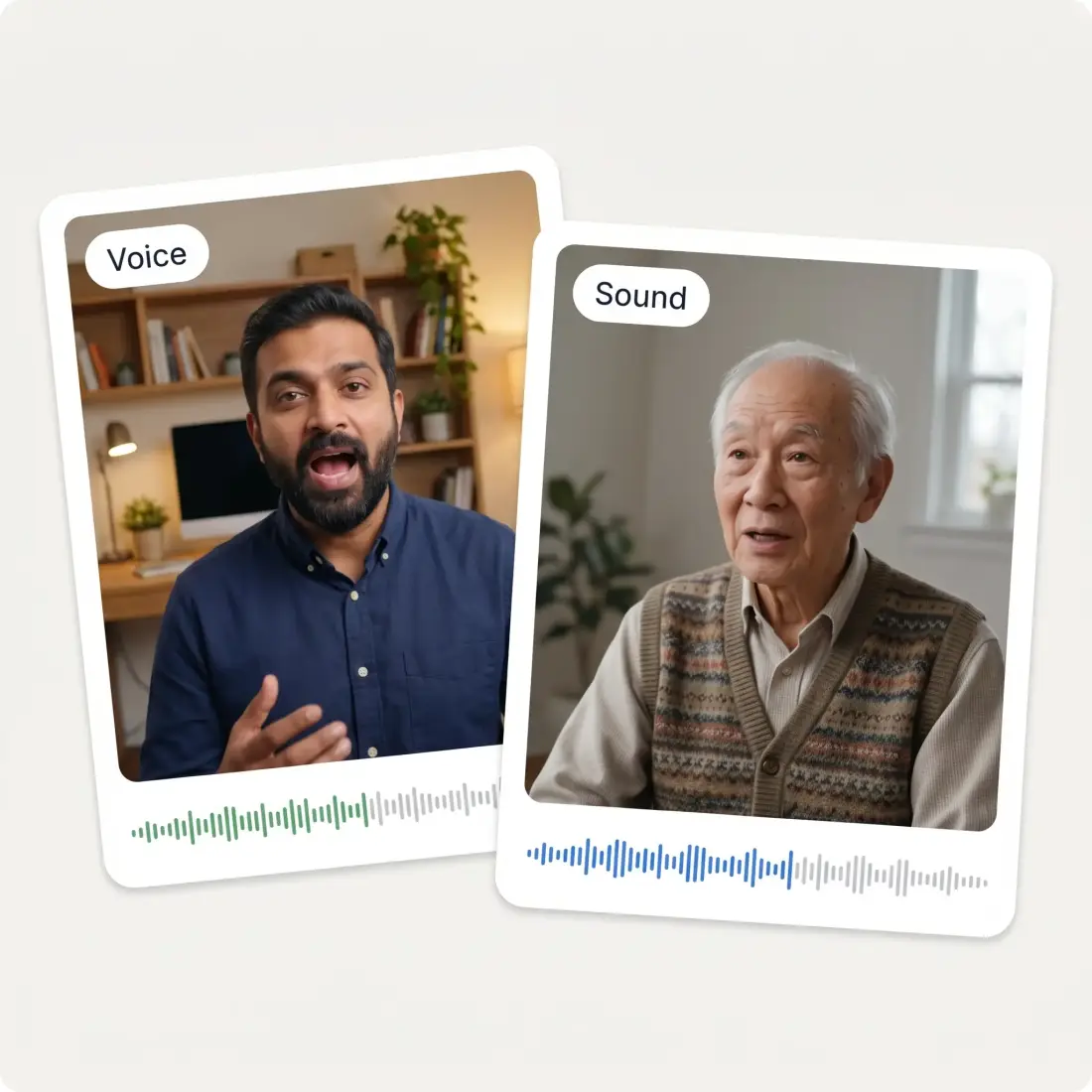
Type whatever they should say — a birthday wish, an announcement, a thank-you, a joke that only one person will get. Three starter examples are one tap away if you want a shape to work from, and the box tops out at 200 characters, which is about the length of a clip anyone will actually watch to the end.
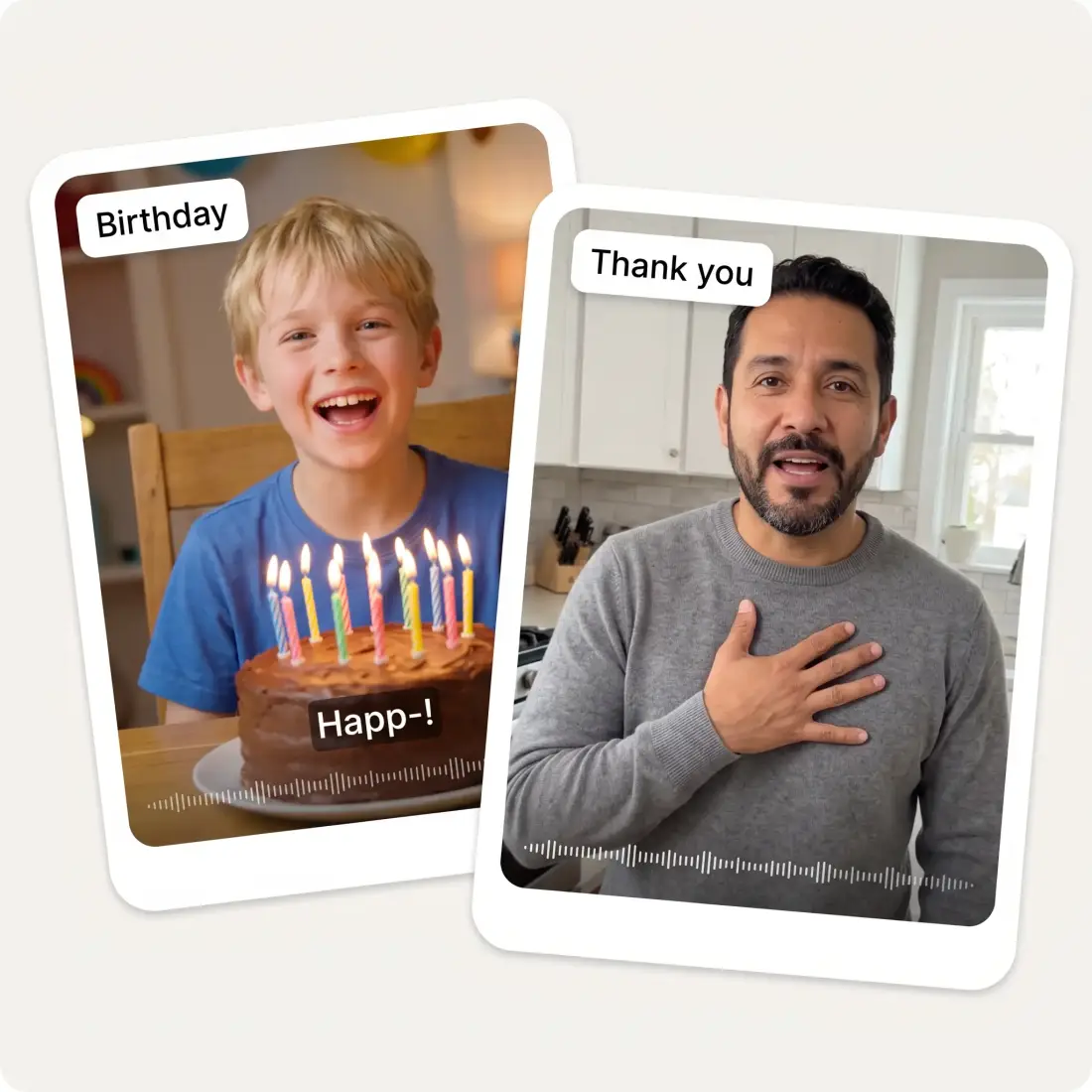
No video, no microphone, no recording setup. A single portrait — a phone selfie, a scan of a print, a photo from a decade ago — is enough for a talking clip. JPG, PNG and HEIC are all accepted, and the picture is resized in your browser before it goes anywhere.
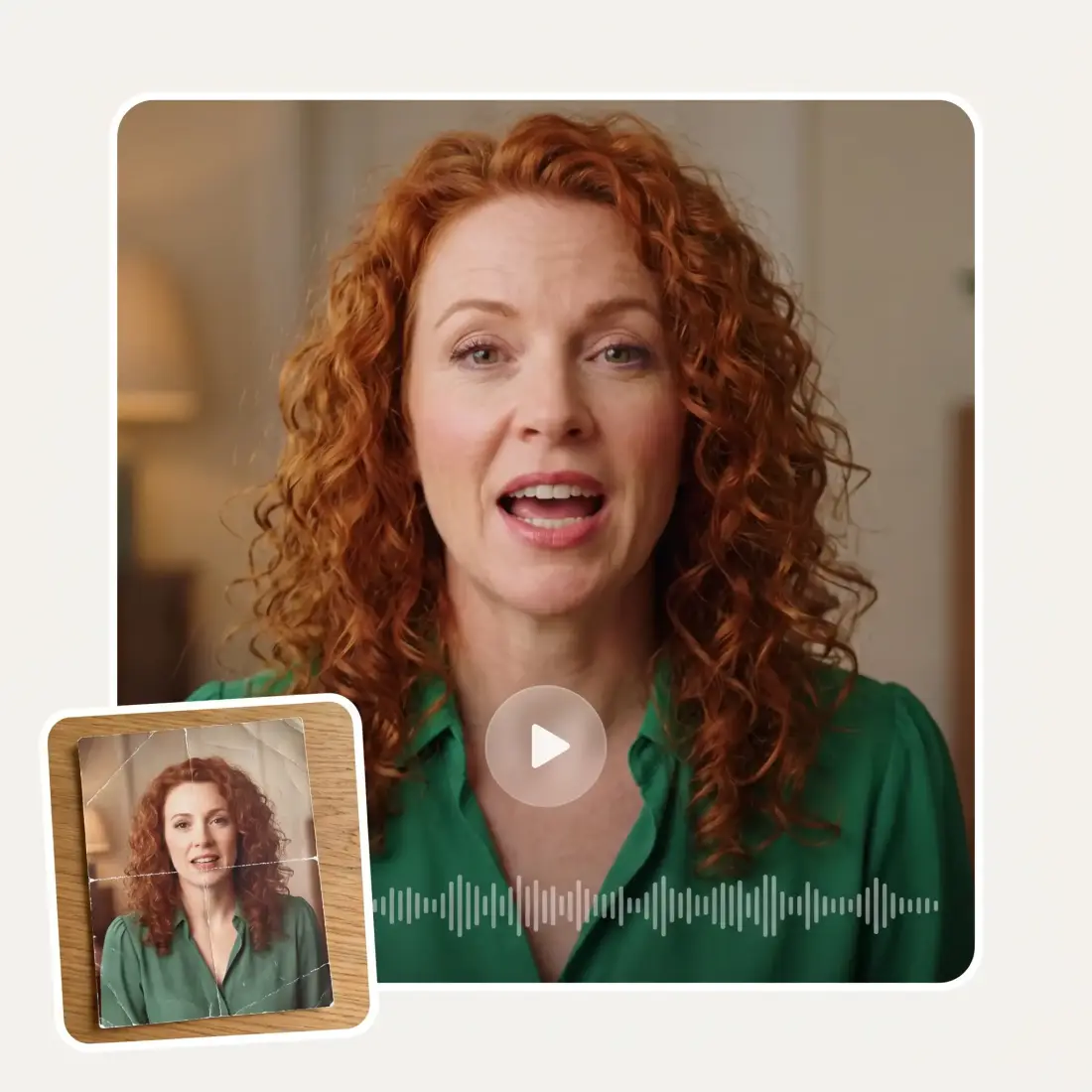
Drag in a portrait, pick one from your device or paste it from the clipboard. A clear, front-facing face works best. JPG, PNG and HEIC all work.
Write the line in the What should they say? box — up to 200 characters. Tap one of the birthday, announcement or thank-you examples if you want a starting point.
The photo and your line are handed to the video studio, which renders the clip with Veo 3.1 — picture and spoken audio generated together.
Play the result, then save the video or start again with a different photo or a different line.
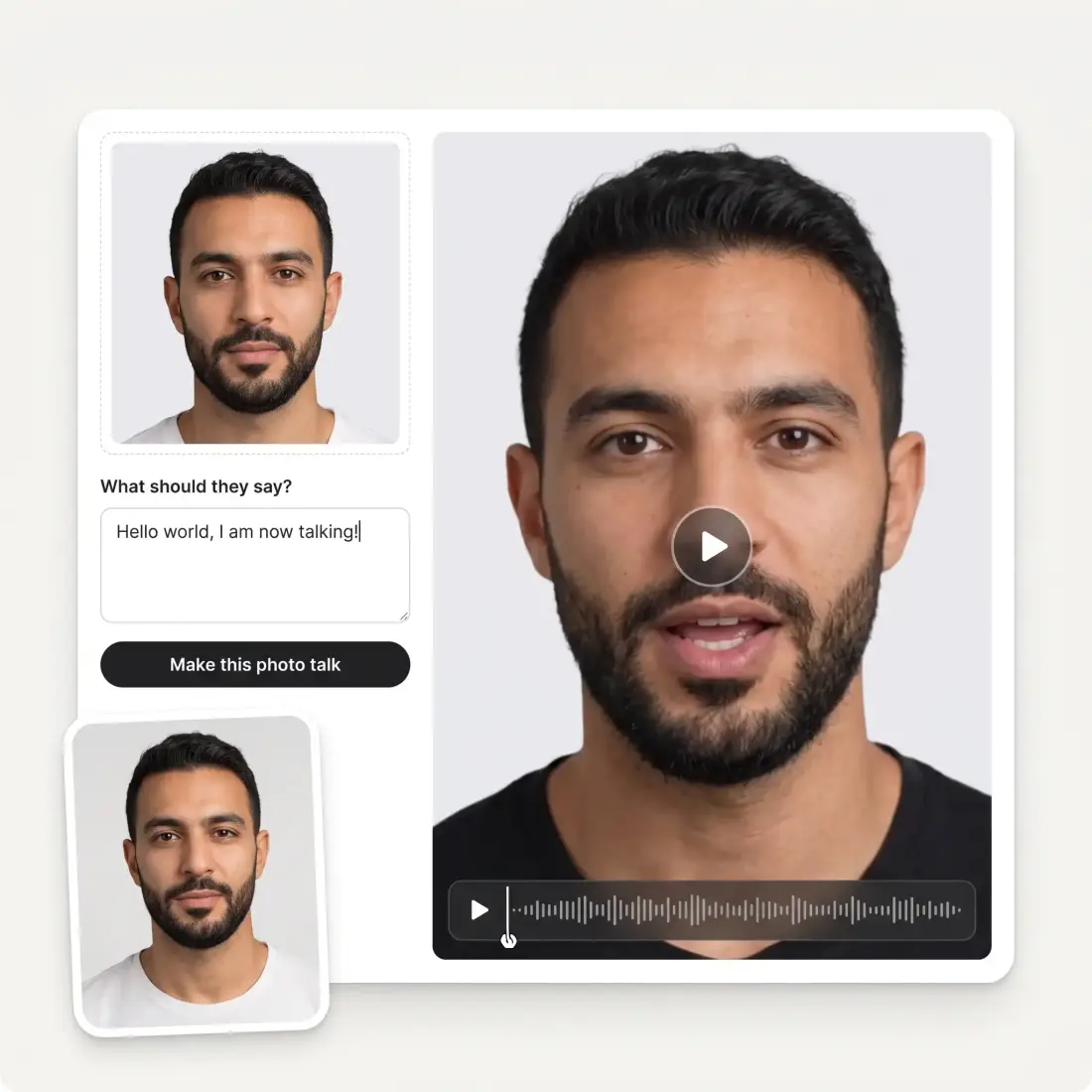
A typed message scrolls past. A photo of you actually saying the words, in your own framing, is the one that gets screenshotted and kept.
A grandparent, a great-aunt, a face you only know from a print in a drawer. Give the photo a voice and a line, and the still stops being a still.
Turn one good portrait into a talking clip for a launch, a channel update or a pinned post — no camera, no lighting, no retakes because you fluffed a word.
Put a historical portrait on the screen and let it introduce itself. A talking photo holds a room in a way a bullet point never has.
Some messages land better spoken than written. Upload a photo, type the thank-you, and send a short clip instead of another paragraph.
The same thing works on animals. Give the dog the sentence they have obviously been thinking and let them deliver it.
Great experience! It helps me able to do my work and respond to questions quickly trusting that the my responses are grammatically correct.
I've started to use overchat last week and it feels very promising. Lots of AI models in one place saves a lot of money in comparison if you buy subscriptions for each one.
Nice app, everything in one place
Easy and convenient!
im really into ai apps and that one is good, helps me with my arts and homework. i draw ai vids for inst and generate images with my characters, many widgets and models! like it
I like how it keeps everything organized. One subscription is enough for all major AI models, which helps me avoid paying for multiple platforms.
It is free to start and you do not need to sign up to try it. You upload a photo, write the line and see the clip.
No. The voice is generated along with the video from the line you type, so there is no microphone step and no audio file to upload. You write the words; the tool speaks them.
One clear, front-facing portrait where the face is a good size in the frame and the mouth is visible. Sunglasses, a face turned far to the side, heavy motion blur or a face that is tiny in a group shot all make the lip-sync harder. Scans of old prints work well as long as the face is sharp.
The line you type is capped at 200 characters, which keeps the clip to a few seconds of speech — roughly the length people actually watch through to the end on a phone.
The tool is built around a single speaking face. A photo with several people in it will animate one of them rather than staging a conversation, so upload the person you want speaking as the clear subject of the shot.
Pressing the button hands your photo and your line to Overchat's video studio, which is where the clip is rendered with Veo 3.1 — so the page changes as the generation starts. Nothing about the photo is posted anywhere along the way.
It is used to render your clip and nothing else. Your photos are never posted anywhere and are not added to a public gallery.
Only with their agreement. Putting words in a real person’s mouth on video is exactly the thing that gets misread as real, so keep it to people who know and have said yes — family, friends, yourself — and do not use it to make anyone appear to say something they did not.
Available on Web, iOS, and Android. Access your AI assistant anywhere, anytime.

.webp)