
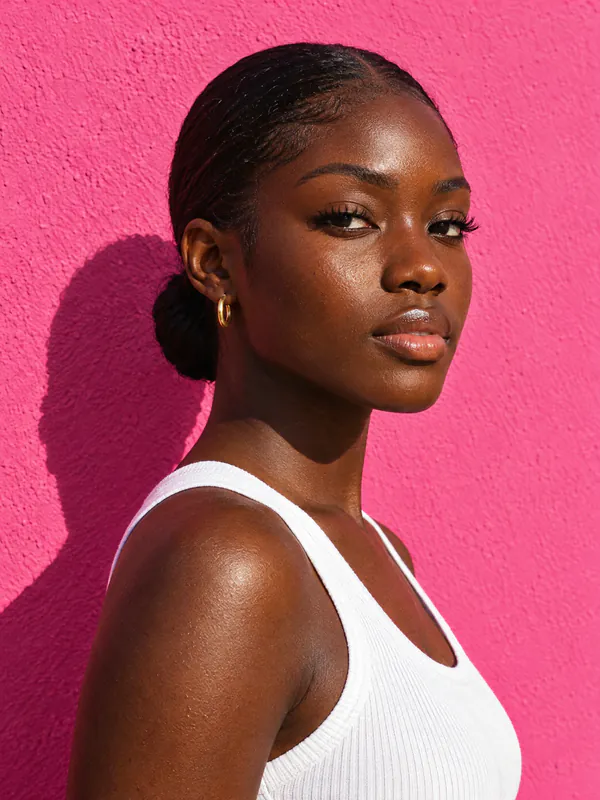

How people use the skin color changer
Try a new shade on yourself, or show one picture across several skin tones without a new shoot.
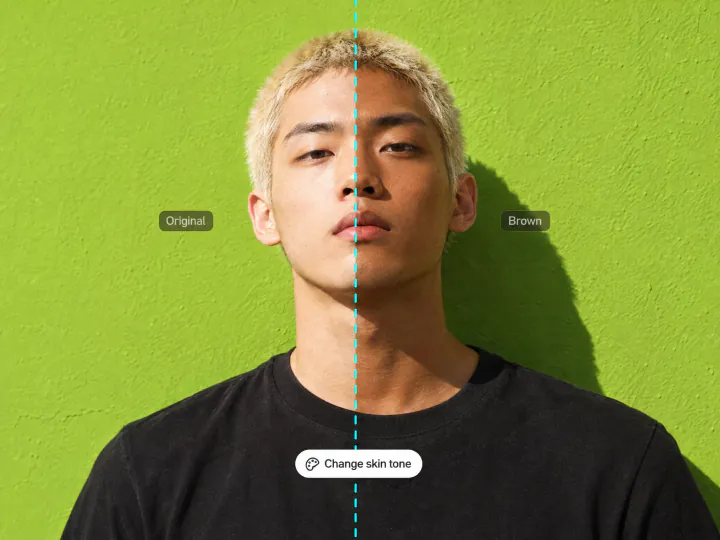
Try different skin tones virtually
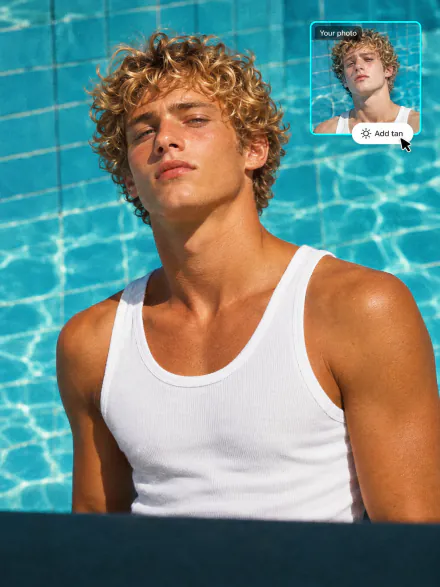
See yourself in a lighter or deeper shade before a tanning session, a new foundation or a costume. Pick one of six tones, from porcelain to ebony, and compare it with your original photo.
Try it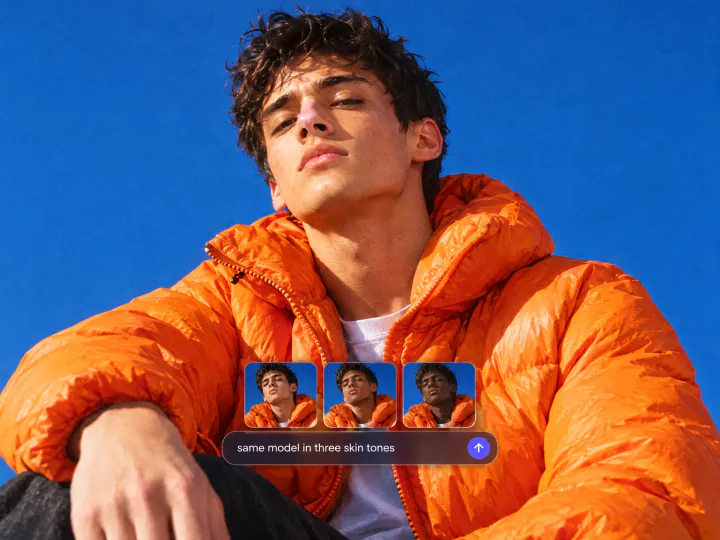
Diverse visuals for campaigns, games and art
Show one product photo, model shot or character concept across several skin tones without organizing another shoot. Composition, light and styling stay the same; only the skin changes.
Try it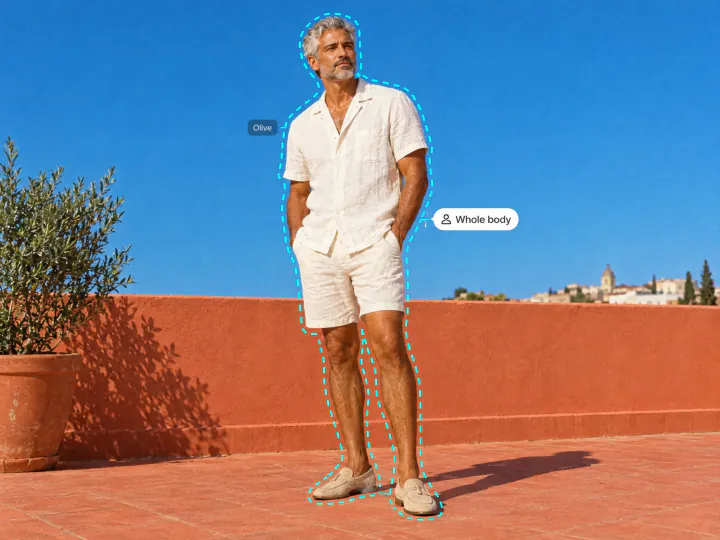
Change skin color in a photo, from face to full body
The new tone covers the face, neck, shoulders and arms evenly, so a portrait never ends up with a lighter face and a darker body. Texture, freckles and shadows stay where they were.
Try itWhy use the Overchat AI skin tone changer
Six shades
Porcelain, Beige, Olive, Caramel, Brown and Ebony, lighter or deeper than the skin you start with.
Same face, same photo
Face shape, eyes, hair, clothes and background stay as they were; only the skin tone changes.
Real skin texture
Pores, freckles and shadows are kept, so the result looks photographed rather than painted over.
Your own details
Add a note like "face only" or "keep my freckles" to steer the edit beyond the preset.
Selfies to full-body shots
Works on portraits and full-body photos in JPG, PNG, WEBP or HEIC up to 20 MB.
Online, on any device
Runs in the browser on a phone or a computer, with nothing to install.
How to change skin color in a photo
Three steps, starting right on this page.
- 1
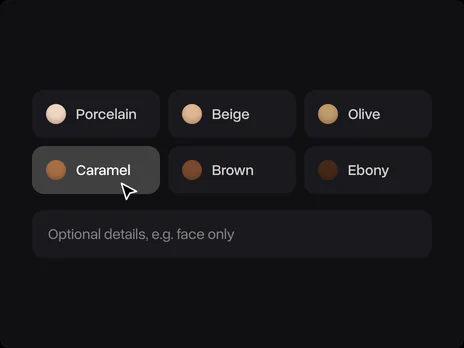
Choose a skin tone
Pick one of six shades from Porcelain to Ebony. Add details in the optional field, for example face only.
- 2
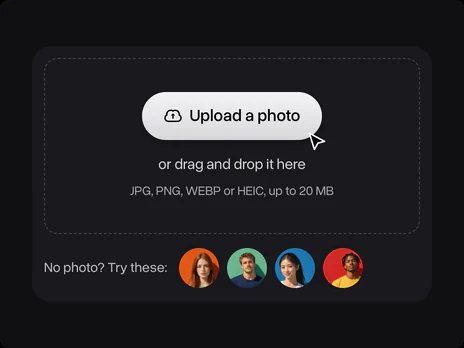
Upload your photo
Upload a clear photo where the face and skin are visible. No photo at hand? Use one of the sample faces. The photo opens in Overchat AI with your shade ready.
- 3
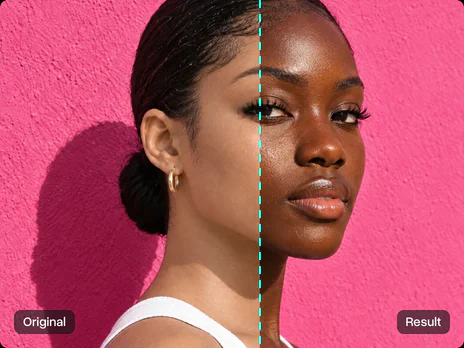
Get the new skin tone
Sign in to Overchat AI, get the new skin tone in seconds and download the photo.
Explore More AI Tools
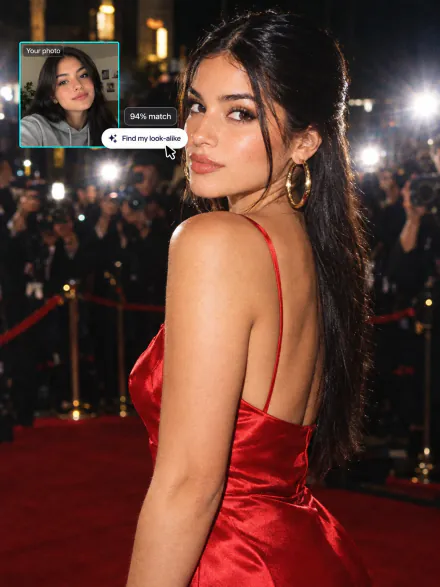
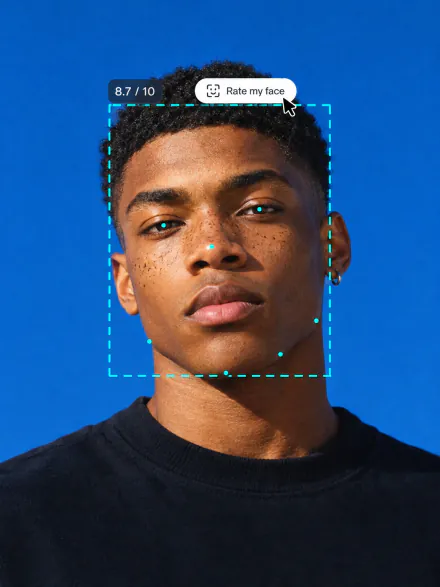
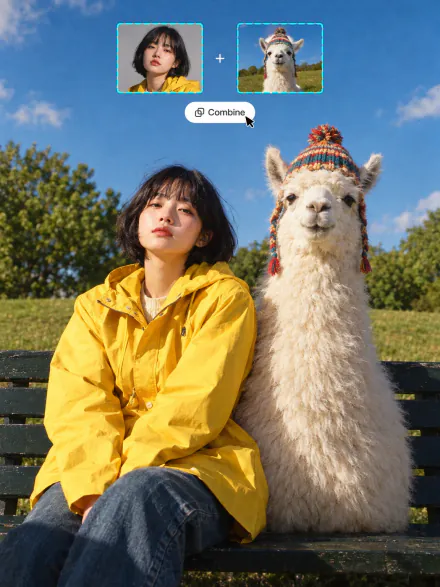
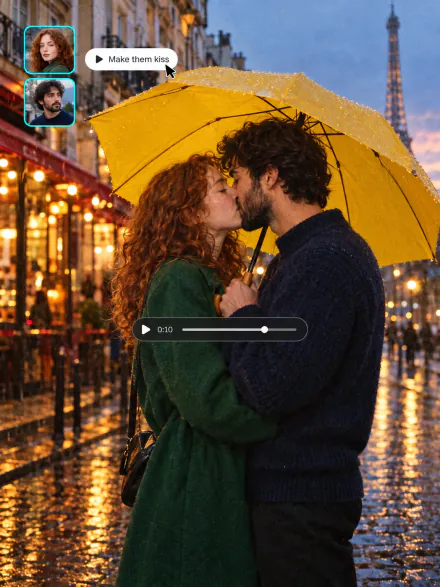
Swap into a movie star, rate your face, merge two photos or see your future baby. Every tool runs on the same subscription.
FAQ
If you have any questions,
reach out to us at hello@overchat.ai
A skin color changer is a photo editor that changes a person's skin tone in a picture. The Overchat AI skin color changer does it with AI: upload a photo, pick one of six shades and get the same photo with the new skin tone.
No. Only the skin changes. Face shape, eyes, hair, clothes and the background stay as they were, and the skin keeps its texture, freckles and shadows.
By default all visible skin changes together, so the face matches the neck and arms. To limit the edit, write it in the details field, for example "face only" or "hands only".
Yes. Without details the new tone goes to everyone in the photo; to change one person, say who in the details field, for example "only the woman on the left".
Yes. Light skin can go deeper and dark skin lighter; every shade is applied the same way whatever the starting tone.
You can use it on the free Overchat AI plan, which comes with daily credits. Paid plans add more credits for more photos and for the other AI tools.
You need a free Overchat AI account to generate. After you upload the photo, sign in with Google or Apple; your photo and shade carry over, so you don't upload anything twice.


