
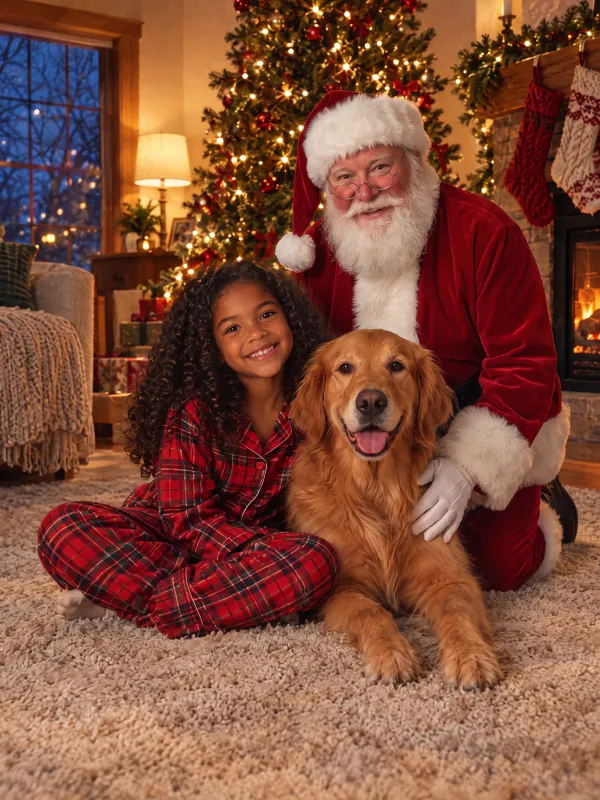



How people add Santa to photos
Proof for the kids that Santa came, a family photo with him, or a picture for a holiday card.
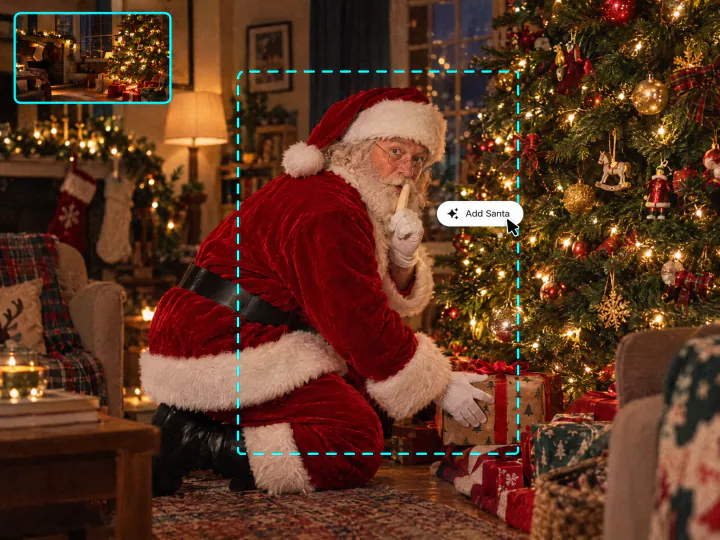
Catch Santa in your house
Take a photo of the living room on Christmas Eve, and Santa appears by the tree, placing presents with a finger to his lips. In the morning the kids get proof that he came.
Try it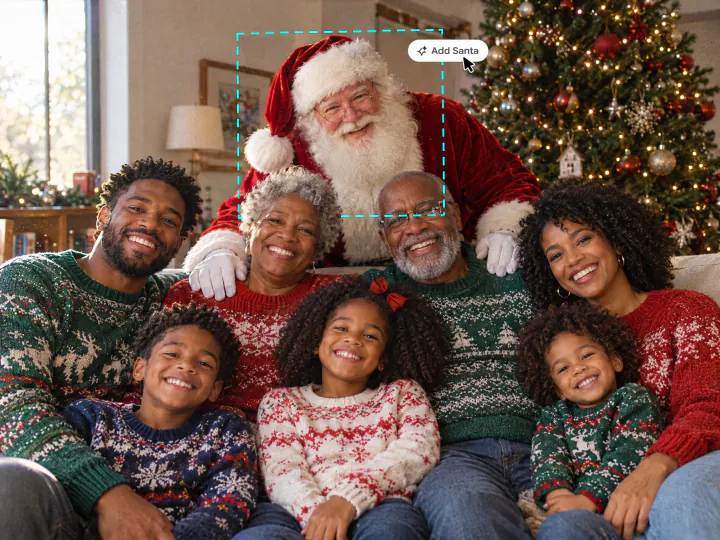
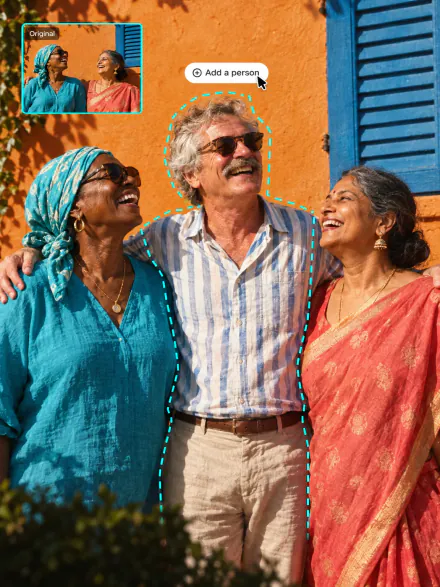
Put Santa in a family or group photo
Santa joins the people already in the shot: behind the sofa, next to the kids, a hand on someone's shoulder. Nobody gets covered, cropped or changed.
Try it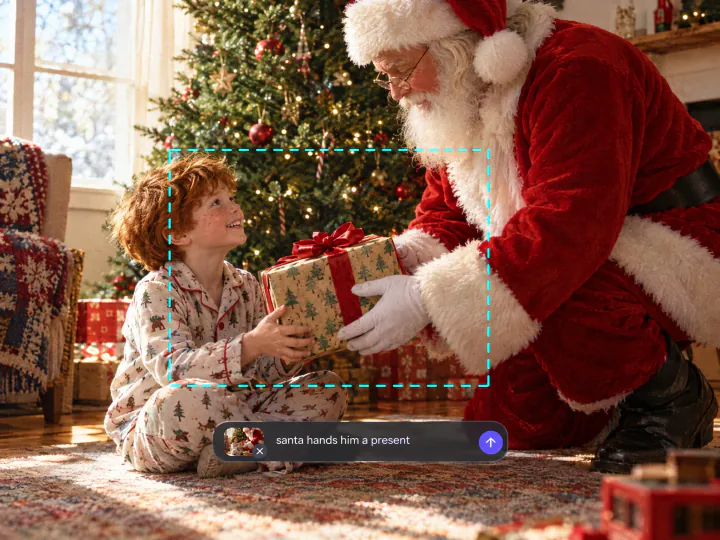
Tell Santa what to do
Write one line before you upload: Santa hands your son a present, sits with the grandparents or waves at the camera. Leave it empty, and the filter picks a pose that fits the photo.
Try itWhy add Santa with Overchat AI
Looks like he was there
Santa gets the room's light, shadows, grain and perspective, so he reads as part of the photo, not a sticker.
Your photo stays the same
People, faces, furniture and framing stay as they were; only Santa is added.
Any room, any people
Living rooms, kids, pets, big family photos or an empty room by the tree.
Santa does what you say
Describe the moment in one line, or let the filter choose.
Phone photos welcome
JPG, PNG, WEBP or HEIC up to 20 MB, straight from your camera roll.
Online, on any device
Runs in the browser on a phone or a computer, with nothing to install.
How to add Santa to a photo
Three steps, starting right on this page.
- 1
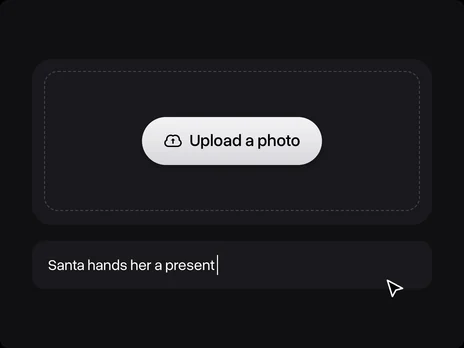
Say what Santa does (optional)
Type it in the field under the upload card, for example "Santa hands her a present". Leave it empty, and the filter places Santa on its own.
- 2

Upload your photo
Choose a photo of your living room, your kids or the whole family. No photo at hand? Use one of the samples. The photo opens in Overchat AI with the Add Santa to Photo filter ready.
- 3
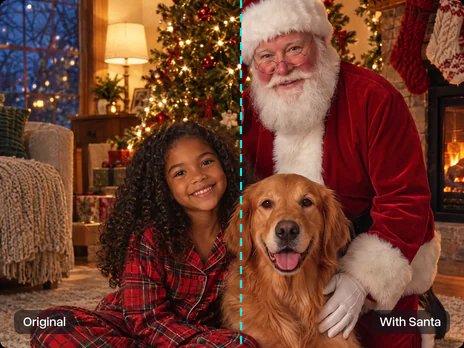
Get your photo with Santa
Sign in to Overchat AI, get the photo in seconds and download it.
Explore More AI Tools
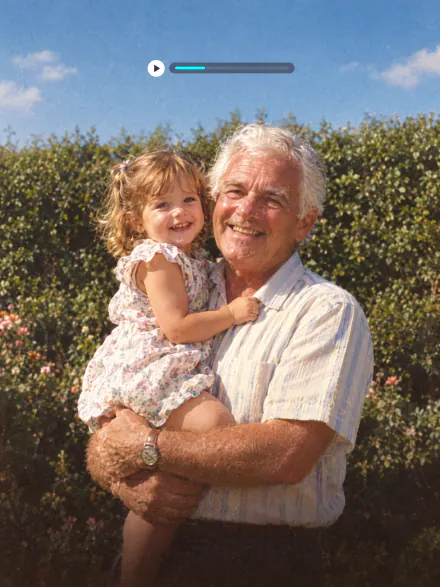
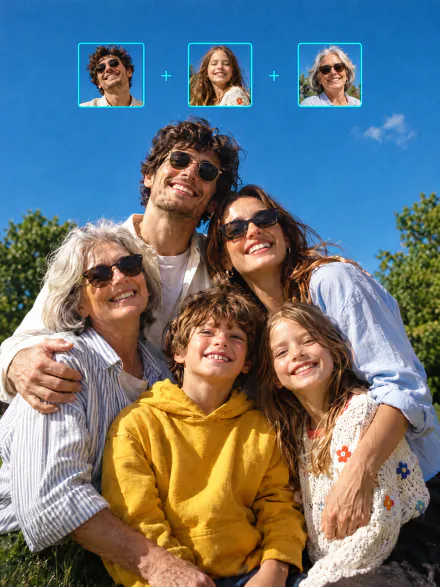
Bring an old family photo to life, make a group photo, or try the other photo tools. Every tool runs on the same subscription.
FAQ
If you have any questions,
reach out to us at hello@overchat.ai
Upload the photo on this page. It opens in Overchat AI with the Add Santa to Photo filter, and after you sign in you get the photo back with Santa in it. To choose what Santa does, type it in the details field before you upload.
Yes. Santa joins the people in the shot, beside or behind them, and keeps clear of their faces. Everyone else stays exactly as they were.
Take the photo in the room with the tree and the presents, with the lights on. The filter matches Santa to the room's light, shadows and perspective. In a photo with nobody in it, Santa is caught placing presents under the tree.
Yes, in one line: "Santa hands him a present", "Santa sits on the sofa with the grandparents", "Santa waves at the camera". Without a line, the filter picks a pose that fits the photo.
A clear, well-lit photo of a room with some free space: the tree, the fireplace, the sofa, or people sitting together. Very dark or blurry photos give weaker results.
Uploading a photo and opening the filter is free. Making the photo uses credits, which come with an Overchat AI plan along with every other AI tool.
Yes, you need an Overchat AI account to make the photo. Sign in with Google or Apple after you upload; your photo carries over, so you don't upload it twice.
Yes. It works in any mobile browser, including HEIC photos from an iPhone.


