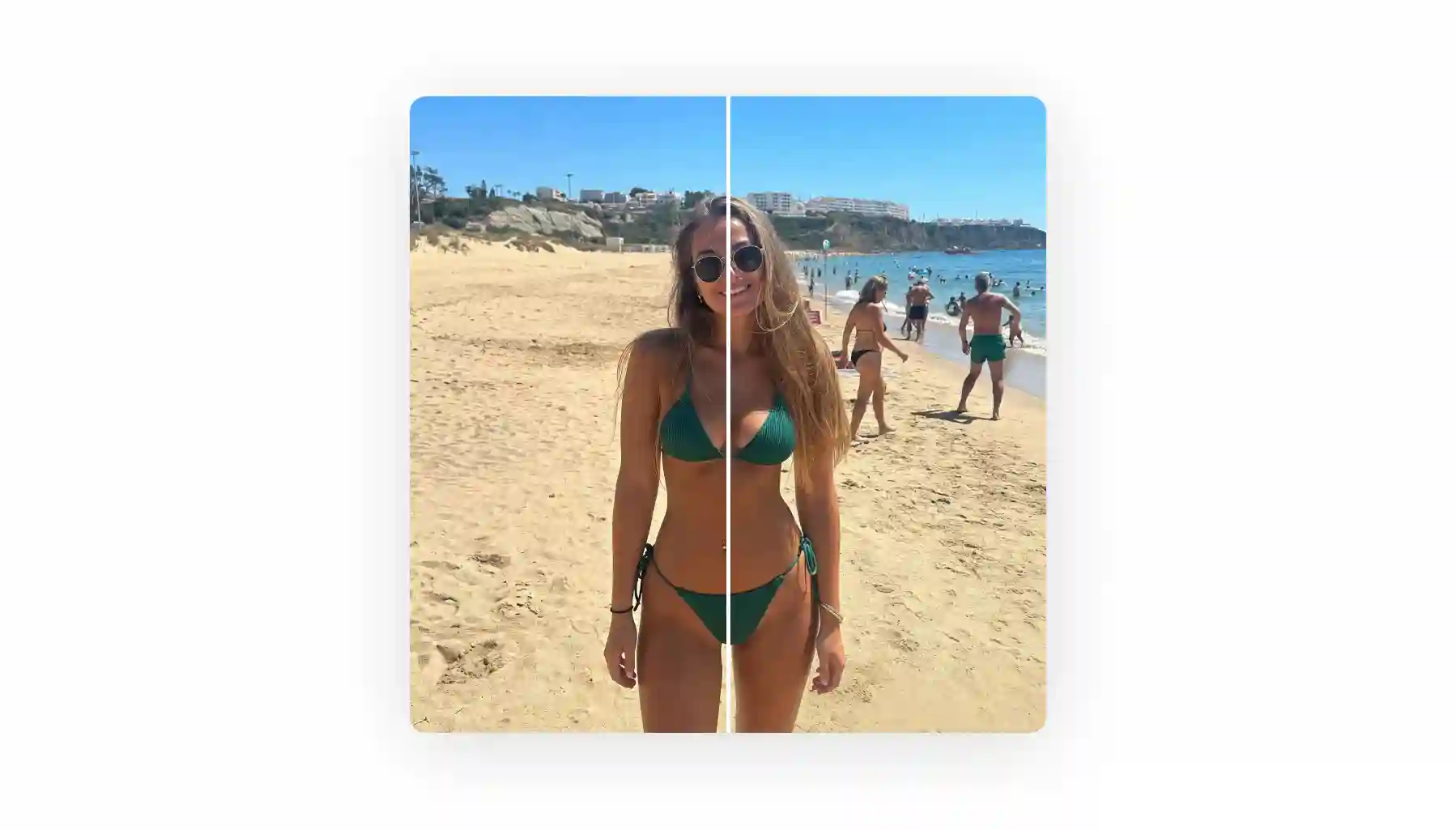
The hardest part of removing someone from a photo is not erasing the unwanted person, which is actually quite easy to do — what isn’t easy is making a seamless background in the space that opened up.
Imagine you’re erasing a person who obstructed part of the Eiffel Tower in a shot you took in Paris — what’s going to be left behind them after you’re done? Unless you can redraw the Eiffel Tower by hand, probably a smudge.
In theory, it’s possible to reconstruct the background using a combination of Photoshop brushes and tools, but that takes considerable skill and a lot of time (even experienced editors will take at least an hour to reconstruct a very complex background, and the process at that point is more akin to digital painting than photo editing).
Thankfully, now that AI-powered tools are capable of creating photorealistic images, there’s a better way. We’ve found the best AI removers on the internet and put them through the test — here’s a list of the best ones.
AI removes people from images by intelligently reconstructing the background.
The best AI models have so much world knowledge that they can perfectly reproduce recognizable objects that were obscured.
Many tools that remove people from images with AI are free to try.
You can use them to remove crowds and people standing close to your subject.
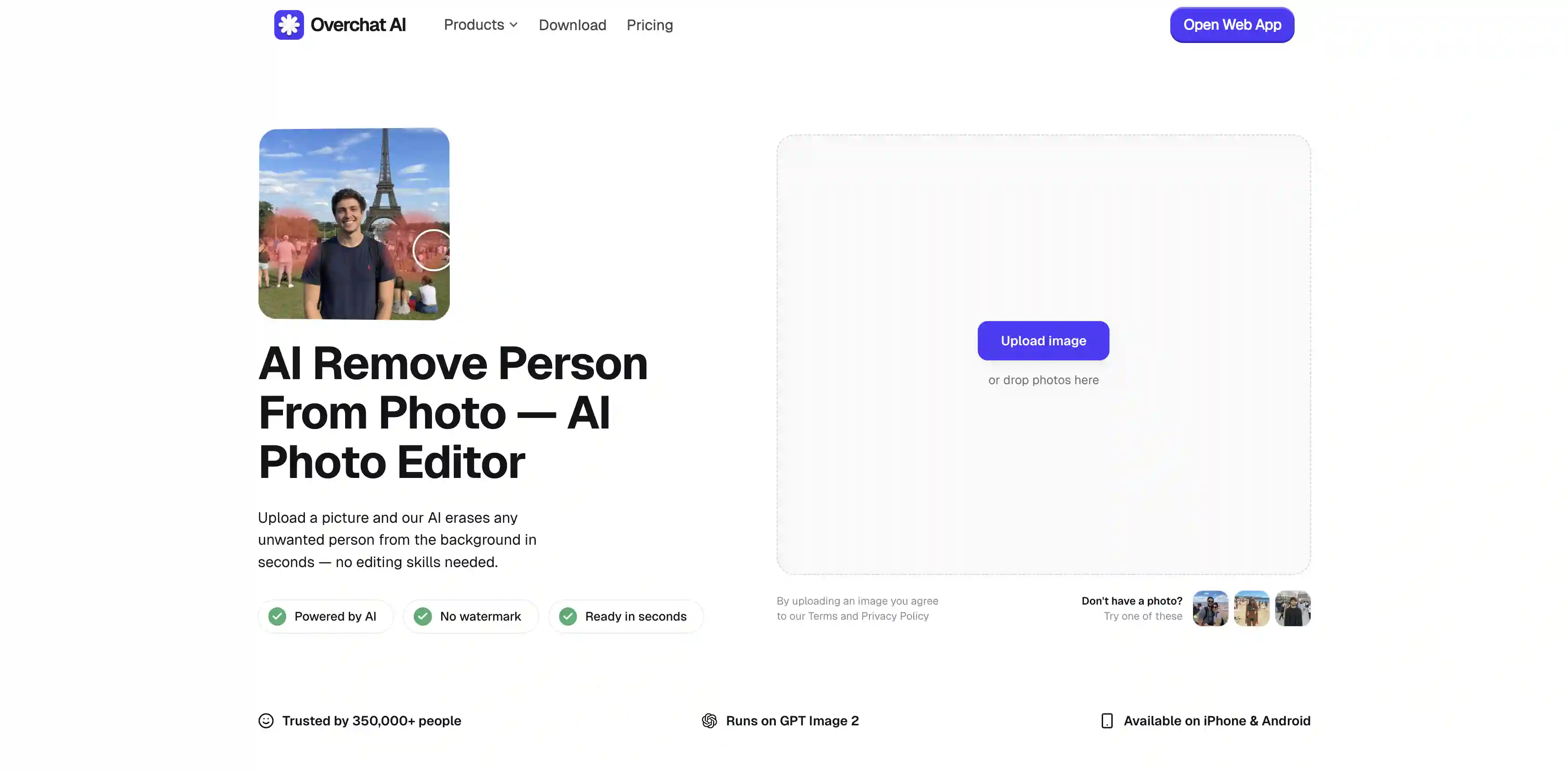
Overchat AI has the best remove-people tool right now: it runs on Nano Banana 2 from Google DeepMind, works in seconds, allows you to download the image in HD without a watermark, and works on web, iPhone, and Android.
Before we jump into the comparison between tools, there’s one thing that’s important to understand, and that’s what separates AI tools from Photoshop.
AI Remover vs Photoshop Content-Aware Fill
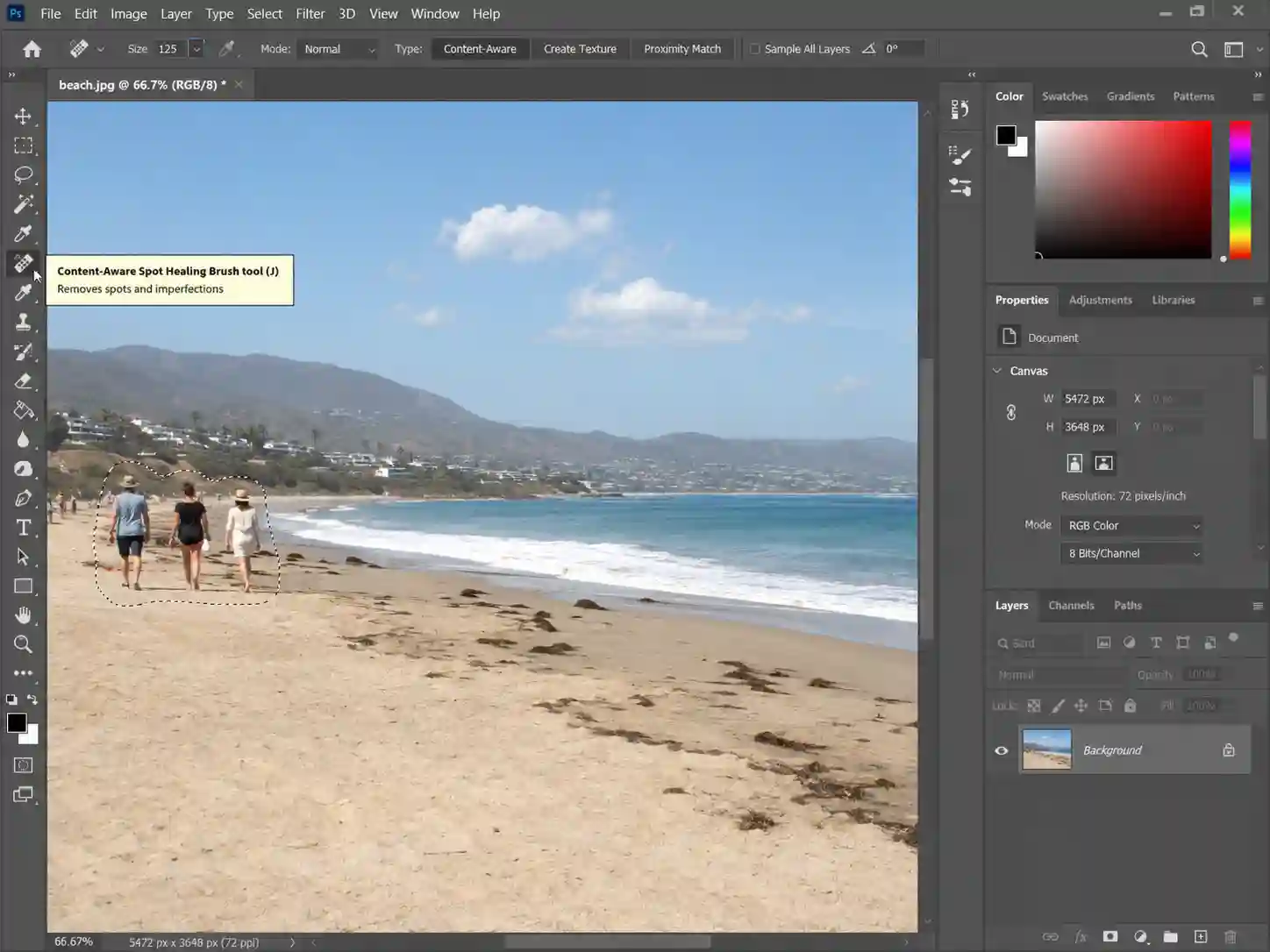
For years the standard way to remove someone from a photo was Photoshop's Content-Aware Fill.
It's worth understanding how it works, because it explains why AI tools now do a better job on hard photos.
How Does The Content-Aware Fill Work?
Content-Aware Fill looks at the pixels around the area you select and copies them in to cover the gap.
It guesses the color, brightness, and texture from what's nearby. In fairness, there are situations where it works well enough to produce a seamless result. This is usually when the background is a simple repeating pattern or a solid patch of color:
Grass
Sky
A blank wall
Sea
Sand
The problem comes when the background has structure — for example, even if your subject is in front of the horizon where you get a sharp line separating sky and sea, you need a little bit of skill to edit that in a way that looks seamless. If there’s a building, or a landmark, Content-Aware Fill has no idea what those things are, so it smears nearby pixels across the gap and you get a blurry mess.
How Do AI-Powered Photo Editors Work?
AI tools use inpainting, a process in which the model looks at the whole scene, works out what should be behind the person and generates a new version of the image where unwanted people are removed and the backgrounds are drawn in.
Because the model understands what it's looking at, it can rebuild anything, and the latest generation of AI models like Nano Banana 2 and GPT Image 2 have world knowledge — they know what recognizable landmarks look like and reproduce them with 1-to-1 accuracy.
What About Photoshop Generative Fill?
Photoshop now has Generative Fill, which is Adobe's own AI version of this and a big step up from Content-Aware Fill.
It works well, but it needs a paid Creative Cloud subscription and you need to have the software installed.
So, the tools below do the same job in a browser or an app, mostly free, with no manual masking.
4 of the Best AI Tools to Remove People From Photos
Four tools stood out across crowds, photobombers, and busy backgrounds. Here's how they compare at a glance.
Tool
We liked it for...
Overchat AI
Rebuilding crowds and complex backgrounds cleanly — runs on Nano Banana 2, no signup, no watermark, results in seconds
Pixelcut
A precise brush-and-erase workflow with a free HD download and no watermark
Fotor
Removing people and then replacing them with something else using a text prompt
AirBrush
Quick one-tap cleanup on mobile, with presets for people, text, and other distractions
There’s a standout feature here: two automatic modes that the AI can intelligently switch between based on the image you upload.
if the photo has a clear main subject, it removes the people in the background
if there's no one in the background, it erases the people in the foreground to give you a clean scene
You can upload all of the common formats, including HEIC from an iPhone, and it gives you an HD result in seconds with no watermark and no signup to try it.
Upload your photo (HEIC, PNG, JPG, WebP, TIFF, and more)
Wait a few seconds while the AI erases the people and rebuilds the background
Download the HD result, copy it, or share it straight to social media
Pros:
✅ Handles crowds and complex backgrounds easily
✅ Runs on Nano Banana 2
✅ Automatic foreground and background modes
✅ You don’t need to do any manual masking
✅ Remove people from images even in very complex scenes
✅ No signup to try it
✅ Watermark-free input
✅ Processing takes roughly 30 seconds
✅ Works on web, iPhone, and Android
2. Pixelcut Remove People
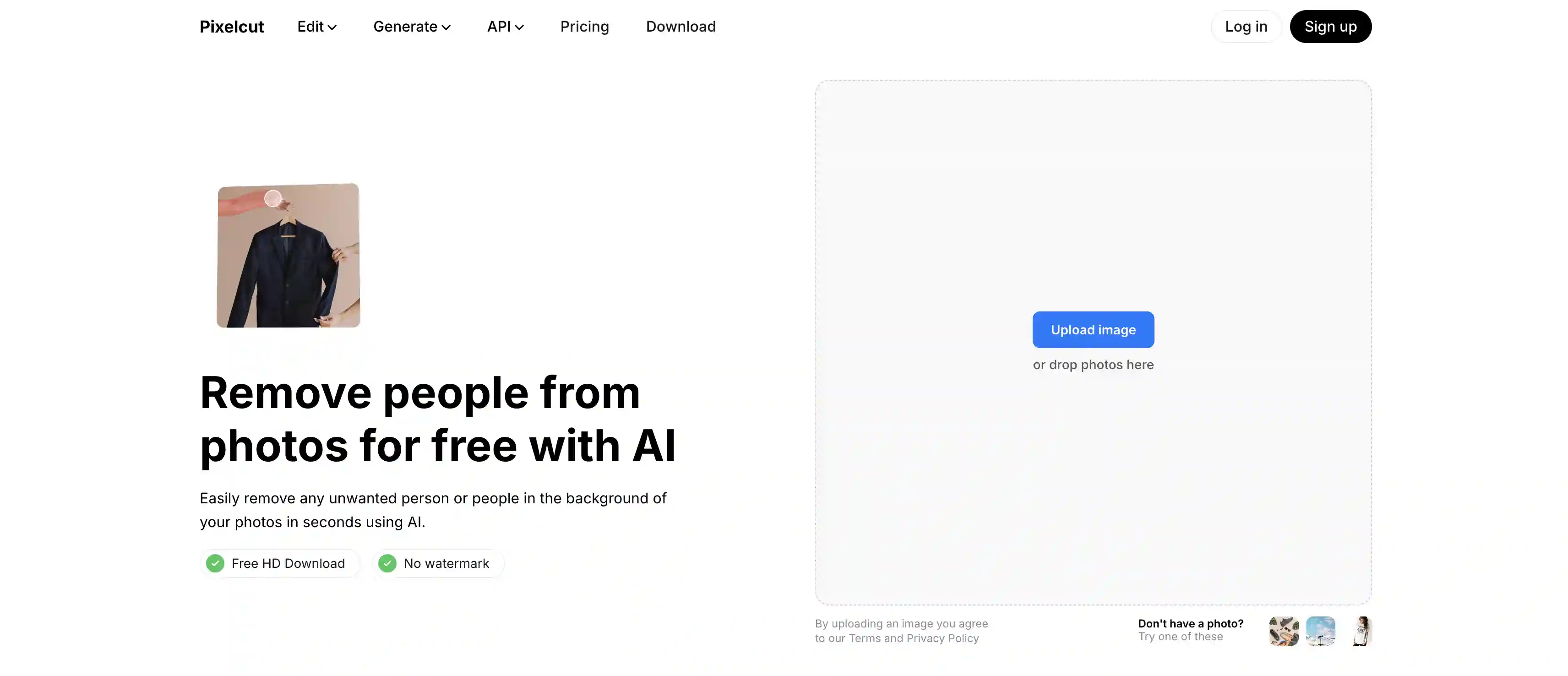
In Pixelcut, you paint over the person you want gone, and the AI replaces that area with what it thinks is behind them.
The tool is free, gives you an HD download with no watermark, and is used widely enough that the company says it's trusted by tens of millions of people.
With the brush approach, you decide exactly what to remove, which helps when a person is standing close to your subject and an automatic tool might erase too much. After the removal you stay inside Pixelcut's free editor, so you can keep cleaning up the shot, remove objects or text, or use its other tools in the same place.
Pros:
✅ Precise brush control
✅ Free HD download
✅ Full editor around it for more cleanup afterward
✅ Works on web, iPhone, and Android
Cons:
❌ Result depends on how carefully you paint the selection
❌ Soft spots can show on busy or structured backgrounds
❌ Manual brushing is slower than a fully automatic tool
❌ Best results need a clean, simple background
3. Fotor Remove People
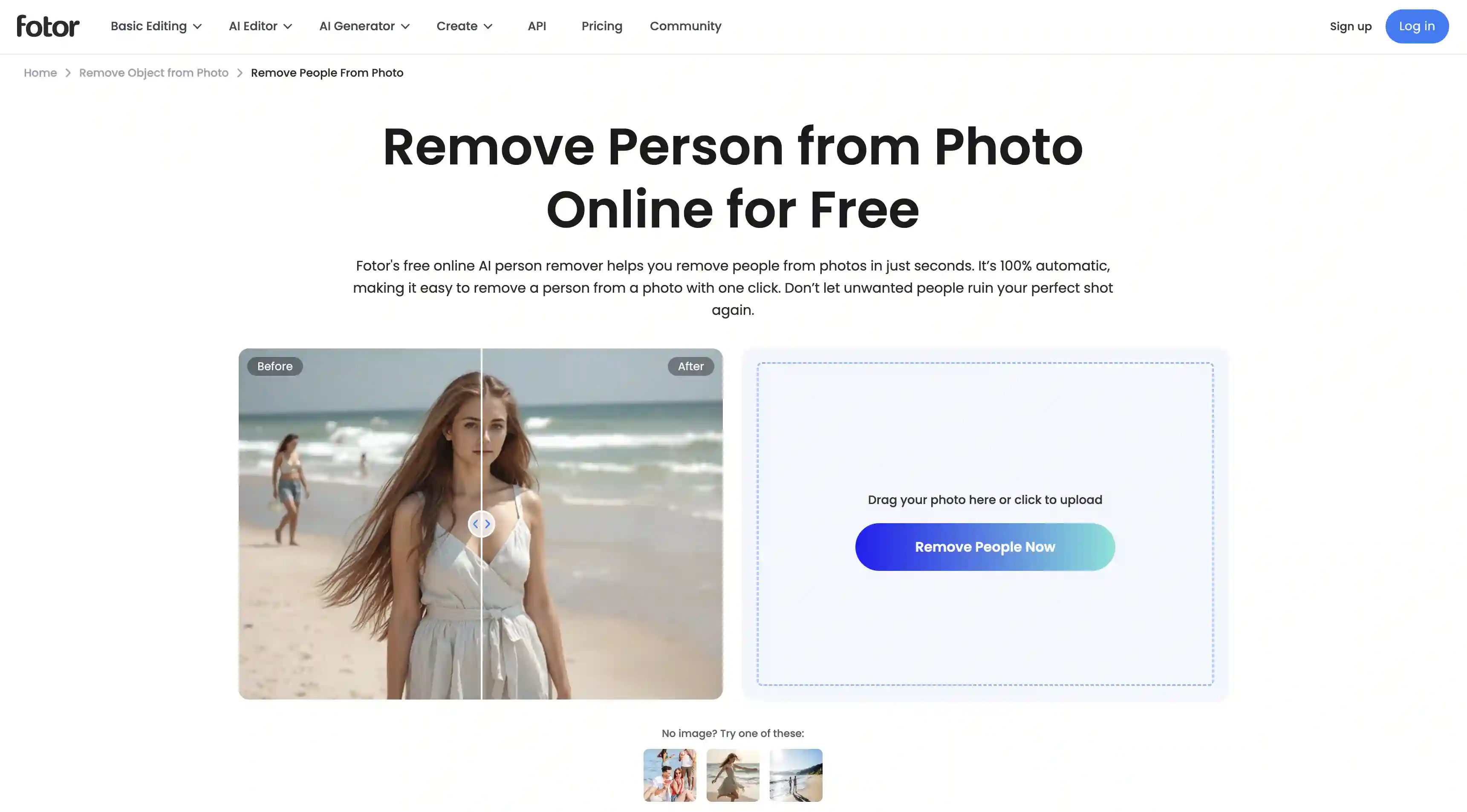
Fotor's people remover sits inside its wider photo editor. You brush over the person with the AI Object Remover, click to process, and it fills the area back in. It's free to start, needs no signup for basic use, and works in the browser or through the Fotor app on iPhone and Android.
There’s a sister replacement tool that’s worth a mention. After you erase a person, you can type a description of what should take their place, and Fotor generates it and blends it into the photo — that’s similar to Photoshop in the way it works, and is useful when you want to modify the image in a controlled way.
Note: the free tier limits download resolution and keeps ads in the editor, and full quality needs a paid plan.
Pros:
✅ Erase a person and replace them using a text prompt
✅ Free to start, no signup for basic use
✅ Full editor for more cleanup and retouching afterward
✅ Works in the browser and on iPhone and Android
Cons:
❌ Free tier caps download resolution and shows ads
❌ Full quality needs a paid plan
❌ Struggles on busy, structured backgrounds
❌ Manual brushing takes longer than automatic removal
4. AirBrush Object Remover
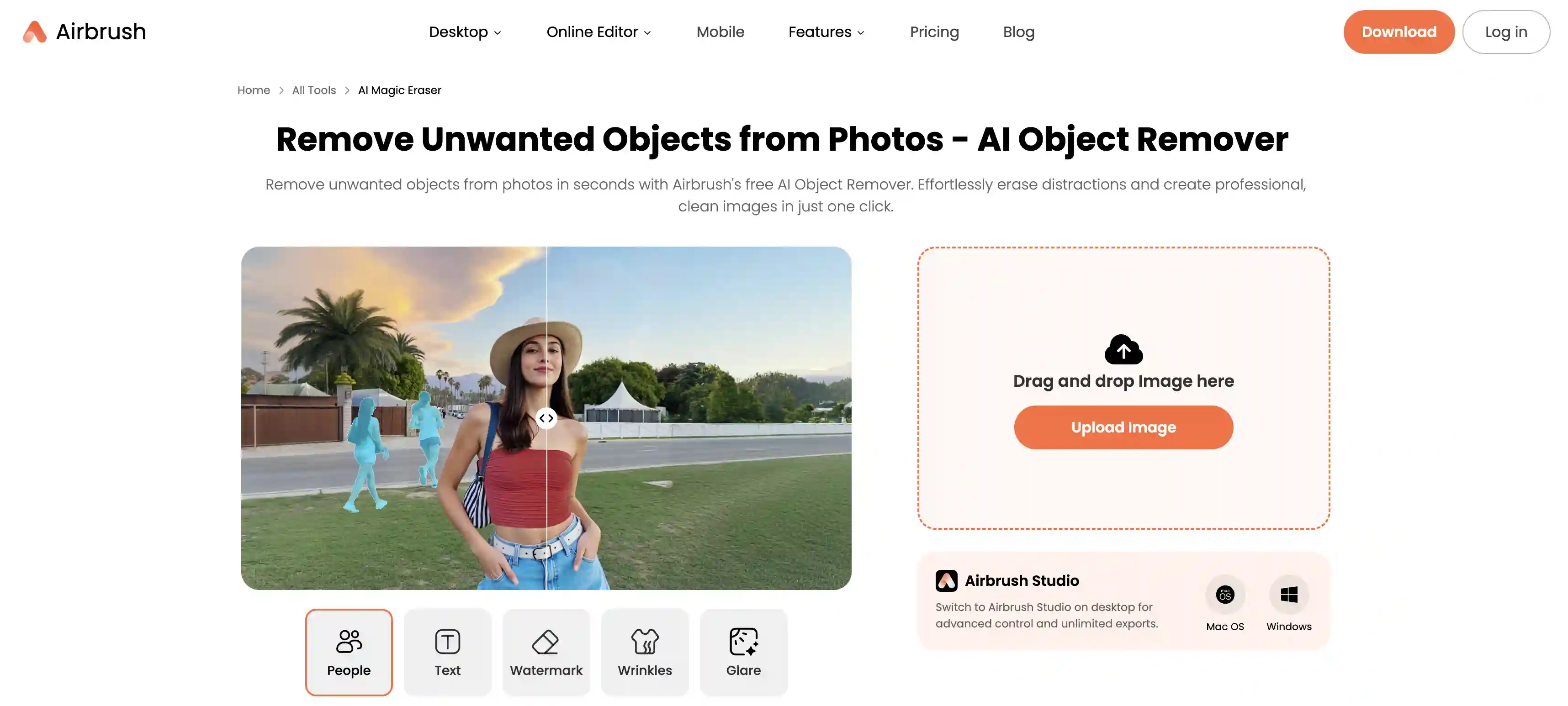
AirBrush Object Remover comes with presets for people, text, watermarks, wrinkles, and glare. To use it, brush over the person, wait for the AI to process the image, and download the cleaned-up result.
We’d recommend considering this tool if you mostly edit on your phone. The app is built for quick touch-ups, so it pairs the remover with retouch, background, and filter tools you'd use on the same photo.
The limits: one image at a time, no batch processing, and JPEG or PNG only. Still, for occasional one-off cleanups on mobile it's quick and easy.
Pros:
✅ One-tap presets for people, text, watermarks, and more
✅ Fast, a few seconds per image
✅ Keeps original quality on download, no forced compression
✅ Mobile-first, with a full touch-up editor around it
Cons:
❌ One image at a time, no batch processing
❌ JPEG and PNG only
❌ Trial framing, with unlimited exports pushed to the paid desktop app
❌ Built for simple cleanups, not hard structured backgrounds
Frequently Asked Questions (FAQ)
What is the best app to remove people from photos?
Overchat AI. It runs on Nano Banana 2 from Google DeepMind, which is why it rebuilds crowds and complex backgrounds cleanly when other tools smudge them.
How do I remove a person from a photo for free?
Pick a free AI image editor, like Overchat AI, upload your photo, let the AI erase the person and rebuild the background, and download the result.
How do I remove a photobomber from a picture?
Upload the photo to an AI remover such as Overchat AI and wait for the result. Overchat AI is automatic, which means it detects people in the background and erases them while keeping your main subject.
Can AI remove a whole crowd from a photo, not just one person?
Yes. For example, Overchat AI can erase an entire crowd and rebuild the background, including buildings and landmarks.
Is removing people from photos the same as Photoshop Content-Aware Fill?
Content-Aware Fill copies nearby pixels to cover the gap, which fails on structured backgrounds. AI tools use inpainting — the model works out what should be behind the person and draws it back in — so they hold up better on hard photos.
Bottom Line
Whichever tool you pick, thanks to AI it has never been this easy to remove people from a photo. Above we’ve taken a look at 4 of the best AI object removers, and here are the key takeaways from the article:
AI image editors can remove people from photos in seconds in cases where Photoshop editing would take considerable skill and many hours of careful work.
They’re better for complex shots than Photoshop, because Content-Aware Fill (the standard tool to remove people from photos in Photoshop) just copies nearby pixels and pastes them on top of the person — which works for simple patterns but fails when the background has any kind of structure or man-made objects.
For the cleanest result, especially on crowds and complex backgrounds, start with Overchat AI Remove Person From Photo — it’s powered by Nano Banana 2, doesn’t require a signup, and delivers the cleaned photo in HD without watermarks.