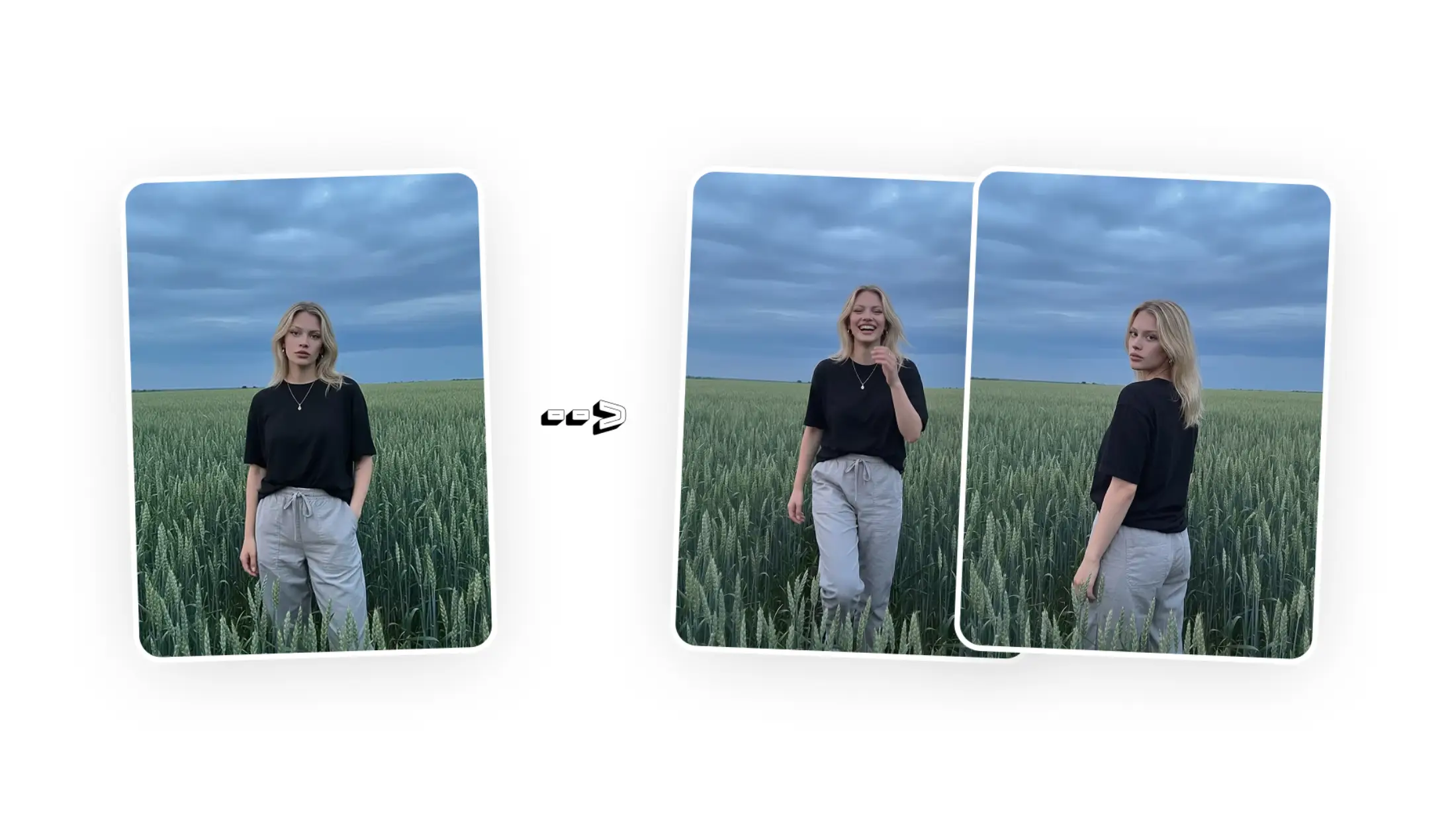
Did you know that you can change a pose in any photo with AI after you've taken it — and it will look perfectly natural and photorealistic?
In this article we'll explain how to use Overchat AI's AI Pose Generator to look natural in every photo and create entire photoshoots with different model poses from a single image.
To change a pose in a photo with AI, start by uploading your image to Overchat AI's AI Pose Generator, pick a pose from the preset list, and click Generate — the AI does everything else automatically and you get a reposed image of yourself within 30 seconds.
An AI pose generator is an online tool based on an image-to-image AI generation model. Overchat AI, for example, uses Nano Banana 2.
To change a pose in a photo with AI you need to upload a photo, choose your pose from one of the presets, and select the aspect ratio.
Overchat AI can repose people in images automatically, using inpainting — a process where an advanced AI image model regenerates a specific part of the image (yourself or your model) without changing anything else.
Sellers, models, digital artists, and content creators can all benefit from an AI pose generator because it lets you salvage shots that would have otherwise been lost, or generate an entire series of natural poses from one image.
That was the fast answer. If you want more details — as well as a step-by-step guide that shows the entire process — then keep reading.
What is an AI pose generator?
An AI pose generator is an online tool that's based on an image-to-image generator.
It takes an image as an input
Sends it to an AI image generation model
Returns a new photo where the subject has been reposed
AI pose generators are powerful tools for salvaging photos that you otherwise would discard. For example, if you've taken a photo with a stiff pose but like everything else about it, you can completely save it with AI.
Overchat AI is, arguably, one of the best AI pose generators online, as it's powered by Nano Banana 2, a powerful image generation model created by Google DeepMind.
Nano Banana 2 in the Overchat AI pose generator works through inpainting — it masks the area of the image where the subject is, regenerates a new pose from scratch, and "inpaints" the new pixels into the masked area. This way, nothing except the pose changes.
Nano Banana 2 is a particularly strong model for an AI pose generator because it produces some of the most realistic results out of all AI models — on par with GPT Image 2, but about 3x faster on average. It's one of the best AI image generators available right now.
If you want to see how the AI pose generation results look in practice, we'll show this in the next section, as well as explain the step-by-step process.
How to change a pose in a photo with AI (step-by-step)
Overchat AI offers the easiest way to change a pose in a photo. Here's how to do it:
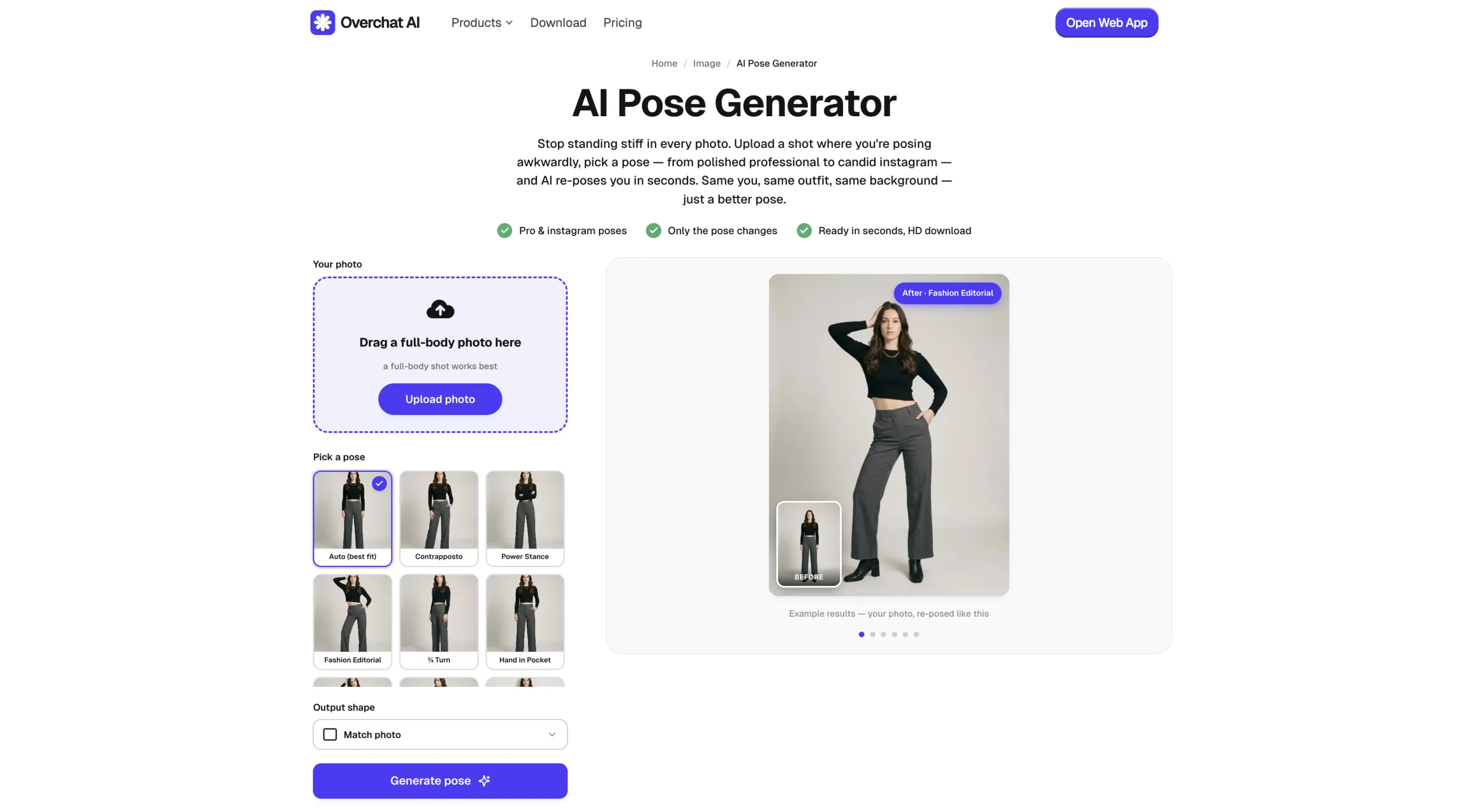
1. Upload a photo
To get started, open the AI Pose Generator and drag your photo into the upload box.
Since we're changing the pose, for best results choose a photo that's at least a waist-up shot, or, even better, a full-body shot.
Uploading a photo to the Overchat AI Pose Generator
You'll see your image load into the upload box, and once it appears we're ready to go to the next step.
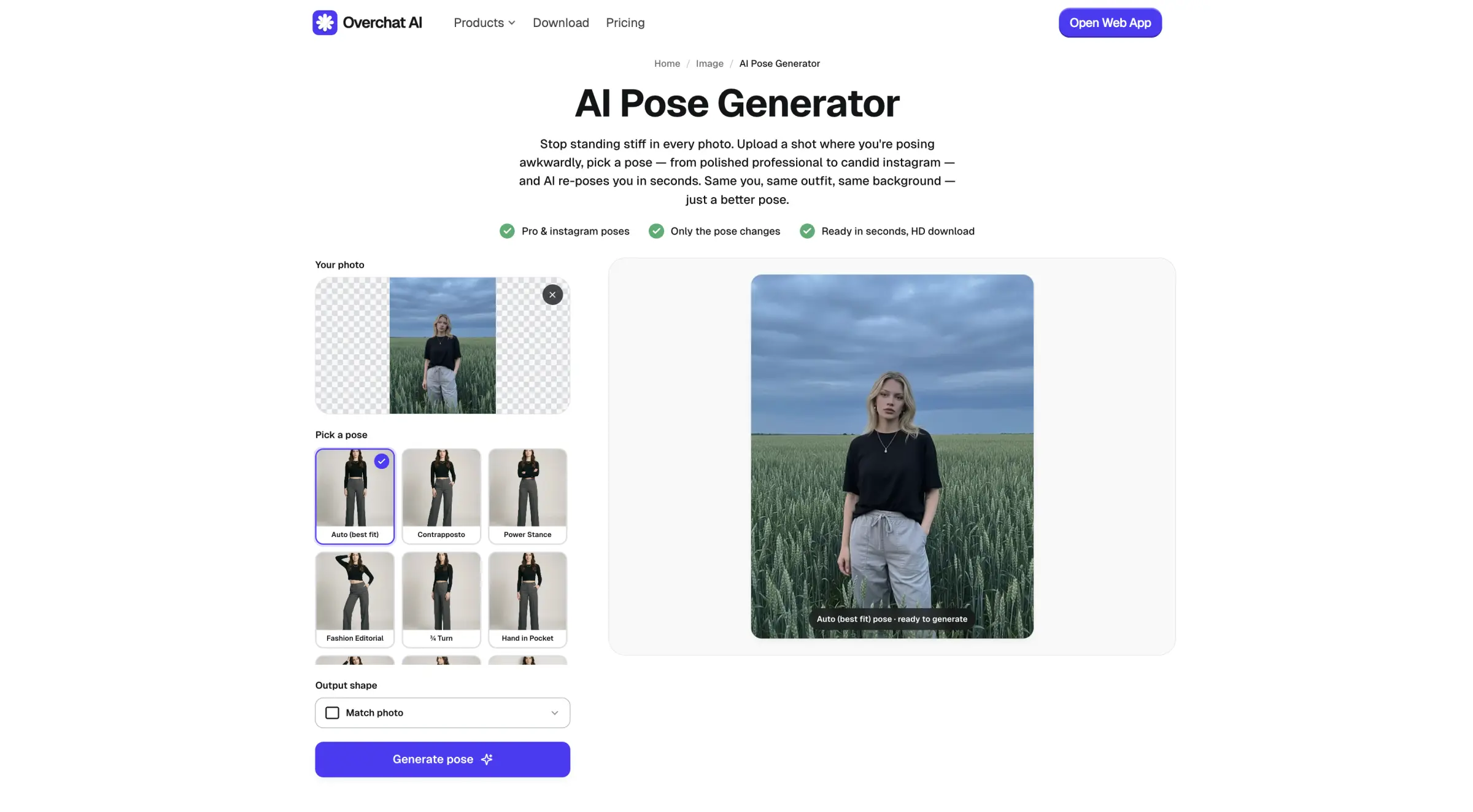
2. Choose a pose
Under Pick a pose, choose from the preset list. The Overchat AI pose generator supports:
Contrapposto — weight shifted to one leg, relaxed and natural
Power Stance — feet apart, confident and grounded
Fashion Editorial — a magazine-style posed shot
¾ Turn — body angled away from the camera
Hand in Pocket, Hand in Hair, Over the Shoulder, Leaning — candid, Instagram-style poses
There's also an Auto (best fit) option — let the AI select the pose that it thinks will work best in that photo.
Picking a pose preset in the Overchat AI Pose Generator
After selecting the pose, there are just two steps left before you can download your result.
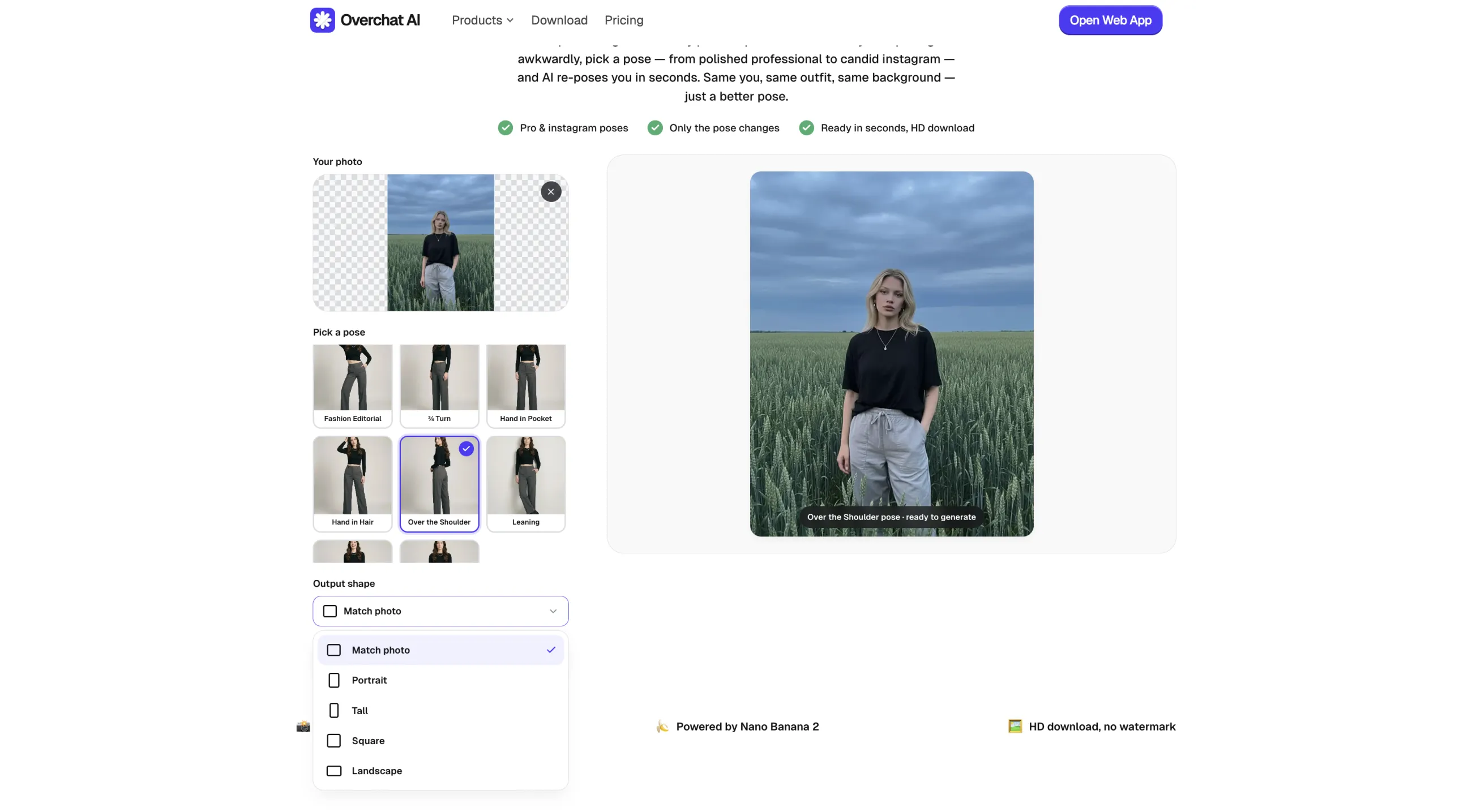
3. Choose the output shape
Under Output shape, you can control the aspect ratio of the final image (yes, the pose generator can also change the aspect ratio of your photo naturally). Select one of the following:
Match photo
Portrait
Tall
Square
Landscape
Or leave it on the auto mode.
Choosing the output aspect ratio in the Overchat AI Pose Generator
4. Generate and download
Once that's done, just click Generate pose.
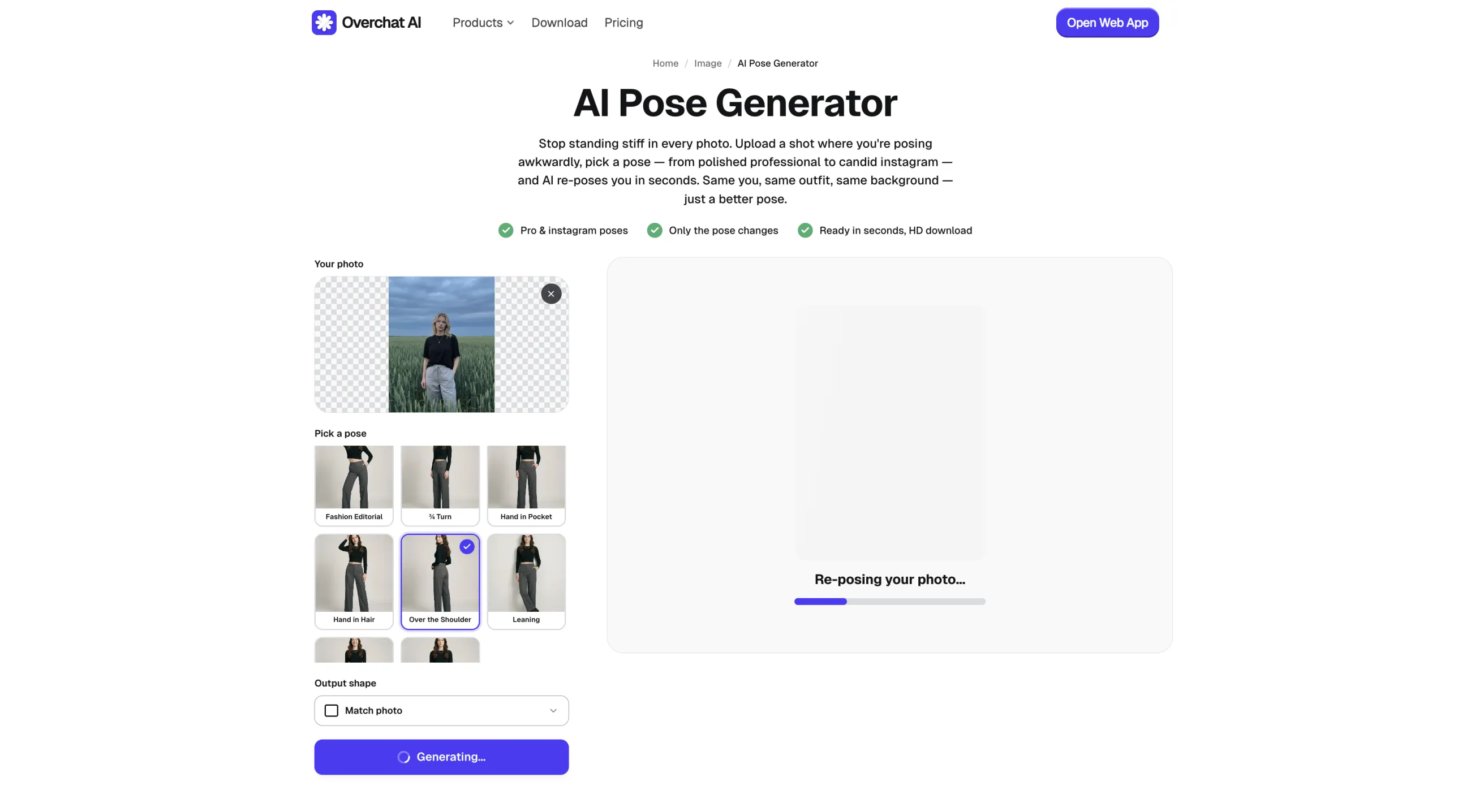
From here, the AI will take about 30 seconds to process your image. You'll see a progress indicator while that's happening.
Overchat AI re-posing the photo
The generation may go a bit faster or take a little longer — this depends on the model queue, or how many users are generating poses right now.
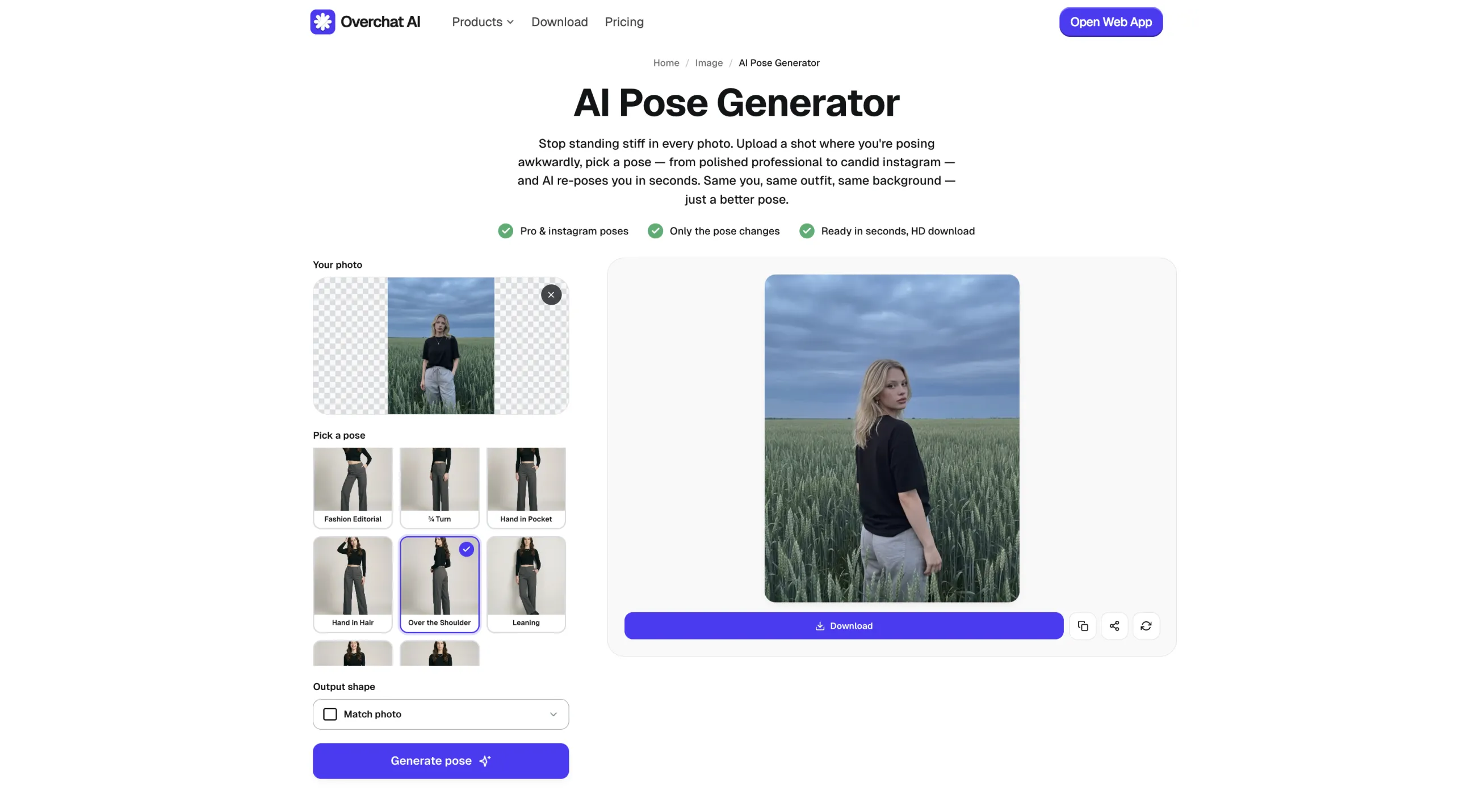
After a short wait, you'll see the reposed result on the right-hand side of the page. Download it in HD.
The reposed result ready to download in the Overchat AI Pose Generator
If you use the Overchat AI pose generator while logged in, you'll notice that the output also appears in My Media, so you can reuse it across other image editing tools.
You'll also be notified when the generation completes, which is useful if you're multitasking.
Who should use an AI pose generator?
An AI pose generator is useful for anyone who needs to create multiple usable variations from one photo. For example:
Online sellers can upload a single model shot and make multiple variations from it — from a single front image, you can get a three-quarter turn, a walking shot, or even a looking-back-over-the-shoulder shot.
Tip: Since it's AI generation, the AI can "imagine" what things look like that aren't in the photo. As such, a pose generator can literally spin a person 180 degrees and generate their back shot from a front shot — much like an AI multiple angles tool.
Models can edit their photos and improve the quality of their portfolio shots, which is especially useful if you got a shot with a great facial expression but aren't happy with the body positioning.
Digital artists can use it for pose reference — if you know those expensive model-shot packs for anatomy studies, you can forget them and generate your own poses for different situations.
Content creators (or anyone who likes to take pictures) can use an AI pose generator to save pictures where they look a bit stiff and unnatural.
FAQ
Here are the most common questions about changing a pose in a photo with AI.
Can an AI pose generator change a pose without ruining the face?
Absolutely — in fact, the Overchat AI pose generator can do even more. It slightly modifies the facial expression to suit the pose, making the result appear very natural. At a normal viewing distance, you won't even be able to tell that the photo has been edited.
Does an AI pose generator work on multiple people?
The Overchat AI pose generator can repose multiple people in the shot, so you can absolutely use it on group photos.
What photos work best for changing pose with AI?
For changing poses with AI, full-body shots from a distance work best, but above-the-waist shots will also work. Headshots will produce unreliable results — without seeing the body, the AI might try to zoom the image out, change the angle, and introduce too many uncontrolled variables. If you want to edit a headshot, look into AI headshot generators instead.
What does Overchat AI's pose generator run on?
Overchat AI's AI Pose Generator is powered by Nano Banana 2, an image-to-image model built by Google DeepMind. It's considered to be one of the best AI image generation models.
Bottom Line
In this article we've looked at how you can use Overchat AI's AI Pose Generator to change a pose in a photo after it's been taken.
AI image generation tools have come a very long way in just a couple of years, and are now at a point where even such advanced image manipulation not only works very reliably, but also produces photorealistic results.
And there's more to it — because the Overchat AI pose generator is part of an all-in-one platform, you can reuse the reposed images across other image editing tools. For example, the remove person from photo tool to remove unwanted people from a photo, or the add person to photo tool to add somebody who wasn't there when the shot was taken.