How to Generate a Video With AI: Step-by-Step Guide
Last Updated:
2026-10-12
How to Generate a Video With AI: Step-by-Step Guide
In this guide, we'll explain how to generate a video with AI step by step. We'll cover how to choose an app, whether to start with text or a photo, which settings to choose and how to write a prompt. We'll also explain how much a clip costs and how to make videos longer than 10 seconds.
First, you need to choose an app to generate the video in — an AI video generator. There are four main types of AI video generators, which mainly differ in which AI models they offer and supported features:
Apps from AI model developers. Companies that create video models often have their own apps. For example, Kuaishou has the Kling AI app for its Kling 3.0 model, and Google has Flow for its Veo 3.1 model. These apps give you the newest versions of the developer's own models, but they don't have models from other companies.
Video editors with AI generation. Some video editors, such as CapCut and Canva, have a built-in AI video generator. You can generate a clip and then add captions and music to it in the same app. CapCut uses ByteDance's Seedance 2.5 model for this, and Canva uses Google's Veo 3.
AI aggregators. Aggregators give you access to models from different developers in one app. For example, you can try the same prompt on Kling and on Veo with one account and one subscription. Overchat AI is an AI aggregator with 20 video models.
Local tools. Programs such as ComfyUI let you run open video models, like Wan 2.2 and LTX 2.5, on your own computer. They're free, but you need an Nvidia graphics card with a lot of video memory.
An aggregator is a good place to start if you want to compare several models without paying for several subscriptions. In this guide, we show how to generate a video in the Overchat AI video generator. You can open it and set up a clip without an account, but you need a free account to generate it.
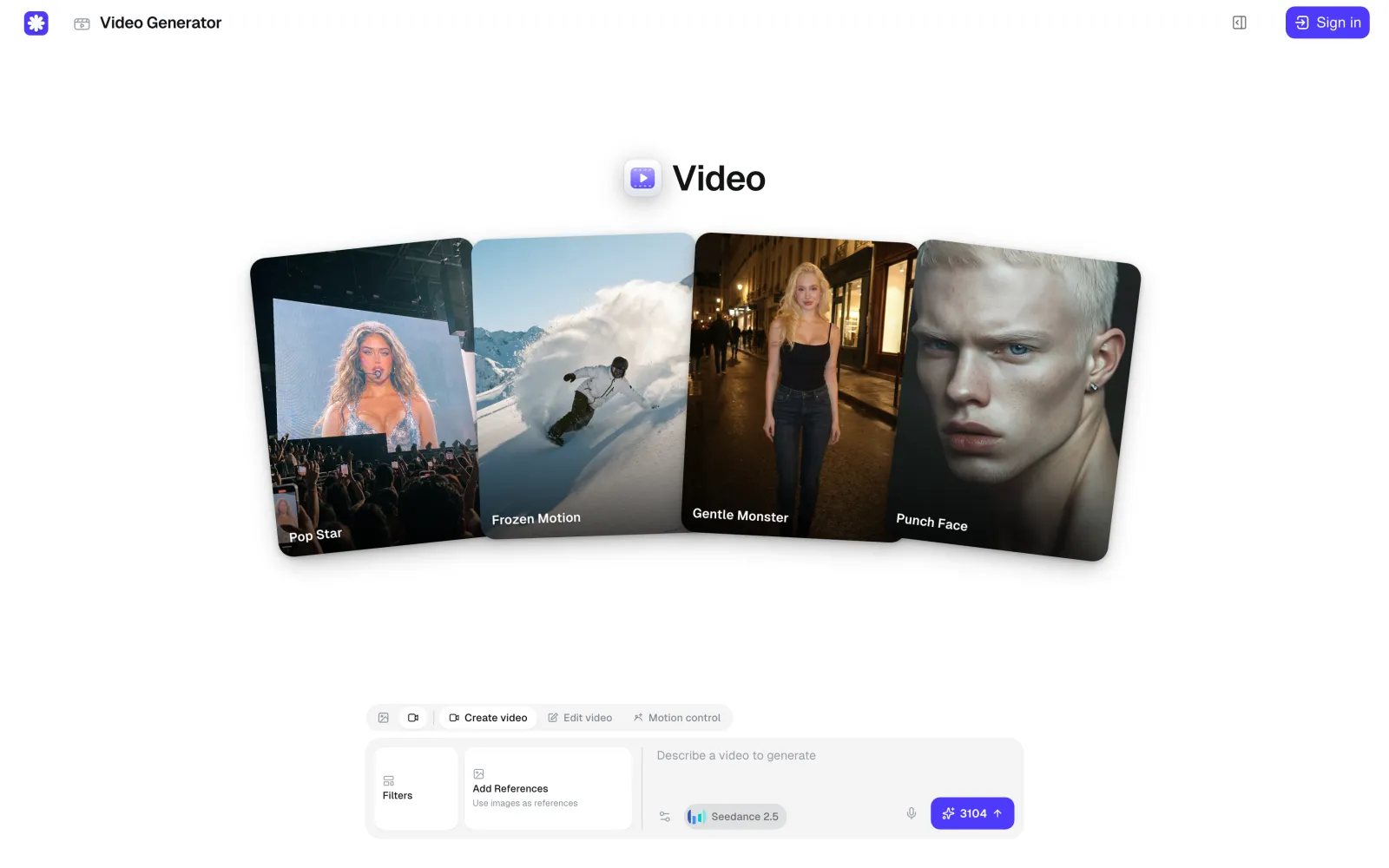
The video generator has a prompt box at the bottom of the page. Above the prompt box, there are three tabs:
Create video generates a new clip from a text description, a photo or both.
Edit video changes a clip you already have, for example its style or an object in the frame.
Motion control takes the movement from a reference video and applies it to the person in your photo.
To create a new video, use the Create video tab. It's open by default.
Step 2: Choose text-to-video or image-to-video
In the Create video tab, you can generate a video from a text description or from a photo:
Text-to-video. You write a description, and the model generates the whole scene from it.
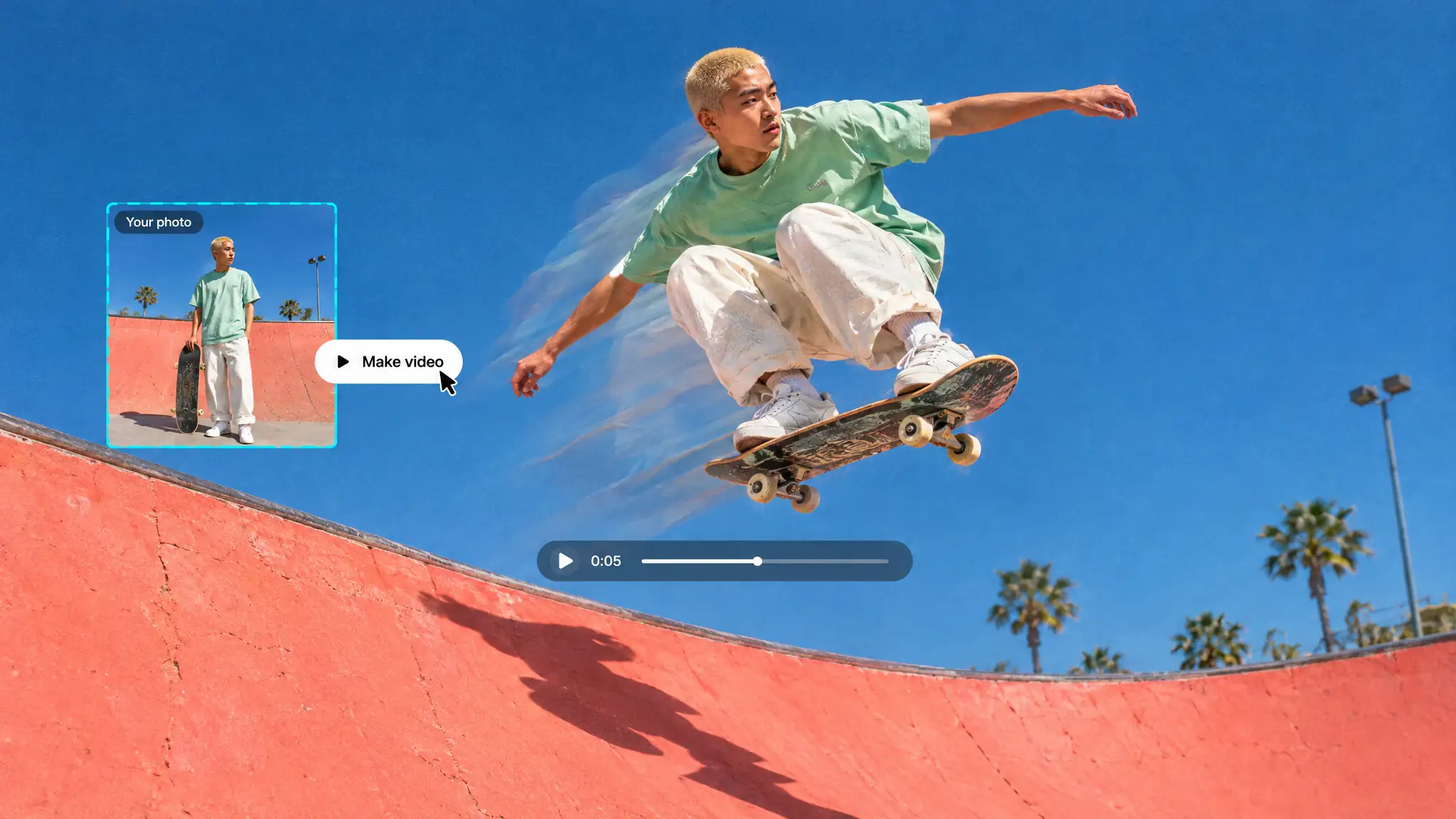
Image-to-video. You add a photo and a description. The model uses the photo as the first frame of the video and animates it. In the description, you write what should move in the picture and how the camera should move.
Text-to-video works well when you don't need a specific person or object in the video. But if you make several videos with the same character, the character can look different in each one, because the model creates every video from scratch. With image-to-video, every video starts from the same picture. That's why image-to-video is better for videos with a recurring character, a product or a real place.
If you don't have a suitable photo, you can generate one with AI. Create an image in the Overchat AI image generator and click Make video on the result. The image will open in the video generator as the first frame of a new video.
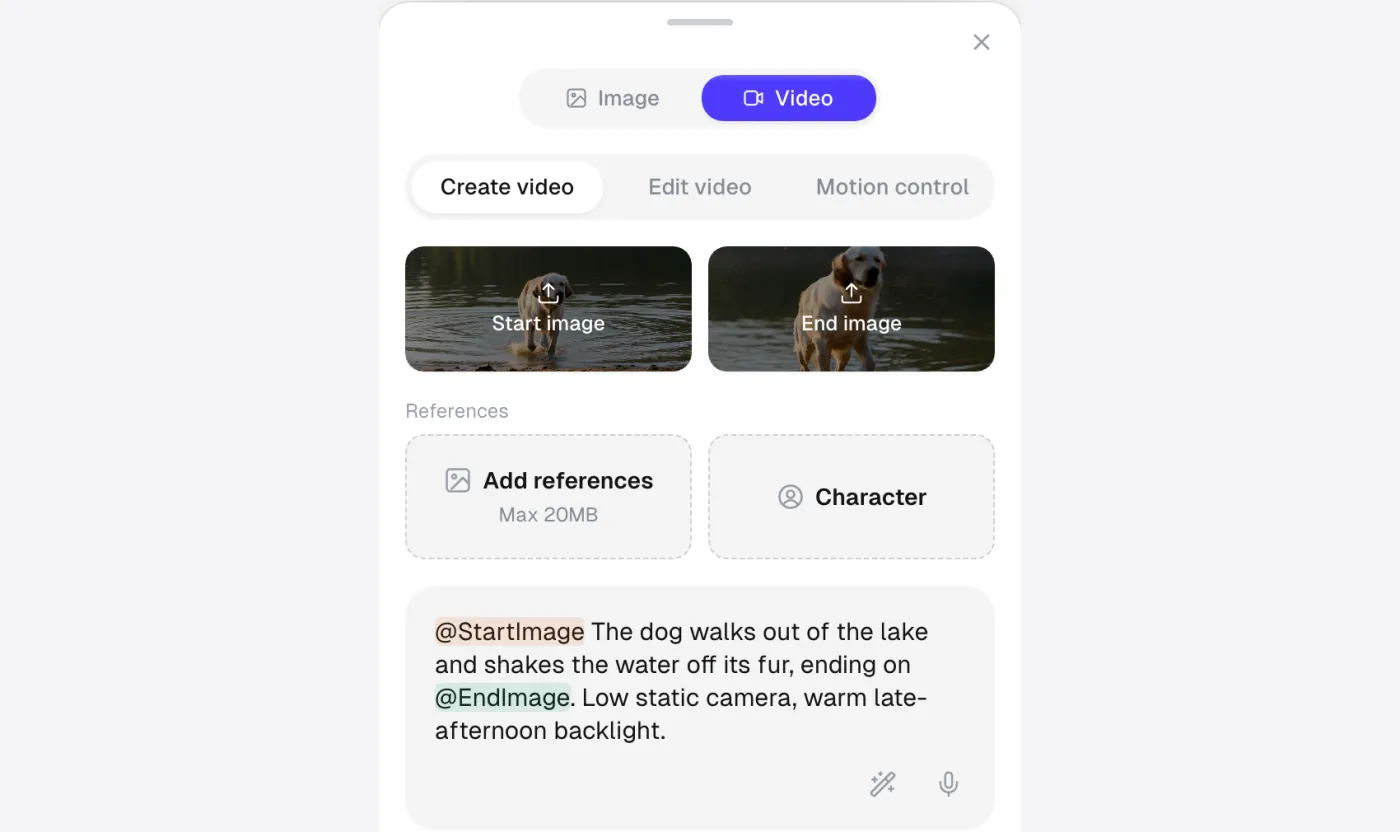
You can also set the last frame of the video. On a phone, the Create video tab has two slots for this, Start image and End image. The model then generates the movement from the first image to the second. In the screenshot below, both images show the same dog, first in the water and then on the shore, and the prompt describes how the dog walks out of the lake. The images are added to the prompt as @StartImage and @EndImage, so you can mention them in the description:
Below the Start image and End image slots, there are two more options for videos with a recurring product or person:
Add references lets you add pictures of a product or a place that should appear in the video. In the prompt, you refer to them as @Image1, @Image2 and so on.
Character lets you add a character sheet of a person, so the model shows the same person in every video.
Not all video models support image-to-video. For example, in Overchat AI, at the time of writing, the following models support the image-to-video workflow:
Seedance 2.5
Seedance 2.0
Grok Imagine Video 1.5
Grok Imagine Video
Happy Horse
Kling 3
Kling 3 Turbo Pro
Kling 3 Standard Turbo
Kling 2.6 Pro
Gemini Omni
Veo 3.1
Hunyuan Video 1.5
MiniMax H3
Wan 2.5
Hailuo 2.3 Pro
Step 3: Choose a model and settings
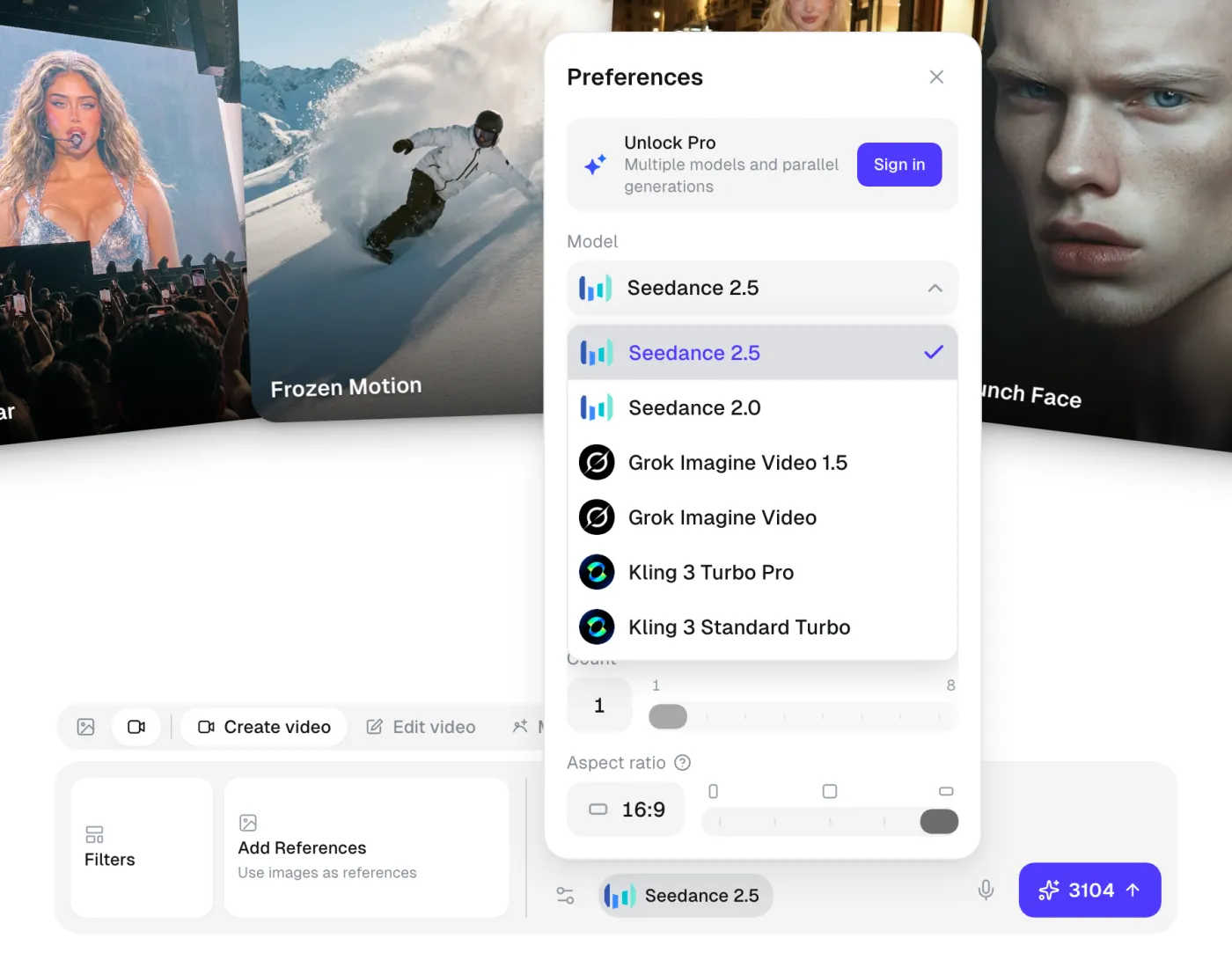
Next, choose the AI model and the video settings. Video models are good at different things and cost different amounts of credits. For example, Kling 3 is good at camera movement, and Veo 3.1 is good at people who talk on camera.
In Overchat AI, the model and the settings are in the Preferences panel. To open it, click the model name next to the prompt box:
Overchat AI has 20 video models. The table below lists the main ones and what each of them is good at:
Model
What it's good at
Kling 3
Camera movement and scenes with several shots
Veo 3.1
People who talk on camera, with sound
Seedance 2.5
ByteDance's newest model, with sound
MiniMax H3
Video with stereo sound
Grok Imagine Video
Cheap test clips
Hunyuan Video 1.5
The cheapest clips
For most videos, we recommend Kling 3 or Veo 3.1. Since every generation costs credits, you can first test a new prompt on the cheaper Grok Imagine Video and then generate the final version with Kling 3 or Veo 3.1.
Under the model list, you'll find the video settings, which differ from model to model. For example, Seedance 2.5 has the following settings:
Duration: 5 or 10 seconds.
Resolution: 720p or 1080p.
Audio: on or off.
Count: how many versions of the clip to make at once, up to 8 on the Pro plan.
Aspect ratio: 16:9, 9:16, 1:1, 4:3 or 3:4.
Some models have fewer settings. For example, Kling 3 doesn't have an Audio switch.
The price of a video also depends on its duration and resolution. For example, a 5-second Kling 3 clip in 720p costs 910 credits, and a 10-second one costs 1,810 credits. To save credits, you can test the prompt with short 720p clips and then choose the length and resolution you need for the final version.
Which aspect ratio to use for TikTok, Reels and YouTube
The table below shows which aspect ratio suits each platform:
Where the video goes
Aspect ratio
TikTok
9:16
Instagram Reels
9:16
YouTube Shorts
9:16
YouTube
16:9
Instagram or Facebook feed post
1:1
Website or presentation
16:9
Step 4: Write the prompt
A prompt is a text description of the video you want to get. The model only knows what you write in the prompt, so if you write just "a dog on a lake", it decides on its own what breed the dog is, what the light is like, where the camera is and what the dog does. To get a video closer to what you have in mind, describe the scene in more detail. A good video prompt usually includes:
Subject: who or what is in the frame.
Action: what happens in the clip.
Setting: where it happens.
Camera: the angle and the camera movement, for example a low tracking shot, a slow orbit or a static camera.
Light: the time of day and the direction of the light.
Style: for example, a realistic documentary, a commercial or an animated film.
Sound: what you hear in the clip, for models that generate audio.
If a character should speak, write their line in quotation marks, and models that generate sound will voice it. If you only have a rough idea, click Enhance prompt (the wand icon next to the microphone), and Overchat AI will turn your idea into a longer prompt.
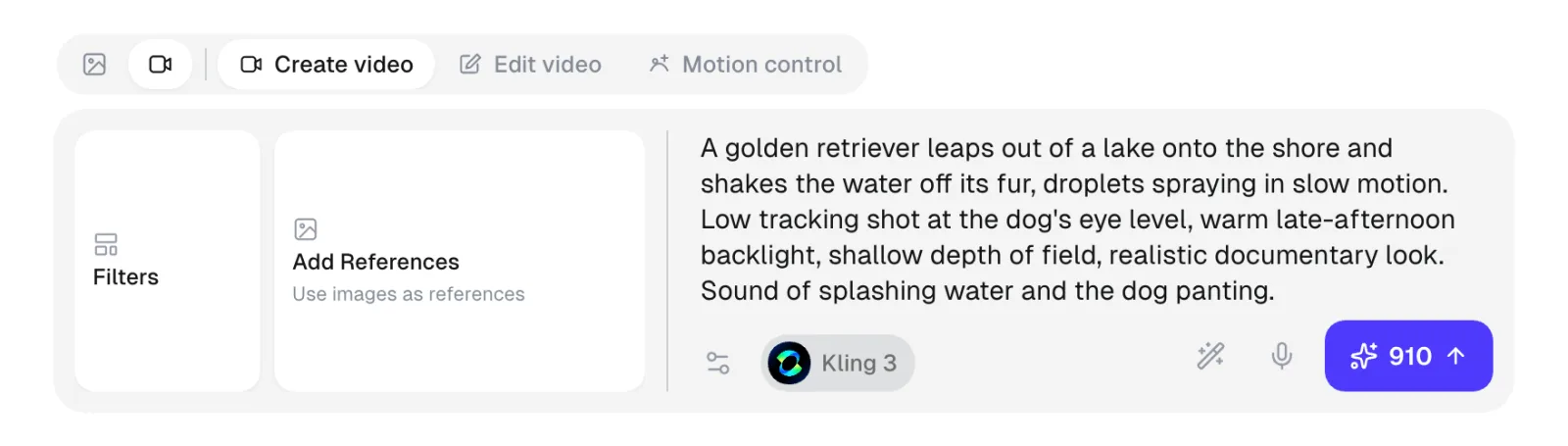
The screenshot below shows a full prompt in the prompt box with Kling 3 selected. The price of the clip is shown on the Generate button:
To show how such prompts work, we generated three clips with different models. The first prompt describes a slow-motion shot of a dog on a lake shore. We generated it with Kling 3:
A golden retriever leaps out of a lake onto the shore and shakes the water off its fur, droplets spraying in slow motion. Low tracking shot at the dog's eye level, warm late-afternoon backlight, shallow depth of field, realistic documentary look. Sound of splashing water and the dog panting.
The second prompt describes a vertical sneaker ad for Reels. We generated it with Seedance 2.0 in the 9:16 format:
White running sneakers standing on a wet rooftop at night, neon signs reflecting in the puddles around them. Raindrops hit the puddles as the camera slowly orbits the shoes. Cool blue and magenta neon light, glossy commercial product-ad style, crisp detail. Sound of soft rain.
The third prompt includes a line of dialogue. We generated it with Veo 3.1, which creates the voice and the kitchen sounds together with the video:
A baker in her sixties stands in a small bakery kitchen, dusts flour off her hands, looks into the camera and says with a warm smile: "The secret is patience. Let the dough rest." Medium close-up, static camera, soft morning window light from the left, natural film look. Quiet kitchen ambience.
Step 5: Generate, edit and download the video
When the prompt and the settings are ready, click Generate. The button shows how many credits the clip will cost. Generation takes from under a minute to several minutes, depending on the model, the length and the resolution.
The finished clip appears at the top of the page. When you hover over the clip, you'll see buttons to download it as an MP4, share it, open it in Edit video or delete it:
If you don't like the result, change the prompt and generate the video again. If only one detail is wrong, such as the background or the style, you can fix it without generating a new video. To do this, open the clip in Edit video and describe the change.
How much does it cost to generate an AI video?
In Overchat AI, you pay for videos with credits. You get credits with the Pro subscription, which costs $14.99 a month or $59.99 a year. Both plans give you 8,000 credits a month.
Each video costs a certain number of credits, depending on the model. The table below shows how many 5-second 720p videos you can make with 8,000 credits and how much one video costs in dollars on each plan:
Model
Credits per video
Videos per month
Price per video, monthly plan
Price per video, yearly plan
Hunyuan Video 1.5
200
40
$0.37
$0.12
Grok Imagine Video
275
29
$0.52
$0.17
Veo 3.1
810
9
$1.52
$0.51
Kling 3
910
8
$1.71
$0.57
MiniMax H3
1,500
5
$2.81
$0.94
Seedance 2.5
3,104
2
$5.82
$1.94
Longer and higher-resolution videos cost more credits. For example, a 10-second Kling 3 video costs 1,810 credits, which is about $3.39 on the monthly plan. A 10-second Seedance 2.5 video in 1080p costs 13,708 credits, which is more than the plan gives you in a month. If you run out of credits, you can buy more in one-time packs, starting at 4,000 credits for $9.99.
A free account gets 100 credits a day, and the cheapest video costs 200 credits, so you can't generate videos on the free plan.
How to make an AI video longer than 10 seconds
AI video models generate clips of 5 or 10 seconds, so to make a longer video, you need to generate several clips and join them. To make the clips look like parts of one video, follow these steps:
Split the video into shots of 5 or 10 seconds, and write a prompt for each shot.
Use the same reference image or character in every shot. Also repeat the same style and lighting description in every prompt, so the shots look similar.
Start each shot from the last frame of the previous shot. Take a screenshot of the last frame and add it as the Start image of the next shot. This way, the movement continues where it stopped.
Join the shots into one video. You can do this in the Overchat AI video combiner, which merges clips into one MP4 file in your browser. You can also trim the clips and add music there.
If a clip is just a few seconds too short, you can use an AI video extender to add more seconds to it.
FAQ
Can I generate AI videos for free?
In Overchat AI, a free account gets 100 credits a day, and the cheapest video costs 200 credits. So to generate videos, you need the Pro plan, which costs $14.99/month or $59.99/year. Some other apps have free limits. For example, Google Flow gives you 50 free credits a day for Veo 3.1. Local tools like ComfyUI are free if your computer has a powerful Nvidia graphics card.
What is the best AI model to generate videos?
For most videos, Kling 3 and Veo 3.1 give the best results. Kling 3 is better at camera movement and scenes with several shots. Veo 3.1 is better at people who talk on camera. You can use both models in the Overchat AI video generator.
Can I generate a video from a photo?
Yes, this is called image-to-video. The AI model uses your photo as the first frame of the video, and in the prompt you describe how things in the photo should move. In Overchat AI, 15 of the 20 video models support image-to-video.
Can I use AI-generated videos commercially?
Yes, but you're responsible for having the rights to everything in the video. Overchat AI's terms of service say that users must make sure they have the rights to use the generated content. So don't use real people or copyrighted characters in your videos without permission.
How long does it take to generate an AI video?
Generating an AI video takes from under a minute to several minutes. The time depends on the model, the length and the resolution. For example, a 10-second clip in 1080p takes longer than a 5-second clip in 720p from the same model.
Can AI video generators create videos with audio?
Yes. Some AI video models generate sound together with the video, including speech and background sounds. In Overchat AI, the following models generate audio:
Seedance 2.5
Veo 3.1
MiniMax H3
Wan 2.5
Flux 3
LTX 2.5 Pro
PixVerse C1
To get sound, describe it at the end of the prompt. Put spoken lines in quotation marks.
How long can an AI-generated video be?
In Overchat AI, one generated clip is 5 or 10 seconds long. To make a longer video, generate several clips that continue each other and join them in a video editor or in the Overchat AI video combiner.