Best Free AI Image Upscaler in 2026: 12 Tools Compared
Last Updated:
2026-09-26
Best Free AI Image Upscaler in 2026: 12 Tools Compared
You found an image online that you want to use, or maybe you cropped a photo a little too aggressively, and now it’s simply too blurry to be usable. What can you do?
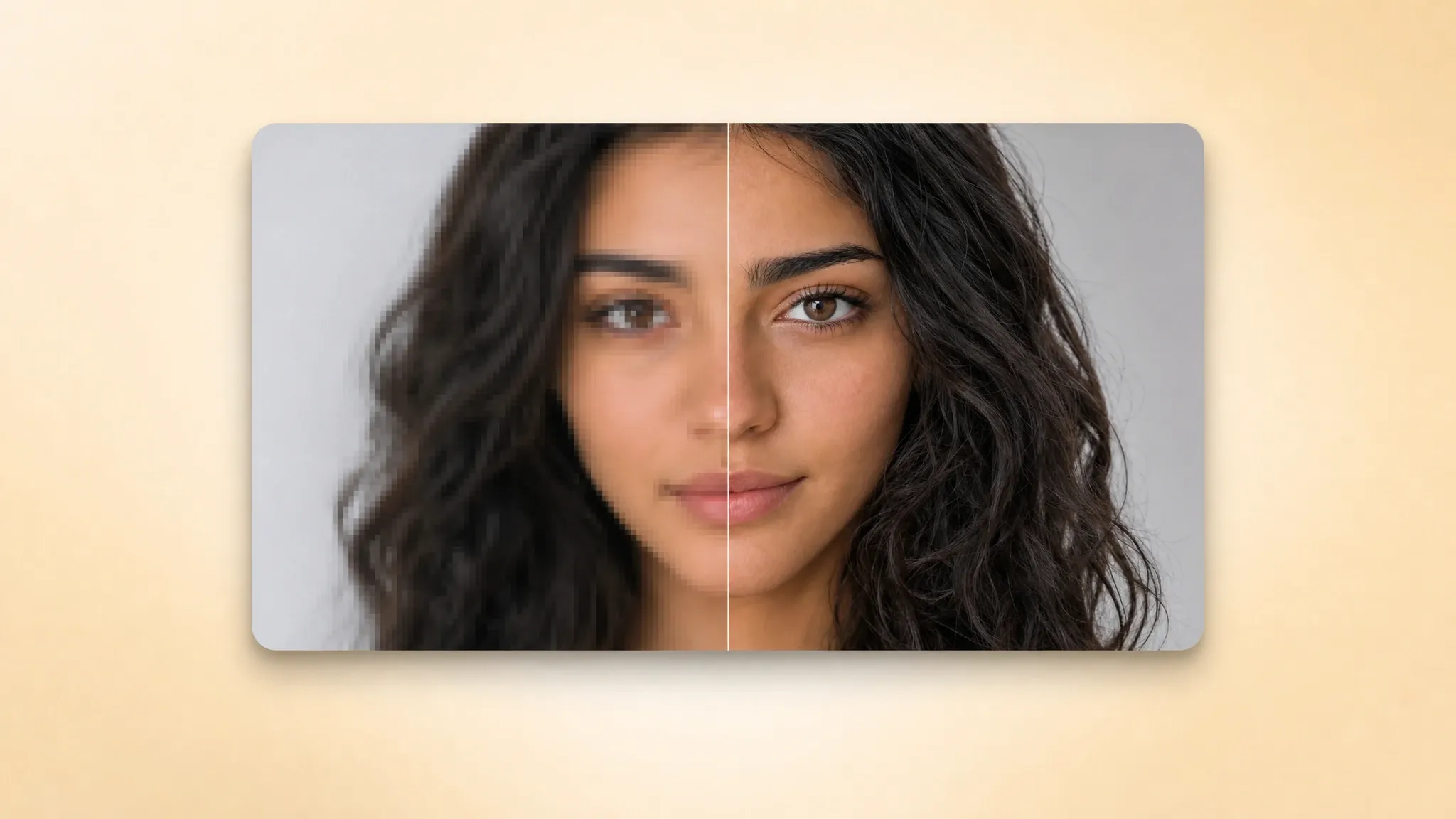
That’s where AI image upscalers come in. These tools can enhance image quality, reconstruct lost details, and increase resolution. Better yet, some AI upscalers are genuinely free and even offer unlimited use.
In this article, we’ve rounded up the best free AI image upscalers so you can find the right tool before uploading your image.
Upscayl is the best completely free AI image upscaler for people who don't mind installing a dedicated desktop app. It is open source, runs locally on Windows, macOS, and Linux, supports batch processing, and can enlarge images by up to 16x. If you want a browser tool, Upscale.media is one of the most popular online options. Meanwhile, Overchat AI is the best for restoring very blurry, heavily compressed, or damaged photos because it uses generative AI technology.
Here is a closer look at each tool, what its free tier actually covers, and the kind of image it handles best.
1. Upscayl — best completely free AI image upscaler
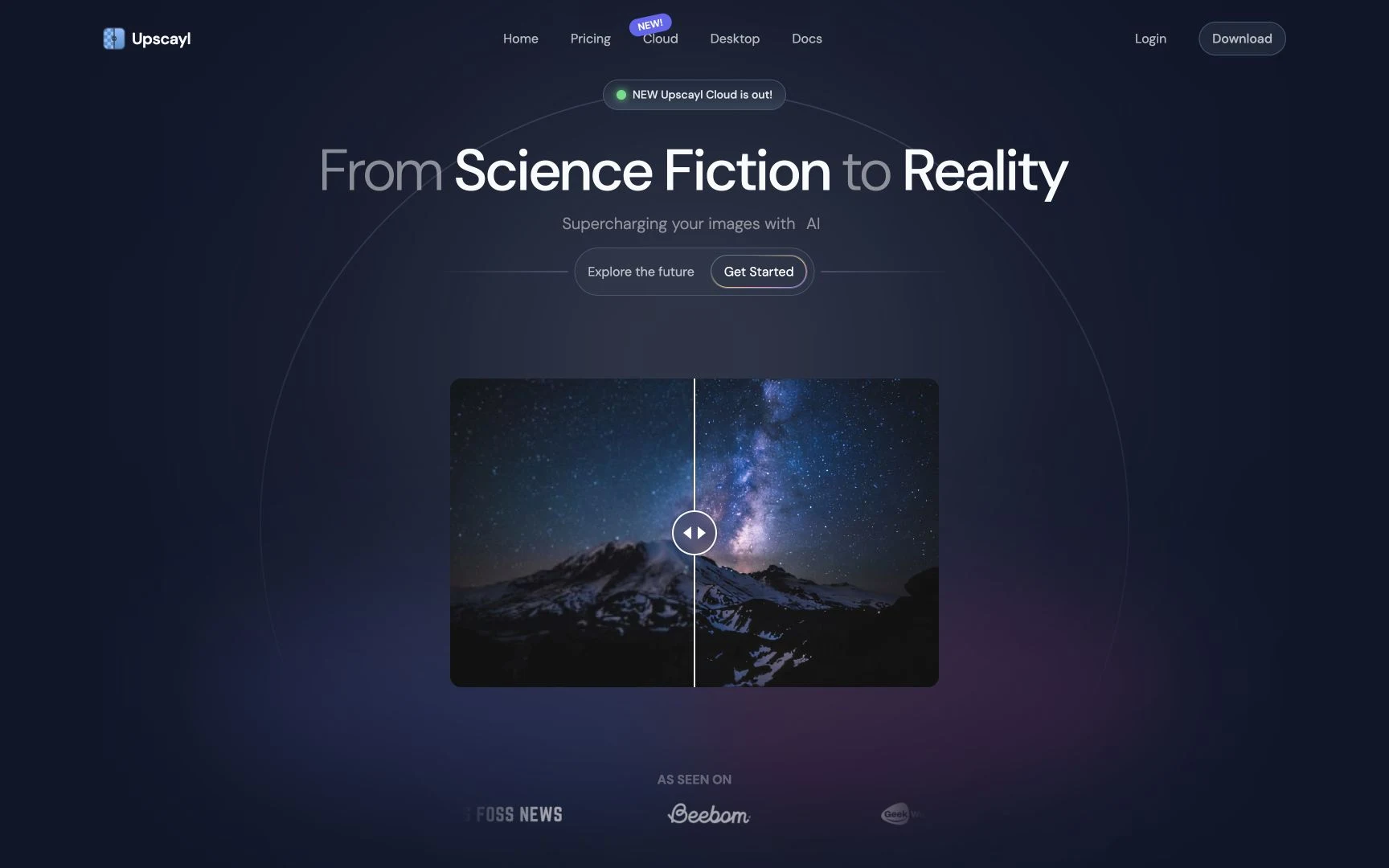
Upscayl is a free, open-source desktop image upscaler for Windows, macOS, and Linux. It runs models locally, includes batch processing, and imposes no account, watermark, or recurring credit limit.
Upscayl runs open-source upscaling models locally on your own machine
Developers Nayam Amarshe and TGS963 built Upscayl as a graphical desktop application around open-source Real-ESRGAN and NCNN models. It provides several photo and illustration presets, folder-based Batch Upscayl, an optional second pass for 8x or 16x output, and support for custom NCNN models.
While many tools on this list are fully online, this one requires a download.
Upscayl requires Windows 10 or later, macOS 12 or later, or Ubuntu 20.04 or later, plus a GPU that supports Vulkan 1.3.
Upscayl pricing:
Free and open source
No account, credits, subscription, or watermark
Best for: unlimited desktop upscaling, batch jobs, and private images.
2. Upscale.media — best free online image upscaler
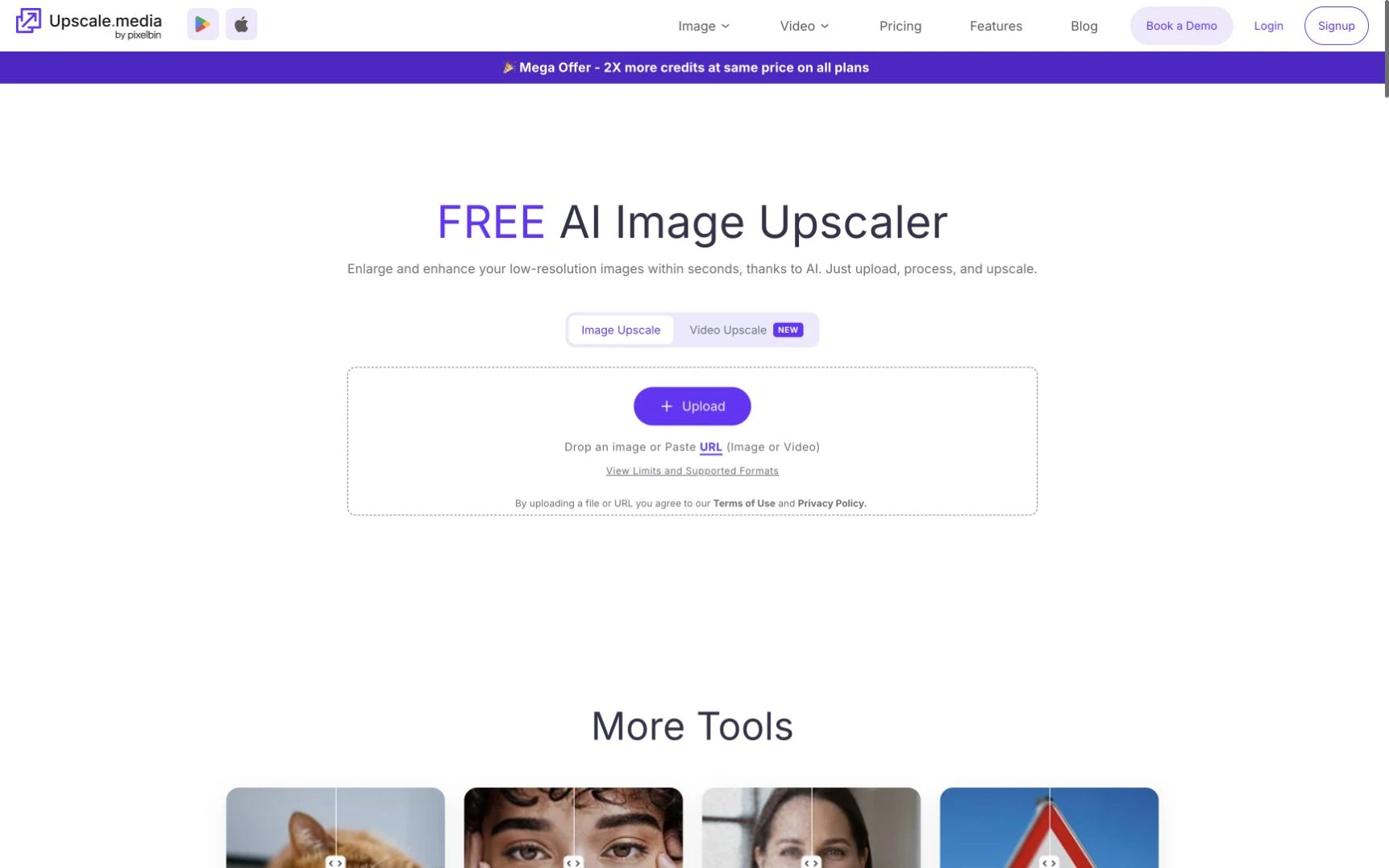
Upscale.media is a browser-based image upscaler with iOS and Android apps and a developer API. It offers 2x, 4x, and 8x enlargement. At 8x, guests can upload up to 1250×1250 pixels and signed-in users up to 2500×2500.
Upscale.media works in the browser with no installation
The upscaler supports single image uploads and you can download results without a watermark. You don't have to install any software. For agencies and e-commerce teams, you can move the same processing into PixelBin through bulk transformation and take advantage of the image-upscale API.
Upscale.media pricing:
Without sign-up: one free image per day
Free account: three credits and three downloads per month
Subscription: $69.99 per year, listed at $0.01 per credit
Pay as you go: $5.99 for 60 credits, $9.99 for 125, $24.99 for 500, or $54.99 for 1,200; credits remain valid for one year
Best for: fast, general-purpose upscaling from any device.
3. Overchat AI — best generative alternative for badly damaged photos
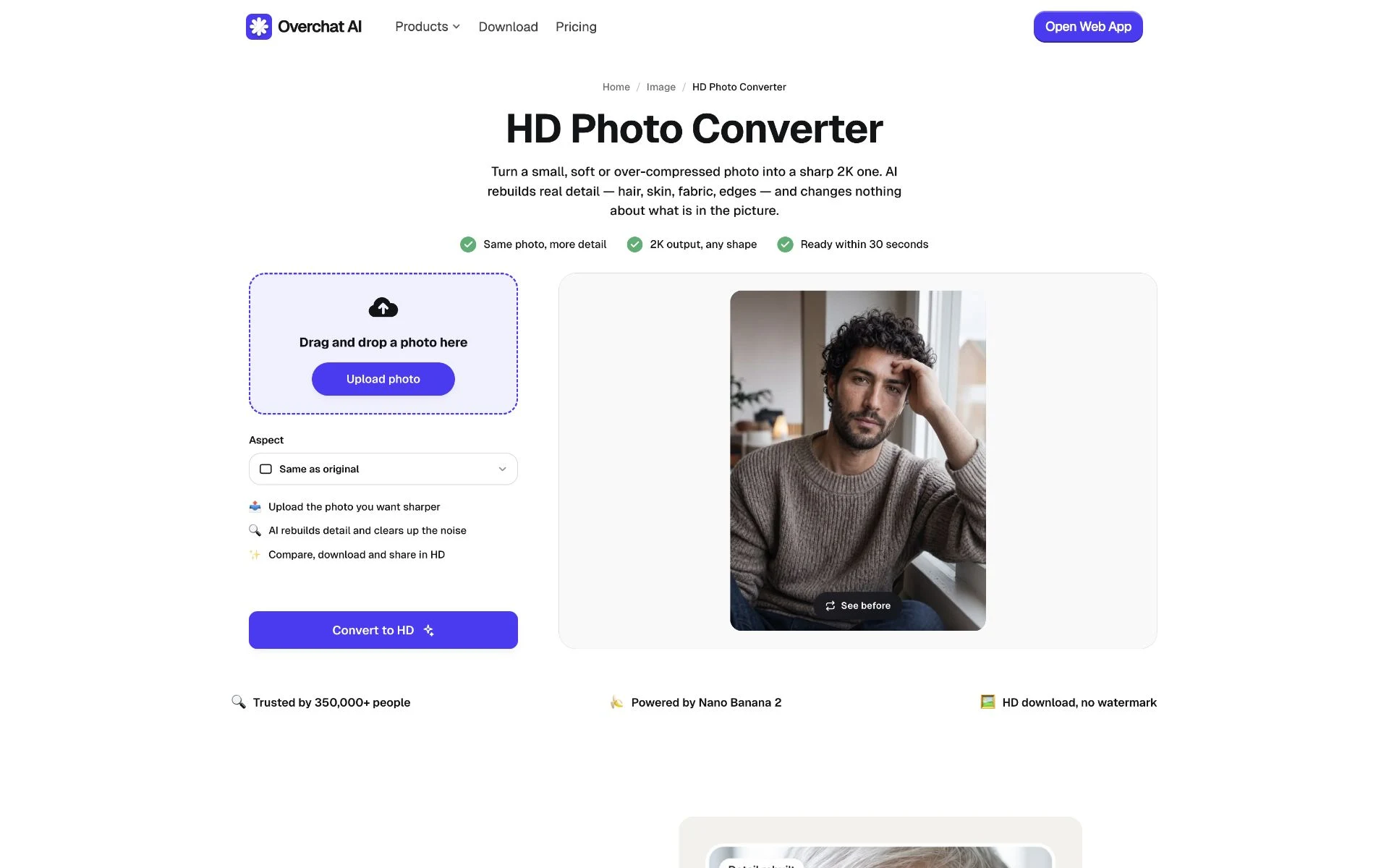
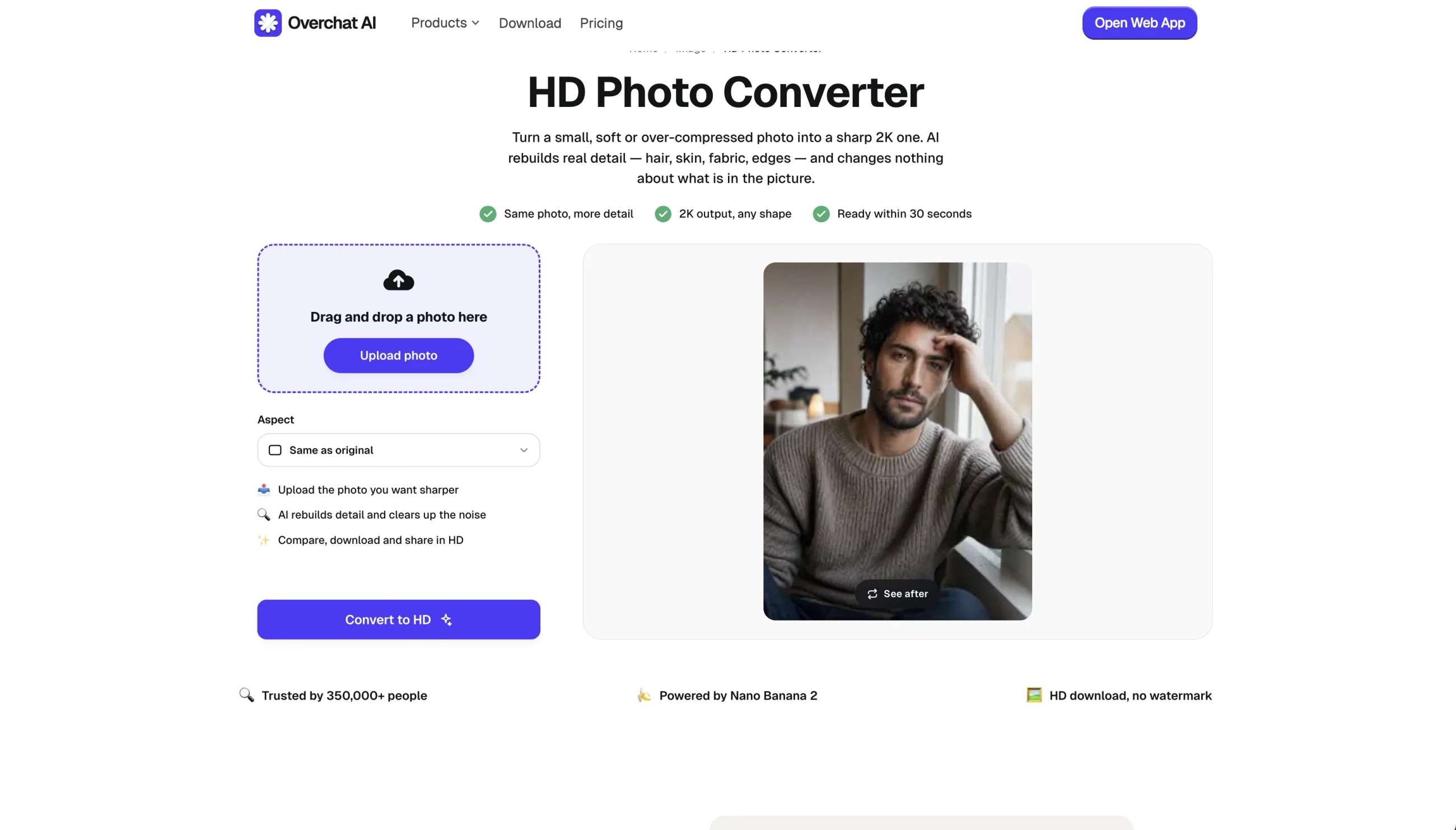
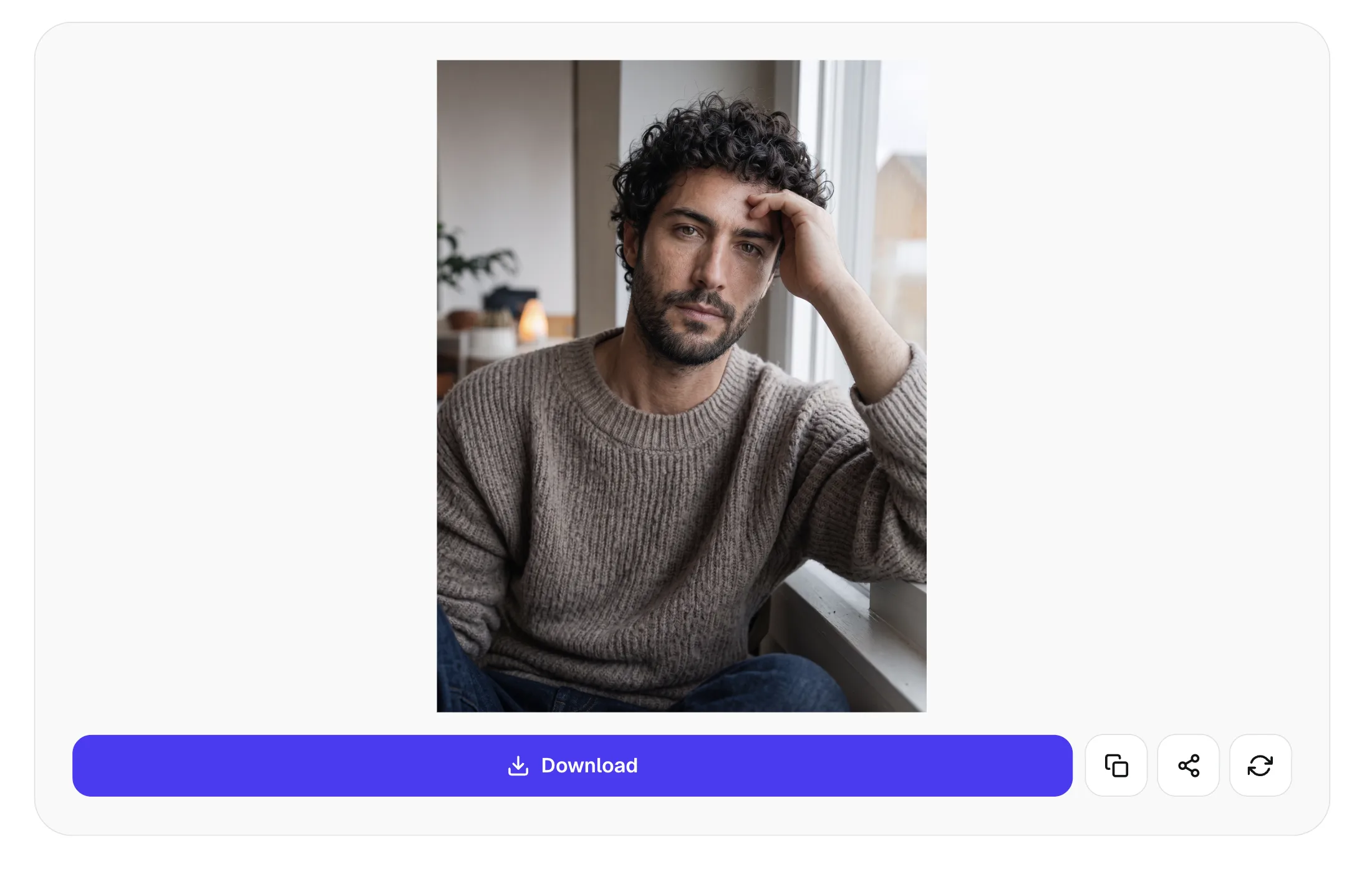
Found an impossibly pixelated image online and want to get an HD version of it? Then this tool is for you. Overchat AI is our own HD Photo Converter built around the Nano Banana 2 image-to-image model. It preserves the original aspect ratio by default, and also offers square, portrait, story, landscape, and photo ratios, so you can both upscale and resize an image at the same time.
Overchat AI HD Photo Converter rebuilds a photo instead of only enlarging it
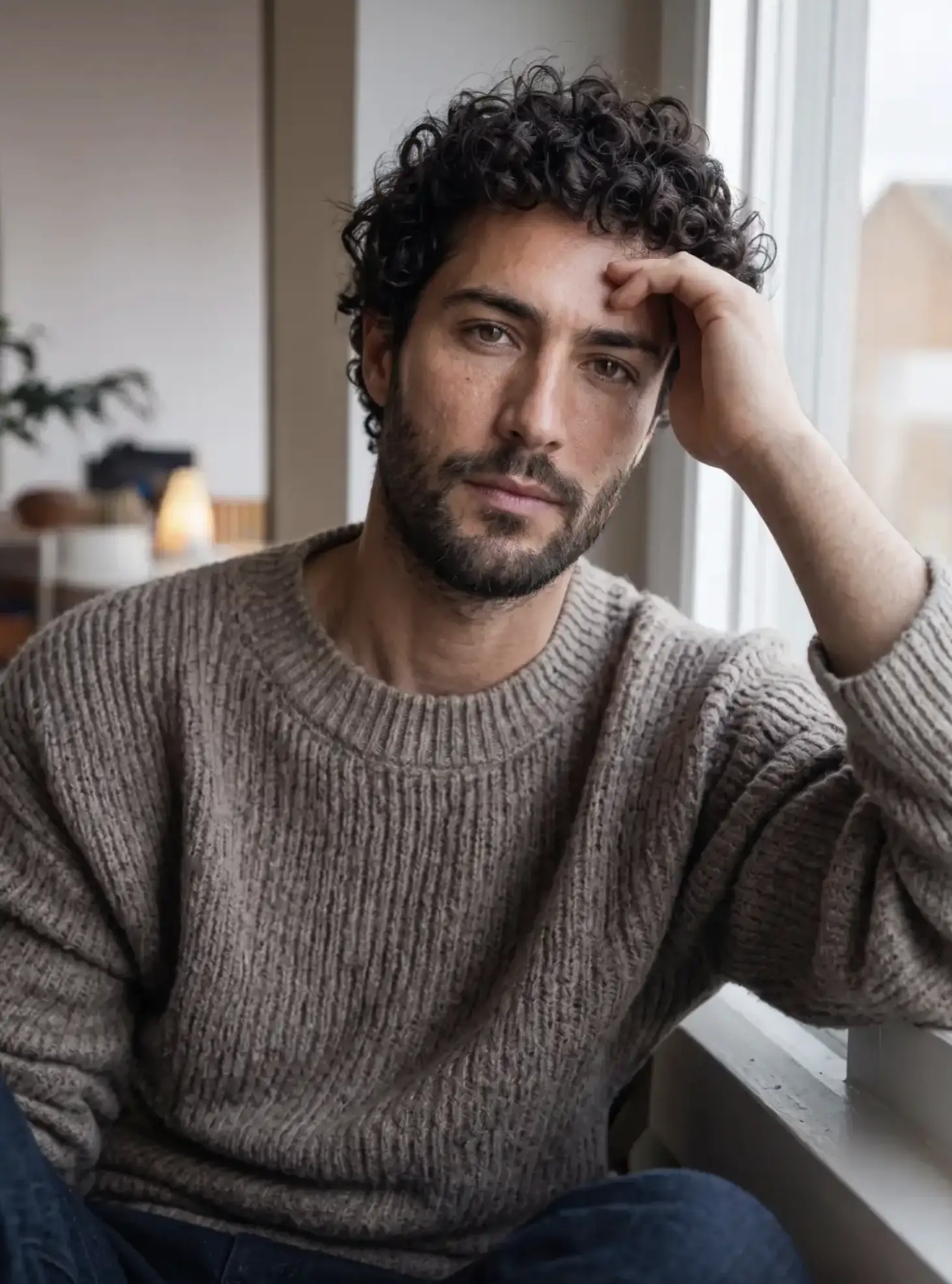
This tool is built around generative technology — an AI model is used to analyze and recreate the original image from scratch, allowing it to reconstruct details that were completely lost. This means that you can upscale any resolution to HD, even if the original is extremely blurry or pixelated:
Before
After
The same portrait before and after Overchat AI rebuilt it at a higher resolution
However, because it uses an AI image generator, the upscaler essentially creates a new image — practically, it looks exactly like the original image, but this architecture makes it less viable for certain applications like forensic images and archival facsimiles.
Overchat AI pricing:
HD Photo Converter: temporarily free, with no account or watermark required
Overchat Pro Monthly: $14.99 per month
Overchat Pro Annual: $49.99 per year
Best for: severely blurred, compressed, pixelated, or damaged photos where generative reconstruction is acceptable.
How to upscale an image with Overchat AI
Overchat AI creates a new version of the photo instead of simply resizing its pixels. Use it when you want to restore a damaged image. Do not use it when text, identity details, or documentary evidence must stay exact.
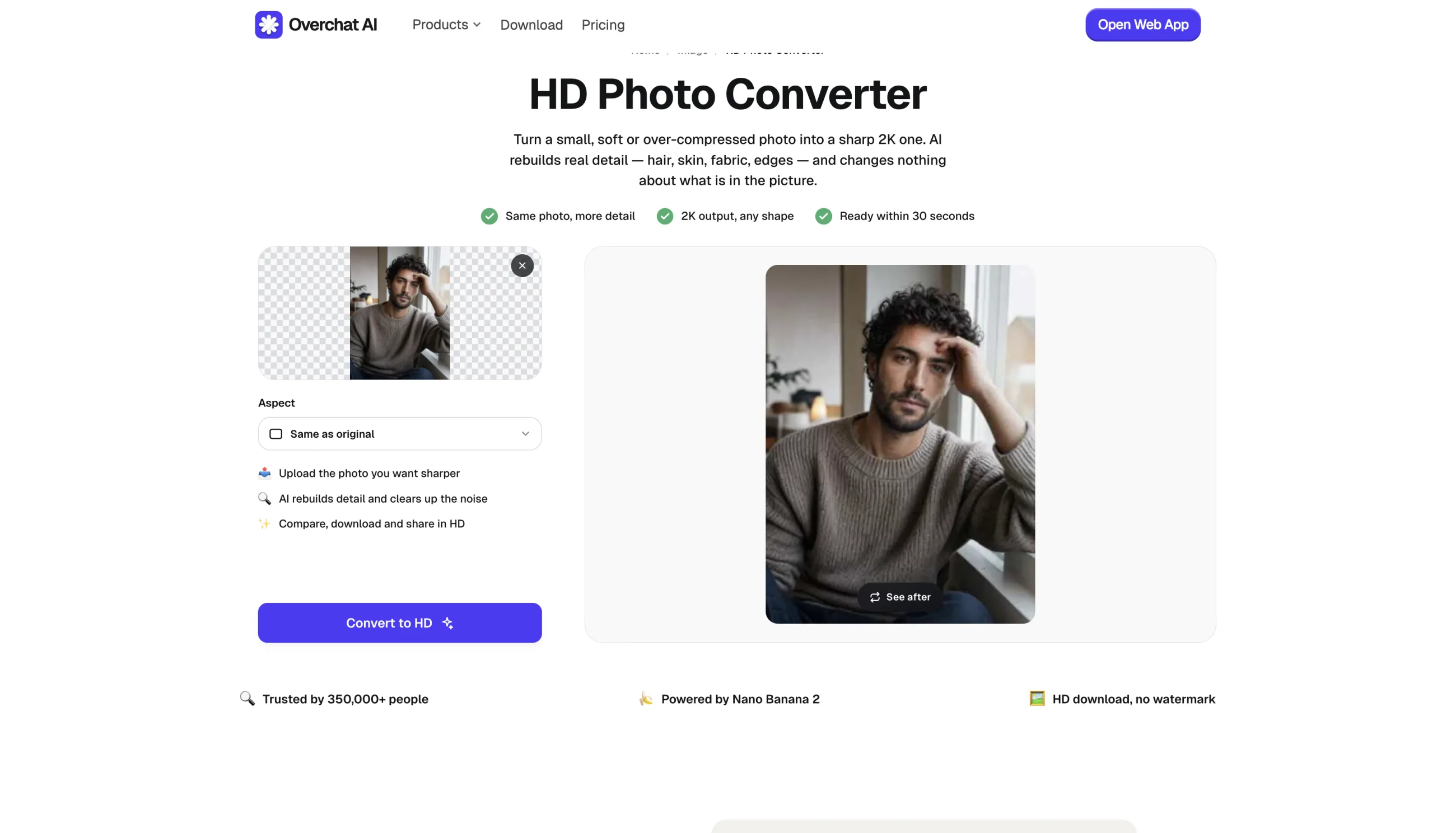
2. Add your photo. Drag the photo into the upload area or click Upload photo. Use the highest-quality copy you have. The image will appear in the upload card before processing.
Step 2: upload the highest-quality copy you have
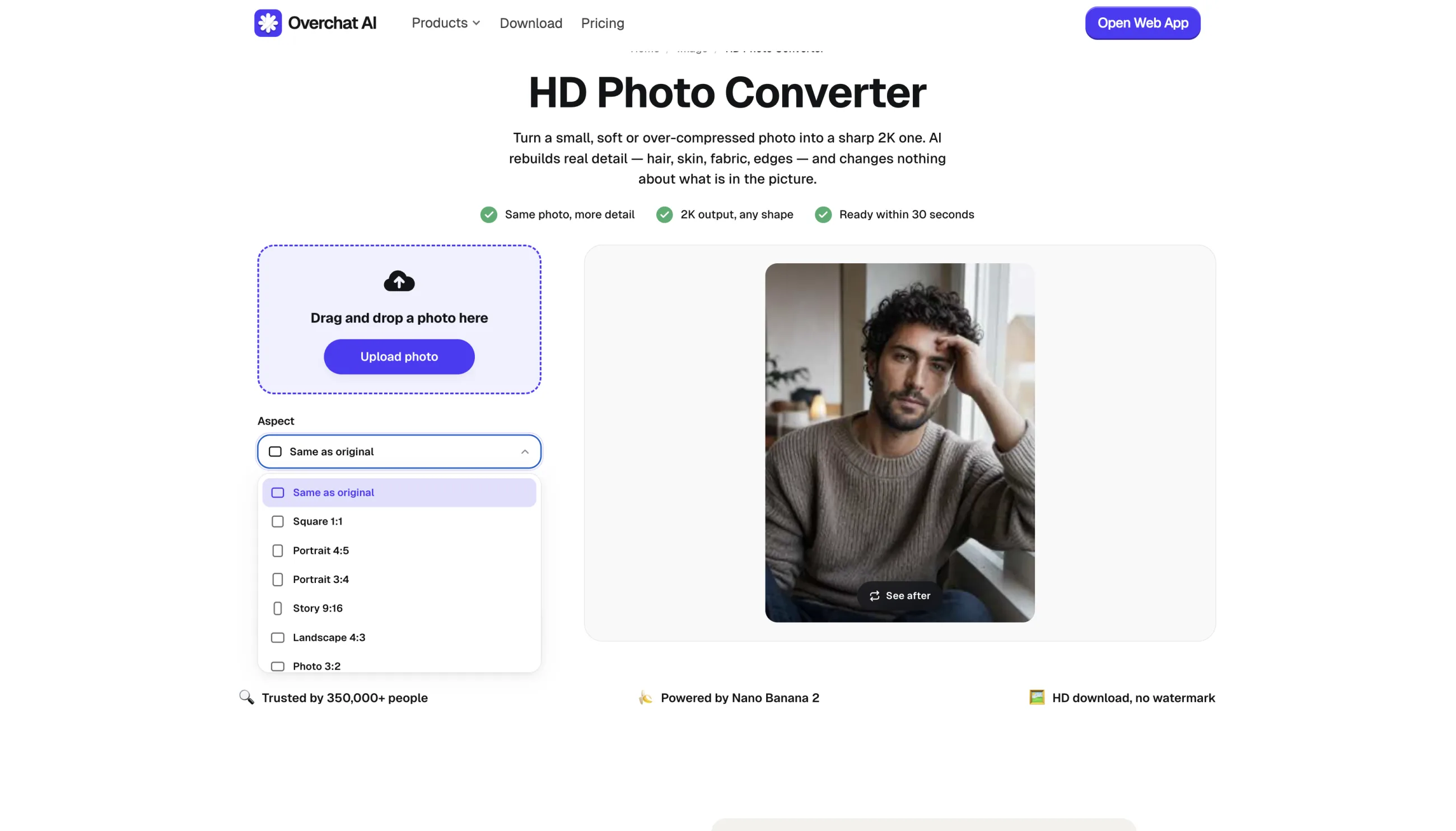
3. Pick an aspect ratio. Open Aspect and keep Same as original if you do not want to change the composition. You can also choose Square, Portrait, Story, Landscape, or Photo.
Step 3: keep the original ratio or pick a new one
4. Convert the image. Click Convert to HD. The image-to-image model usually needs about 30 seconds to rebuild the photo at a higher resolution.
5. Check the details. Look at the face, hands, jewelry, text, logos, and small background objects. Click regenerate if the model changed an important detail.
Step 5: review the result before downloading it
6. Download the result. Click Download to save the image without a watermark. You can also copy, share, or regenerate the image from the result screen.
No account is required for the current free workflow.
4. Bigjpg — best free AI upscaler for anime and illustrations
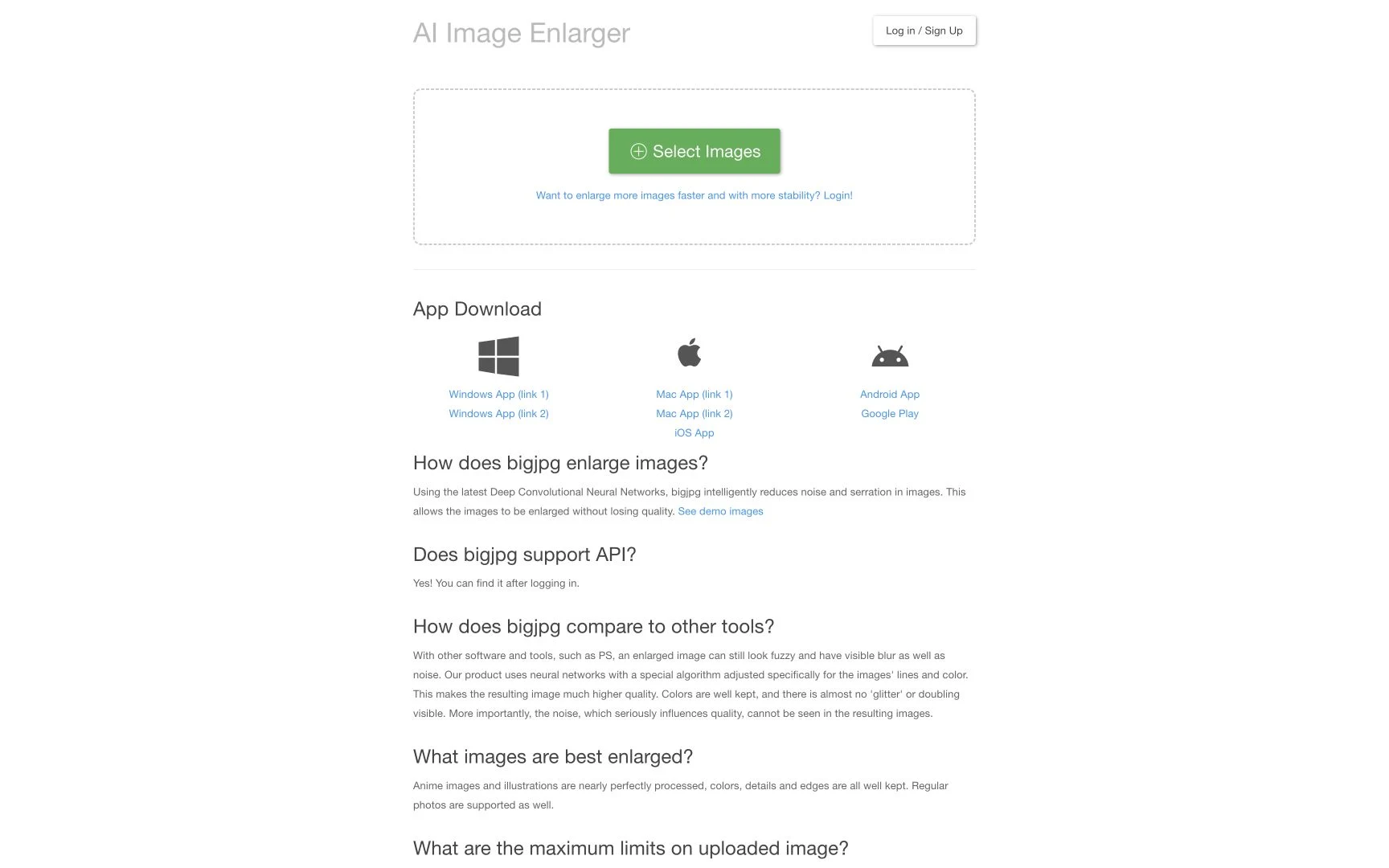
Bigjpg is a cloud upscaler whose neural network is tuned for anime and digital illustration. It reduces noise and jagged edges while preserving flat colors, line boundaries, and repeated shapes. A separate Photo mode handles photographs.
Bigjpg is tuned for anime, cartoons, and line art
Bigjpg applies a deep convolutional network tuned for lines and color regions, with separate Artwork and Photo modes and five noise-reduction levels. The free plan includes 20 images per month, accepts files up to 3000×3000 pixels and 5 MB, and enlarges them by up to 4x on a shared server.
Bigjpg has Windows, macOS, iOS, and Android applications and exposes an API after login. Its default server is in mainland China, while registered users can select a United States server. The service deletes free-account uploads within 24 hours and premium uploads within 72 hours. Bigjpg does not identify an individual founder or parent company on its public site.
Bigjpg pricing:
Free: 20 images per month, up to 4x enlargement
Basic: $6 for two months and up to 500 images per month
Standard: $12 for six months and up to 1,000 images per month
Premium: $22 for 12 months and up to 2,000 images per month
All paid plans are one-time payments and support files up to 50 MB and enlargement up to 16x
Best for: anime, cartoons, line art, and digital illustrations.
5. Waifu2x — best lightweight open-source anime upscaler
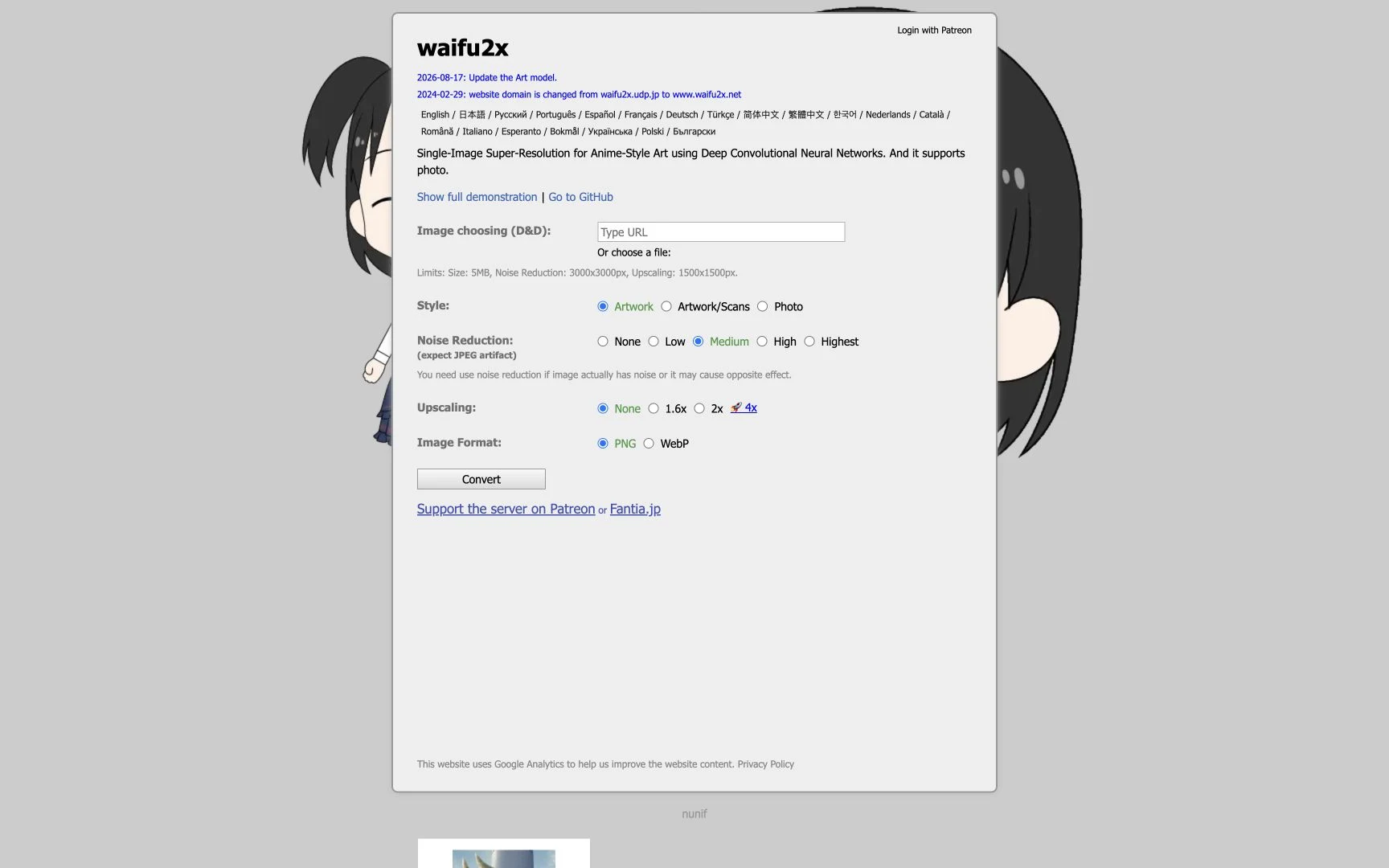
Waifu2x is an MIT-licensed super-resolution project created by the developer Nagadomi for anime-style art. Its original GitHub repository has more than 28,000 stars, and active development now continues in Nagadomi’s nunif repository. It features JPEG-artifact removal and provides separate models for Artwork, Artwork/Scans, and Photo.
Waifu2x is a minimal browser upscaler for anime-style artwork
The main web tool accepts files up to 5 MB. Noise reduction supports images up to 3000×3000 pixels, while upscaling is limited to 1500×1500 inputs at 1.6x or 2x. Users can select five noise levels and export PNG or WebP. An in-browser “unlimited” version provides a separate 4x route, and the open-source code supports local and batch processing.
The main model targets flat fills and drawn contours, making it ideal for anime artists and scan cleaners. A separate model is supported for photographs, but they are not the project’s primary focus.
Waifu2x pricing:
Free and open source
The public web versions and local code do not require a subscription
Best for: anime images, scanned artwork, and low-noise 2x enlargement.
6. Krea — best free upscaler for AI-generated art
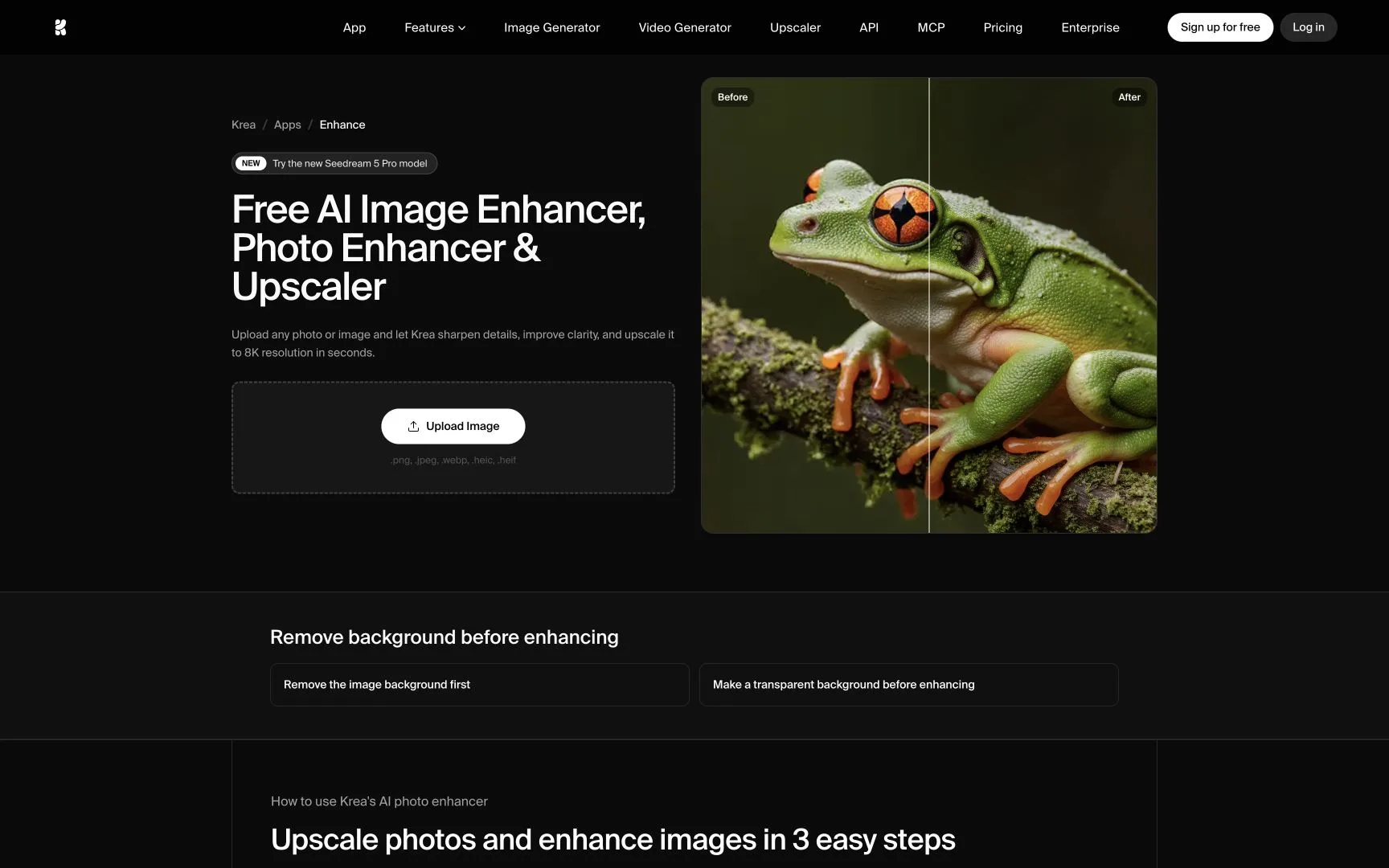
Krea Enhance is part of the Krea creative suite founded by Victor Perez and Diego Rodriguez. More than 30 million people across 191 countries use Krea. The suite includes image and video generation, real-time models, 3D tools, LoRA training, editing, and asset management. Enhance is the tool for upscaling and restoring detail.
Krea Enhance adds generated texture, which suits AI art
The enhancer accepts PNG, JPEG, WebP, HEIC, and HEIF files and can create images up to 8K. Most results are 2–4x larger, according to Krea’s FAQ. The model can generate new texture, which works well for AI artwork, concept images, and stylized portraits. It can also change faces, logos, and small text, so check these details before downloading.
Free accounts get 100 compute units per day, full access to real-time models, and limited image upscaling. Paid plans support upscaling to 22K. After upscaling, you can send the image into Krea’s node workflows to restyle, edit, or animate it.
Krea pricing:
Free: 100 compute units per day and limited image upscaling
Basic: from $9 per month; 5,000 compute units and upscaling up to 22K
Pro: from $35 per month; 20,000 compute units and access to Nodes and Apps
Max: from $105 per month; 60,000 compute units and unlimited relaxed generations
Annual billing offers up to 40% off
Best for: AI art and images that benefit from creative detail generation.
7. Pixelcut — best free AI image upscaler for product photos
Pixelcut was founded in Oakland in 2020 by Dominique Yahyavi and Prasanth Veerina. More than 70 million people in 150 countries use it, and they process over one billion images per year. Its website, mobile apps, and API focus on product photos, marketplace listings, ads, and social content.
Pixelcut pairs upscaling with product-photo editing tools
The upscaler accepts JPG, PNG, and HEIC files up to 100 MB or 8000×8000 pixels. You can export the result in 4K, 8K, or 16K. It has two modes:
Fast Upscale enhances the image automatically.
Creative Upscale generates extra detail and lets you adjust Creativity and Resemblance.
The free tier includes three watermark-free downloads per day without sign-up.
Pixelcut Pro can upscale, sharpen, and denoise batches of up to 10,000 images, then download them as a ZIP. You can also remove backgrounds, create product scenes, retouch photos, and make ads without leaving the editor. Uploaded files are encrypted and deleted within 24 hours.
Pixelcut pricing:
Free: limited tools and exports without a watermark
Pro: $10 per month, or $8 per month with annual billing; 600 AI credits and 1,000 batch exports per month
Business: $30 per month, or $24 per month with annual billing; 3,600 AI credits and 2,000 batch exports per month
Best for: online sellers who also need backgrounds, retouching, and mobile editing.
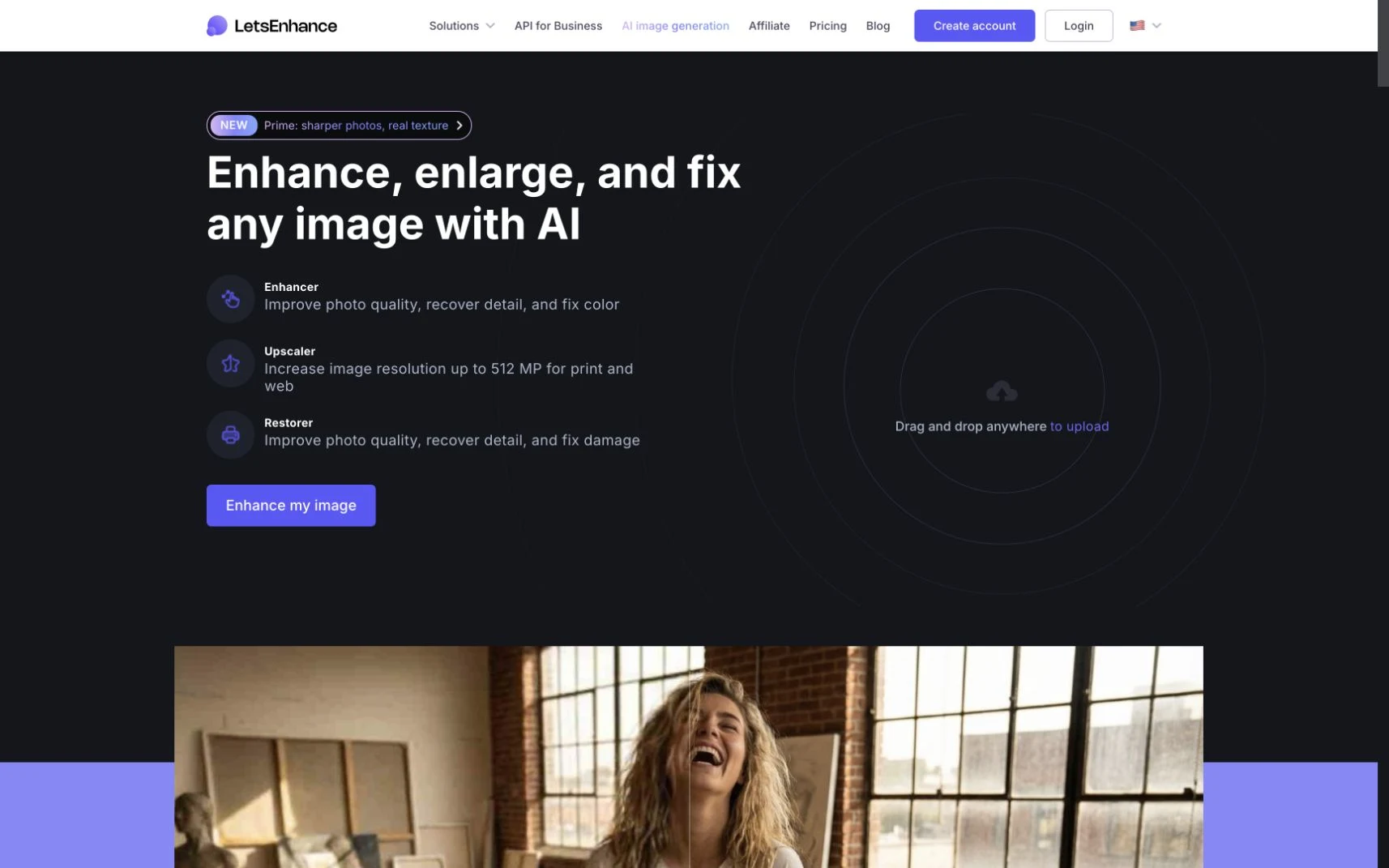
8. Let’s Enhance — best for batch e-commerce images
Let’s Enhance is a San Francisco-based imaging company founded in 2018. More than five million people use its tools. The company also runs Claid.ai, an API and automation platform for e-commerce catalogs.
Let’s Enhance targets catalog and print workflows
The upscaler accepts JPG, PNG, and WebP, enlarges images by up to 16x, and supports output up to 512 megapixels. You can process 20 images at once. Prime works with portraits, products, and textures. Gentle tries to preserve small text and fine details. Old Photo repairs aged scans before enlarging them.
The free version comes with a limited number of credits. Full-resolution downloads without a watermark and regular batch work require a paid plan. Print shops and photographers can prepare images at 300 DPI, while catalog and real-estate teams can automate larger jobs through Claid.ai.
Let’s Enhance pricing:
Free: 10 credits; free exports include a watermark and are limited to 8 megapixels
Starter: $12 per month, or $9 per month with annual billing; 100 credits
Pro: $32 per month, or $24 per month with annual billing; 300 credits
Max: $45 per month, or $34 per month with annual billing; 500 credits
One processed image normally uses one credit
Best for: e-commerce teams, print preparation, and repeatable cloud workflows.
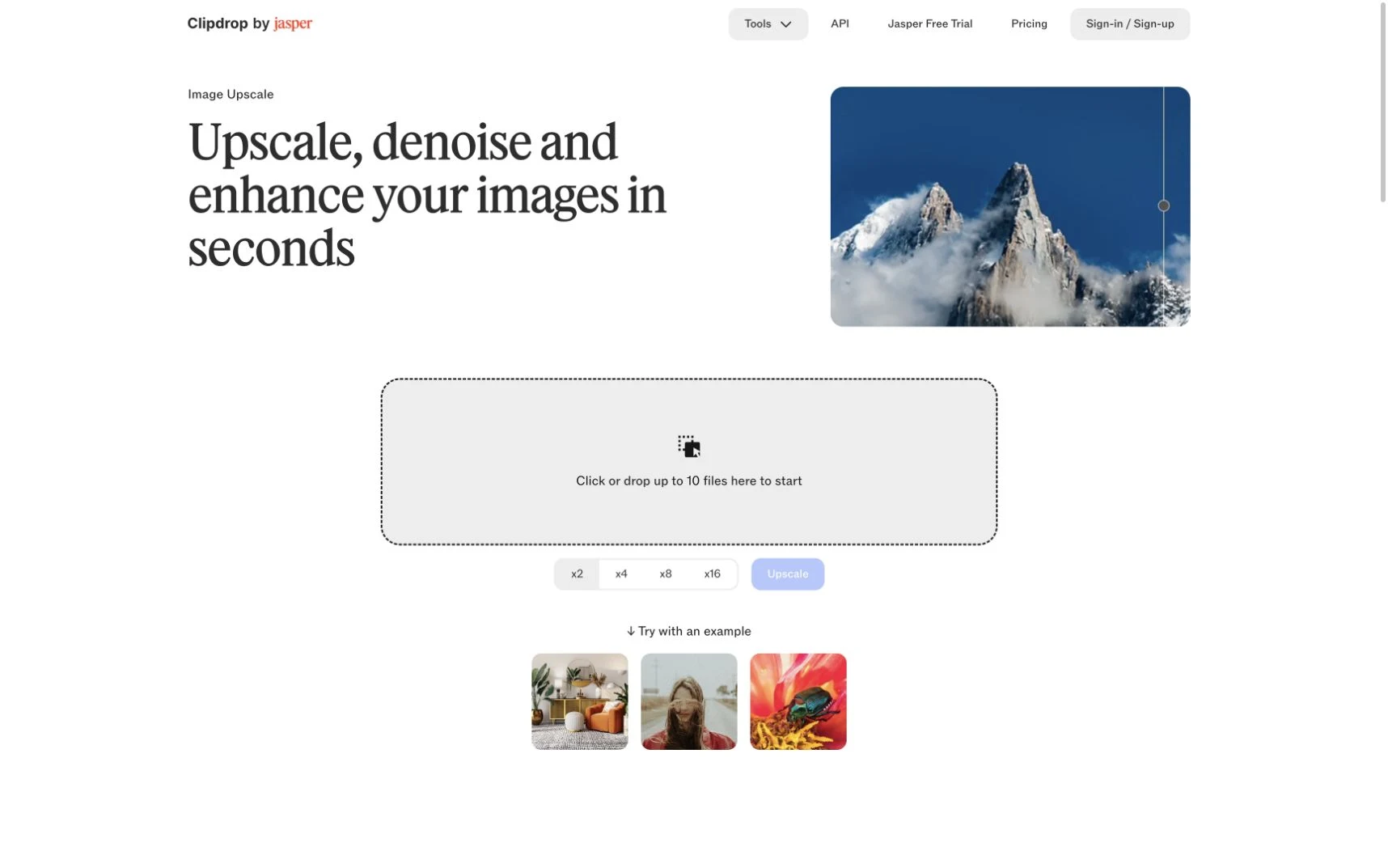
9. Clipdrop — best upscaler with extra AI editing tools
Clipdrop Image Upscaler is part of the Clipdrop suite created in 2020 by InitML founders Cyril Diagne, Jonathan Blanchet, and Damien Henry. Stability AI acquired InitML in 2023 and sold it to Jasper in 2024. Clipdrop now sends developers to Jasper’s image APIs, and InitML remains the site operator.
Clipdrop combines upscaling with a wider editing suite
You can upload up to ten files and choose 2x, 4x, 8x, or 16x in the current interface. Clipdrop’s FAQ only confirms standard enhancement up to 4x, so the higher settings may depend on your plan. The tool also reduces noise, sharpens edges, smooths color banding, and removes JPEG artifacts.
Clipdrop pricing:
Free: 20 image upscales at 2x every 24 hours
Pro: up to 1,000 high-resolution 16x upscales every 24 hours; the current public page shows the price during checkout
API: usage-based pricing
Best for: upscaling followed by cleanup, relighting, or background editing.
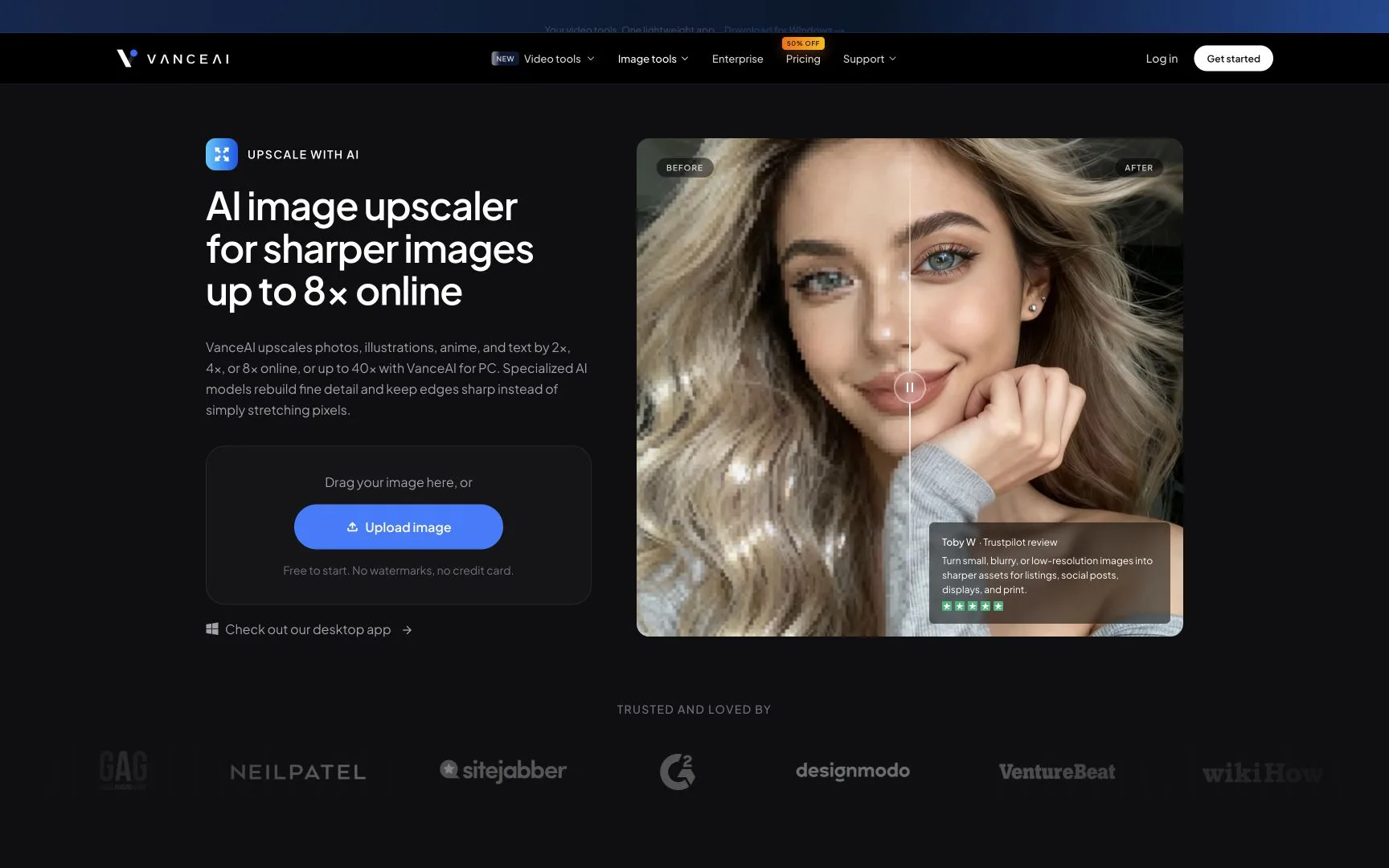
10. VanceAI — best for old photo restoration
VanceAI Image Upscaler is made by VanceAI Technology and has 9.8 million users. You can choose separate models for regular photos, portraits, product images, anime, text, and low-light scenes.
VanceAI bundles enlargement with denoising, sharpening, and colorization
The web version offers 2x, 4x, and 8x enlargement. VanceAI for PC reaches 40x and can process batches offline. The same suite includes tools for denoising, sharpening, retouching, face restoration, and colorization, plus a dedicated anime model. This gives you several ways to fix old scans with grain, fading, blur, or damaged faces.
New users get ten free credits, and each completed image costs one credit. Downloads have no watermark, and you do not need a credit card to start. Uploads are encrypted in transit and permanently deleted within 24 hours. Ten credits are enough to test the models, but regular restoration and print work require a paid plan or the desktop app.
VanceAI pricing:
Free: 10 credits
Web plans with annual billing: $9 per month for 200 credits, $17 for 500, $26 for 1,000, or $42 for 2,000
VanceAI for PC: $39.90 per month, $99.90 per year, or $129.90 for a lifetime license
Image upscaling costs one credit at 2x, two credits at 4x, and three credits at 8x
Best for: old scans, noisy images, and photos needing several restoration steps.
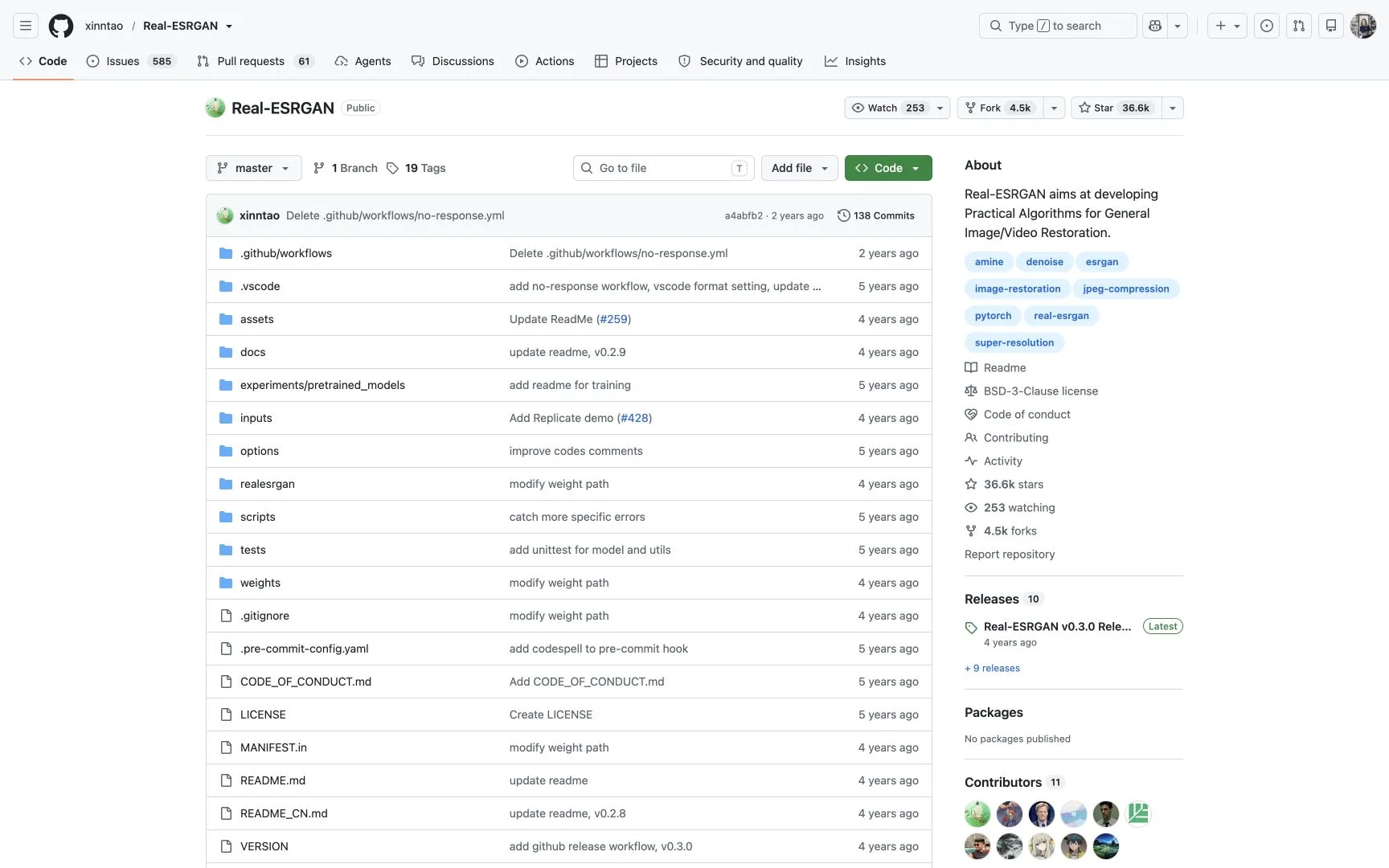
11. Real-ESRGAN — best free upscaler for developers
Real-ESRGAN is an open-source image-restoration project by Xintao Wang, Liangbin Xie, Chao Dong, and Ying Shan from Tencent ARC Lab and the Shenzhen Institutes of Advanced Technology. The team presented it at the 2021 ICCV Workshops. They trained it with synthetic blur, noise, resizing, and compression to reproduce the problems found in real images. The code uses the BSD-3-Clause license.
Real-ESRGAN is the model behind several free desktop upscalers
The repository has more than 36,000 GitHub stars. Its main features include:
4x models for general images and anime, plus a separate 2x model
Adjustable denoising and tiled processing for GPUs with less memory
Alpha-channel and 16-bit image support
Optional GFPGAN face enhancement
The Python version also includes code for training and fine-tuning models.
The portable NCNN/Vulkan version runs on Windows, Linux, and macOS with Intel, AMD, or Nvidia graphics. It does not require CUDA or PyTorch. You can process individual files or entire folders at 2x, 3x, or 4x. Developers use Real-ESRGAN in scripts, research projects, self-hosted services, and desktop apps such as Upscayl.
Real-ESRGAN pricing:
Free and open source under the BSD-3-Clause license
No subscription, account, or usage credits when you run it locally
Best for: developers, automation, self-hosting, and model experimentation.
12. Adobe Express — best for simple enhancement inside Adobe
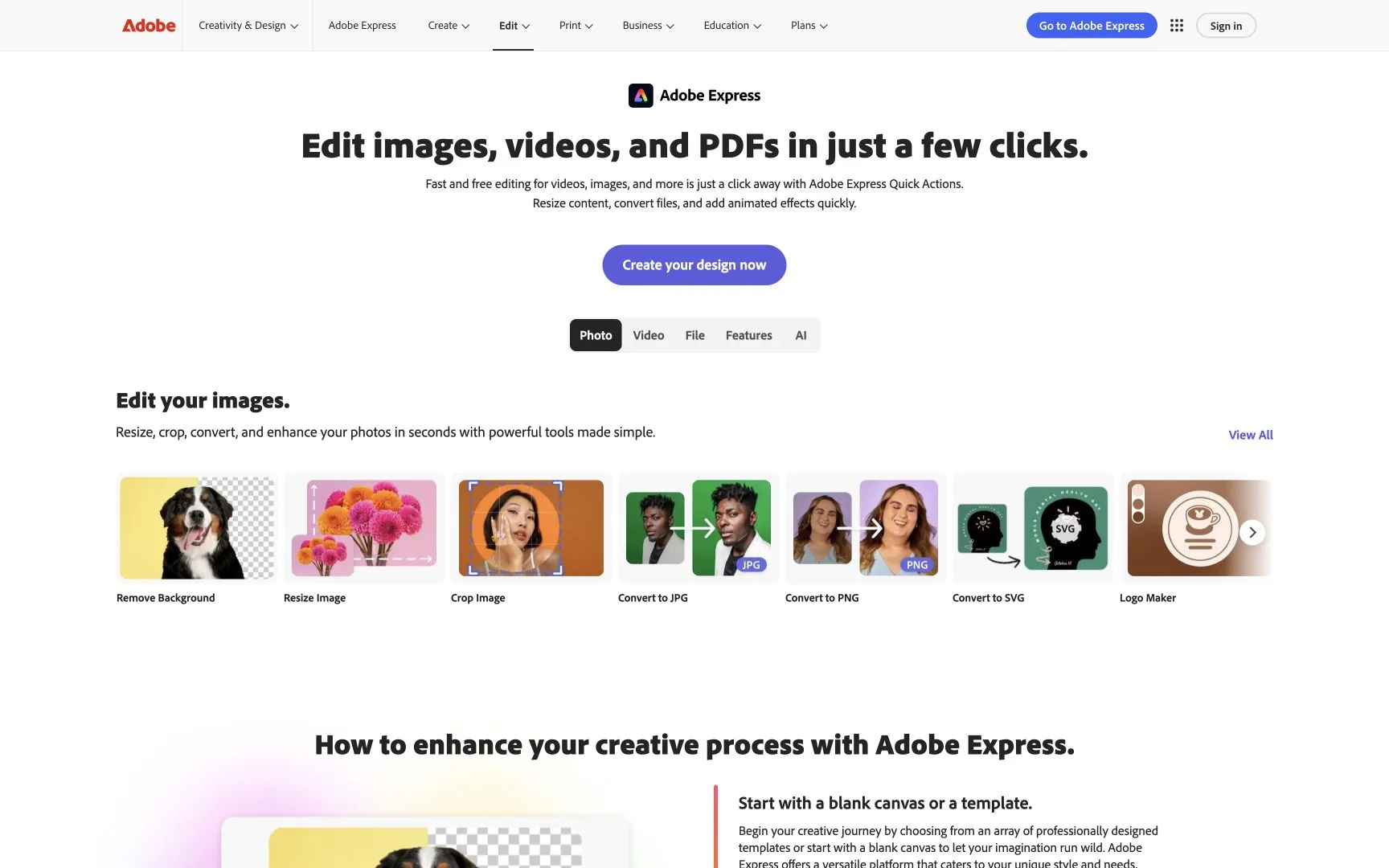
Adobe Express is Adobe’s browser and mobile editor for social graphics, marketing materials, short videos, photos, and PDFs. Its Quick Actions can resize, crop, convert, and remove the background from an image. You also get templates, Adobe Stock assets, Adobe Fonts, brand kits, collaboration, and a social-media scheduler.
Adobe Express handles light enhancement inside a full design editor
Express can adjust colors, apply filters, resize an image for a preset canvas, and use Adobe Firefly to generate or replace content. Adobe does not list a dedicated super-resolution model or fixed 2x and 4x controls on the Express image-tools page. This makes Express more useful as a design editor with basic enhancement than as a direct alternative to Real-ESRGAN or Upscayl.
The free plan covers basic editing and a selection of templates and assets. Premium content and additional Firefly use require a paid plan or credits. Express works well when you want to resize an image and immediately use it in a post, flyer, presentation, or branded campaign.
Adobe Express pricing:
Free: $0, with basic editing tools, limited assets, and limited generative AI use
Premium: $9.99 per month in the US; includes 250 generative credits, premium templates and assets, one-click Resize, and 100 GB of storage
Prices vary by country; Premium is also included with several Creative Cloud plans
Best for: quick social graphics and users already working in the Adobe ecosystem.
Which free AI image upscaler is best for your use case?
The right upscaler depends less on the tool’s marketing and more on what kind of image you are enlarging.
Photos and portraits
Use Overchat AI when the source is badly damaged or very low resolution and you are fine with a reconstructed result. Upscale.media gives you more control over scale and stays closer to the original. Upscayl is better for batches or photos you do not want to upload.
Old or blurry photos
Try Overchat AI when an old or blurry photo is too damaged for regular upscaling. Its image-to-image model can rebuild the photo from scratch. Choose VanceAI if you want separate tools for enlargement, denoising, sharpening, face restoration, and colorization with fewer changes to the original.
AI-generated art
Krea can generate new texture and detail in AI art. Use Upscayl when the composition already looks right and you only want a larger image with fewer creative changes.
Anime and illustrations
Use Bigjpg to upscale anime and illustrations in a browser. Waifu2x handles simple 2x jobs. Upscayl and Real-ESRGAN run locally and include dedicated anime models.
Product photos
Pixelcut combines upscaling with background editing, retouching, and product-scene generation. Let’s Enhance adds batch processing and print preparation. For one listing image, Upscale.media is usually enough.
Screenshots and text
Start with Upscayl or Upscale.media and inspect the result carefully. AI upscalers may reshape very small letters instead of recovering them accurately. For an important document, logo, or UI screenshot, compare the output with the original at 100% zoom before publishing it.
Unlimited and private processing
Upscayl gives you a simple desktop app. Real-ESRGAN offers developers more control but requires some technical setup. Both run locally, so you do not have to upload images or manage recurring credits.
What is AI image upscaling?
AI image upscaling, also called AI super-resolution, increases an image’s pixel dimensions and predicts detail missing from the original. It achieves the same result as an image resizer, but uses AI generative technology:
A regular resize calculates new pixels from neighboring pixels.
An AI model analyzes the image and recreates sharper edges, textures, and patterns, based on patterns it has learned from millions of pairs of low- and high-resolution images.
For example, regular resizing can turn a 500×500 image into a 2000×2000 file, but the larger version will still look soft. An AI upscaler, on the other hand, can add missing details and clean up edges during the resize process, meaning that you can go from a very low resolution to a very high resolution while adding details.
What to look for in a free AI image upscaler
A usable free tier. Free AI image upscalers usually fall into two groups: local tools that can be used without a fixed processing limit, and online services that give you a limited number of free upscales or credits. Local tools are better if you need to process many images, while online tools can be more convenient if you only need to upscale images occasionally. Check the free usage limits based on how many images you expect to process.
A model that suits the source image. Upscaling models can generally be divided based on the type of images they were trained on. Photo-focused models are trained on realistic images and tend to work better with photographs, while anime and illustration models are better at preserving sharp edges, flat areas of color, and visible outlines. Some upscalers also use generative AI to create new detail rather than only enlarging existing detail, so choose the model based on both the type of image and how much you want the upscaler to alter it.
An appropriate upscale factor. Most upscalers let you enlarge an image by a fixed amount, such as 2x, 4x, or 8x, but a higher upscale factor does not necessarily produce a better result. Increasing the resolution too far can make generated textures, sharpening artifacts, or other errors more visible. In practice, it is better to choose the resolution required for your final use rather than automatically selecting the largest available output size.
Support for the file formats you use. AI upscalers differ in both the formats they accept and the formats they can export. JPG and PNG are supported by most tools, while formats such as WebP, HEIC, TIFF, and RAW are less common. If your images use transparency or a format that preserves more image data, check whether the upscaler keeps those properties when exporting the result.
Local or cloud processing. Upscalers can also be divided by where the image is processed. Local applications run the model on your own computer, which means the image does not need to be uploaded to an external server. Cloud-based tools process the image online and can be easier to use on less powerful devices, but the file is sent to the provider. If you are working with private or confidential images, check how uploaded files are stored and deleted.
Batch processing. Some upscalers process only one image at a time, while others can upscale multiple files or entire folders using the same settings. Single-image processing is sufficient for occasional use, but batch processing is much more practical for large groups of product photos, scanned images, or generated artwork. If you expect to process many images, check whether batch processing is included in the free version or reserved for a paid plan.
How to upscale an image to 4K without losing quality
The quality of a 4K upscale depends largely on how much larger the image needs to become. A 1920×1080 image only needs a 2x upscale to reach 3840×2160, while a 960×540 image needs a 4x upscale. The larger the increase, the more detail the upscaler has to reconstruct, so starting with the highest-resolution version of the image will generally produce a more accurate result.
Choose the smallest upscale factor that reaches your required dimensions. If the source image is already close to 4K, a 2x model will usually preserve the original image more faithfully than applying a much larger enlargement. For images with a different aspect ratio, such as square or portrait images, keep the original proportions rather than resizing them specifically to 3840×2160.
Next, choose a model that matches the image. Photo models are usually better for realistic textures such as skin, hair, and foliage, while illustration or anime models are designed for flat colors and defined outlines. If the source contains JPEG artifacts, noise, or blur, use a model that also supports restoration rather than automatically applying strong denoising before the upscale, since this can remove genuine detail.
After processing, compare the upscale with the original at 100% zoom. Look closely at faces, text, hair, repeated patterns, and sharp edges, since these are areas where upscaling models commonly introduce errors. If the result contains changed facial features, distorted text, halos around edges, or artificial-looking texture, try a lower upscale factor or a different model.
Finally, export the image in a format appropriate for its use. PNG avoids additional lossy compression and is useful for graphics or images with transparency, while a high-quality JPEG is usually more practical for photographs. The export format cannot recover detail that was missing from the source, but it can prevent unnecessary quality loss after the upscale.
Free vs. paid AI image upscalers
In terms of image quality, free upscalers are not necessarily worse than paid ones. The difference comes down to features, supported resolutions, and advanced workflows. Here’s how to decide if you need a paid upscaler:
Pay if the free plan limits how many images you can process. This is common with online upscalers. Let’s Enhance, for example, gives free users a limited number of credits, while paid plans increase the monthly allowance. If you regularly hit that limit, a subscription may be cheaper than switching between free tools.
Pay if you need larger output files. Some cloud tools restrict the maximum resolution on free accounts. This matters if you need very large images for print, posters, or other high-resolution work. If you only need images for websites or social media, those higher limits may not be useful.
Pay if you need better batch tools. Free desktop software can already process folders of images, but some paid services add larger batch limits, saved settings, cloud processing, and other tools for handling hundreds of images at once. These features can save time when upscaling product catalogs or large photo collections.
Pay if you need a specific restoration model. Different upscalers use different models for faces, old photographs, compression artifacts, and generative detail. A paid tool may be worth using if its model gives noticeably better results on the type of images you work with. The price itself is not a good indication of image quality.
Pay if you need RAW support or editing-software integration. Tools aimed at photographers may support RAW files or work directly with software such as Photoshop and Lightroom. These features are useful if upscaling is part of a larger photo-editing workflow, but they add little value if you normally work with JPG or PNG files.
Pay if you need an API. An API lets a website, app, or automated workflow send images to the upscaler without uploading them manually. This is mainly useful when processing images at scale and is usually charged separately or included only with business plans.
Before paying, run the same two or three images through the free tool and the paid tool you are considering. Compare faces, text, fine edges, and textures at full resolution. If the paid result is not clearly better and you are not running into any of the limits above, there is probably little reason to upgrade.
Frequently asked questions
Common questions about free AI image upscalers, resolution limits, and what upscaling can and cannot recover.
What is the best free AI image upscaler?
Overchat AI is the best option when the source image is very small, blurry, compressed, or otherwise too damaged for normal upscaling. Its enhancer uses generative image models rather than only a traditional super-resolution model, so it can rebuild faces, textures, lighting, and other missing detail instead of simply enlarging the pixels that are already there. This also means it can change small details in the image. For a cleaner upscale that stays closer to the source, use Upscayl; for anime and line art, Waifu2x is a better fit.
Is there a completely free and unlimited AI image upscaler?
Yes. Upscayl Desktop is free, open source, and has no limit on the number of images you can upscale. It runs on Windows, macOS, and Linux and processes the image on your own computer, so there are no credits or server queues to run out of. It also includes several AI models and can process multiple files locally. Real-ESRGAN is another free option, but it takes more setup and is better suited to users who are comfortable installing or running open-source software.
What is the best free AI image upscaler without sign-up?
Use Overchat AI if you want to upload a poor-quality image and have AI reconstruct it, or Waifu2x if you need a simple browser upscaler for artwork, anime, or a small photo. Waifu2x accepts an image directly on its website and offers 1.6×, 2×, and 4× enlargement together with noise reduction. If you regularly upscale images, installing Upscayl is more practical because it removes website file-size and usage limits altogether.
Which free AI image upscalers have no watermark?
Upscayl Desktop, Waifu2x, Real-ESRGAN, and Overchat AI can export upscaled images without adding a visible watermark. Upscayl and Real-ESRGAN run locally, so there is no cloud service inserting anything into the output. Overchat AI also states that enhanced images can be downloaded in HD without a watermark. For other web upscalers, check the free download rules because some services allow free processing but restrict the final export.
Can you upscale an image without losing quality?
Yes, but AI upscaling does not preserve quality in the same way as copying the original file. A normal resize has to stretch or interpolate the pixels already present, while an AI upscaler predicts what additional detail should look like. Traditional models such as Real-ESRGAN usually try to stay close to the source; generative enhancers can go much further and create new skin texture, hair, fabric, or background detail. The image can therefore look much better while becoming less exact.
What is the difference between AI upscaling and normal image resizing?
Normal resizing makes an image larger by calculating new pixels from the existing ones; AI upscaling uses a trained model to reconstruct detail as the image is enlarged. The difference becomes obvious with a small source image: normal resizing usually gives you a larger but softer version, while AI can sharpen edges, clean compression artifacts, and recreate textures. Generative upscalers go one step further by creating details that were not actually visible in the original image.
Can AI make a blurry picture clear?
Yes, especially when the problem is low resolution, JPEG compression, noise, or moderate blur. A traditional upscaler can clean up a slightly soft image, while a generative tool such as Overchat AI or Krea can rebuild much more heavily damaged areas by generating plausible new detail. This works even when the input is extremely poor, but the worse the source becomes, the less you should expect the reconstructed face, text, or small objects to match the original exactly. Krea itself notes that a generated face may look realistic without necessarily looking like the person in the source photo.
Is 4× upscaling better than 2×?
4× is useful when you need four times the original width and height; it is not a higher-quality setting than 2×. A 1000×750 image becomes 2000×1500 at 2× and 4000×3000 at 4×, so the 4× model has much more image area to fill. If 2× already gives you enough pixels, use it. Choose 4× when you actually need the larger resolution or when the tool’s model is specifically designed to run at that scale.
Can an AI image upscaler make an image 4K?
Yes. A 1920×1080 image only needs a 2× upscale to reach 3840×2160, while a 960×540 image needs 4×. You do not need to start with either of those exact sizes: portrait, square, and other aspect ratios can also be upscaled while keeping their original proportions. Krea currently advertises upscaling to 4K and beyond, while Upscayl supports large local enlargements without a fixed number of free exports.
Can I upscale a very low-resolution image?
Yes, but use a generative enhancer if the source is so small that there is little real detail left to preserve. Overchat AI can take blurry, noisy, dark, compressed, or low-quality input and use an image-generation model to produce a new high-resolution version. Krea’s enhancer works in a similar way and explicitly reconstructs missing details and textures. A traditional upscaler such as Upscayl or Real-ESRGAN is better when the original already contains enough useful detail and you mainly want to enlarge it.
Can I upscale AI-generated images for free?
Yes. For finished AI art that already looks correct, use Upscayl, Real-ESRGAN, or Waifu2x to increase the resolution without deliberately redesigning the image. If the generation has weak textures, rough faces, or vague background detail, use a generative enhancer such as Krea or Overchat AI instead. Krea can explicitly add new textures and reconstruct details that are missing from the source, which is useful for AI images but can also change parts of the original generation.
Is Waifu2x only for anime images?
No. Waifu2x was designed for anime-style artwork, but its current web version also has a Photo mode. Its main strength is still artwork with clear outlines, flat colors, and drawn details, and it includes separate noise-reduction settings for JPEG artifacts. The website currently supports upscaling up to 4×, although the free browser interface also has file-size and image-dimension limits.
Is Real-ESRGAN good for photos?
Yes. Real-ESRGAN includes models for general images as well as a separate model optimized for anime. It can also use GFPGAN for face enhancement, and its inference tools support alpha-channel images, grayscale images, and 16-bit input. It is a strong free option when you want more control than a basic web upscaler and do not mind installing software or using its portable executable.
Are online AI image upscalers private?
Online upscalers send your image to the provider for processing, so do not treat them like local software. This matters most for private photos, client work, confidential documents, and unreleased commercial material. If you do not want the file uploaded at all, use Upscayl Desktop or a local Real-ESRGAN installation; Upscayl explicitly processes images on your own machine and does not require an internet connection for desktop upscaling.
Are free AI image upscalers as good as paid ones?
Yes, for many images. Upscayl and Real-ESRGAN can produce good results without a subscription, and paying does not automatically give you a better upscale. Paid tools become more useful when you want several specialized models, large cloud batches, faster processing, generative reconstruction, or very high output resolutions. Krea, for example, combines several enhancement approaches and advertises upscaling up to 22K, while its free plan gives only limited access to image upscaling.