How to Easily Change Text in a JPEG or PNG Image (With AI)
Last Updated:
2026-09-17
How to Easily Change Text in a JPEG or PNG Image (With AI)
If you want to change text in a JPEG, PNG, or a screenshot — the easiest way to do that is with AI image generation. In this article, we'll show you the entire process and explain how AI makes it possible to modify text in flat images while preserving any font.
AI image to image models have become so good at modifying copy that in 2026 you can use AI to change text in an image without Photoshop, simply by typing the new text that you want to add to the photo. For example, Overchat AI's Change Text in Photo tool lets you upload your image, tap the text you want to replace, type the new text, and download the result.
AI text editing works by reading the text and inpainting the new text. The AI essentially generates the new text from scratch using the same technology that creates AI images, which is why it can match any font.
AI keeps the same font, where tools like Photoshop and Canva require you to only use supported fonts.
With AI, you can change text in images without layers — AI text swapping works on JPEG, PNG, WebP, Avif — any flat file, you don't need a PSD or TIFF with layers.
AI text changers work on your phone — for example, Overchat AI's text changer has a mobile-friendly version that opens in a browser.
The AI doesn't change anything except the text — everything around the text stays exactly the same, and you won't see any smudging or cutouts.
How to change text in an image with Overchat AI
Overchat AI text changer is a tool that we've developed, and we'll use it as an example to show you how you can very easily change text in flat images online — you don't have to use this tool, as there are other alternatives, but Overchat AI has one of the more convenient interfaces and a simple workflow.
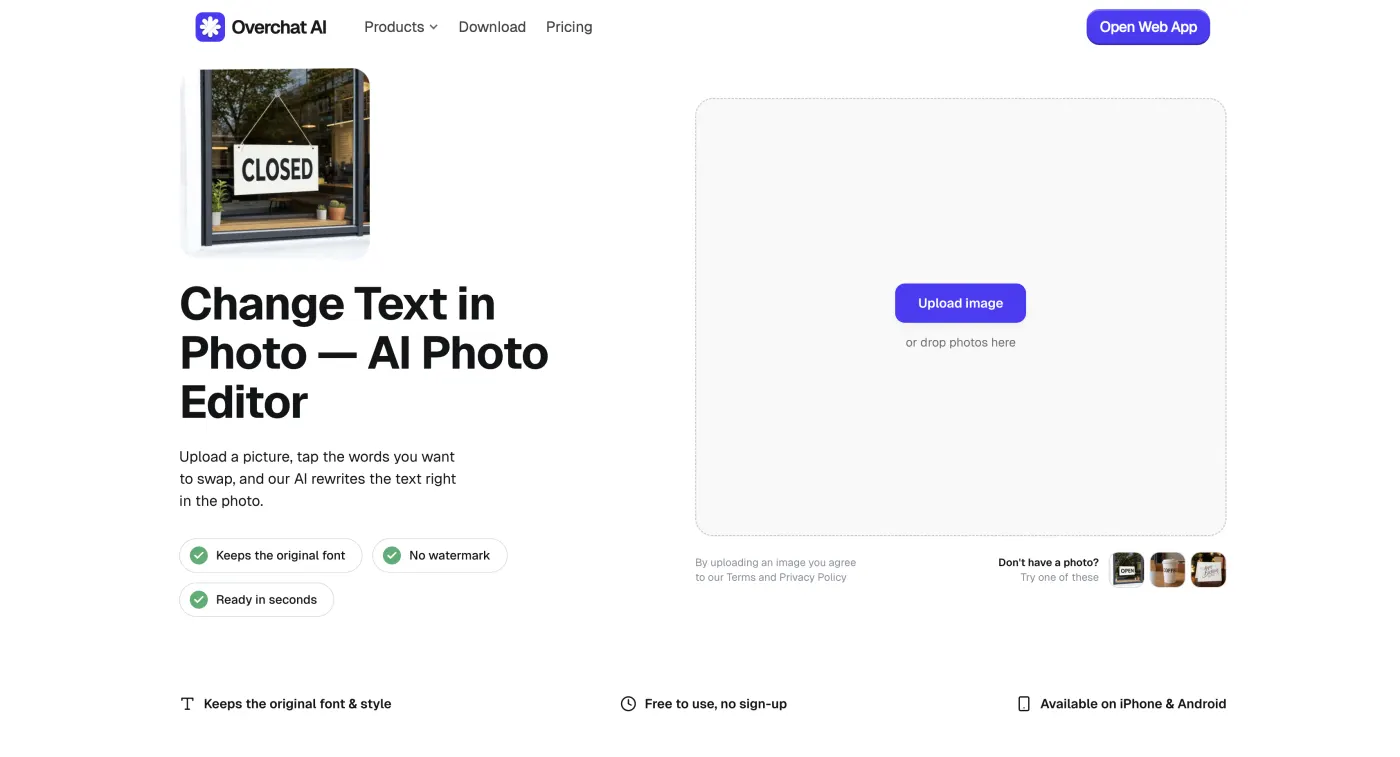
If you're using a desktop, drag your image onto the upload box, or click Upload Image and pick the file. If you're on a mobile browser, the tool detects that and you'll be able to pick a file from your photo gallery or take a picture with your phone's main or selfie cameras.
If you don't have an image handy, you can try Overchat AI text changer by clicking on one of the samples below the upload box, which is what we'll use for the sake of this walkthrough.
Upload an image, or pick one of the samples.
Step 3 — Tap the text you want to change
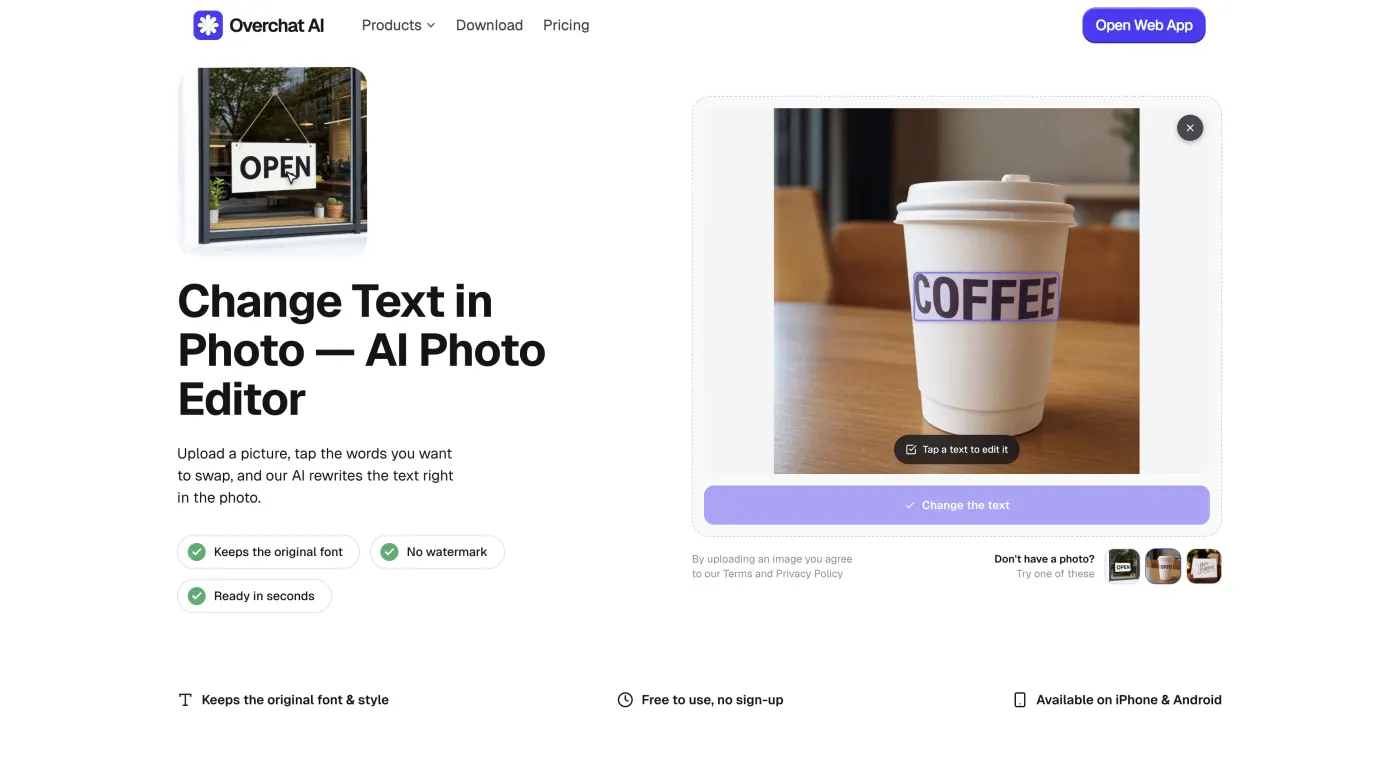
After uploading or selecting the image, we do an OCR pre-pass to detect all text — every text instance will be highlighted in a rectangle, which you can click on to enter the Edit state. This opens a small field where you type the replacement — here the word "COFFEE" on the cup is selected. Tap or click on only the words you want to change, all other text won't be swapped.
Tap the highlighted text to edit it.
Step 4 — Type the new text and hit Change the text
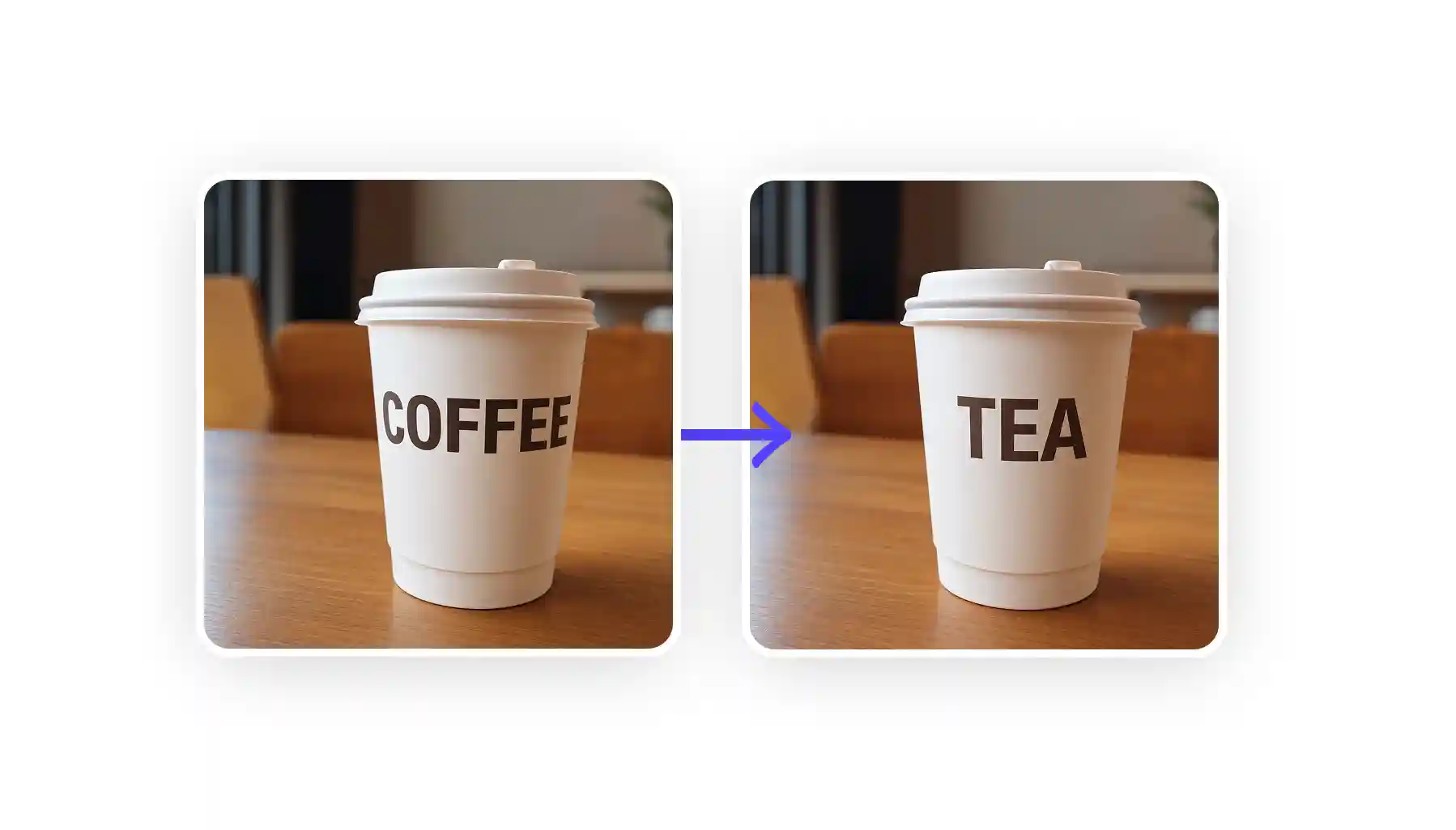
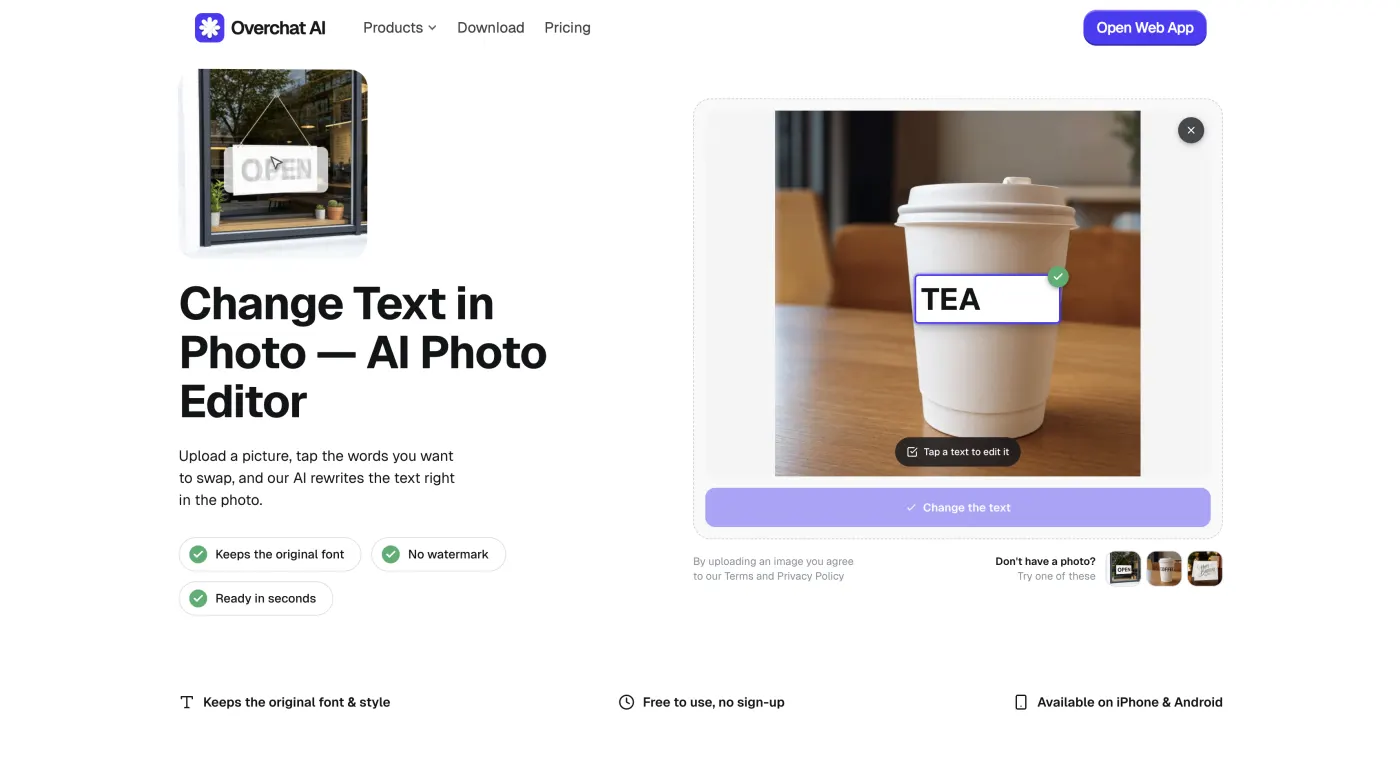
Type what the text should say instead, then press Change the text. Let's change the text on the cup from "COFFEE" to "TEA".
Type the new text and confirm.
Step 5 — Let the AI rewrite it
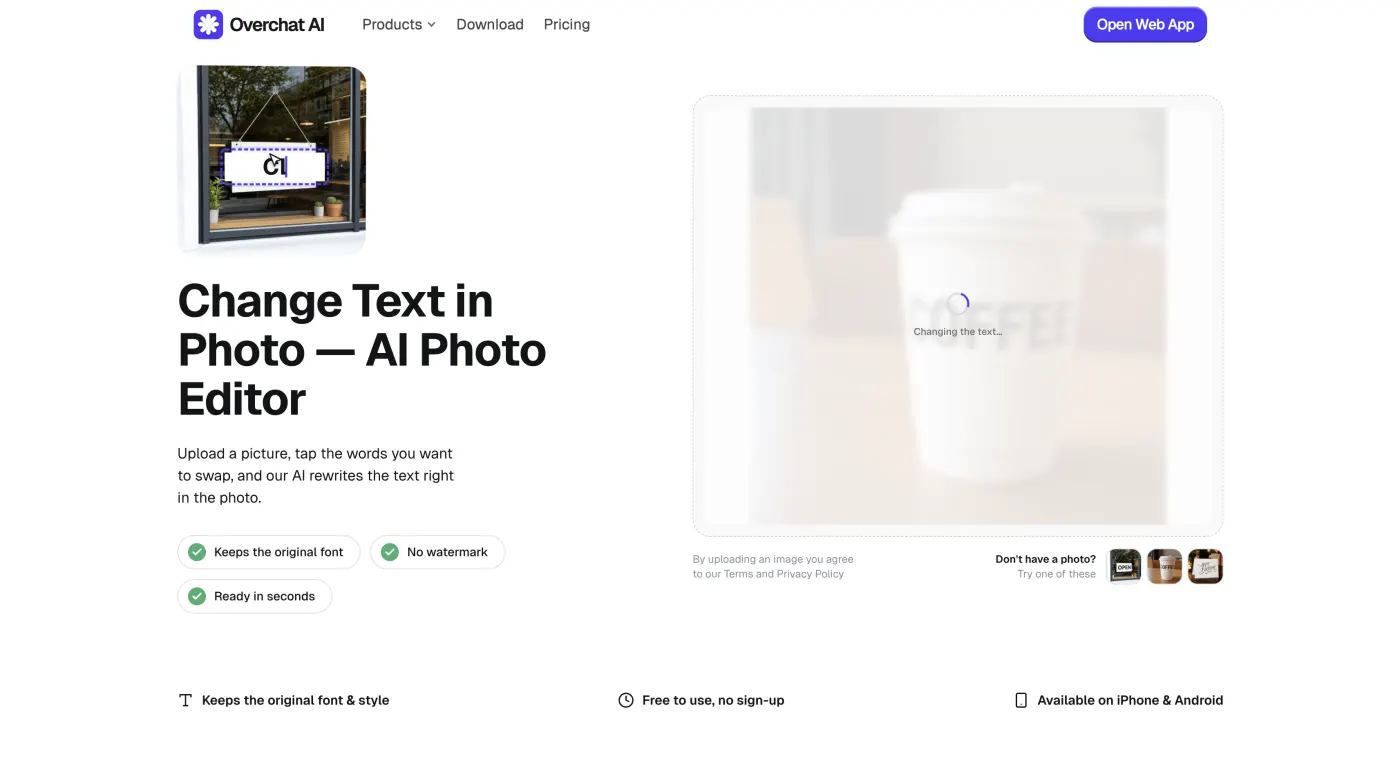
The AI takes a moment to change the text. This process usually takes 30–40 seconds. You'll see a "Changing the text…" indicator while inpainting is in progress.
The AI inpaints the new text.
Step 6 — Download your edited image
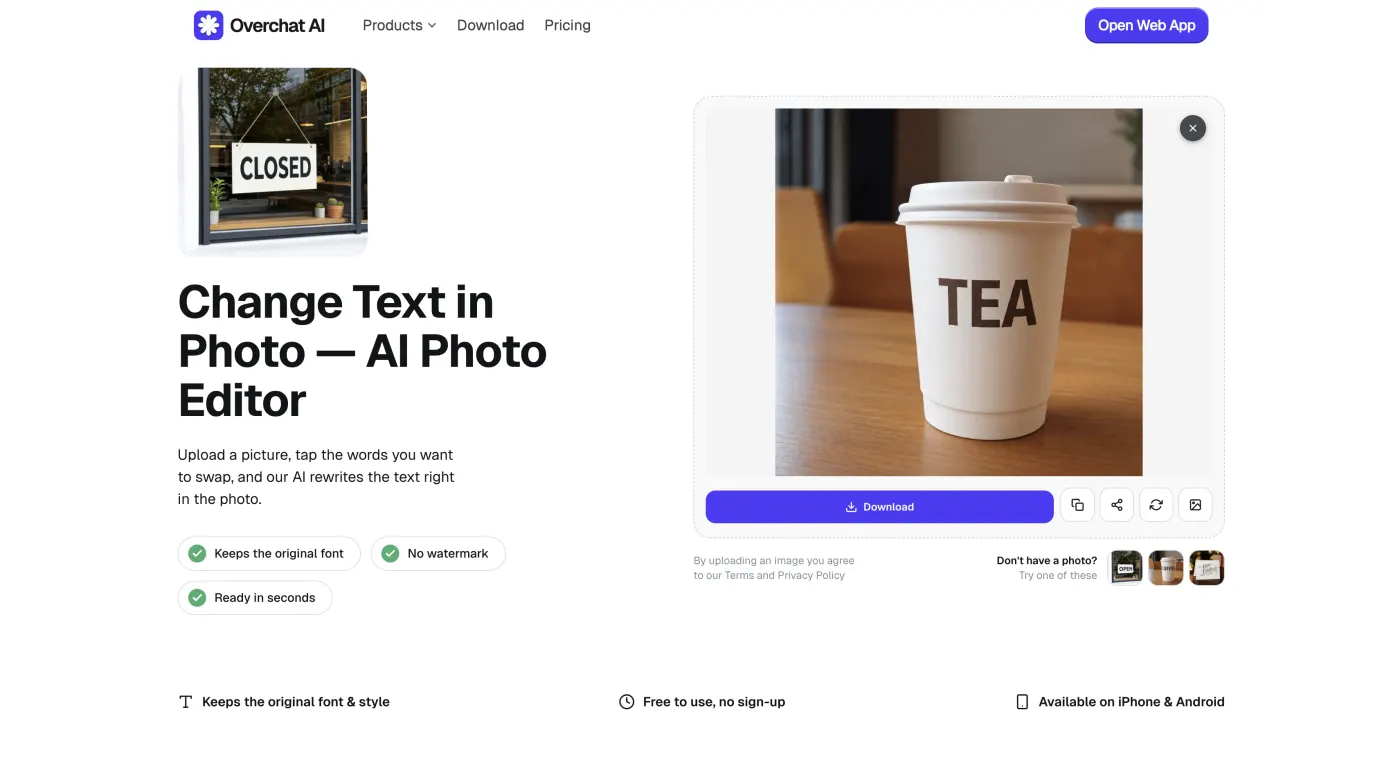
Get your image with new text — and that's it! As you can see, we've just successfully changed the writing on the cup, and the AI automatically preserved the font, color, and texture. The new word even wraps around the cup in correct perspective. All of that from a flat JPEG, and we never had to touch a clone stamp or skew brushes in Photoshop.
The finished result, ready to download.
From here, click Download to save the full-resolution image. It is rare, but AI sometimes makes mistakes, and if that was the case in your generation, you can regenerate the image before downloading, which usually fixes any slips that occurred.
How does AI change text in an image?
AI text editing uses an image-to-image diffusion model with inpainting — the same kind of model that generates AI images from a prompt, like Nano Banana 2. Inpainting means that it isolates a part of the image and re-generates only that.
When you tap a word, that area becomes a mask. Everything outside the mask is locked and stays untouched.
Inside the masked area, the model:
Adds noise to that patch
Denoises the area step by step
Because the rest of the image is fed in as context, the model fills the patch with a background that continues the original and renders your new words in a style that fits what's around them.
For an AI model, fonts, faces, cats — all of these are just pixels that have a shape. It doesn't think in terms of "this is Arial" and "this is sans serif", which is why it can reproduce any font in the world. The only limitation is how accurate the model itself is, and in 2026 AI image models have become so accurate that you can convincingly regenerate an entire book page.
Because of that workflow — generating new content from scratch — the model also automatically matches color, transparency, perspective, and texture, something that takes a lot of work to do well in Photoshop.
How to change text in an image and keep the same font
To change text in an image and keep the same font, use the Overchat AI text changer tool, which preserves the old font and text placement automatically — you don't need to do anything as that's the default behaviour of our application. What's more, since the new text is AI-generated, this works on any possible font in the world in any language. This works because, for AI, letters and words are just pixels, and all it does is accurately replicate patterns it identified in the original image. This is the most powerful thing about using AI to change text in images.
How to edit text in a JPEG or PNG image
If you open a JPEG or PNG file in Photoshop, there's no text object to select since the image is completely flat (as in, it doesn't have layers, which is where text objects are saved in PSD or TIFF files). That's why you can't just click into the words.
For AI tools, however, that doesn't matter since they redraw the text from scratch anyway, so with the Overchat AI change text in image tool, you can edit text in a JPEG or PNG the same way as any other image: tap the text, type the new text, hit Generate, wait a few seconds, and download the result.
How to change text in an image on your phone
The easiest way to change text in an image on your phone is to use Overchat AI's Change Text in Photo tool. To use it:
Open the tool
Upload your image by selecting from camera roll or taking a new photo
Tap the text block you want to change
Type the new text
Click the green arrow to confirm
Tap the Generate button
Wait about 30 seconds and download the result
That's it!
Other ways to change text in an image
An AI editor isn't the only way to change text in images, so let's quickly cover other ways you can do this:
Tool
How it changes text
Keeps original font
Free
Overchat AI
Tap the text, type the replacement, AI rebuilds it
Automatic
Yes
Photoshop
Erase with Content-Aware Fill, retype with the Type tool
Manual, by eye
No
Canva (Grab Text)
Lifts text into an editable layer over the image
Only if the font is in Canva's library
Limited free tier
Photopea
Erase the old text, retype it manually
Manual, by eye
Yes
Microsoft Word
Can't edit text baked into a photo, only WordArt or text boxes
No
With Office
Traditionally Photoshop is probably the most popular tool that people would use when they need to change text in an image, and you can absolutely change text in flat images, but it takes multiple steps:
Delete the old text with content-aware fill or clone stamp and prepare the area
Add a text element, select a similar font, and type the new text — this will give you a result that looks clearly overlayed
If you want to blend it in, adjust the opacity of the font and its color until it looks somewhat close
If the text was in perspective, you'll need to rasterize it and use skew or perspective tools to place it correctly
It still won't look blended in at this point, so you'll need to add some noise on top, possibly blur the borders, and play with the lightness values
After these steps, you'll have a good result, but, as you can see, this takes a lot of time and you need to be a proficient Photoshop user to do it convincingly. In our opinion, given how great the AI tools have become in 2026, this is just not worth it anymore.
FAQ
Common questions about changing text in an image with AI.
Can you edit text in a JPEG?
Yes. A JPEG doesn't keep an editable text layer, so you change the words by uploading the image to an AI text editor, tapping the text, and typing the replacement. The AI repaints that part of the image with your new text.
Is changing text in an image free?
Overchat AI's Change Text in Photo tool is free to use with no sign-up. Overchat AI Pro, which unlocks the full platform of image and chat tools, is $14.99/week or $49.99/year.
Does it add a watermark?
No. Overchat AI's text editor downloads the edited image at full resolution with no watermark.
Can I edit text in a screenshot?
Yes. Screenshots are flat images, usually PNGs, so the tool edits text in a screenshot the same way it edits any photo — tap the text and type the new version.
Will it keep the original font?
Yes. Because the new text is AI-generated, the model reproduces the original font, size, and color by replicating the lettering it sees in the rest of the image, so you don't have to identify or find the font yourself.
Bottom line
To change text in an image without Photoshop, try Overchat AI's Change Text in Photo tool. Just click the text, enter your replacement, and the tool automatically matches the font and blends the background. It works directly in your browser, and it's free to use.