If you’ve ever tried to clone out text in Photoshop, you probably know that unless the background is perfectly plain, it can take quite a bit of effort to do it neatly. Or maybe you’re not a Photoshop user at all and are wondering how to remove text from photos easily without paying for an Adobe subscription.
That’s where AI text removers come in—specialized online tools that use artificial intelligence to erase text from images, even in complex edits.
In this article, we’ll take a look at the five best text remover tools we found after testing dozens of apps, both free and paid. We’ll break down their pros and cons and help you decide which ones are worth considering.
AI text removers use image-to-image models and a technique called inpainting to detect text in photos, erase it, and regenerate the background based on surrounding visual cues.
This is fundamentally different from Photoshop's Clone Stamp, which just copies nearby pixels — AI handles complex backgrounds like faces, patterned fabric, and street scenes far more cleanly.
Two main workflows exist: fully automatic (upload and click) and brush-based (manually paint over text to remove) — automatic is faster and reliable enough for most cases.
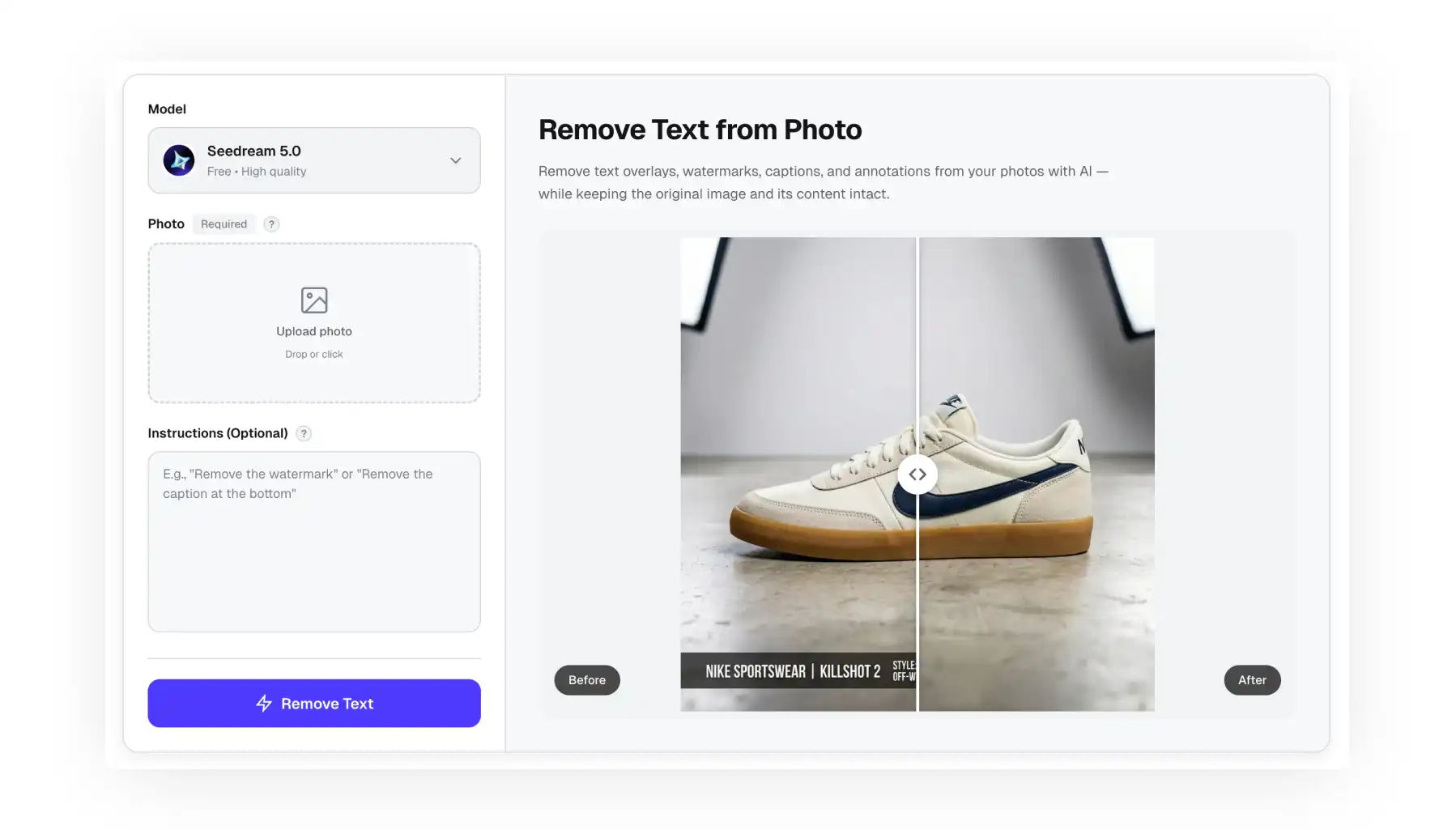
Overchat AI is the top pick, with one-click automatic text detection, optional plain-English instructions for selective removal, no signup, and no watermarks.
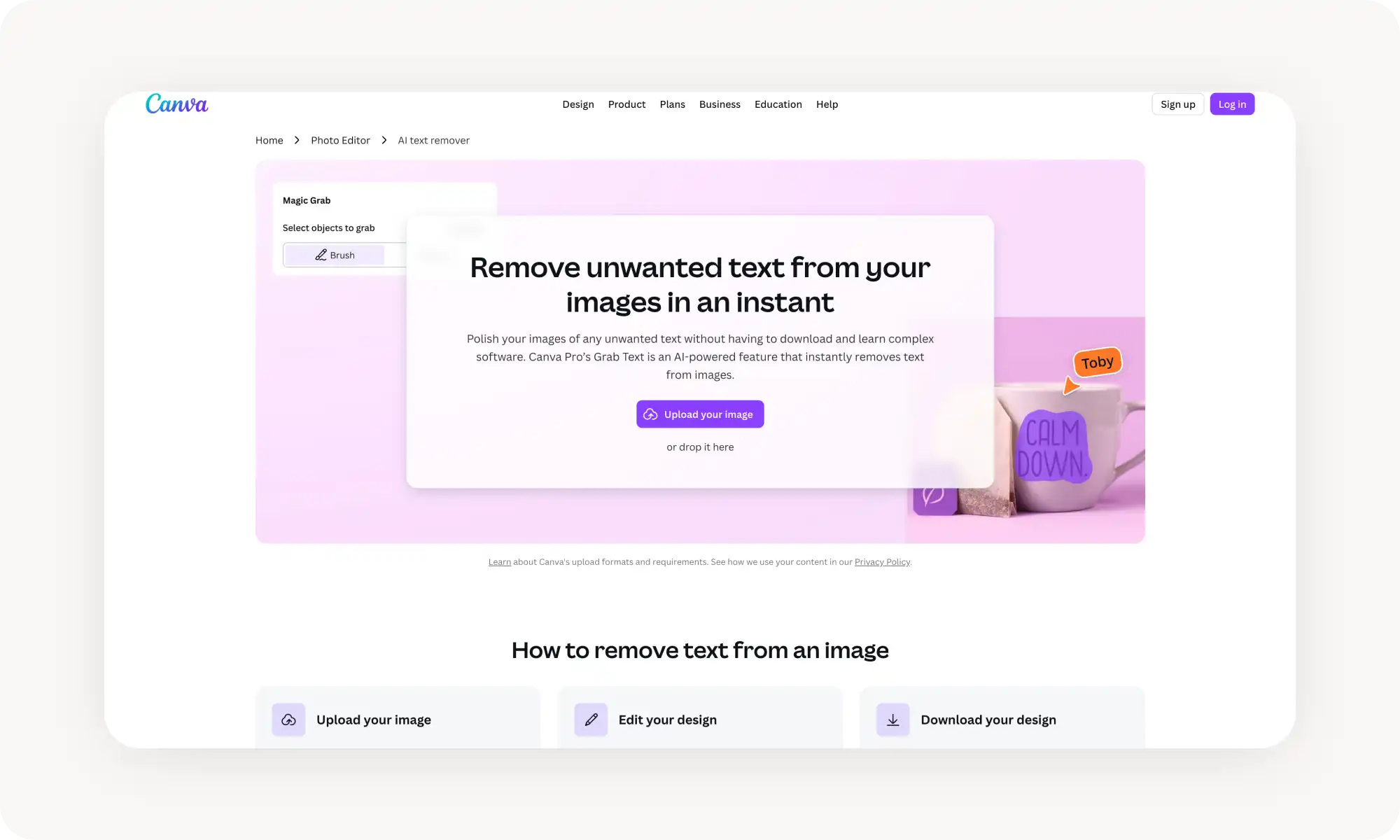
Canva splits text removal across Grab Text (extracts text into editable boxes while erasing it) and Magic Eraser (manual brush), but both require Canva Pro at $15/month.
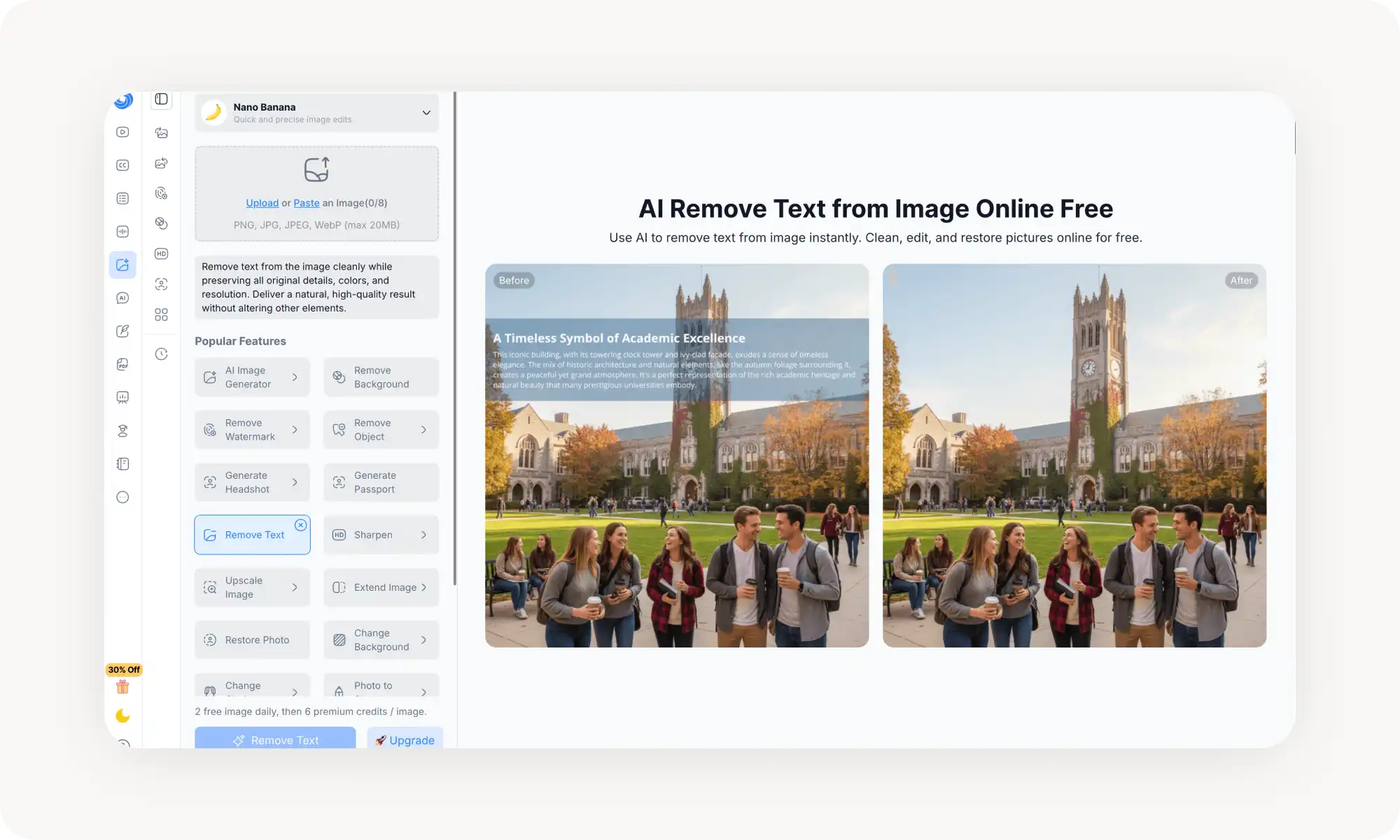
NoteGPT runs on Google's Nano Banana model with batch uploads of up to 8 images, but limits free users to just 2 generations per day.
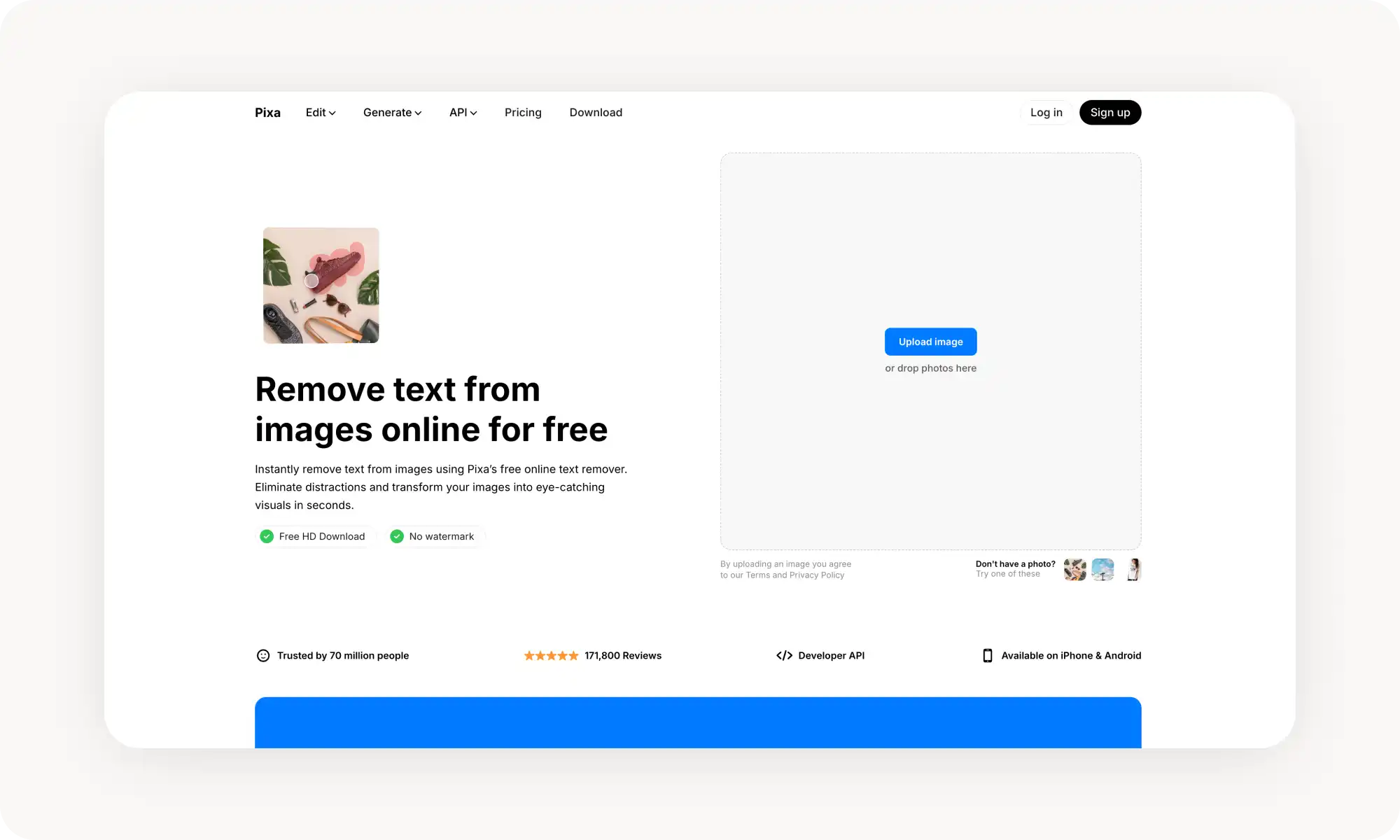
Pixa (formerly Pixelcut) offers precise brush-based control with HD watermark-free downloads and dedicated iOS/Android apps, though manual selection is slower than automatic tools.
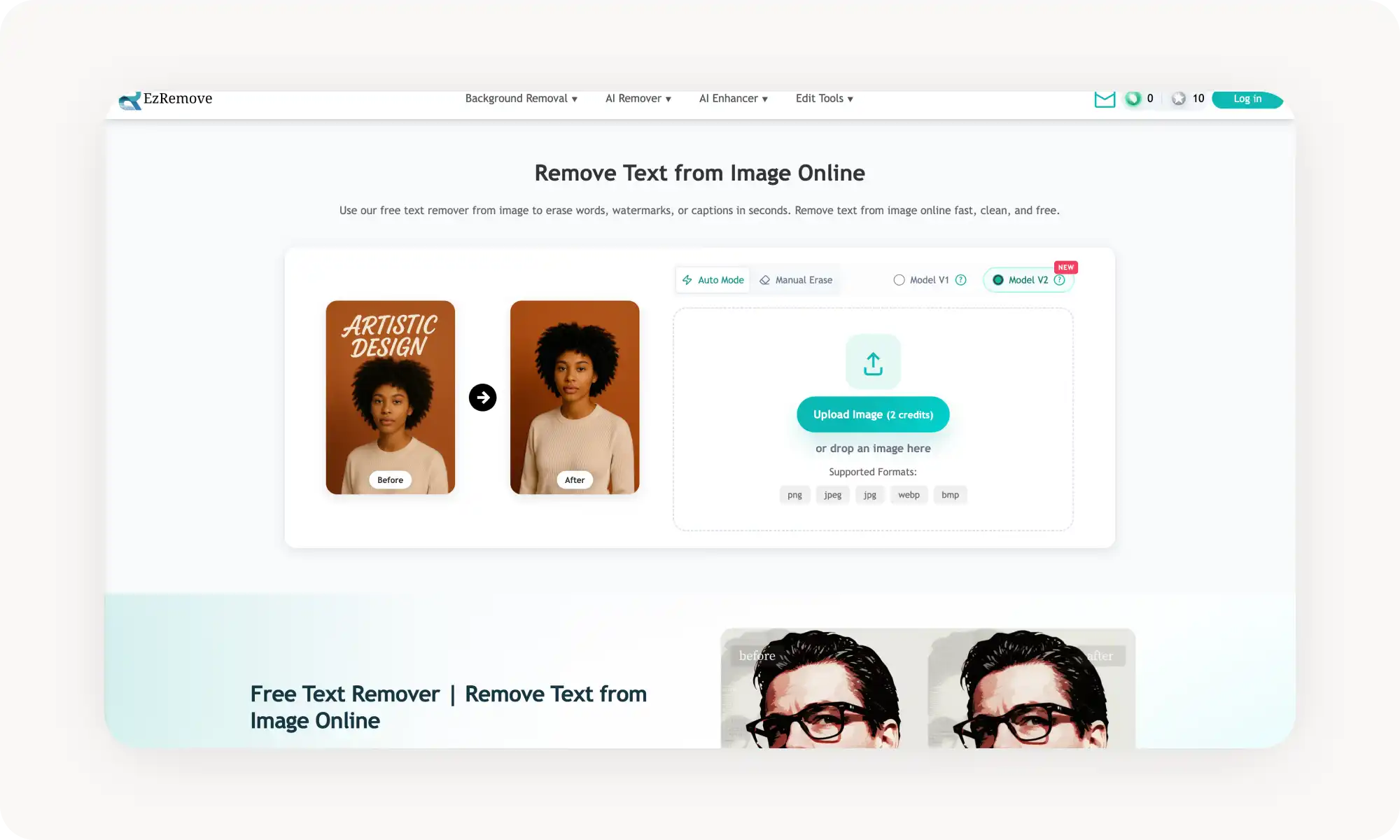
EZRemove provides both auto and manual modes with a strong focus on e-commerce use cases like price sticker removal and Amazon/Shopify listing prep.
Important caveat: removing watermarks from images you don't own almost certainly violates copyright law, and some tools automatically block such attempts.
What is an AI Text Remover?
An AI text remover is an online tool—usually powered by an artificial-intelligence image-to-image model—that detects text in a photo and removes it while intelligently reconstructing the area underneath.
That’s quite different from tools like the Clone Stamp in Photoshop, which simply copies pixels from a nearby part of the image and paints them over the text.
Traditional clone stamping works very well on simple backgrounds like clear skies or solid-colored walls. But the moment text sits on something complex—a face, patterned fabric, or a street scene with perspective—manual cloning becomes a much more skill-intensive process, closer to digital painting than simple editing.
That’s why AI text removers are so powerful. These tools use artificial intelligence and a technique called inpainting to erase part of an image and then regenerate it from scratch based on the visual cues around it.
In practice, this often produces very clean edits that preserve the original image while removing text overlays—even in complex scenes.
How to remove text from images online?
This depends on the tool, as different platforms use slightly different approaches—even though they ultimately achieve the same result. After testing more than a dozen tools, we found that two workflows are the most common:
Fully automatic
Brush-based
The fully automatic workflow simply requires you to upload an image and click Generate. The AI then detects and removes text overlays automatically. This approach is extremely easy to use and, in our experience, very reliable.
The brush-based workflow lets you manually paint over the parts of the image you want removed. The AI then erases only the selected areas. This gives you more control and can be useful when an image contains multiple text overlays but you only want to remove one of them.
For most use cases, however, the fully automatic workflow is the better option. It’s typically faster and reliable enough for the vast majority of edits.
The Overchat AI Text Remover also offers an optional text prompt, which provides another way to make selective edits. You can simply tell the AI what to keep—for example, if you only want some of the text removed—and it will interpret the instruction in plain English.
5 of the Best AI Text Removers Compared
After testing more than a dozen text removal tools, here are the ones that delivered the cleanest results with the least effort:
Tool
Description
Auto Detection
Manual Mode
Pricing
Overchat AI
One-click automatic detection with optional custom instructions
✓
✓
$5.99/week or $49.99/year
Canva
Text removal built into a full design suite (Grab Text + Magic Eraser)
✓ (limited)
✗
$15/month+
NoteGPT
Nano Banana AI model with 80M+ user platform
✓
✓
$9.99/month+
Pixa
Manual brush selection with HD download and no watermark
✓
✓
$10/month+
EZRemove
Dual-mode (auto + manual) with two AI model versions
✓
✓
$4.99/credit pack, pay on demand
Below is a closer look at each tool.
Overchat AI
Overchat AI Text Remover is the easiest tool to use — to get started, you just upload a photo and the AI detects and removes all text without you having to select, brush, or mask anything. It’s literally a one click operation.
However, if you want to customize the output, you can do so through the optional instructions field. For example, by default, the tool only erases text overlays, not text from signs captured in-camera. If you want the tool to erase text from in-camera signs, just add this instruction as the optional prompt in plain English.
The free model (Seedream 5.0) handled my test images well — the date stamps, subtitles, and caption overlays disappeared, and the background was reconstructed naturally.
Pros:
✅ Fully automatic text detection — no brushing or masking
✅ Custom instructions let you keep specific text while removing others
✅ No sign-up required, no watermarks
✅ Professional-quality results
Canva
Canva's text removal features are split across two tools: Grab Text and Magic Eraser. Together, they give you solid text removal capability, but with an important caveat — both are Pro features, meaning you'll need a Canva Pro subscription ($15/month) to use them.
Grab Text is the more interesting of the two. It uses AI to detect text within a photo, extract it into editable text boxes on your design canvas, and erase it from the image simultaneously. This means you can not only remove the text but also grab it, restyle it, reposition it, or replace it with something new — all without leaving Canva.
Magic Eraser is Canva's general-purpose object removal brush. You manually paint over the text you want gone, and the AI fills in the background. It works well for touch-ups after Grab Text, or for text that Grab Text didn't detect (it occasionally misses words on complex or curved surfaces).
Pros:
✅ Grab Text extracts text into editable boxes
✅ Magic Eraser gives you a brush for touch-ups
✅ Fully integrated with Canva's design ecosystem
✅ Works on mobile and desktop
Cons:
❌ Both Grab Text and Magic Eraser require Canva Pro ($15/month)
❌ Grab Text sometimes leaves artifacts that need manual cleanup
❌ Expensive if you only need text removal
NoteGPT
NoteGPT's Remove Text from Image tool runs on Google's Nano Banana AI model — one of the best AI image generators. The platform has a massive user base (80 million+), primarily known for AI note-taking and summarization, but its image editing tools are surprisingly capable.
The text remover works on a simple premise: upload an image (up to 8 at once), and the AI removes text while preserving all original details, colors, and resolution. The default prompt is pre-written and optimized, so you don't need to craft anything yourself. You can also tweak the instructions if needed.
Free users get 2 image generations per day, which is enough for occasional use but limiting for anyone with a batch of images to process. Beyond the free tier, each image costs 6 premium credits. The platform also offers Nano Banana 2 and Nano Banana Pro as model options for users on paid plans.
Pros:
✅ Powered by Nano Banana
✅ Supports up to 8 image uploads at once
✅ Part of a broad AI image editing suite
Cons:
❌ Only 2 free images per day
❌ Interface is a bit crowded with unrelated features
Pixa (formerly Pixelcut)
In Pixa, you upload your image, then brush over the specific text you want removed. This workflow gives you precise control over what gets removed and what stays.
The output quality is strong — Pixa is trusted by over 70 million users and the company lists major brands like Adidas, Google, and Nike among its users. Downloads are in HD with no watermarks on the free plan. The tool works in the browser and also has iOS and Android apps for mobile editing.
The main limitation is that the manual brushing takes more time than a one-click automatic tool.
Pros:
✅ Precise control over what gets removed
✅ HD downloads with no watermarks
✅ iOS and Android apps
✅ A well-established platform
Cons:
❌ Manual selection is slower
❌ No batch processing
EZRemove
EZRemove's Text Remover provides both an auto mode (AI detects and removes all text) and a manual erase mode (you brush over specific areas), giving you the most flexibility in how you approach each image.
EZRemove positions itself heavily toward e-commerce users — the site emphasizes product catalog cleanup, price sticker removal, and Amazon/Shopify listing preparation. The output is high-resolution PNG, suitable for both web and print. It supports PNG, JPG, JPEG, WebP, and BMP formats.
The tool works without login and offers free credits to start. The interface is clean and straightforward, and processing is fast. It's a relatively newer and less well-known tool compared to others on this list, but the results were consistently solid in our testing.
Pros:
✅ Two AI models (V1 and V2) for different results on the same image
✅ Both auto and manual erase modes
✅ No login required
✅ High-resolution PNG output
Cons:
❌ Credit-based system — free credits are limited
❌ Less established brand with a smaller user base
❌ No mobile app
❌ E-commerce focus means less attention to creative or artistic use cases
Frequently Asked Questions (FAQ)
What's the best free AI text remover from photos?
Overchat AI is the best free text remover because it automatically detects and removes all text with a single click, requires no sign-up, and delivers results without watermarks. It also lets you edit specific areas using optional text prompts — a feature that most free tools don’t offer.
How do AI text removal tools work?
AI text removers use a technique called inpainting.
First, the AI first identifies areas containing text
Then, analyzes the surrounding pixels
Finally, it generates new pixels that fill the space left by the erased text
As a result, this method allows AI powered image text removers to produce results that look completely natural, without leaving any traces of riding whatsoever.
Can I remove watermarks from images I don't own?
Technically, yes—it is possible. These tools can remove watermarks just like any other text overlay. However, watermarks exist to protect copyrighted work, and removing them from images you haven’t licensed or don’t own will almost certainly violate copyright law.
Some tools may detect such attempts and automatically block them under their fair-use policies. In those cases, you’ll typically see a notification in the interface indicating that the generation has failed. Other tools might still allow the operation to proceed.
In any case, it’s important to use these tools responsibly.
Bottom Line
To sum up, AI text removers use inpainting technology to detect and erase text from photos while regenerating the background based on the visual cues from the surrounding image. This approach makes it possible to achieve results that would otherwise require manually repainting large parts of the background—for example, removing semi-transparent text from complex architecture or perspective-heavy scenes with a single click.
Key takeaways:
AI text removers work by regenerating the pixels behind the text.
Some tools, like Overchat AI, work automatically as they’re pre-configured to detect and erase text from images.
Other tools give you a brush and require you to manually indicate what objects you want removed.
Overchat AI is one of the best free AI text removers, as it offers automatic detection, allows you to provide an optional prompt, giving you control over what or how the tool removes, and delivers high-quality results.