You can combine two videos on an iPhone with an online video combiner or a mobile editing app. Each method lets you place complete clips in sequence and export them as one longer video. In this article, we’ll cover a browser-based option that requires no installation, Apple’s iMovie, and CapCut.
iMovie is Apple’s free video editor for iPhone that works closer to a light version of professional video editing software with a full timeline and detailed cutting and trimming controls. Here’s how to use it to combine two videos on iPhone into a single, longer clip.
First, make sure it’s installed. If iMovie is not on your iPhone, download it from the App Store. Then follow these steps:
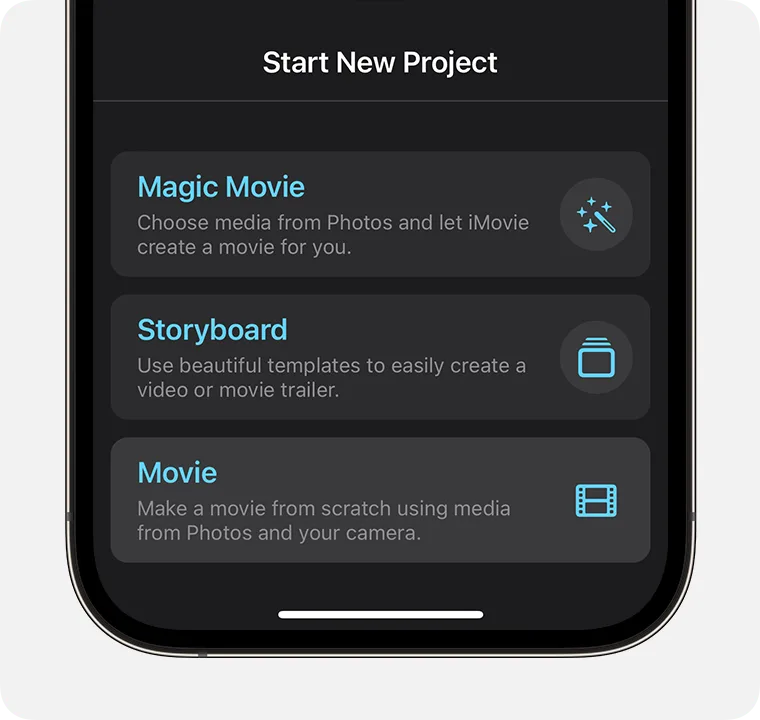
Open iMovie and tap Start New Project.
Choose Movie. Do not choose Magic Movie if you want to control the clip order yourself.
Screenshot: Choose Movie to open a standard iMovie timeline. Source: Apple Support.
Tap Media, then Video and All if the picker does not already show your videos.
Tap the first clip, then tap the checkmark. Repeat this for the second clip.
Tap Create Movie at the bottom of the screen.
Screenshot: Select both videos before tapping Create Movie. Source: Apple Support.
The clips appear in the order you selected them. To change that order, touch and hold a clip in the timeline until it lifts, then drag it before or after the other clip.
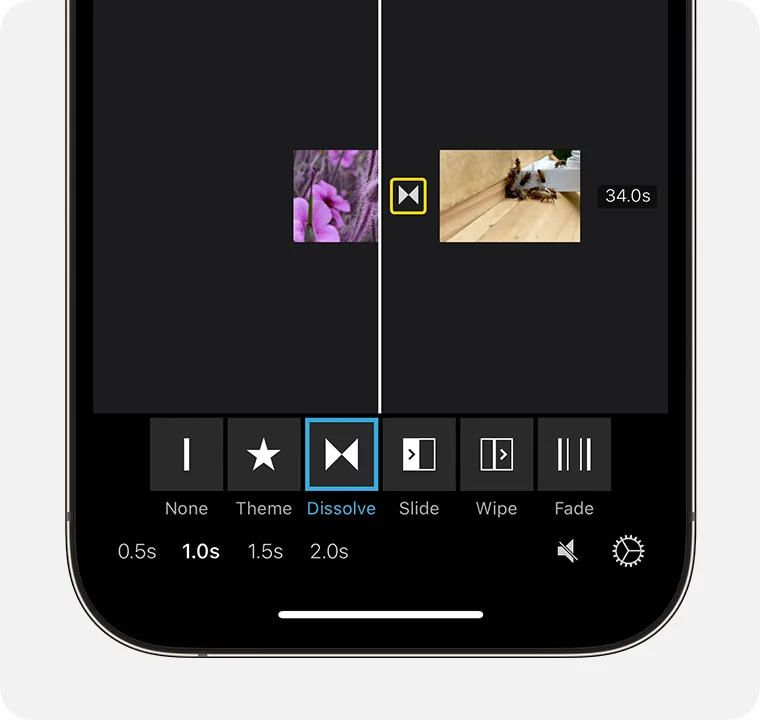
Tap the transition icon between the clips. iMovie adds a Dissolve transition by default; choose None for a clean cut, or select another transition and duration.
Screenshot: Tap the icon between the clips to change the transition. Source: Apple Support.
Tap the play button and watch the join, paying attention to the audio as the second clip starts.
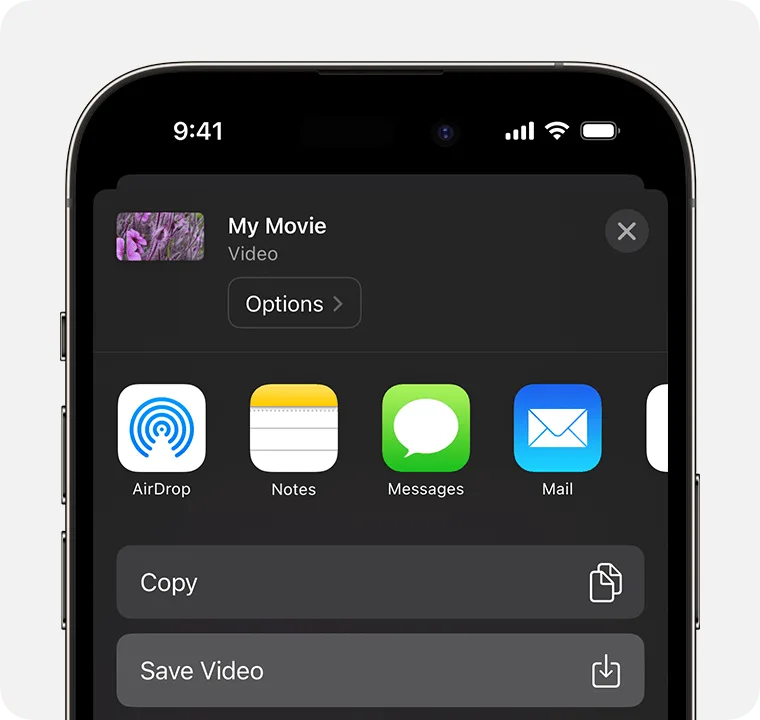
Tap Done, then tap the Share button.
Choose Save Video to add the merged file to your Photos library.
Screenshot: Use Share, then Save Video, to export the finished movie. Source: Apple Support.
How to trim or reorder clips in iMovie
Tap a clip in the timeline to select it. Drag either yellow edge inward to remove unwanted footage from the beginning or end. To move the whole clip, touch and hold it, then drag it to the new position.
Trimming inside iMovie does not alter the original video in Photos. The edit only applies to the movie project and its exported copy.
How to put two videos side by side in iMovie
If you want both videos visible at the same time, use iMovie’s Split Screen overlay.
Create a Movie project with the main video.
Move the playhead to where the second video should begin.
Tap Add Media, choose the second video, then tap the More button.
Choose Split Screen.
Select the overlay clip in the timeline to swap the sides or adjust its framing. You can also add or remove the dividing line.
How to use Picture in Picture in iMovie
Picture in Picture places the second video in a smaller window over the main clip.
Create a Movie project with the main video.
Move the playhead to where the second video should begin.
Tap Add Media and choose the second video.
Tap the More button, then choose Picture in Picture.
Select the overlay clip in the timeline.
Use the viewer controls to reposition or resize the smaller window and change its border.
CapCut is a full mobile video editor with a multi-clip timeline. It takes more setup than Overchat AI or iMovie, but it adds tools beyond a basic merge:
Text and captions
Music and audio controls
Filters and effects
Layered footage
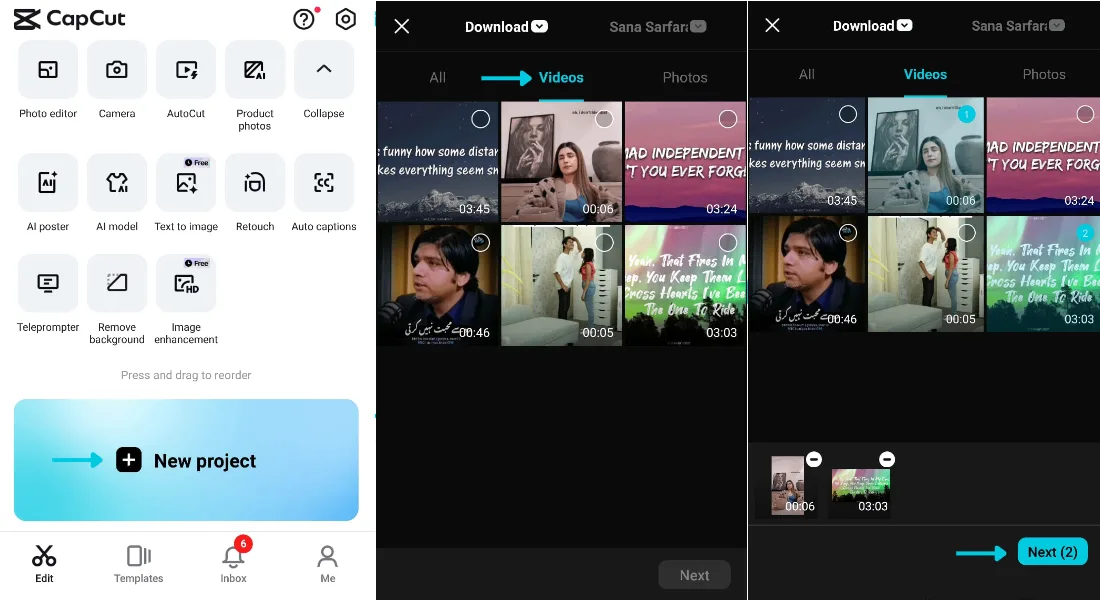
Open CapCut and tap New project.
Select the two videos in the order you want them to play, then tap Add or Next.
Screenshot: Start a new project, select both clips, and continue to the editor. Source: CapCut.
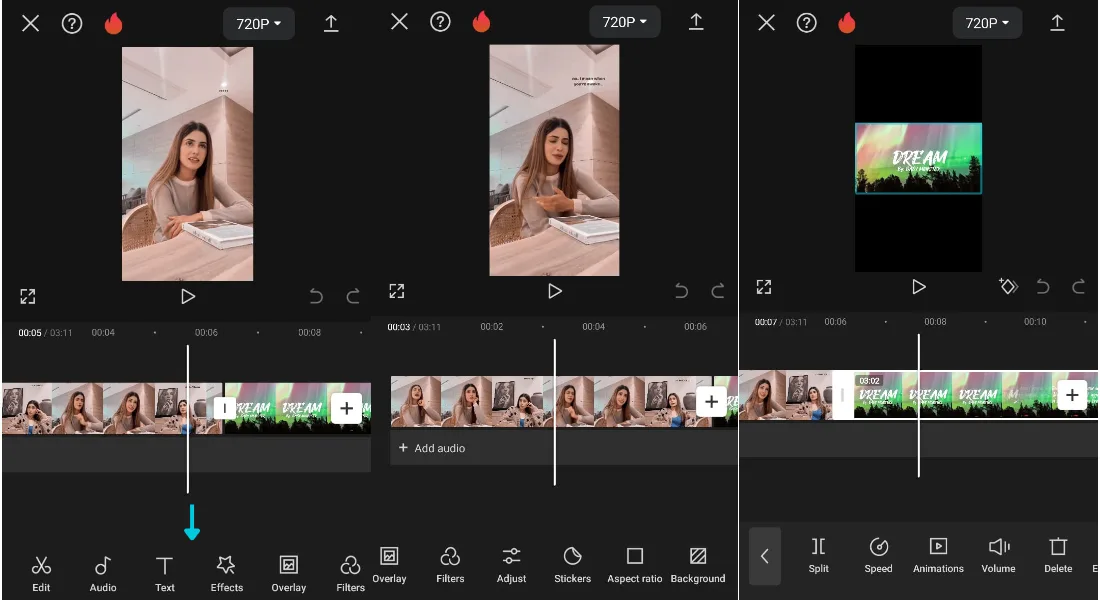
Press and hold a clip on the timeline to drag it into a different position.
Tap the small transition box where the clips meet if you want something other than a hard cut.
Trim either clip by selecting it and dragging its start or end handle.
Screenshot: Arrange and trim the clips on CapCut’s mobile timeline. Source: CapCut.
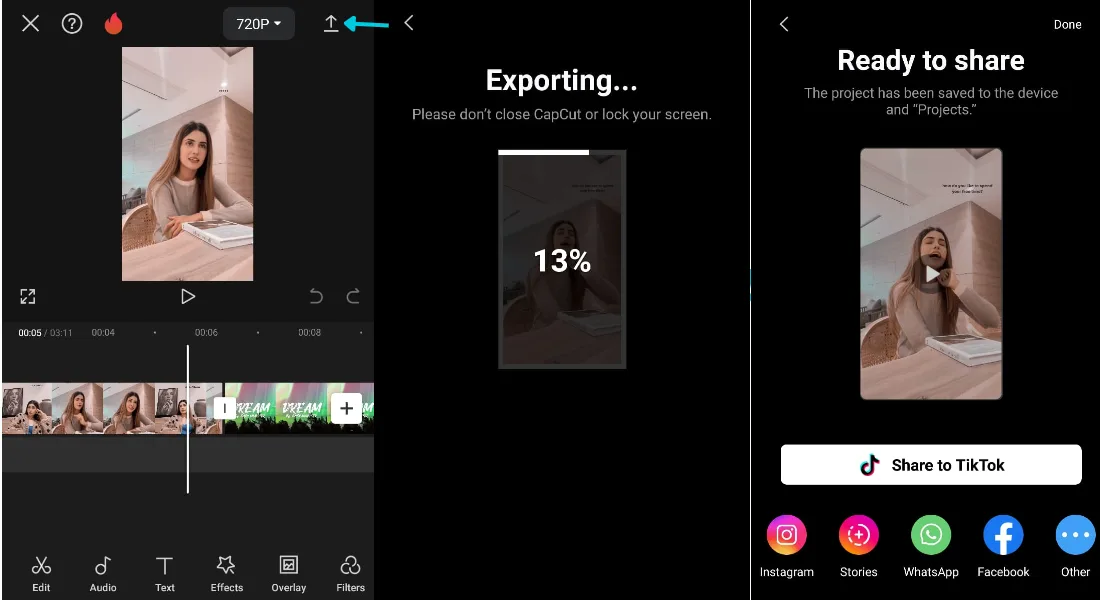
Tap the export icon in the upper-right corner.
Check the resolution and frame rate, then export the video.
Save it to your device or share it from the finished screen.
Screenshot: Export the project and save or share the combined video. Source: CapCut.
CapCut is free to install, although some effects and tools require a paid plan. For a basic two-clip merge, stay with the standard timeline tools and check the final export screen before saving.
How to combine two videos on iPhone with Overchat AI
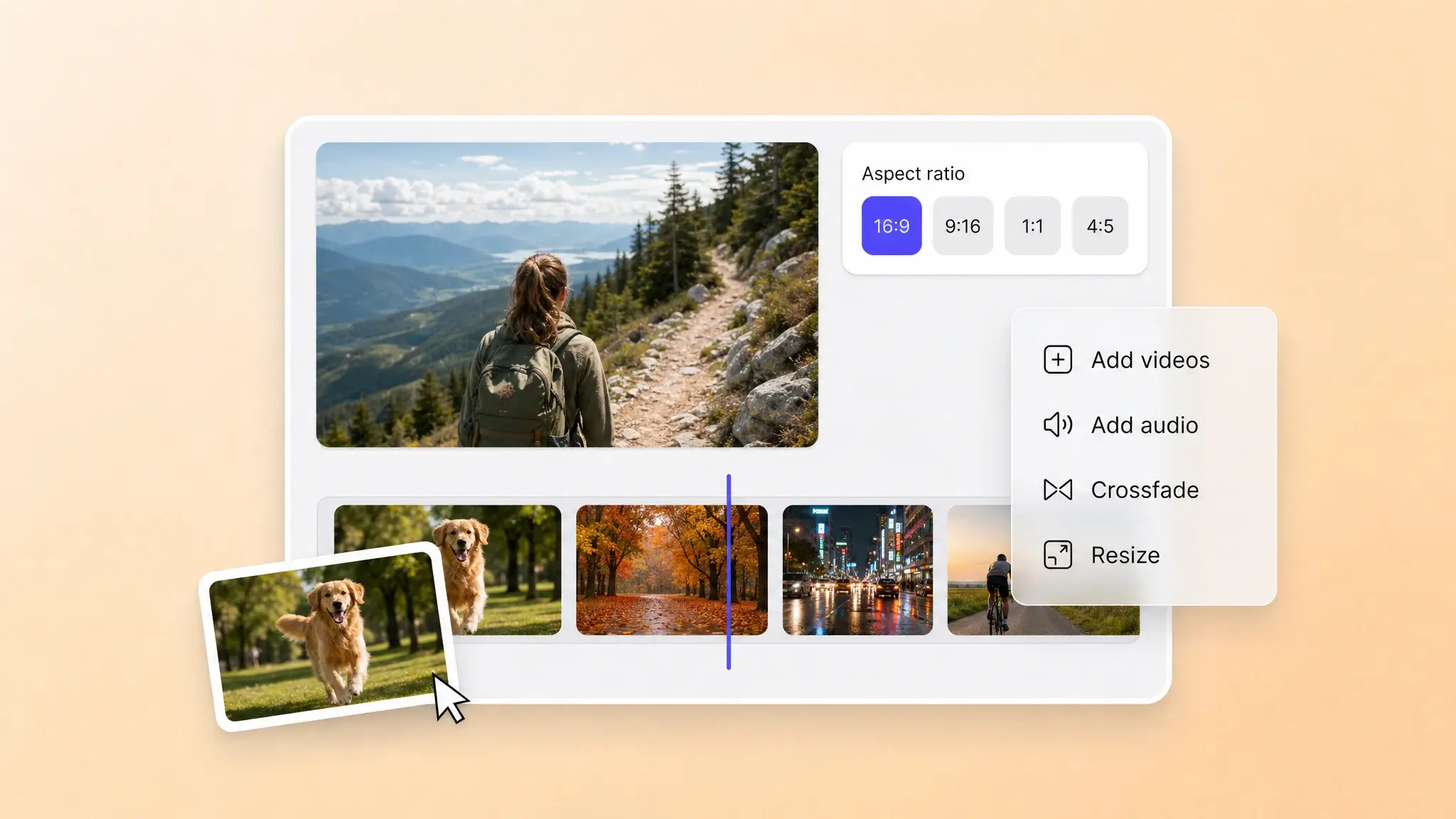
Overchat AI Video Combiner is a free browser-based editor we’ve built that joins video clips in sequence. You can rearrange and trim them, choose the output shape, add a crossfade or music, and export one MP4. Here’s how to combine videos on iPhone with Overchat AI:
Tap Start Combining Videos, select both videos from your iPhone, and wait for the editor to prepare them. The tool accepts common formats including MP4, MOV, WebM, and MKV.
Screenshot: Tap Start Combining Videos to choose the clips from your iPhone. Source: Overchat AI Video Combiner.
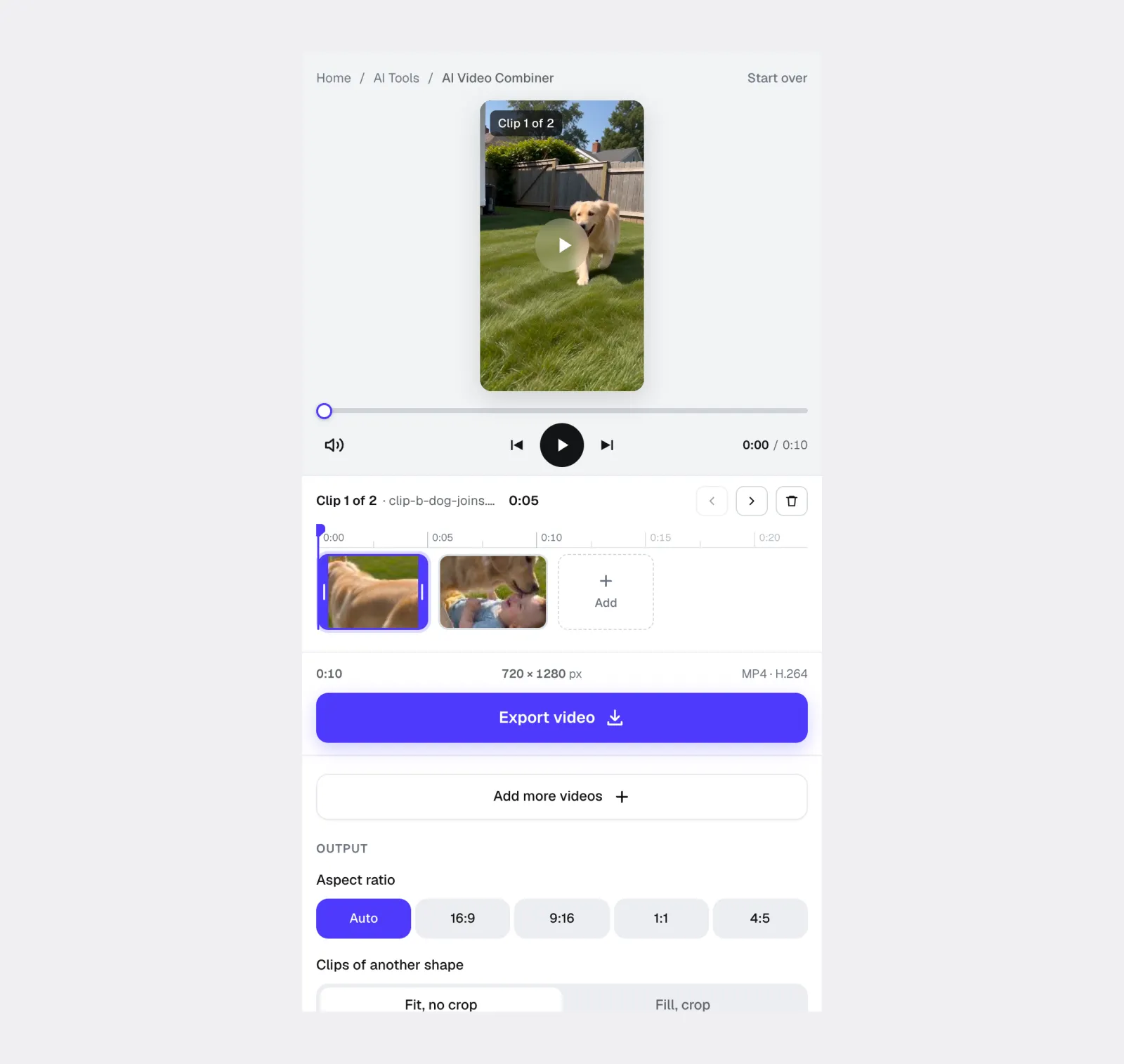
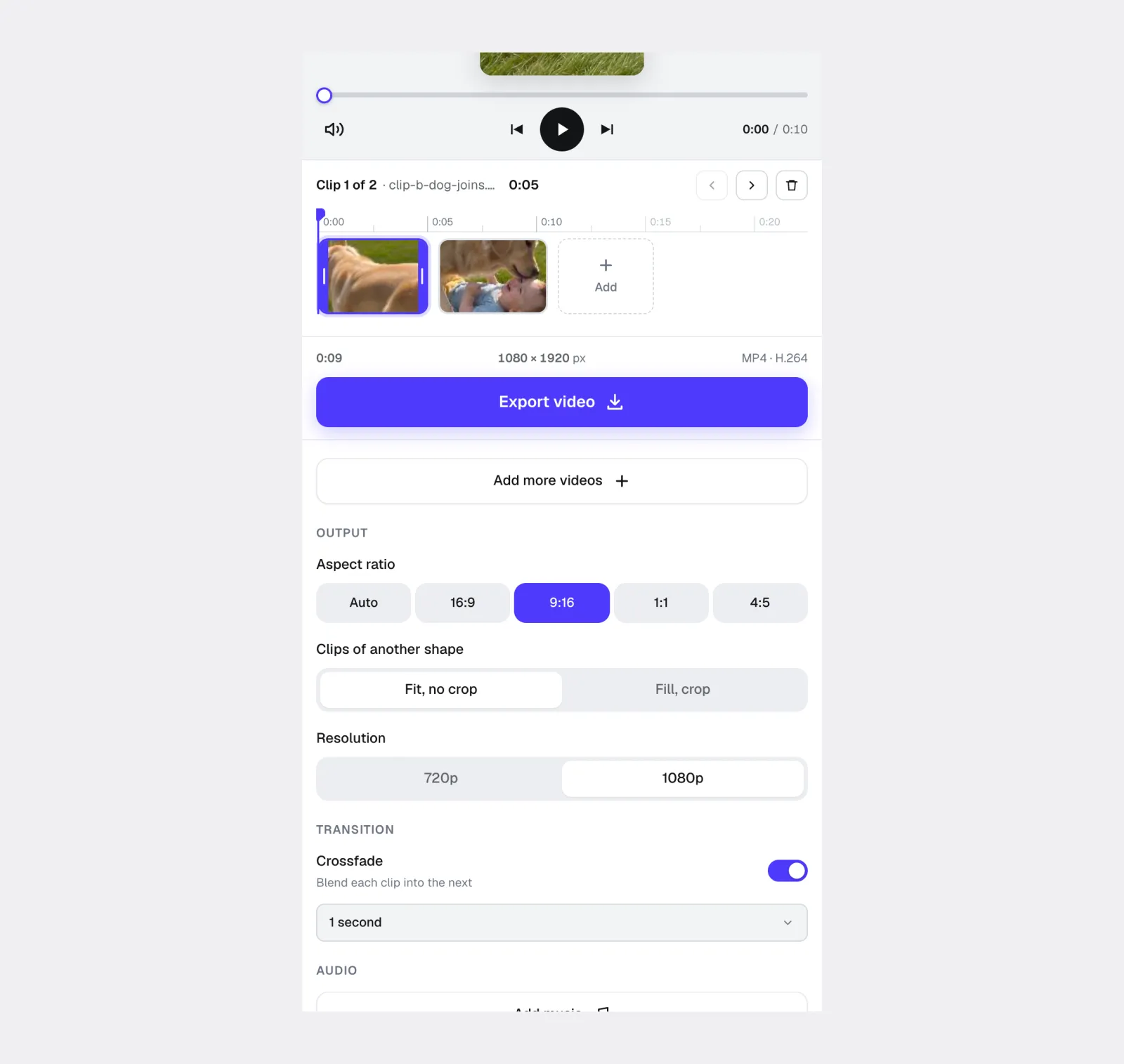
In the timeline you can shuffle and rearrange clips. Or tap a clip and use the left or right arrow to move it, or drag its thumbnail along the timeline.
To trim a selected clip, drag the white handles at its left or right edge inward. Tap the trash icon only if you want to remove the whole clip.
Screenshot: The mobile editor shows both clips on the timeline, with reorder, trim, preview, and export controls. Source: Overchat AI Video Combiner.
Under Output, choose Auto, 16:9, 9:16, 1:1, or 4:5. If the clips have different shapes, choose Fit, no crop to preserve the full frame or Fill, crop to fill the canvas (this will zoom the video in). Then select 720p or 1080p.
For a softer join, turn on Crossfade and choose a duration from 0.5 to 2 seconds. You can also tap Add music, then mix the track with the clips’ sound or replace their sound.
Screenshot: Choose the aspect ratio, crop behavior, resolution, and optional crossfade before exporting. Source: Overchat AI Video Combiner.
Tap Export video and leave the page open while the browser creates the merged file.
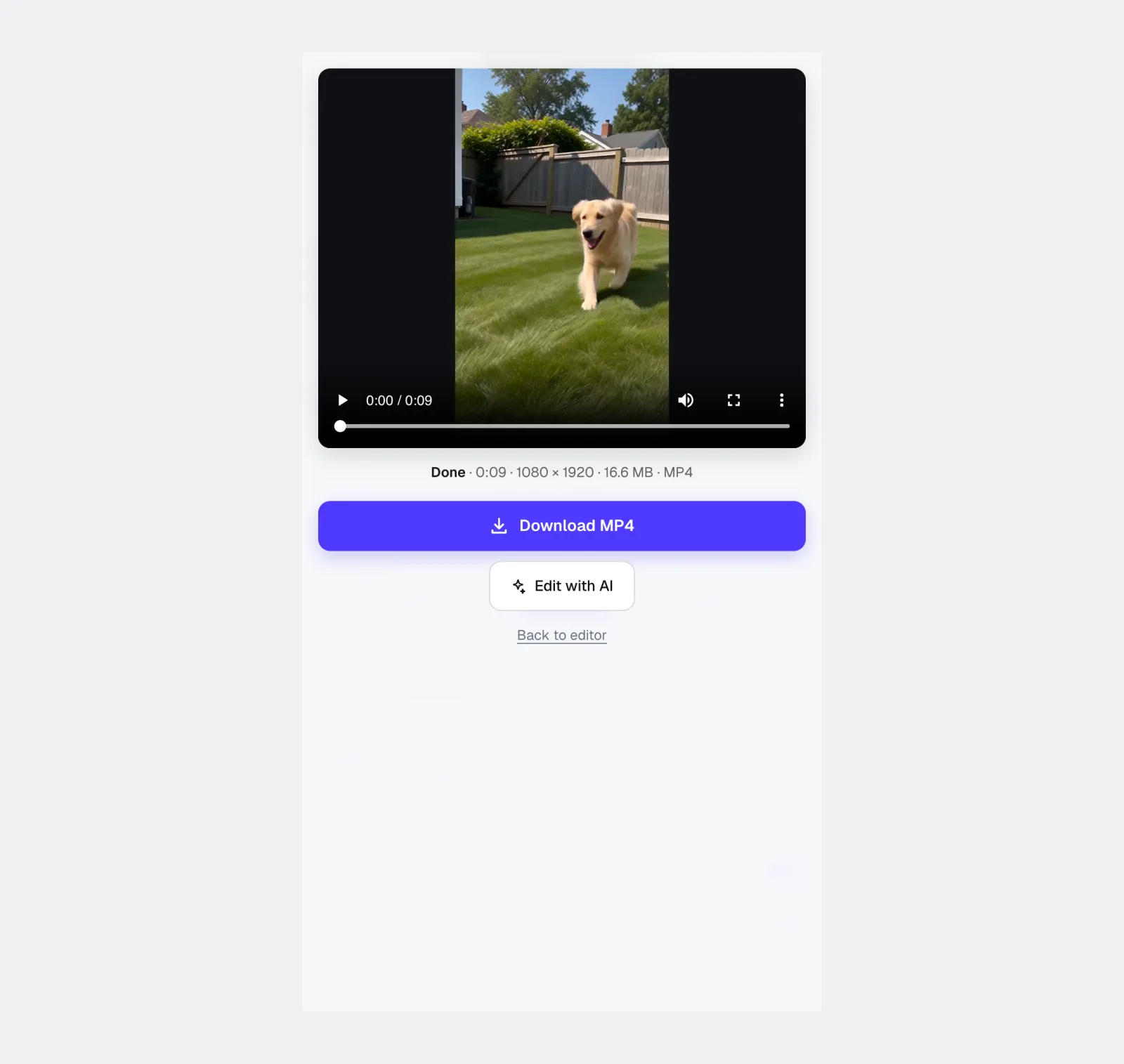
Preview the result, then tap Download MP4. If Safari saves it to Downloads, open the file, tap Share, and choose Save Video to add it to Photos.
Screenshot: Preview the finished video and tap Download MP4 to save it. Source: Overchat AI Video Combiner.
The resulting file contains the full sequence you arranged on the timeline, minus any trimmed sections and overlapping crossfade time.
How to combine iPhone videos without losing quality
Avoid quality loss by keeping the export settings close to the source footage.
Use the highest useful resolution. In Overchat AI, choose 1080p when the source footage supports it; choose 720p when a smaller file matters more.
Keep the frame rate consistent. If your video clips are 30 fps, also export at 30 fps.
Do not repeatedly export the same project. Go back to the original clips when you need a new version, because every additional export can introduce more compression.
Decide whether the final video should be vertical or horizontal before you start. In Overchat AI, clips with a different shape can be fitted inside the frame without cropping or enlarged to fill it. Other editors may require you to crop a mismatched clip manually.
Common problems when merging videos on iPhone
A handful of issues come up again and again when two clips are joined on an iPhone. Here is what each one looks like and how to fix it.
The clips are in the wrong order
In iMovie or CapCut, touch and hold the misplaced clip and drag it along the timeline. In Overchat AI, select the clip and tap the left or right arrow, or drag its thumbnail to a new position.
There is an unwanted fade between clips
iMovie inserts a Dissolve transition by default. Tap the transition icon between the clips and choose None for a direct cut. Overchat AI uses a clean cut by default; if you enabled Crossfade, turn its switch off.
One clip is much louder than the other
Select each clip and adjust its volume separately before export. Listen through the join with headphones if the video contains speech, because a sudden level change is easier to hear than it is to spot on the timeline.
The second video is cropped or has black bars
The two source clips probably use different aspect ratios. A 9:16 canvas fits short-form social video, while a 16:9 canvas fits standard landscape video. In Overchat AI, choose Fit, no crop to keep the complete frame with bars, or Fill, crop to remove the bars by cropping the edges.
The video will not save
Check Settings > General > iPhone Storage and make room for the export. If a clip uses iCloud Photos and shows a download icon, let the original finish downloading before adding it to the project. Restart the app and export again only after confirming that both source videos play normally in Photos.
Frequently asked questions
Short answers to the questions that come up most often about merging two clips on an iPhone.
How do I combine two videos on iPhone for free?
Use Overchat AI Video Combiner in your browser or download Apple’s free iMovie app. Overchat AI does not require an account and exports without a watermark. In either tool, add both videos, arrange them on the timeline, and export the finished file. Note, however, that you can’t combine videos in the iPhone Photos app — its editor works on one clip at a time, so you can trim, crop, rotate, or adjust each video, but there is no multi-clip timeline.
Can I combine videos on iPhone without downloading an app?
Yes. Open Overchat AI Video Combiner in Safari, select the videos, arrange and trim them on the timeline, choose the output settings, and export one MP4. The merge runs in the browser, so you do not need to install an app. The Photos app alone cannot combine two standard videos.
Can I combine more than two videos?
Yes. Overchat AI, iMovie, and CapCut all support projects with more than two clips. In Overchat AI, tap Add more videos or the Add tile on the timeline, then arrange every clip before exporting.
Does combining videos delete the originals?
No. Each method creates a new output file. The original clips remain in Photos or Files unless you delete them yourself.
How do I merge videos with no transition?
In Overchat AI, leave Crossfade switched off; a clean cut is the default. In iMovie or CapCut, choose None or Cut at the point where the clips meet.
How do I add music to two combined videos?
In Overchat AI, tap Add music, select an audio file, and choose whether to mix it with the clips’ original sound or replace that sound. You can also add a track in iMovie or CapCut. Check that you have permission to use the music before publishing the video.
Why is the merged video too large to send?
The new file contains the duration of both clips and is encoded at the export resolution and bitrate. In Overchat AI, choosing 720p instead of 1080p can reduce the size considerably. Messaging apps may compress the file again, so sharing an iCloud link can preserve more quality for a large video.
What is the easiest way to combine two videos on iPhone?
Overchat AI Video Combiner is the simplest option when you want to merge clips without installing an app or creating an account. It provides the essential timeline, trim, crossfade, music, aspect-ratio, and export controls in the browser. Use iMovie for a native Apple workflow, or CapCut when you also need captions, filters, effects, and more detailed editing tools.