Como Rodar IA Localmente: Guia para Iniciantes sobre LLMs Locais
Last Updated:
2026-09-08
Como Rodar IA Localmente: Guia para Iniciantes sobre LLMs Locais
Você está cansado de pagar por assinaturas de IA — ou se perguntando o que as grandes empresas de tecnologia fazem com os seus dados, ou quem mais pode estar lendo as suas conversas? Se for o caso, você não está sozinho. Em 2026, cada vez mais pessoas estão migrando para modelos de IA local — rodando as suas próprias versões de ferramentas como o ChatGPT diretamente no próprio hardware, com total controle sobre como elas são usadas.
Veja o Ollama, por exemplo, um dos modelos de LLM local mais populares. As suas estrelas no GitHub saltaram de cerca de 5.000 em 2023 para mais de 140.000 em 2025 — uma prova de como o interesse pela IA local está crescendo rápido.
Mas há um porém. Embora a IA local esteja cada vez mais acessível, rodar um chatbot offline ainda não é tão simples quanto usar o ChatGPT.
Com isso em mente, se você está se perguntando como rodar um LLM localmente, neste guia vamos mostrar tudo o que você precisa saber — desde os requisitos de hardware até a escolha do modelo certo.
Rodar IA localmente significa que o modelo fica no seu próprio computador, em vez de um data center na nuvem — os seus dados nunca saem da sua máquina, o que te dá privacidade total, acesso offline e nenhum custo de assinatura.
A RAM é a especificação de hardware mais importante: um modelo quantizado precisa de aproximadamente 0,5–1 GB por bilhão de parâmetros, então um modelo de 7B cabe em 8 GB, enquanto um de 70B precisa de 40+ GB.
Os Macs com Apple Silicon são especialmente bem adaptados para IA local graças à memória unificada — um MacBook Pro de 32 GB consegue rodar modelos que, em um PC, exigiriam uma GPU dedicada de 32 GB.
As melhores ferramentas para começar: Atomic Chat (a mais fácil, focada em Mac), LM Studio (interface gráfica polida com descoberta de modelos no Hugging Face), Ollama (CLI para desenvolvedores), Jan AI (código aberto) e Llama.cpp (o motor por trás da maioria das outras ferramentas).
Passo a passo: instale o Atomic Chat, escolha um modelo de acordo com a sua RAM, baixe e comece a conversar — tudo em cerca de 3 minutos.
Melhores modelos em 2026 por categoria: Llama 3.3 8B (o equilíbrio ideal para uso geral), Mistral Small 3.1 (denso e eficiente), DeepSeek-R1 destilado (raciocínio), Qwen 3 (programação e multilíngue), Phi-4 Mini e Gemma 3/4 (hardware mais modesto).
A quantização (Q4_K_M é o padrão recomendado) reduz os modelos em cerca de 75% em relação ao FP16, com perda mínima de qualidade para casos de uso de conversa.
Para tarefas do dia a dia, como escrever, resumir e programar coisas simples, um bom modelo local de 8B–14B entrega cerca de 80–90% da capacidade prática do ChatGPT — com total privacidade.
O Que Significa Rodar IA Localmente?
Para responder a essa pergunta, primeiro precisamos entender como os chatbots online funcionam. ChatGPT, Google Gemini, Claude (ou qualquer outro chatbot de IA online) — eles são, na essência, apenas software rodando em algum lugar, em uma máquina física.
No caso de serviços de IA na nuvem como o ChatGPT — que são o oposto da IA local — esses sistemas ficam em computadores remotos, nos data centers das empresas.
Isso significa que, quando você envia um prompt para o ChatGPT, acontece algo mais ou menos assim:
A sua solicitação é transmitida para os servidores da OpenAI
O modelo que roda lá a processa e gera uma resposta
A resposta é enviada de volta para você
Em outras palavras, você está simplesmente acessando a IA pela internet — e o que acontece com os seus dados durante a etapa dois está completamente fora do seu controle.
Rodar um LLM localmente, por outro lado, significa que o modelo fica no seu próprio computador. Todo o processo de inferência do LLM — todas as etapas descritas acima — acontece na sua CPU ou GPU, e nada nunca sai da sua máquina. Em outras palavras, você está rodando o seu próprio chatbot de IA offline e privado.
Para isso, você precisa baixar todos os pesos do modelo para o seu dispositivo. Isso traz vantagens:
Mais privacidade
Mais segurança
Menor latência
Os benefícios da IA local são reais, então vamos detalhá-los melhor.
Por Que Rodar IA Localmente?
Existem vários motivos para você seguir por esse caminho, e os principais são:
Privacidade. Os seus dados nunca saem da sua máquina — se você trabalha com algo sensível, ou simplesmente não quer que pessoas aleatórias tenham potencialmente acesso às suas conversas (sim, funcionários da OpenAI ou da Anthropic podem, em tese, ler os seus chats), então a inferência local é a única configuração realmente privada.
Funciona onde você estiver. Depois que o modelo é baixado, ele roda inteiramente offline — em um avião, no metrô ou em uma rede que bloqueia serviços na nuvem.
Sem mais assinaturas. Você pode dar adeus às assinaturas e aos limites de mensagens. Os únicos custos envolvidos são um aumento marginal na conta de luz.
Velocidade. Como tudo roda localmente, não há a latência que pode surgir com uma internet lenta. Esse benefício só vale para modelos menores rodando em hardware potente.
É mais fácil do que você pensa. Em 2026, dá para configurar o seu próprio chatbot de IA local em 3 minutos. Mais adiante no artigo, vamos mostrar exatamente como.
Mas, no fim das contas, é importante notar que existem algumas limitações da IA local. A maior é esta — não é nada leve para o hardware rodar o ChatGPT offline: os modelos de IA podem consumir muitos recursos e exigir bastante poder de processamento. E isso nos leva à próxima pergunta.
Que Hardware Você Precisa para Rodar um LLM Local?
Aqui vai a boa notícia: você não precisa de uma GPU de US$ 5.000 para rodar IA localmente, mas quanto melhor o seu hardware, mais inteligentes serão os modelos que você consegue rodar. Veja o que você precisa saber.
O ideal é ter pelo menos 8 GB de RAM
A especificação mais importante para rodar LLMs locais é a memória. Quando um modelo carrega, os seus pesos precisam caber ou na RAM do sistema (para inferência via CPU) ou na VRAM da GPU (para inferência via GPU).
Isso significa que, se você não tiver memória suficiente, o modelo simplesmente não vai carregar — ou vai rodar de forma dolorosamente lenta, recorrendo ao disco.
Uma regra geral aproximada: um modelo quantizado precisa de cerca de 0,5–1 GB de RAM por bilhão de parâmetros.
Veja quanta RAM você precisa para rodar diferentes modelos:
Modelo de 7B → 4–8 GB
Modelo de 13B → 8–16 GB
Modelo de 70B → 40+ GB.
Você precisa de uma GPU relativamente potente
A GPU é melhor porque rodar em GPU é muito mais rápido — muitas vezes 5–10x mais rápido do que a inferência só em CPU.
Se você tem uma GPU NVIDIA dedicada com 8+ GB de VRAM, está em ótima forma. As GPUs AMD também funcionam, embora o suporte de software ainda esteja se atualizando.
O Apple Silicon é ótimo para IA local
Se você quer rodar um LLM localmente no Mac, está em uma posição muito boa. Os chips Apple Silicon (M1, M2, M3, M4) têm memória unificada — a CPU e a GPU compartilham o mesmo pool de RAM.
Isso significa que um MacBook Pro com 32 GB de memória unificada consegue carregar e rodar modelos que, em um PC, exigiriam uma GPU de 32 GB.
Além disso, o framework Metal da Apple tem bom suporte na maioria das ferramentas de IA local, e a eficiência do Apple Silicon torna a inferência surpreendentemente rápida.
MacBook Air M1 básico com 8 GB → modelos de 7B
M2/M3/M4 com 16–32 GB → modelos de 13B ou modelos de 70B quantizados
Dica: Se você está comprando um Mac para IA local, maximize a RAM — é o melhor investimento que você pode fazer
Requisitos de Hardware por Tamanho de Modelo
Tamanho do Modelo
RAM Mín.
RAM Recomendada
VRAM da GPU
Modelos de Exemplo
1B–4B
4 GB
8 GB
2–4 GB
Phi-4 Mini, Gemma 3 4B, Qwen 3 4B
7B–8B
8 GB
16 GB
6–8 GB
Llama 3.3 8B, Mistral 7B, Qwen 3 8B
12B–14B
16 GB
24 GB
10–16 GB
Phi-4, DeepSeek-R1 14B, Gemma 3 12B
27B–32B
24 GB
32 GB
16–24 GB
Gemma 3 27B, Qwen 3 32B
70B+
48 GB
64 GB
40+ GB
Llama 3.3 70B, Qwen 3 235B-A22B (MoE)
Esses valores pressupõem quantização Q4 (veja a seção de desempenho abaixo). Modelos em precisão total precisam de aproximadamente o dobro de memória.
Melhores Ferramentas para Rodar IA Localmente
A essa altura, você deve estar se perguntando — tudo isso parece ótimo, mas por onde começar de fato se você quer algo como o ChatGPT offline, rodando na sua própria máquina? Será que você precisa rodar scripts, talvez, ou criar a sua própria interface, ou até aprender Python ou PyTorch?
A boa notícia é: você não precisa de nada disso. Em 2026, existem vários aplicativos prontos que tornam rodar LLMs locais tão simples quanto instalar qualquer outro software. A maioria deles já vem com interfaces de chat integradas, então você pode começar na hora.
Aqui estão algumas das melhores opções:
Ferramenta
Facilidade de Uso
Interface Gráfica
Plataformas
API Local
Melhor Para
Atomic Chat
⭐️⭐️⭐️⭐️⭐️
Sim
Mac, Win, Linux
Sim
Iniciantes, configuração mais rápida
LM Studio
⭐️⭐️⭐️⭐️
Sim
Mac, Win, Linux
Sim
Usuários avançados que querem uma interface gráfica
Ollama
⭐️⭐️⭐️
Não
Mac, Win, Linux
Sim
Desenvolvedores, scripts
Jan AI
⭐️⭐️⭐️⭐️
Sim
Mac, Win, Linux
Sim
Foco em privacidade, código aberto
Llama.cpp
⭐️⭐️
Não
Tudo
Sim
Controle máximo, usuários avançados
Atomic Chat
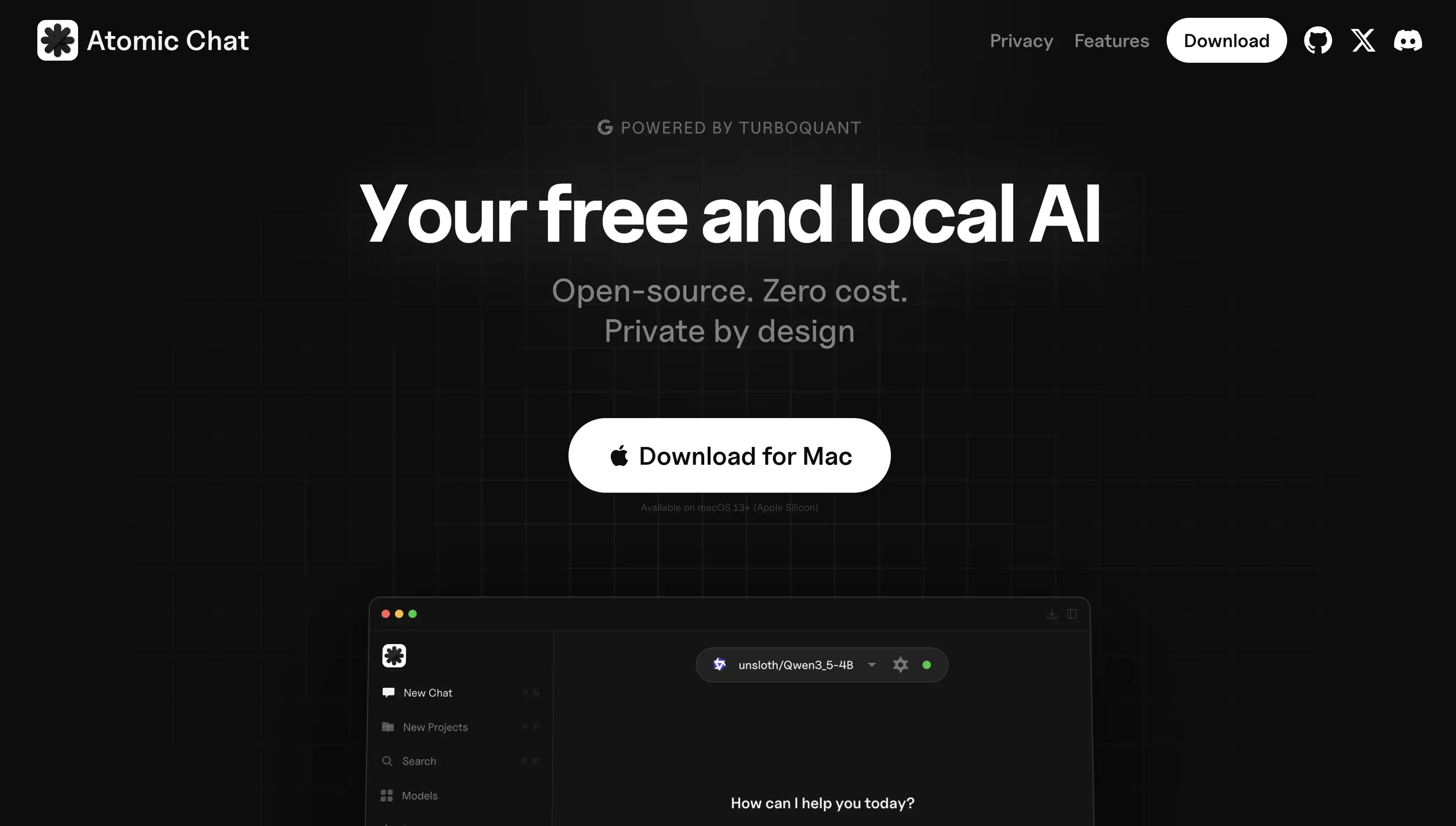
O Atomic Chat é um aplicativo de desktop pensado para tornar a IA local o mais simples possível.
Para começar a usá-lo:
Instale o aplicativo
Escolha um modelo de uma lista
Comece a conversar imediatamente
No momento, ele roda em Mac, mas versões para Windows, iOS e Android estão chegando em breve, então você poderá até rodar IA local em dispositivos móveis.
O Atomic Chat oferece uma interface limpa e moderna e já vem com gerenciamento de modelos integrado, então você pode navegar, baixar e alternar entre modelos sem nunca sair do aplicativo.
Além disso, os modelos compartilham o mesmo contexto de memória, o que significa que eles podem aprender os seus hábitos e se tornar mais úteis com o tempo. Ele também se integra a ferramentas que você já usa — como Gmail ou Google Drive — tornando-se muito mais poderoso do que um simples chatbot local.
LM Studio
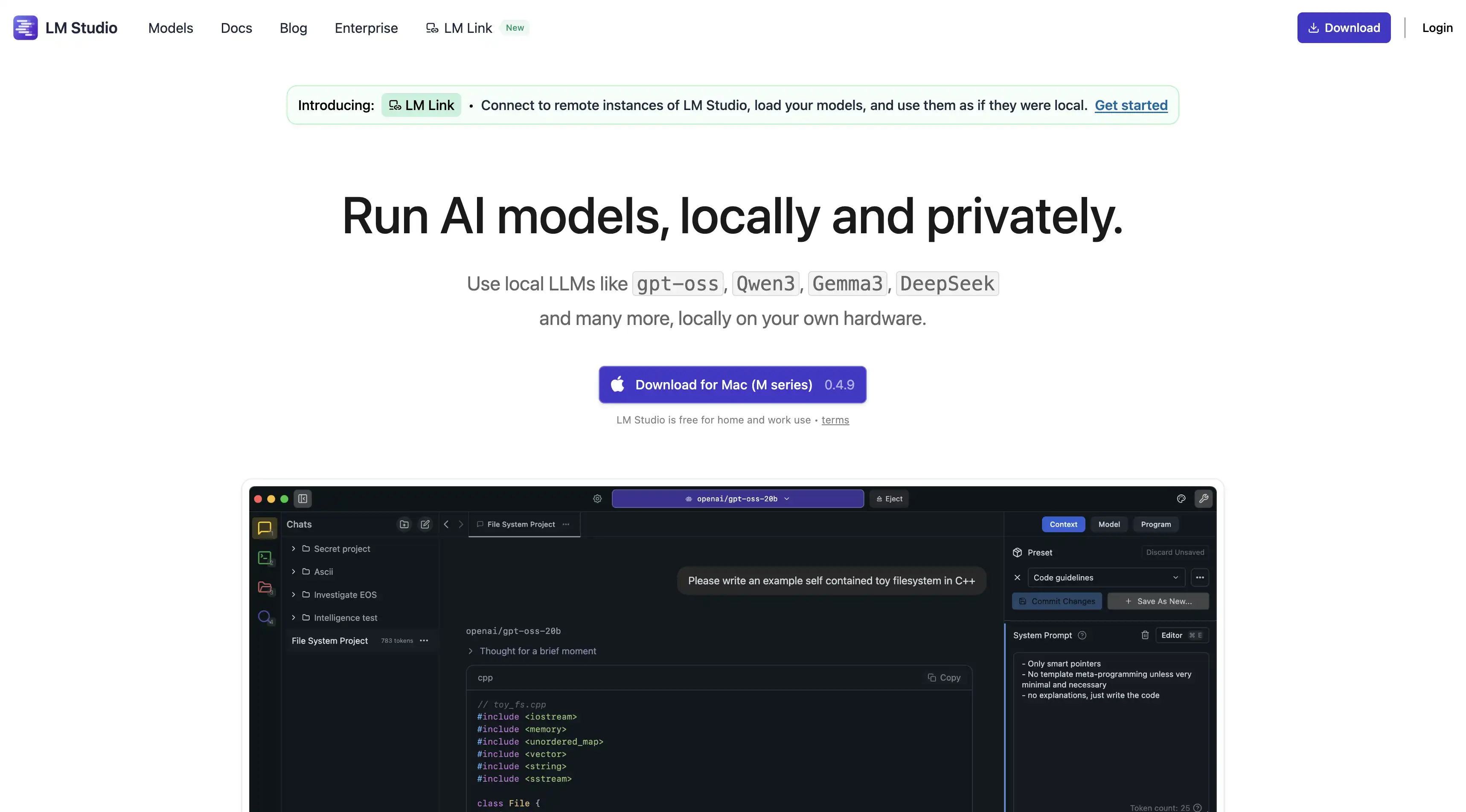
O LM Studio é uma das ferramentas mais populares do universo dos LLMs locais. Ele oferece uma interface gráfica de desktop polida, na qual você pode:
Pesquisar modelos
Baixá-los do Hugging Face
Rodá-los com alguns cliques
Ele também inclui um servidor de API local compatível com a OpenAI, o que significa que você pode conectá-lo a outros aplicativos e ferramentas que aceitem o formato da OpenAI.
O LM Studio é compatível com modelos GGUF e tem uma boa detecção automática de hardware. Ele roda em Mac (Apple Silicon e Intel), Windows e Linux. O recurso de descoberta de modelos é particularmente bom — você pode navegar e filtrar modelos compatíveis dentro do próprio aplicativo.
Ollama
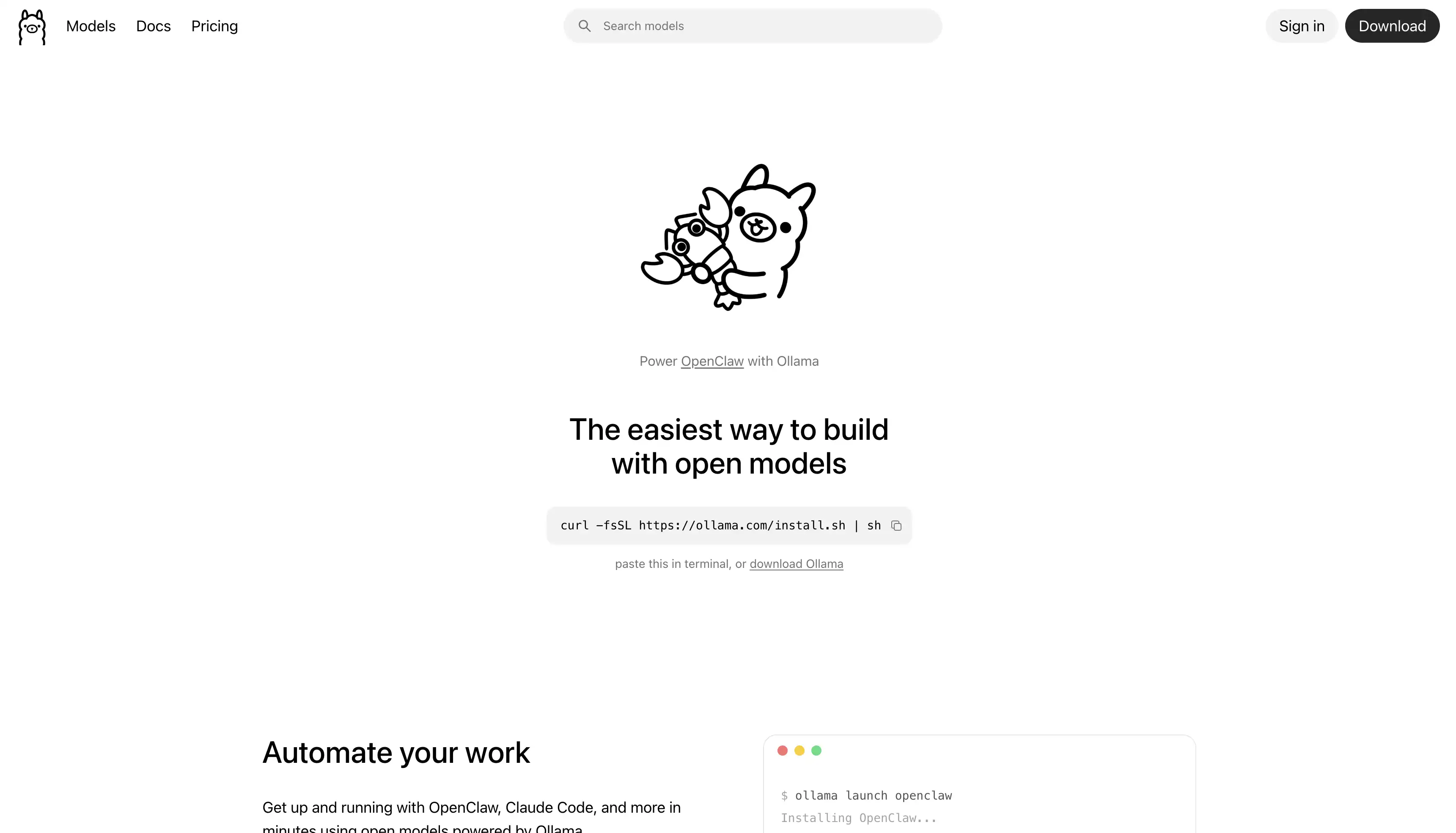
O Ollama é uma ferramenta de linha de comando que faz com que baixar e rodar modelos pareça muito com usar um gerenciador de pacotes. Para desenvolvedores, essa é provavelmente a forma mais conveniente de rodar IA local, já que ela se encaixa naturalmente nas ferramentas e fluxos de trabalho com os quais eles já estão familiarizados. Para usuários comuns, porém, pode haver uma certa curva de aprendizado.
O Ollama é popular porque é:
Leve
Programável via scripts
Roda um servidor de API local
Tem uma biblioteca crescente de modelos pré-configurados
Conta com uma comunidade ativa
Ele tem uma desvantagem, porém — não possui interface visual integrada. Para isso, você precisará combinar o Ollama com um frontend como o OpenWebUI
Jan AI
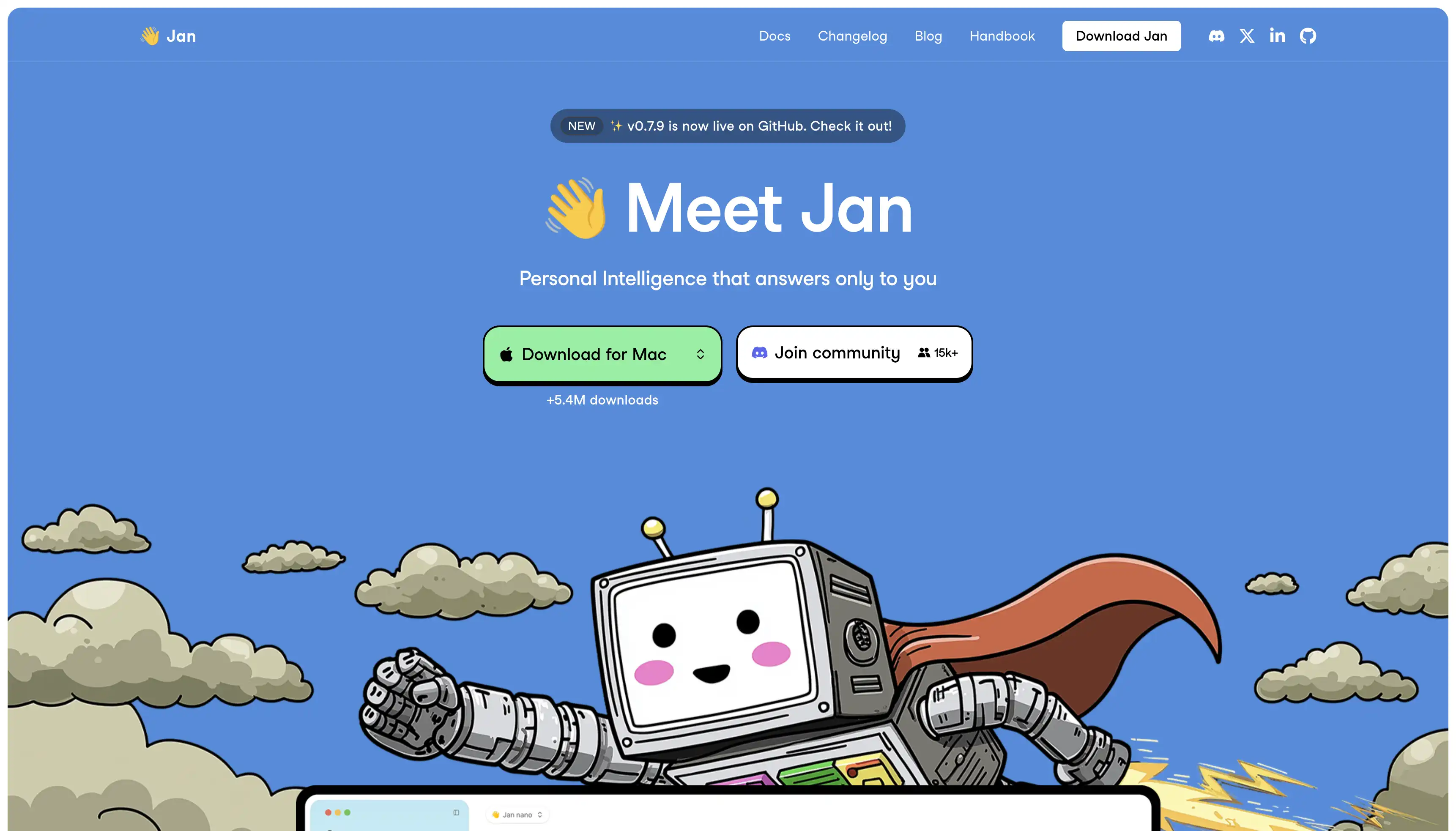
O Jan AI é um aplicativo de desktop de código aberto — uma alternativa à IA na nuvem com a privacidade em primeiro lugar. Ele vem com uma interface de chat, é compatível com vários modelos e mantém tudo local. O Jan também aceita extensões e tem um hub de modelos integrado onde você pode navegar e baixar modelos compatíveis. Ele roda em Mac, Windows e Linux.
Llama.cpp
O Llama.cpp é o motor que faz funcionar a maioria das ferramentas desta lista. É uma implementação em C/C++ da arquitetura de modelo Llama da Meta, que foi estendida para dar suporte a dezenas de outros modelos. Ele é extremamente eficiente, suporta inferência em CPU e GPU, lida com modelos quantizados de forma nativa e roda em praticamente tudo, incluindo até o Raspberry Pi.
A maioria das pessoas não usa o llama.cpp diretamente. Ele é uma biblioteca e uma ferramenta de CLI, não um aplicativo amigável. Mas se você é um desenvolvedor ou usuário avançado que quer controle máximo, compilar a partir do código-fonte e rodar o llama-cli te dá acesso a cada configuração e otimização possível.
Como Rodar o Seu Primeiro LLM Localmente (Passo a Passo)
Se você vinha se perguntando como instalar e rodar um LLM local, esta seção é para você. Vamos usar o Atomic Chat neste passo a passo porque ele tem a menor barreira de entrada, mas o processo geral é parecido em todas as ferramentas.
Passo 1: Baixe e Instale a Sua Ferramenta
Acesse atomic.chat e baixe o instalador para MAC. Instale como qualquer outro aplicativo — basta arrastar o ícone para a pasta Aplicativos.
Passo 2: Escolha um Modelo
Durante a configuração guiada, você será solicitado a escolher um modelo. Com tantos nomes e abreviações desconhecidos, é fácil se sentir sobrecarregado — mas não complique demais.
Aqui vai uma árvore de decisão simples, baseada no seu hardware, que vai te ajudar a escolher uma das melhores opções para qualquer tipo de Mac. Se você tem:
8 GB de RAM ou menos → Phi-4 Mini (3.8B), Gemma 3 4B ou Qwen 3 4B. Pequenos, rápidos, capazes.
16 GB de RAM → Llama 3.3 8B, Qwen 3 8B ou Mistral 7B. O equilíbrio ideal para a maioria das pessoas.
32 GB+ de RAM → Qwen 3 32B, Gemma 3 27B ou DeepSeek-R1 14B. Opções avançadas de raciocínio.
Passo 3: Baixe o Modelo
Clique em baixar. Os arquivos de modelo variam de cerca de 2 GB (para modelos pequenos) a 40+ GB (para modelos de 70B). Esta é a única parte que exige conexão com a internet — depois que o modelo é baixado, tudo roda offline.
Passo 4: Comece a Conversar
Depois que o modelo for baixado, selecione-o e inicie uma conversa. Digite um prompt, aperte enter — é igualzinho ao ChatGPT, mas funcionando 100% offline. Parabéns — agora você sabe como rodar um LLM localmente. Tudo o que você acabou de digitar e tudo o que o modelo respondeu ficou na sua máquina.
Melhores Modelos para Rodar Localmente em 2026
O cenário dos modelos de código aberto muda rápido. Aqui estão as melhores opções de LLM local — os principais modelos de IA local que você pode baixar e rodar agora mesmo, organizados pelo que cada um faz de melhor.
Llama
A família Llama da Meta continua sendo o ecossistema de modelos com mais suporte para IA local — todos os aplicativos da nossa lista rodam modelos Llama de fábrica.
O Llama 4 é o lançamento mais recente (abril de 2025), com uma arquitetura de mistura de especialistas (MoE).
O Llama 4 Scout tem 17B de parâmetros ativos distribuídos em 16 especialistas (109B no total) e suporta uma enorme janela de contexto de 10 milhões de tokens. É um modelo poderoso, mas exigente com o hardware — a quantização Q4 ainda precisa de cerca de 55 GB, então, na prática, você vai precisar de um Mac de 64 GB+ ou de uma configuração com várias GPUs. Com uma quantização agressiva de 1,78 bit (via Unsloth), o Scout cabe em 24 GB de VRAM, mas a qualidade sofre nesse nível de compressão.
Para a maioria das pessoas com hardware de consumo, a série Llama 3.x ainda é a escolha mais prática. Se você está se perguntando como rodar o Llama localmente, comece por aqui — o Llama 3.3 8B é o preferido para máquinas de 16 GB — rápido, capaz e bem otimizado. O Llama 3.3 70B é a opção potente para usuários com 48 GB+ de RAM.
Mistral
O Mistral 7B ainda é um dos modelos mais rápidos na sua classe de tamanho. Ele usa menos RAM do que o Llama 3.3 8B, o que faz dele uma escolha sólida.
Para usuários com mais folga, o Mistral Small 3.1 (24B) é um modelo denso que entrega resultados fortes — ele cabe confortavelmente em máquinas de 32 GB com Q4. O Devstral, o modelo voltado para programação da Mistral, é outra opção se programar for o seu principal caso de uso.
DeepSeek
A DeepSeek se tornou um dos nomes mais importantes da IA de código aberto. O DeepSeek-R1 é popular — é um modelo de raciocínio que pensa passo a passo antes de responder, parecido com o funcionamento do modo de raciocínio do GPT-5.4, da OpenAI.
Para configurações locais, escolha as versões destiladas:
O DeepSeek-R1-Distill 14B (baseado no Qwen) roda bem em máquinas de 16–32 GB
A variante destilada de 32B é ainda mais forte se você tiver pelo menos 40 GB de RAM para ela
O DeepSeek-V3.2 também é um forte modelo de uso geral. Se você está procurando o melhor LLM local para programação, as variantes coder da DeepSeek estão entre as melhores opções de código aberto disponíveis.
Qwen 3.X
O Qwen 3, da Alibaba, é a família de modelos que muita gente na comunidade de IA local subestima — mas não deveria. Lançado em abril de 2025, ele vem em uma ampla variedade de tamanhos: de 0.6B até 32B, além de variantes MoE como o 30B-A3B (30B no total, apenas 3B ativos) e o gigantesco 235B-A22B.
O Qwen 3 8B e o 14B aparecem consistentemente entre os melhores modelos locais para tarefas de programação e multilíngues. O modelo denso de 32B, em particular, é uma fera em máquinas de 32 GB — competitivo com modelos muito maiores em benchmarks de raciocínio. E o Qwen 3 suporta um modo híbrido de "raciocínio/sem raciocínio" que permite ao modelo alternar entre respostas rápidas e um raciocínio em cadeia mais lento e elaborado — assim como o ChatGPT.
Phi-4 e Gemma 3 (Para Hardware Mais Modesto)
Nem todo mundo tem 32 GB de RAM. Se você está trabalhando com um notebook mais antigo ou uma máquina com 8–16 GB, os modelos menores são os seus aliados.
O Phi-4 Mini (3.8B), da Microsoft, é notavelmente capaz para o seu tamanho. Ele lida com a maioria das tarefas melhor do que você esperaria de um modelo tão pequeno e roda confortavelmente em máquinas de 8 GB — até em CPU.
O Phi-4 (14B) é ótimo para tarefas de matemática — ele costuma superar modelos com o dobro do seu tamanho, mas o ideal seria ter uma configuração de 16 GB para rodá-lo.
O Gemma 3, do Google, vem nos tamanhos 1B, 4B, 12B e 27B. Esse é nativamente multimodal — ou seja, entende tanto texto quanto imagens — e o Google otimiza agressivamente em busca de eficiência, então esses modelos rendem acima do esperado em GPUs modestas. A variante de 4B é popular para dispositivos móveis e implantação em edge, enquanto o modelo de 27B é competitivo com modelos muito maiores em benchmarks gerais.
O Gemma 4, com as novas variantes Dense de 2B, 4B e 31B, está sendo lançado agora e leva a eficiência ainda mais longe.
Aqui vai uma comparação lado a lado de todas as opções discutidas acima:
Modelo
Parâmetros
RAM Mín. (Q4)
Melhor Para
Phi-4 Mini
3.8B
4 GB
Hardware modesto, tarefas rápidas
Gemma 3 4B
4B
4 GB
Leve, multimodal, dispositivos edge
Qwen 3 8B
8B
8 GB
Programação, multilíngue
Llama 3.3 8B
8B
8 GB
Melhor pau para toda obra nesse tamanho
Mistral 7B
7B
8 GB
Uso geral com foco em velocidade
Phi-4
14B
12 GB
Raciocínio, matemática, lógica
DeepSeek-R1 14B
14B
16 GB
Raciocínio passo a passo
Gemma 3 27B
27B
20 GB
Multimodal, alta qualidade por parâmetro
Qwen 3 32B
32B
24 GB
Programação, multilíngue, raciocínio
Llama 3.3 70B
70B
48 GB
Qualidade próxima da nuvem
Dicas para um Melhor Desempenho
Rodar um modelo local é fácil, mas exige um pouco de entendimento para otimizar o desempenho. Aqui estão as dicas mais importantes:
Entenda a Quantização
A quantização é o processo de reduzir a precisão dos pesos de um modelo para torná-lo menor e mais rápido.
Em vez de armazenar cada parâmetro como um número de ponto flutuante de 16 bits (FP16), você o comprime para 8 bits (Q8), 4 bits (Q4) ou até menos.
O formato GGUF (usado pelo llama.cpp e por todas as ferramentas listadas acima) suporta vários níveis de quantização. Veja o que eles significam na prática:
Q8 (8 bits): Perda mínima de qualidade. Cerca de 50% menor que o FP16. Use este se você tiver bastante RAM.
Q5: Bom equilíbrio. Um pouco menor e mais rápido que o Q8, com uma queda de qualidade quase imperceptível.
Q4 (4 bits): O equilíbrio ideal para a maioria das pessoas. Cerca de 75% menor que o FP16. A qualidade é perceptivelmente menor em tarefas de raciocínio complexo, mas perfeitamente adequada para conversa e uso geral.
Q2/Q3: Nível de emergência. Perda significativa de qualidade. Use estes apenas se for a única forma de fazer o modelo caber na memória.
Ao baixar modelos, você vai ver com frequência nomes de arquivo como llama-3.3-8b-Q4_K_M.gguf. Veja como interpretar isso:
Q4_K_M → nível de quantização
K_M → usa uma estratégia de quantização mista que preserva a qualidade nas camadas mais importantes
Para a maioria dos usuários, o Q4_K_M é o melhor padrão.
Use o Offloading para a GPU
Se você tem uma GPU, mas ela não tem VRAM suficiente para armazenar o modelo inteiro, você pode usar o offloading parcial para a GPU.
Isso carrega algumas camadas na GPU e mantém o restante na RAM do sistema.
As camadas carregadas na GPU rodam rápido
As camadas carregadas na CPU rodam mais devagar
O resultado é uma velocidade em algum ponto entre a inferência totalmente em GPU e a totalmente em CPU. Na maioria das ferramentas, isso é configurável. No Ollama, por exemplo, acontece automaticamente.
Escolha o Tamanho de Modelo Certo
Um modelo de 8B bem quantizado rodando inteiramente na VRAM vai te dar uma conversa mais rápida e responsiva do que um modelo de 70B que não cabe na RAM disponível, então adeque o modelo ao seu hardware:
Se você tem 8 GB de RAM → modelos de 3B–7B
Se você tem 16 GB → modelos de 7B–13B
Se você tem 32 GB → modelos de 13B–34B
48+ GB de RAM → modelos de 70B
FAQ
Posso usar IA sem internet?
Sim, com certeza. Essa é uma das maiores vantagens de rodar IA localmente. Depois de baixar o arquivo do modelo para a sua máquina, o seu modelo de IA funciona offline. A única vez em que você precisa de internet é para o download inicial da ferramenta e do modelo.
A IA local é gratuita?
Sim. Os modelos em si são de código aberto e gratuitos para baixar. As ferramentas que apresentamos — Atomic Chat, LM Studio, Ollama, Jan AI, Llama.cpp — são todas gratuitas. O único custo é a sua própria eletricidade e o hardware, que você já tem.
Qual é o melhor LLM local para iniciantes?
Para a maioria dos iniciantes, o Llama 3.3 8B é o melhor LLM local para começar. Ele é capaz o suficiente para ser útil, pequeno o suficiente para rodar na maioria dos notebooks modernos e tem suporte de todas as ferramentas do ecossistema.
Posso rodar IA em um Mac?
Sim — na verdade, os Macs são uma das melhores plataformas para isso. Se você quer rodar um LLM localmente no Mac, a arquitetura de memória unificada do Apple Silicon te dá uma vantagem. Um MacBook Pro com 32 GB de RAM consegue rodar modelos que, em um PC, exigiriam uma GPU dedicada cara.
Como o desempenho da IA local se compara ao do ChatGPT?
Em comparação com os modelos de ponta, os sistemas de elite de hoje, como o GPT-5.4, ainda têm uma clara vantagem sobre qualquer coisa que você consiga rodar localmente. Isso acontece porque eles são treinados e implantados em data centers enormes, com alguns dos hardwares mais potentes do mundo — muito além do que a maioria das pessoas tem acesso em casa.
Dito isso, na prática, a diferença é menor do que você imagina. Para tarefas do dia a dia — como escrever e-mails, resumir documentos, responder perguntas ou programar coisas simples — um bom modelo local de 8B ou 14B pode parecer cerca de 80–90% tão capaz quanto o ChatGPT.
Comece a Rodar IA Localmente Hoje
Rodar IA localmente já foi um hobby para nerds de computador, mas, em 2026, ferramentas como o Atomic Chat tornam fácil rodar um LLM local — basta baixar o aplicativo, escolher um modelo e perguntar ao seu assistente de IA offline. Você tem privacidade total e um modelo que funciona offline sempre que precisar.