As 5 Melhores Ferramentas Gratuitas de Imagem para Vídeo com IA em 2026
Last Updated:
2026-09-08
As 5 Melhores Ferramentas Gratuitas de Imagem para Vídeo com IA em 2026
A produção de vídeo é uma das atividades que mais exigem habilidade que existem — seja em animação ou em filmagem na vida real, ela exige equipamentos caros e horas de trabalho para alcançar um ótimo resultado, especialmente quando você quer controlar a direção visual com exatidão.
Isso vem mudando silenciosamente (ou nem tanto) desde que os geradores de vídeo com IA ficaram bons, com ferramentas como Veo, Sora e Kling oferecendo maneiras de transformar ideias em imagens com taxas de quadros fluidas e detalhes impressionantes. O único problema é que, quando você usa apenas texto para orientar o gerador de vídeo com IA, ainda fica muita coisa aberta à interpretação.
É aqui que entram as ferramentas de IA de imagem para vídeo. A maioria das plataformas de vídeo com IA agora permite que você adicione fotos — usadas como quadro inicial ou como elementos da cena — para controlar a direção visual com a precisão de um verdadeiro diretor de cena.
Neste artigo, vamos abordar 5 dessas ferramentas, detalhar seus prós e contras e compará-las entre si para que você possa escolher a melhor para as suas necessidades. Vamos começar.
As ferramentas de IA de imagem para vídeo usam modelos de difusão de vídeo para animar imagens estáticas, recebendo como entrada tanto uma imagem quanto um prompt de texto — a maioria gera clipes entre 4 e 10 segundos de duração.
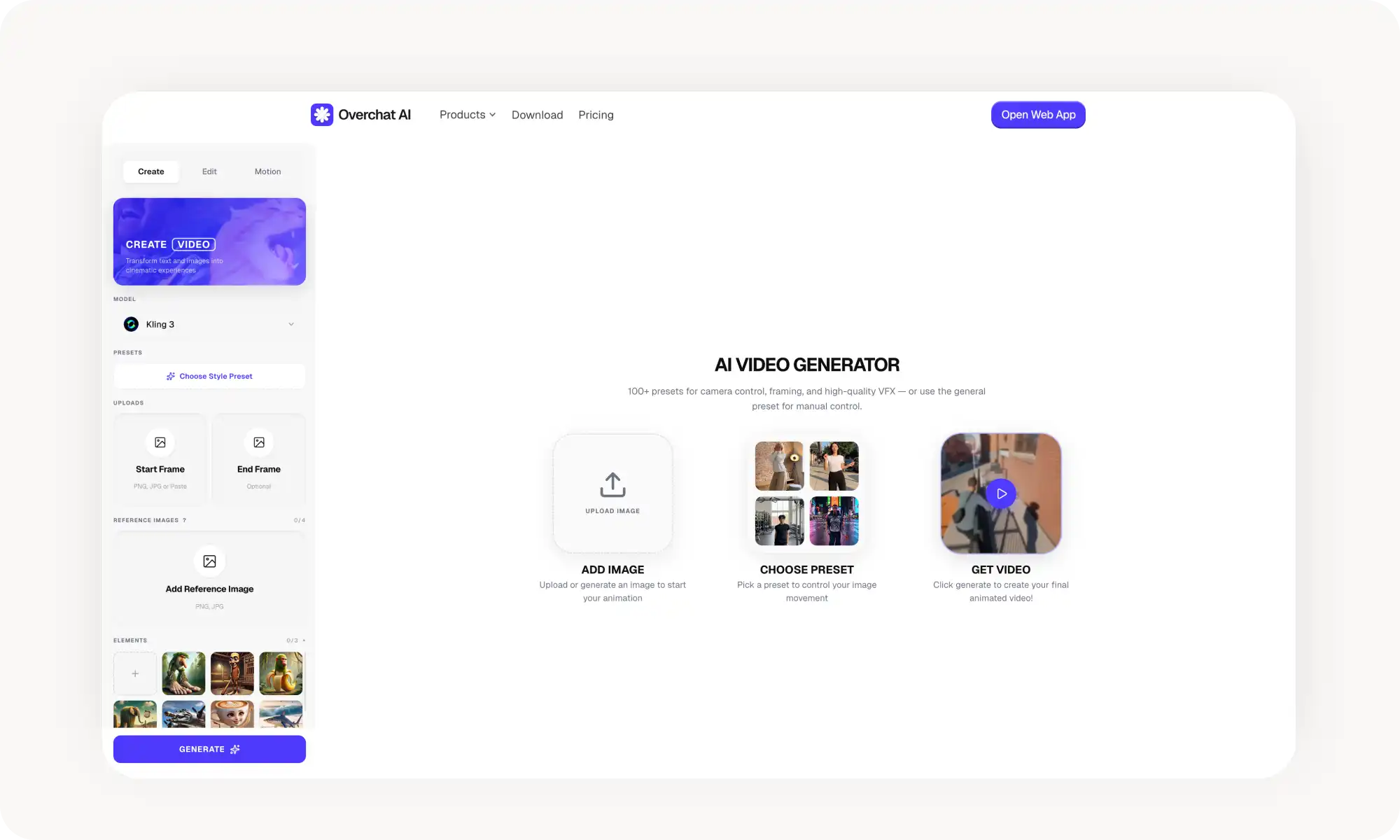
A Overchat AI é a melhor escolha, dando acesso a vários modelos de ponta (Kling 3, Sora 2, Veo 3.1, Wan, Seedance 2.0) em uma única interface, com controle de movimento, imagens de referência e edição de vídeo em linguagem natural.
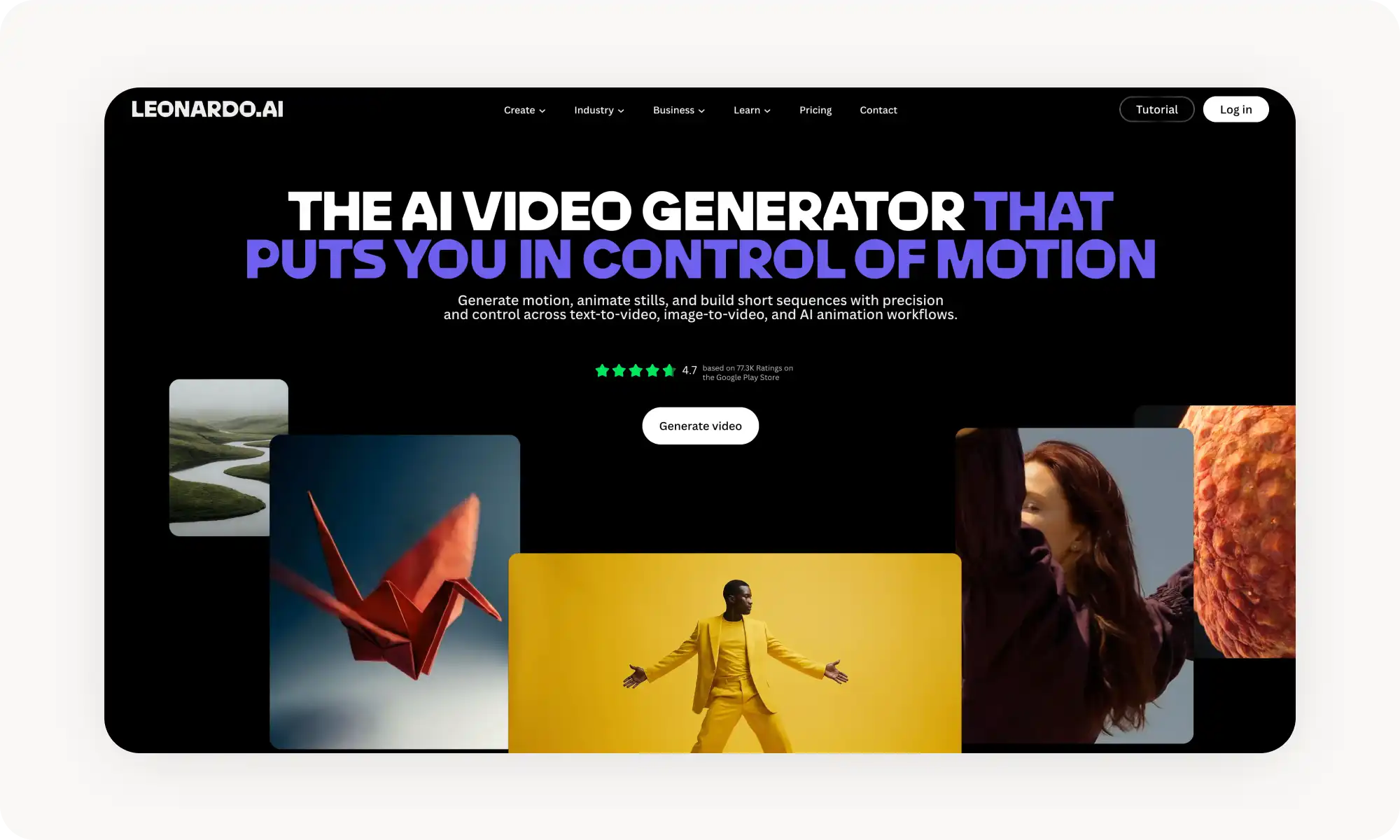
O recurso Motion da Leonardo AI inclui modelos próprios no plano gratuito, mas os clipes são curtos (~4 segundos) e o vídeo é um recurso secundário na plataforma.
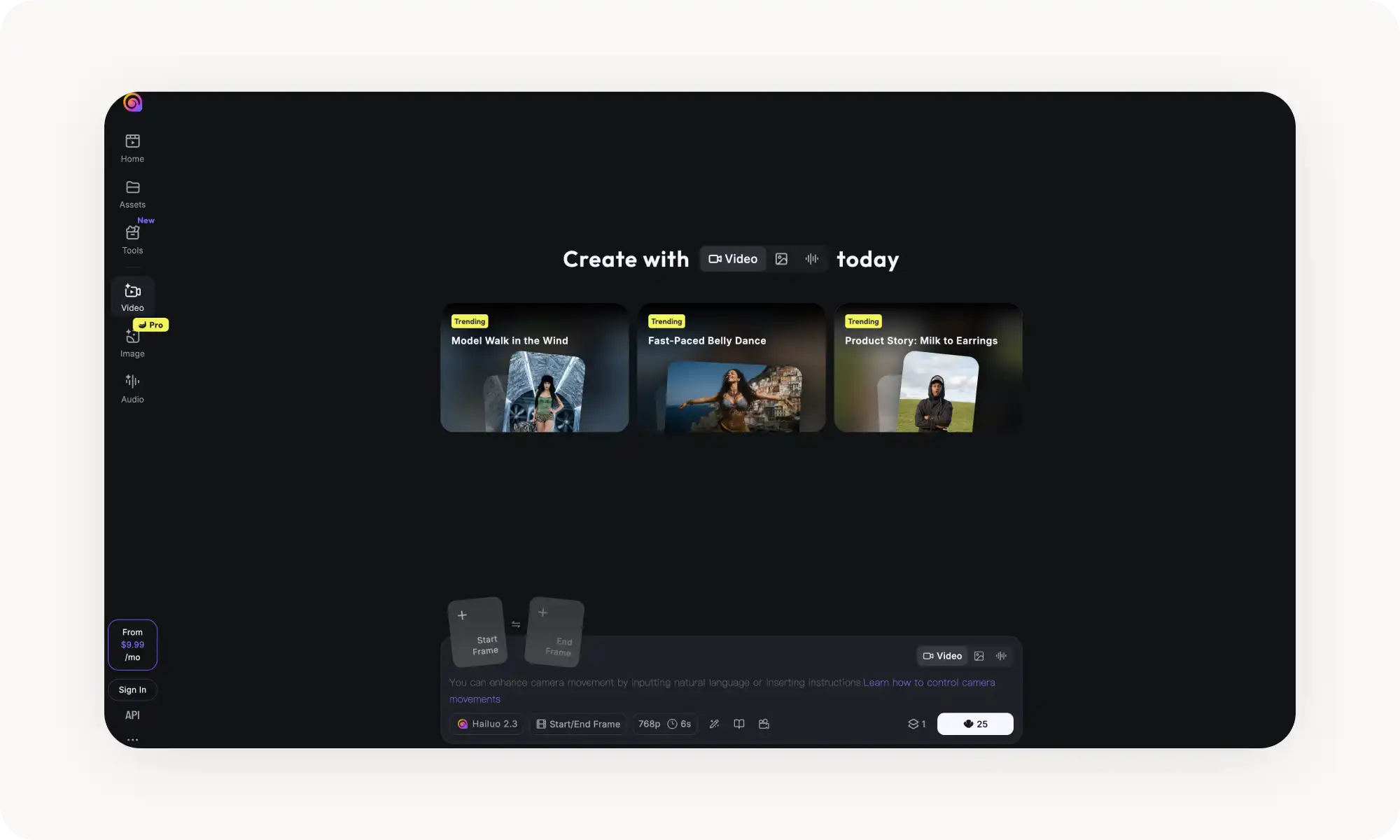
A Hailuo AI (da MiniMax) oferece uma das melhores qualidades de geração de vídeo de 2026, com controles visuais de câmera e vozes integradas, mas os vídeos do plano gratuito são em 720p com marca d'água e as filas podem passar de 30 minutos.
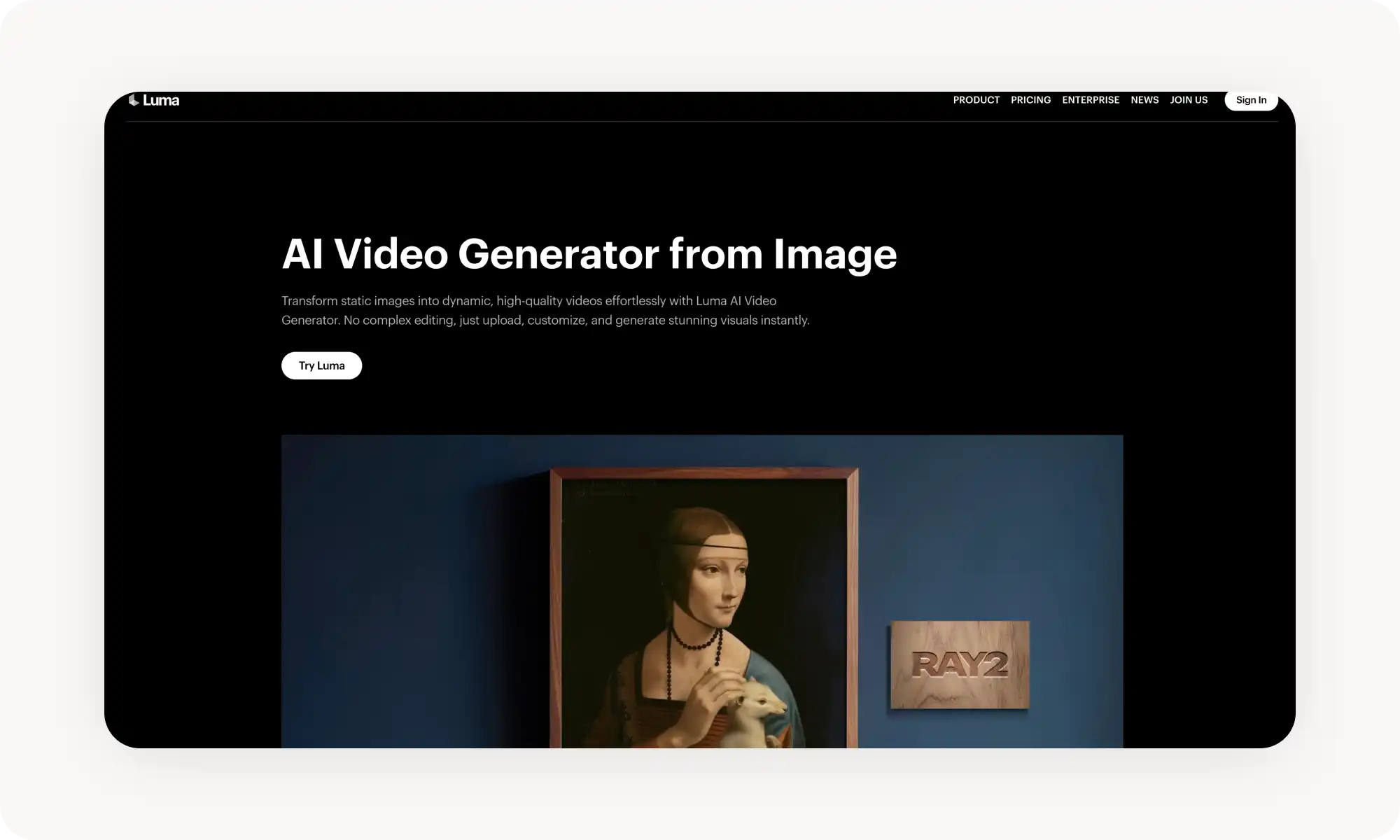
O modelo Ray3 da Luma Dream Machine entrega um movimento fisicamente realista com controle de quadro inicial e final, gera em ~15 segundos e oferece 30 gerações gratuitas por mês — mas os planos pagos ficam caros, a cerca de US$ 0,25 por tentativa.
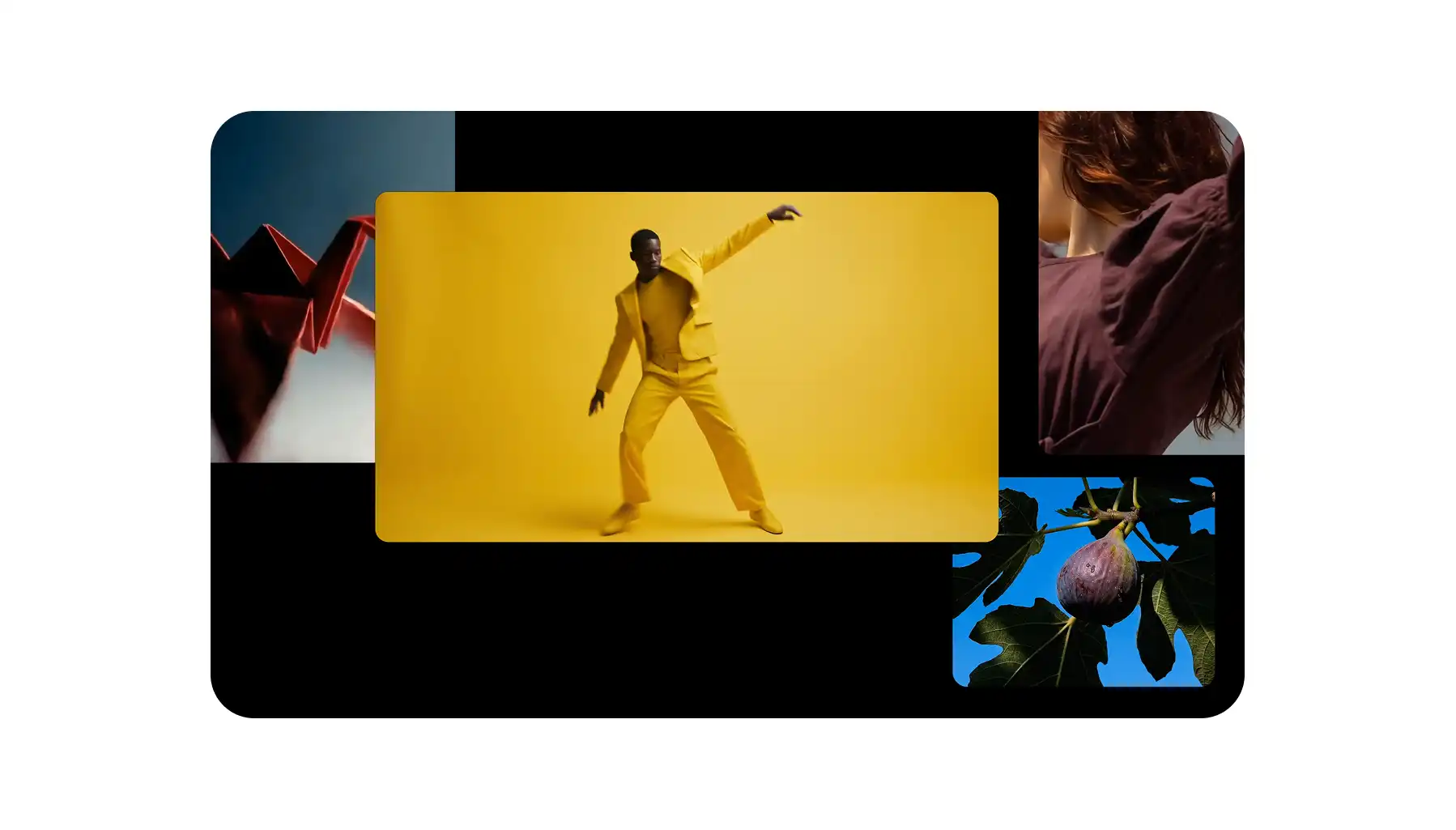
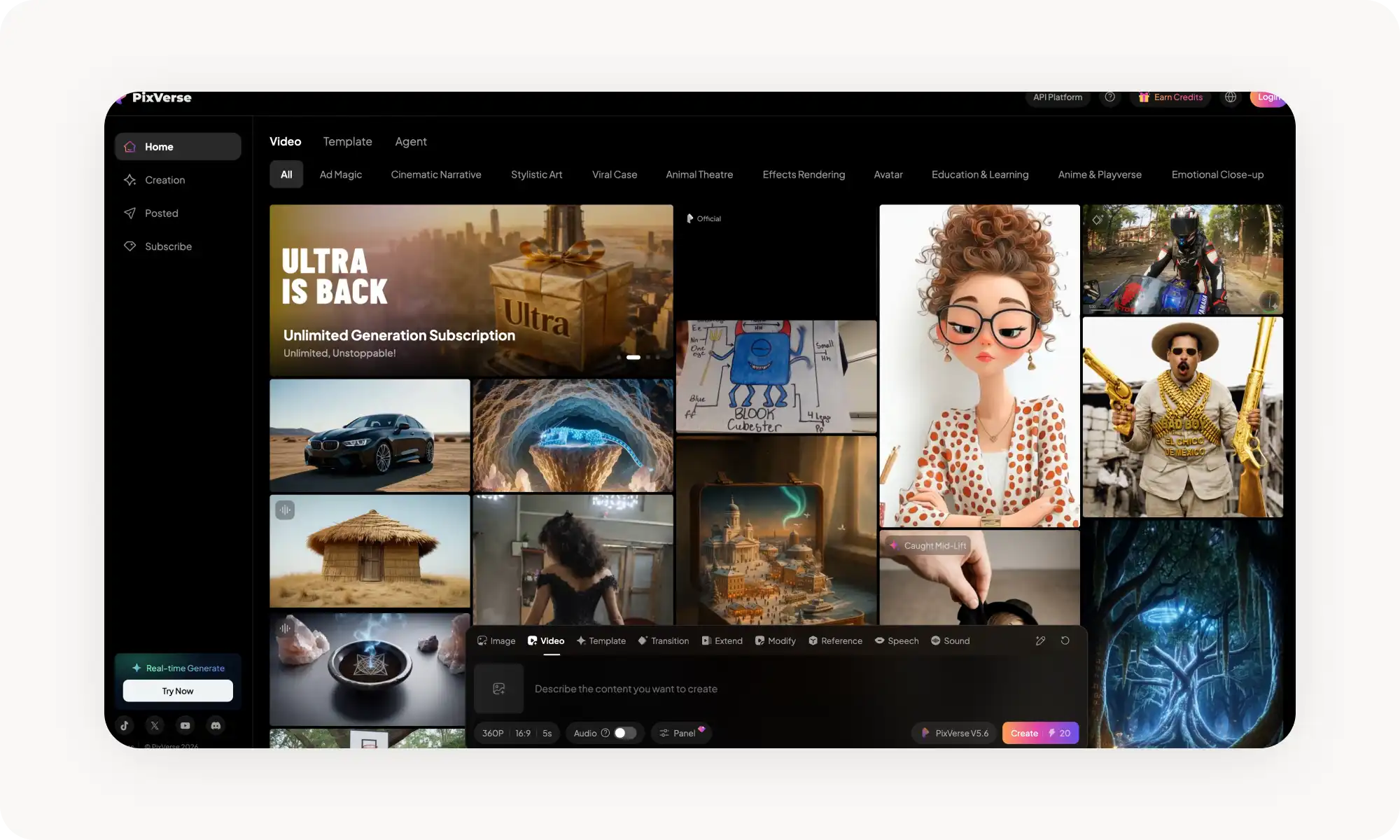
A PixVerse é conhecida pelos seus efeitos virais de IA (beijo, abraço, ficar musculoso) e pela consistência de personagens entre clipes, com geração rápida e planos pagos acessíveis a partir de US$ 10/mês, embora o plano gratuito seja limitado a 540p.
Os planos gratuitos de todas as ferramentas vêm com concessões — marca d'água, resolução menor ou número limitado de gerações — já que a geração de vídeo com IA exige muito processamento.
As plataformas que oferecem acesso a vários modelos dão a maior vantagem, permitindo que os usuários explorem diferentes estilos visuais e recursos sem pagar por assinaturas separadas.
O Que É um Gerador de Imagem para Vídeo com IA?
Uma ferramenta de imagem para vídeo é um gerador de vídeo com IA que recebe uma imagem como entrada. No outro extremo estão as ferramentas de texto para vídeo, que recebem apenas um prompt de texto como entrada, mas a de imagem para vídeo recebe os dois.
A imagem geralmente é usada como quadro inicial, e a IA anima o restante da cena de acordo com a instrução escrita. Recentemente, vimos surgir novas ferramentas que também permitem anexar elementos e imagens de referência — os elementos costumam ser objetos para os quais você pode anexar várias fotos para mostrar à IA diferentes ângulos, e as referências são usadas para orientar informações de estilo, iluminação ou local. Independentemente do tipo de imagem, tudo isso é pensado para que você possa controlar a direção visual com extrema precisão.
Muitos modelos de geração de vídeo com IA suportam fluxos de imagem para vídeo: Sora 2, Kling o3, Seedance 2.0, PixVerse 1.5 e Veo 3.1 são apenas alguns exemplos.
É claro que todas essas ferramentas também recebem um prompt de texto como entrada, que é usado para controlar o que acontece no vídeo.
A maioria das ferramentas gera clipes entre 4 e 10 segundos de duração. Pode parecer pouco, mas você consegue facilmente juntar clipes ou estendê-los com os melhores extensores de vídeo com IA.
As 5 Melhores Ferramentas Gratuitas de Imagem para Vídeo com IA Comparadas
Aqui está uma comparação rápida das 5 melhores ferramentas em um relance:
Plataforma
Apps para Celular
Modelos Disponíveis
Duração Máxima do Vídeo
Marca d'água no Gratuito?
Planos Pagos a Partir de
Overchat AI
✓
7+ (Kling, Sora, Wan e outros)
~5–20s
✗
US$ 14,99/mês ou US$ 49,99/ano
Leonardo AI
✓
Motion 1.0/2.0, Kling e outros
~4s
✗
~US$ 12/mês
Hailuo AI
✓
Hailuo 02/2.3
6s
✓
US$ 14,99/mês
Luma Dream Machine
✓
Ray3
~5s
✓
US$ 29,99/mês
PixVerse
✓
PixVerse V5.5
~5s
✓
US$ 10/mês
Agora vamos analisar cada ferramenta em mais detalhe.
Overchat AI
A Overchat AI é uma plataforma de IA tudo-em-um onde você pode acessar os melhores modelos de imagem para vídeo de vários provedores, em vez de ficar preso a um só.
Com apenas uma conta, você tem acesso a Kling 3, Sora 2, Veo 3.1, Wan, Seedance 2.0 e mais.
Para usar o fluxo de imagem para vídeo, comece enviando uma imagem, escreva um prompt descrevendo o movimento que você quer, escolha um modelo e clique em Gerar.
A principal vantagem aqui é a enorme variedade de modelos de IA — todos eles produzem vídeos com diferentes estilos visuais, e poder alternar entre eles na hora permite que você explore diferentes direções estéticas.
Eles também diferem em recursos — por exemplo, o Kling o3 suporta elementos, mas o Sora 2 não. Por outro lado, o Sora 2 gera vídeos com som a partir de um único prompt, então você não só anima imagens como também faz os personagens nelas falarem.
Prós:
✅ Vários modelos de vídeo com IA em um só lugar
✅ Ferramentas de controle de movimento e imagem de referência
✅ Também faz texto para vídeo
Contras:
❌ Conta obrigatória (login com Google ou Apple)
❌ Os modelos premium custam mais créditos
Leonardo AI
O recurso de imagem para vídeo da Leonardo AI se chama Motion, e vem em duas versões: Motion 1.0 e Motion 2.0.
Como funciona: você gera ou envia uma imagem dentro da Leonardo e depois aplica a ferramenta Motion para animá-la.
A Leonardo também integra modelos de vídeo de terceiros, como Veo 3, Sora 2 e Kling, mas esses consomem tokens muito rápido e não são práticos no plano gratuito.
O plano gratuito oferece 150 tokens por dia, o que é suficiente para um punhado de gerações básicas de imagem e talvez uma ou duas animações com o Motion.
Prós:
✅ Modelos Motion próprios incluídos no plano gratuito
✅ Controle fino sobre a intensidade da animação
✅ Conjunto completo de geração de imagem + edição + animação em uma só plataforma
Contras:
❌ Conta obrigatória
❌ Os modelos premium esgotam os tokens rápido
❌ A ferramenta Motion produz clipes curtos, de apenas ~4 segundos
❌ O vídeo é um recurso secundário, não o foco principal da plataforma
Hailuo AI
A Hailuo AI foi criada pela MiniMax, uma empresa chinesa de IA, e é focada especificamente em geração de vídeo. Seus modelos (o Hailuo 02 e o mais novo Hailuo 2.3) são conhecidos por estarem entre os melhores do mundo em 2026, e é por isso que os incluímos nesta lista.
Para a imagem para vídeo, você envia uma foto e escreve um prompt descrevendo a ação. A Hailuo também tem uma ferramenta visual de controle de câmera — você define o movimento horizontal (pan), a inclinação (tilt) e o zoom em momentos específicos usando um editor de trajetória controlado pelo cursor.
O plano gratuito oferece créditos bônus diários e permite enfileirar até 3 tarefas por vez. A ressalva: os vídeos do plano gratuito são em 720p com marca d'água, e a geração pode ser lenta nos horários de pico (às vezes as filas passam de 30 minutos).
Prós:
✅ Uma das melhores IAs de geração de vídeo disponíveis
✅ Controle de câmera incrível
✅ Vozes integradas
✅ Vem com ferramentas de edição de vídeo
Contras:
❌ O plano gratuito tem marca d'água
❌ Pode ser muito lento nos horários de pico
❌ Máximo de 6 segundos por clipe no plano gratuito
Luma Dream Machine
A Luma Dream Machine é feita pela Luma AI, uma empresa fundada por ex-pesquisadores do Google.
Seu modelo atual (Ray3) é conhecido pela física realista — esse é um dos aspectos mais importantes na geração de vídeo com IA, pois faz os vídeos parecerem ter peso e vida.
A plataforma é baseada na web e suporta controle de quadro inicial e final, ou seja, você pode enviar duas imagens e fazer a IA gerar o vídeo que as conecta — um recurso útil para storyboards.
O plano gratuito oferece cerca de 30 gerações por mês. Os vídeos gratuitos têm marca d'água e não podem ser usados comercialmente.
Uma coisa que adoramos durante os testes é o quão rápida a Luma é — a geração costuma levar uns 15 segundos. A desvantagem é que fica cara se você precisa de muito conteúdo. No plano Standard, você paga cerca de US$ 0,25 por geração e, como muitas vezes você vai precisar de várias tentativas até conseguir um bom resultado, o custo efetivo por clipe utilizável é mais alto.
Prós:
✅ Geração rápida
✅ Movimento fisicamente realista
✅ Controle de quadro inicial/final
✅ Gerações gratuitas todo mês
Contras:
❌ Os vídeos gratuitos têm marca d'água
❌ Sem uso comercial no plano gratuito
❌ Os planos pagos são caros
❌ Sem ferramentas integradas de áudio/narração
PixVerse
A PixVerse viralizou graças aos seus efeitos de IA: beijo com IA, abraço com IA, músculos com IA e outros modelos voltados para redes sociais. Mas ela também tem uma ferramenta sólida de imagem para vídeo por baixo dos panos.
Você envia uma imagem, escreve um prompt, escolhe um estilo (realista, anime, massinha, 3D) e clica em gerar. A PixVerse V5.5 é o modelo atual, e é rápido — algumas gerações terminam em menos de 5 segundos.
A plataforma também suporta personagem para vídeo (você envia a imagem de um personagem e ela mantém a consistência entre os clipes) e tem suporte a sincronia labial.
O plano gratuito oferece 100 créditos iniciais mais 60 créditos de renovação diária. O vídeo do plano gratuito é limitado a 540p com marca d'água. Os planos pagos começam em US$ 10/mês no nível Standard (1.200 créditos, 720p, sem marca d'água) e vão até US$ 60/mês no Premium (15.000 créditos, 1080p).
Prós:
✅ Geração muito rápida
✅ Muitos efeitos integrados, como beijo, abraço e ficar musculoso
✅ Consistência de personagens entre clipes
✅ Bom custo-benefício, a partir de US$ 10/mês
Contras:
❌ O plano gratuito é em 540p com marca d'água
❌ Durações de vídeo curtas
❌ A qualidade visual não é tão alta quanto a de algumas outras ferramentas desta lista
Perguntas Frequentes (FAQ)
Qual é a melhor ferramenta de imagem para vídeo com IA?
A Overchat AI é a melhor ferramenta de imagem para vídeo porque ela dá acesso a vários modelos de vídeo (Kling, Sora, Veo, Wan, Seedance, Runway), além de efeitos (os mesmos que você encontra na PixVerse) em uma única interface. Ela também inclui controle de movimento e até permite editar vídeos com linguagem natural.
Como animar uma foto com IA?
Para começar, basta enviar a sua imagem para uma ferramenta de imagem para vídeo com IA como a Overchat AI, escrever um prompt curto descrevendo o que você quer que aconteça no vídeo e clicar no botão Gerar. A IA vai produzir um clipe de vídeo curto — geralmente de 5 a 20 segundos — em que a sua imagem ganha vida.
A IA de imagem para vídeo é realmente gratuita?
Em geral sim, mas com algumas ressalvas. O problema é que a geração de vídeo com IA é muito cara e consome muito poder de processamento, então os provedores normalmente oferecem um plano gratuito limitado em que a qualidade do vídeo não é tão alta quanto a que o modelo consegue produzir no máximo da sua capacidade. Você pode testar essas ferramentas de graça, mas, para liberar todo o potencial delas, é melhor assinar um plano pago.
Por causa disso, as plataformas que oferecem acesso a vários modelos de geração de vídeo com IA têm uma grande vantagem — você pode testar ferramentas de vários provedores sem precisar pagar por assinaturas separadas, o que pode ficar bem caro, variando de US$ 10 a US$ 50 por mês dependendo da ferramenta e do quanto você a usa.
Conclusão
Com as ferramentas de IA de imagem para vídeo, você consegue facilmente transformar uma foto estática em uma animação com a sua própria história, movimento de câmera, movimento e até diálogo. A tecnologia moderna de vídeo com IA já é incrível, mas o campo ainda é jovem — em um futuro próximo, os vídeos gerados por IA serão indistinguíveis da realidade.
Principais conclusões:
As ferramentas de IA de imagem para vídeo usam modelos de difusão de vídeo para gerar movimento realista a partir de uma foto estática.
A maioria das plataformas oferece planos gratuitos limitados, então você pode testar essas ferramentas sem pagar nada adiantado.
Modelos diferentes lidam melhor com tipos diferentes de imagem, então ter acesso a vários modelos (como na Overchat AI) é uma grande vantagem.
Para usar essas ferramentas, envie a sua imagem e descreva o que você quer que aconteça em um prompt de texto — quanto mais detalhe você fornecer, mais perto o resultado vai ficar da sua visão.